Your first day
The providers of your office and their documents: who needs attention, a provider's record, a document waiting to be verified, a new provider, a reminder, a message. The screens are from a demonstration agency; everyone in them is fictional.
-
Sign in
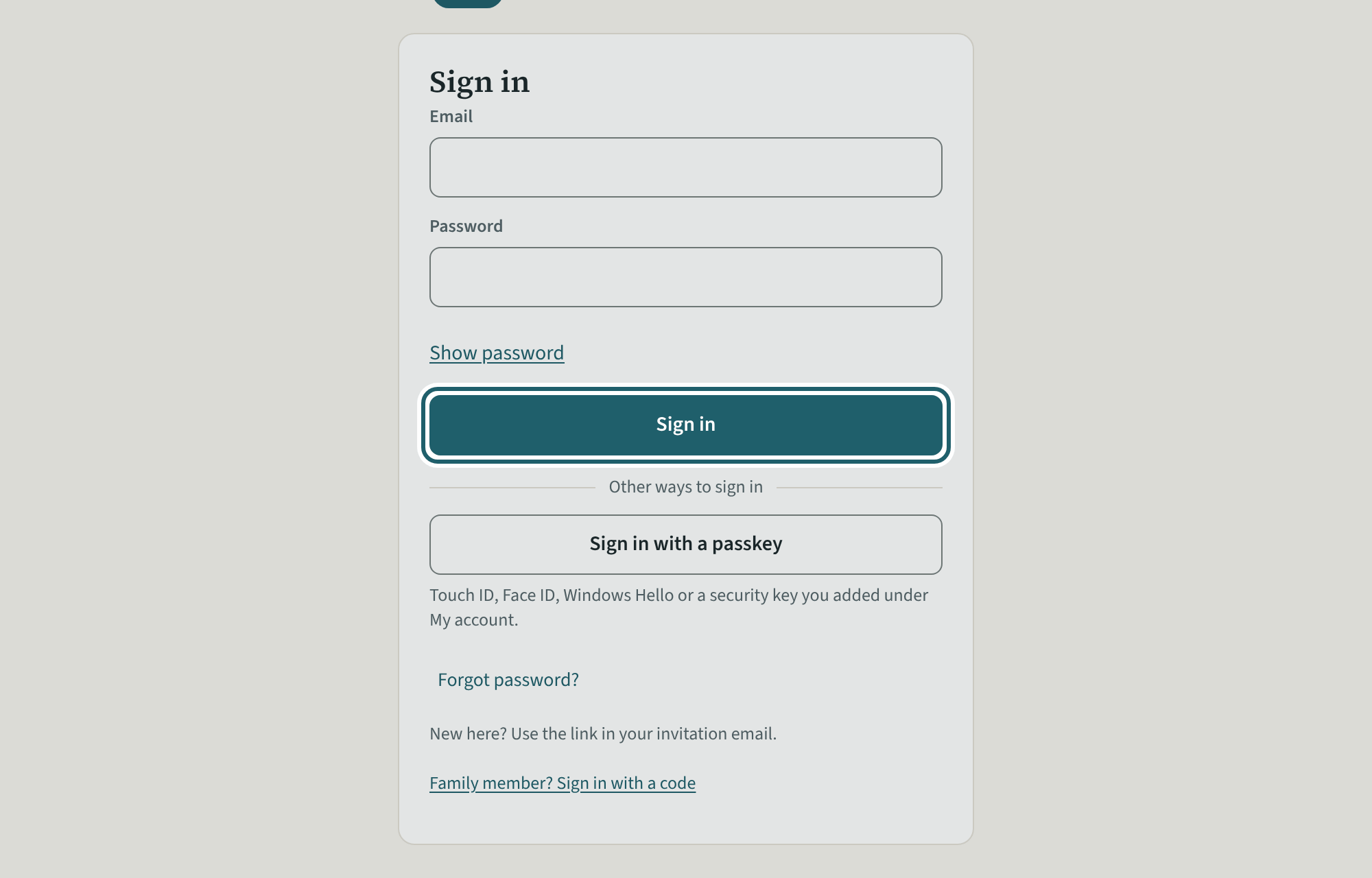
Open the link in your invitation email and choose a password. After that, sign in with your email and that password.
Watch out: Your menu is short on purpose. Office staff do not record in the homes, in children's files or in incidents, and do not see children's health information.
-
The dashboard
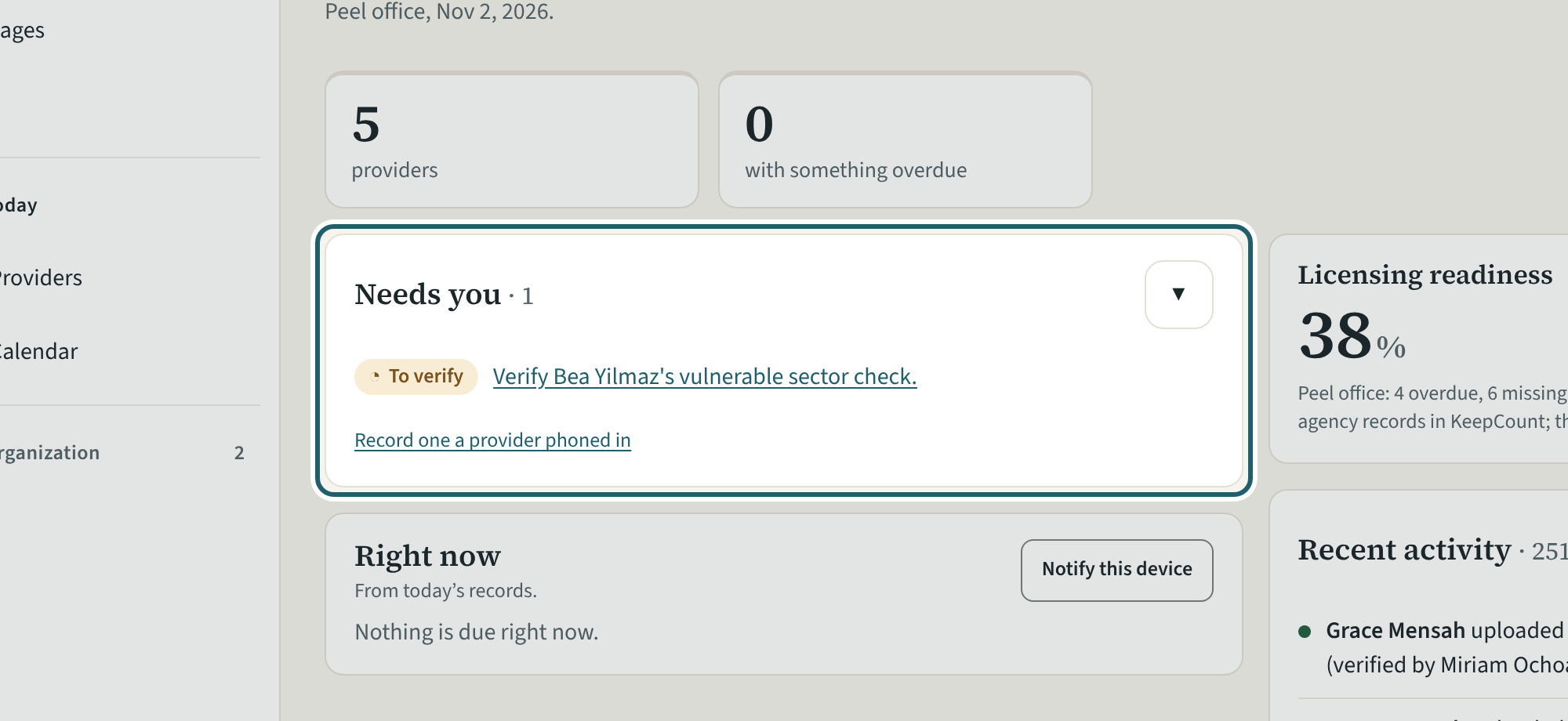
The dashboard for your office: how many providers, how many have something overdue, Needs you, what is due right now, and recent activity.
-
Providers
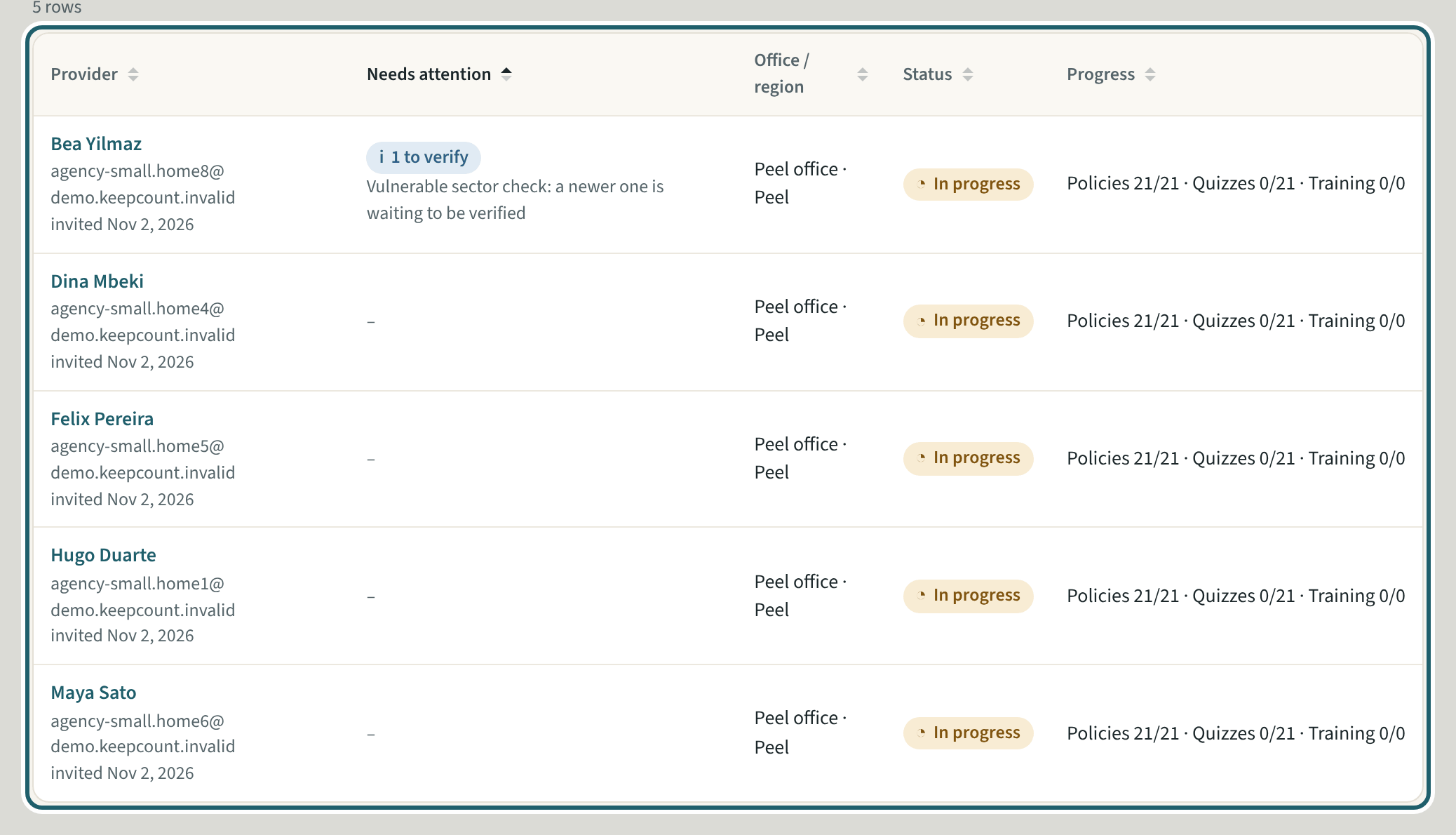
Providers lists everyone your office has invited, with what needs attention, the office, the status and the progress.
Watch out: This list is people, not homes. The homes themselves, and the children placed in them, are kept by the agency's administrators.
-
Add a provider
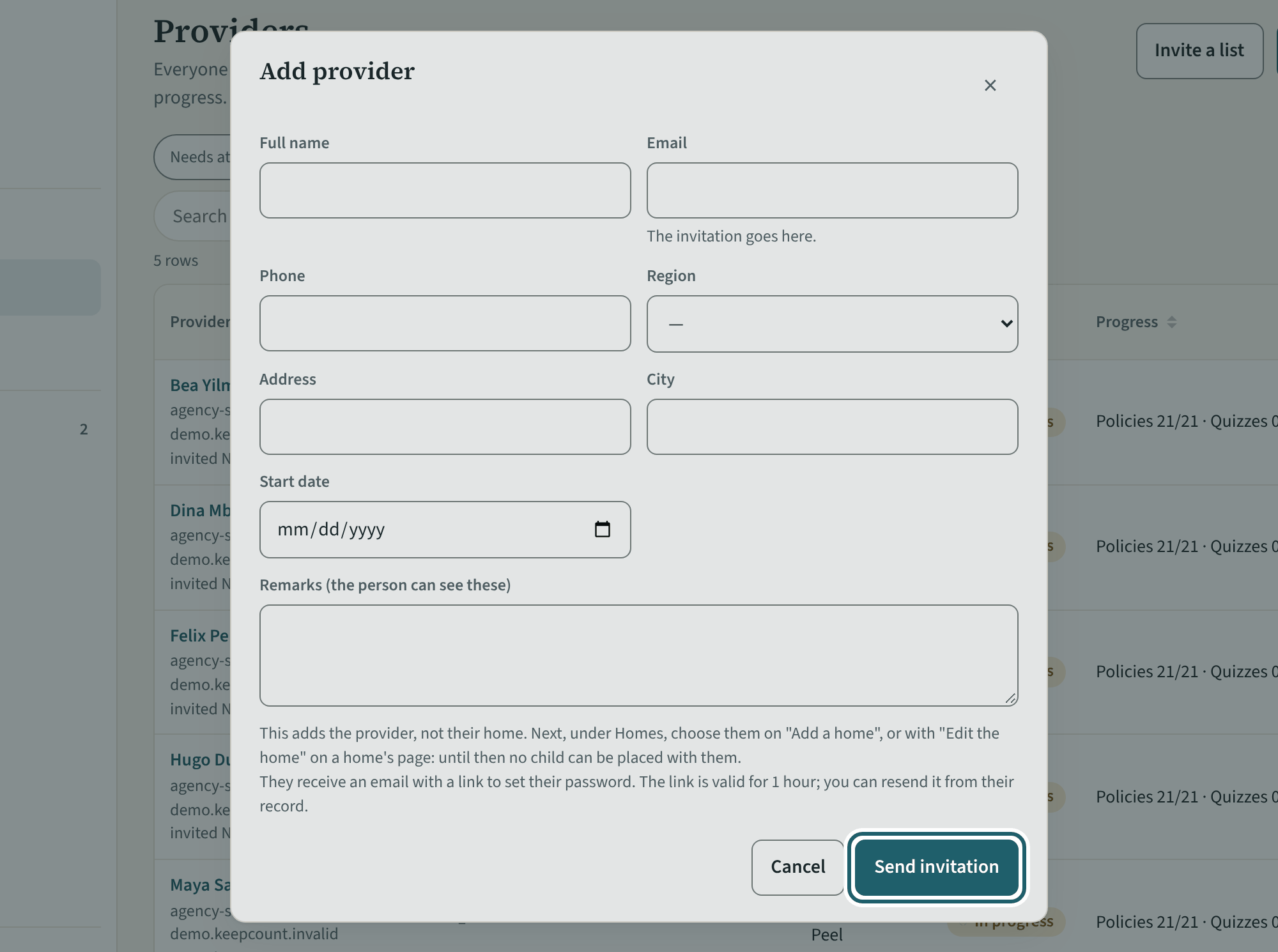
"Add provider": the name, the email, the region and the start date. Their invitation goes out when you save.
Watch out: This adds the provider, not their home: an administrator adds the home and chooses the provider on it, and until then no child can be placed with them.
-
A provider's record
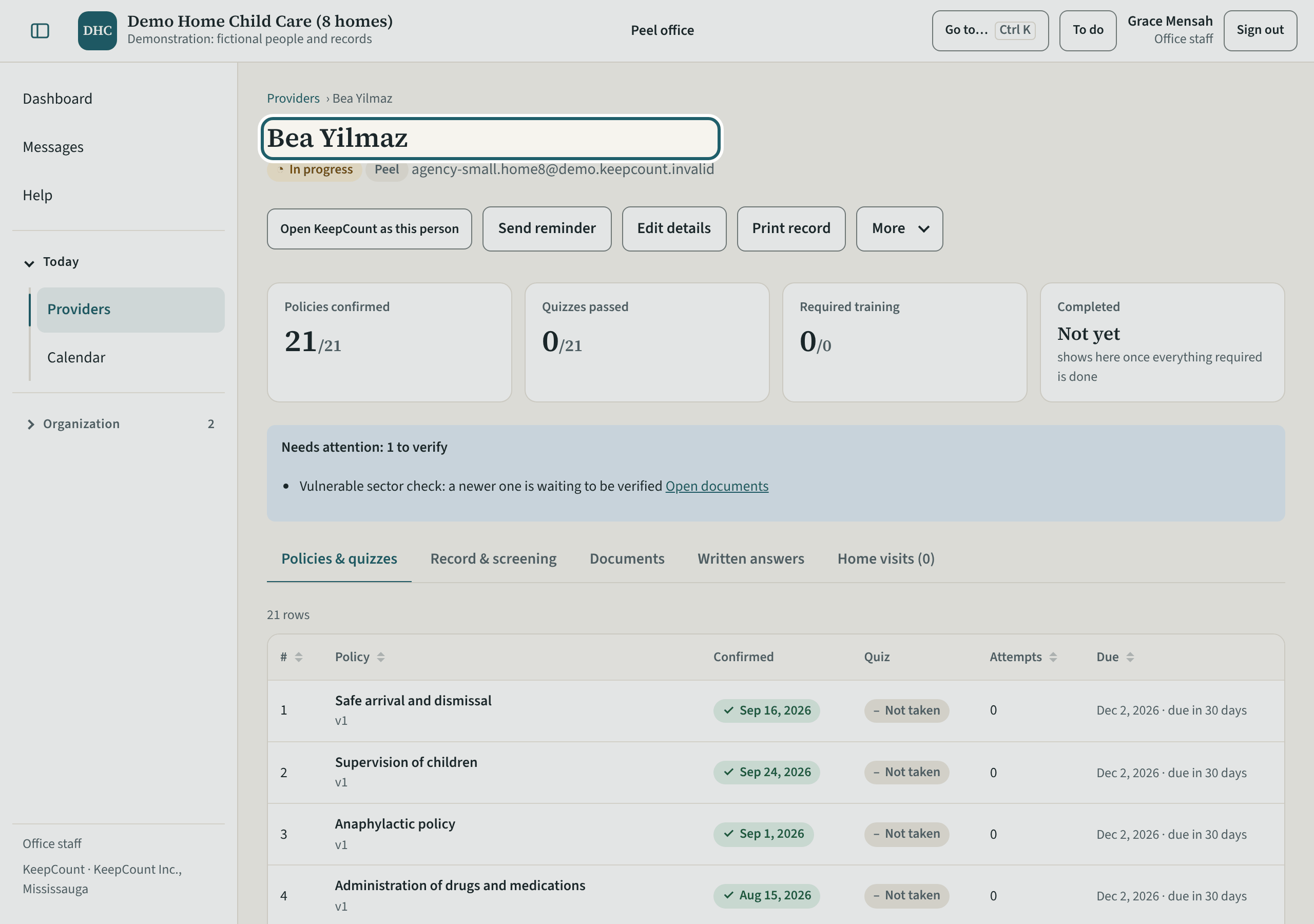
A provider's record: their progress, then five tabs: Policies & quizzes, Record & screening, Documents, Written answers and Home visits.
Watch out: A provider of another office is managed at that office, and an owner's or an administrator's record is not yours to change.
-
The screening dates
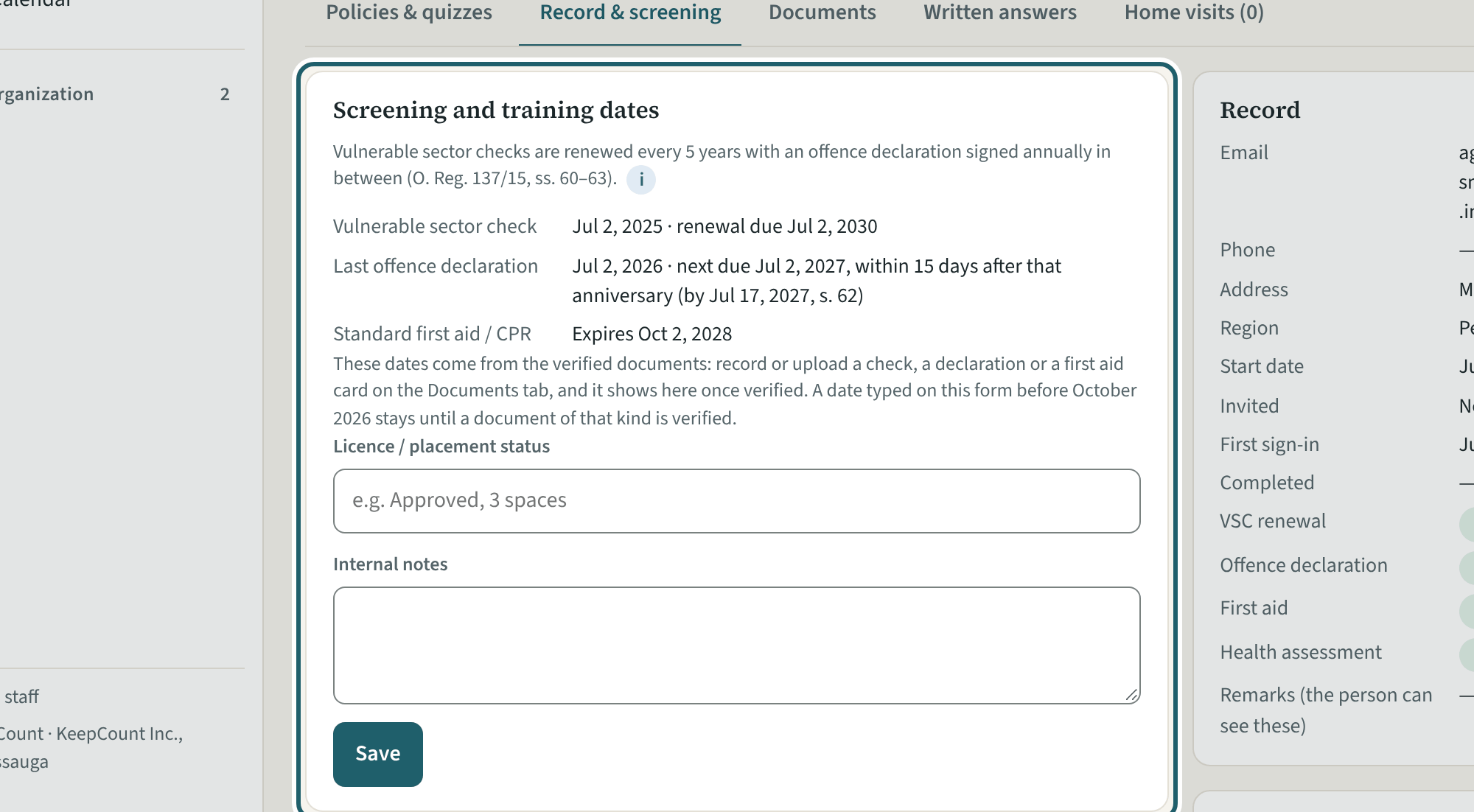
Record & screening: the vulnerable sector check, the last offence declaration, the first aid expiry, the licence or placement status and notes.
Watch out: The dates come from the verified documents: type a date only for a document kept on paper. Internal notes are never read by the provider.
-
A document awaiting verification
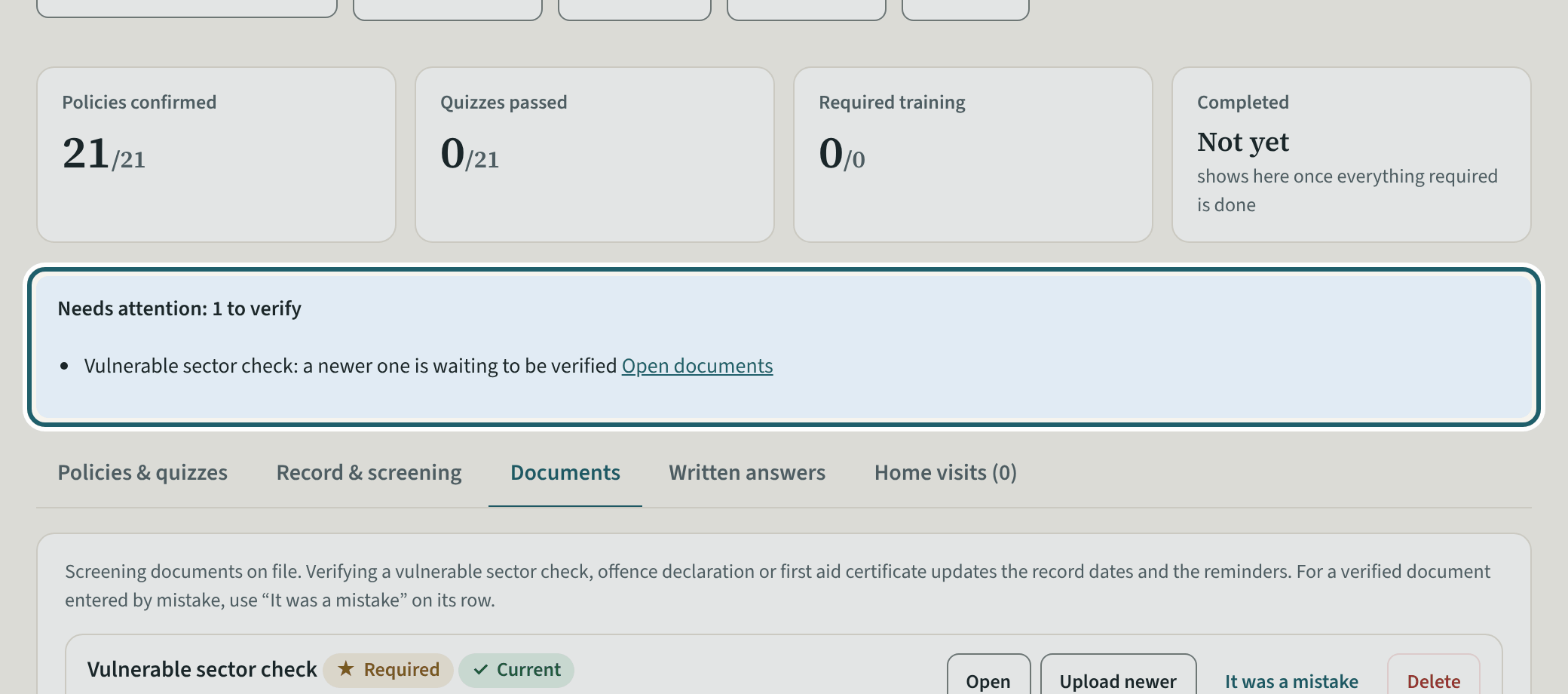
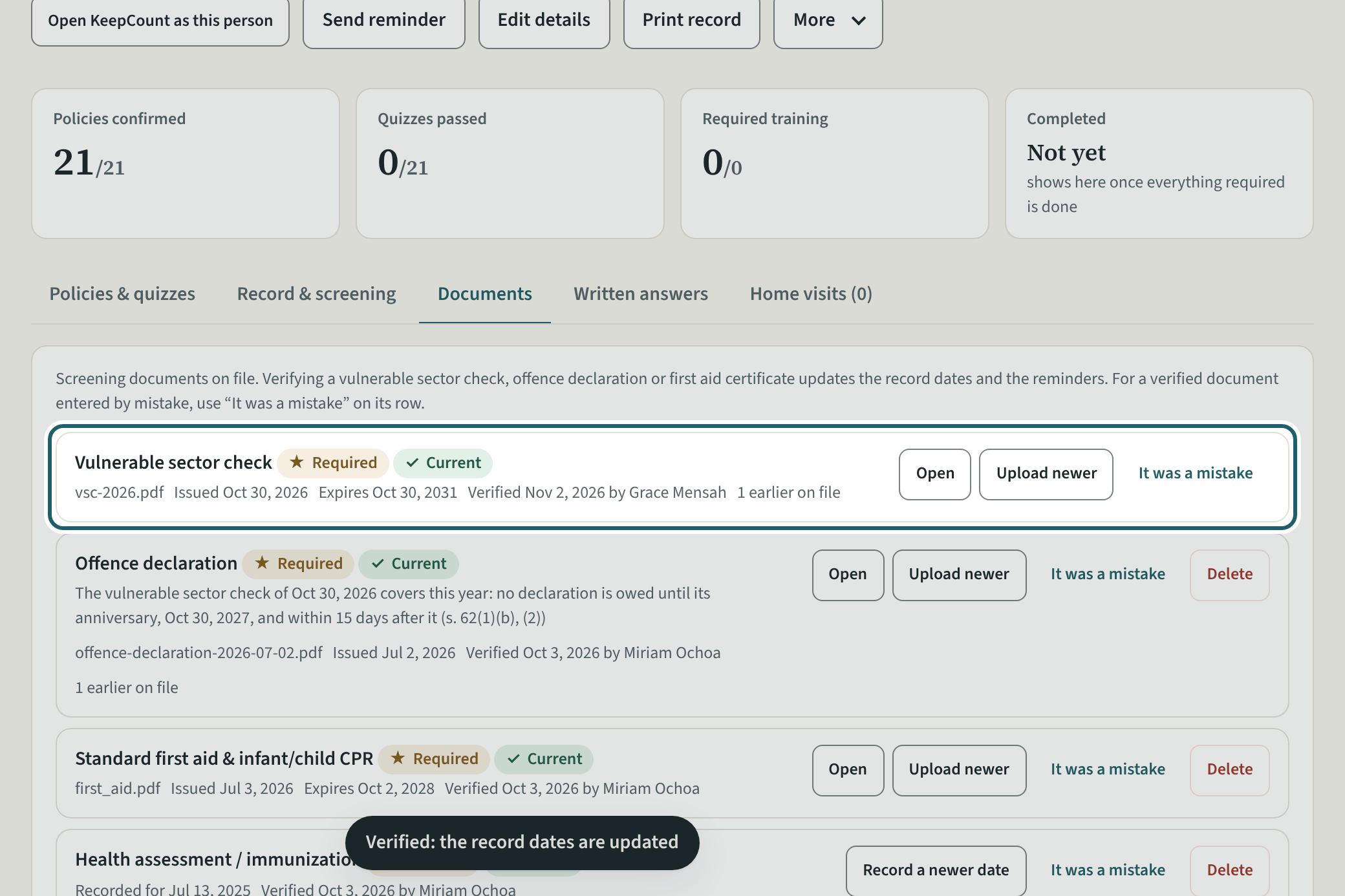
Needs attention: "a newer one is waiting to be verified", with Open documents; on the Documents tab the new document has Open and Verify.
Watch out: "Open" shows the file through a link that lasts ten minutes, and every opening is logged. A document you uploaded yourself is verified by someone else.
-
Verify it
"Verify": the dates and reminders update from the document, and the provider's record shows who verified it and when.
Watch out: Verifying is your signature that the document was seen against the original: Needs you and the provider's progress change on their own.
-
Reminders and the record
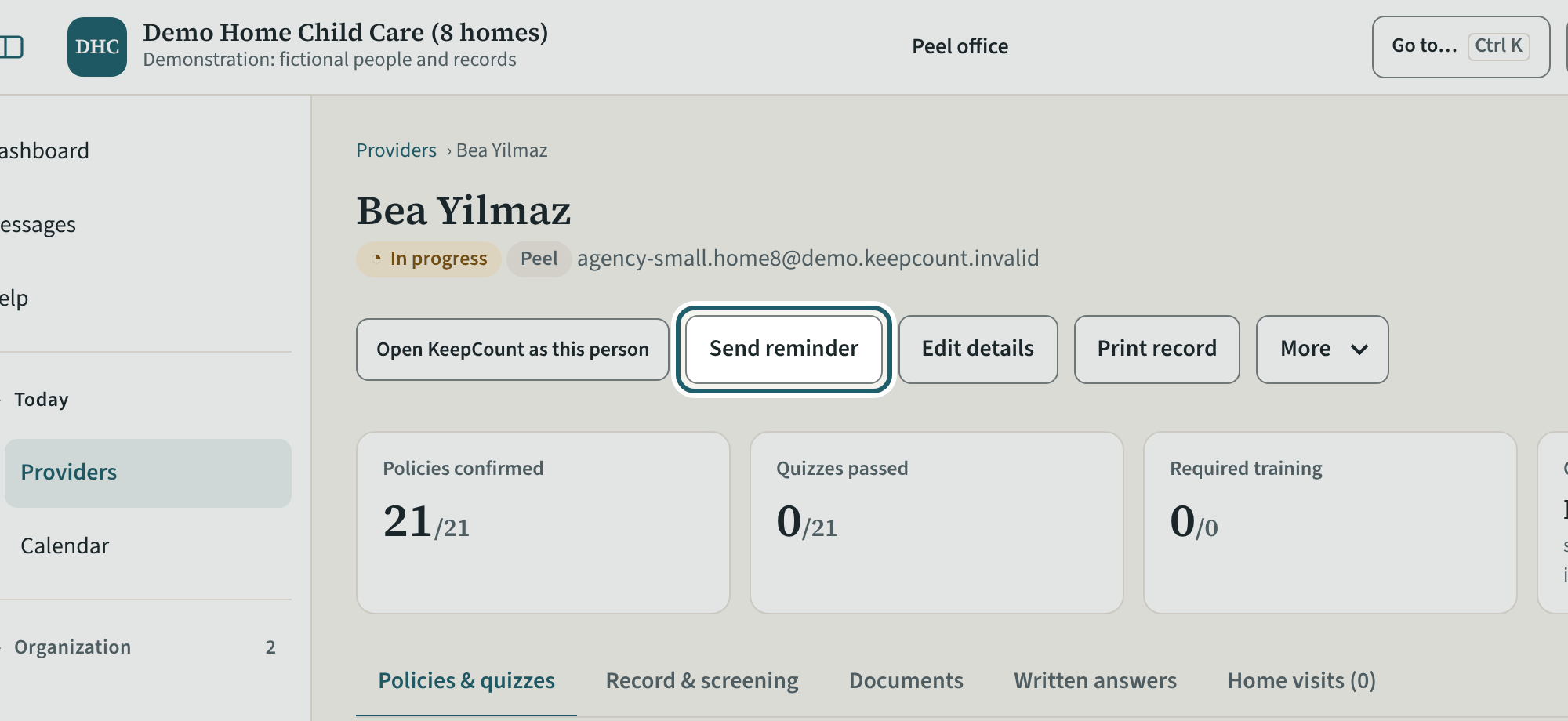
On a record: Send reminder, Print record, Edit details, and under More Change sign-in email and Deactivate.
Watch out: "Deactivate" only pauses a sign-in; "Remove access" is for someone who has left, and the records stay for three years after they are made.
Your first week
Messages, the calendar, your own training, your account, and Help.
-
Messages
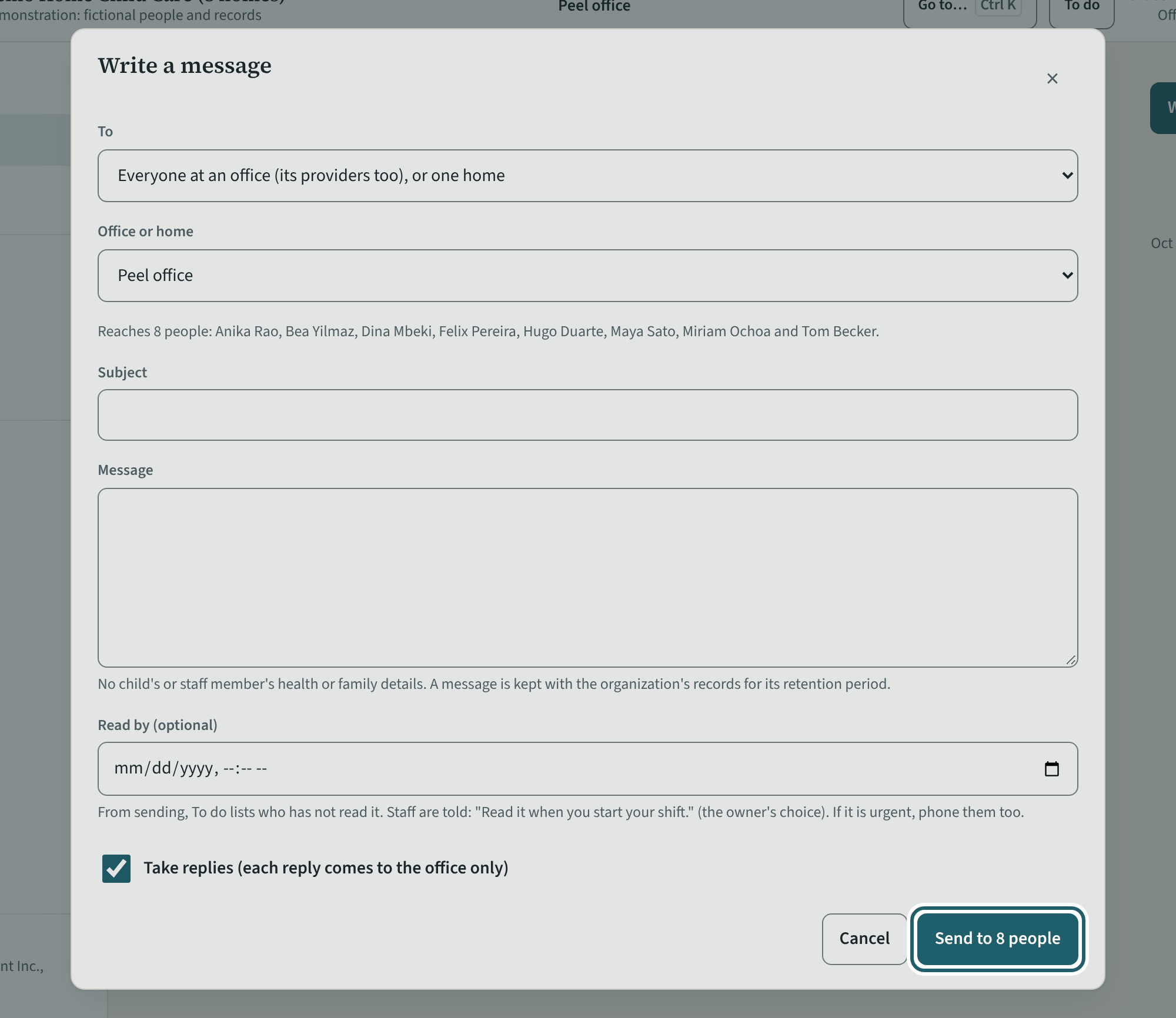
Messages: write to your office, one of its homes, its providers or named people there; each sees it on their home screen, and replies come back to the office.
Watch out: No child's health details in a message: it is kept with the organization's records for the retention period. Replies come to the office only.
-
The calendar
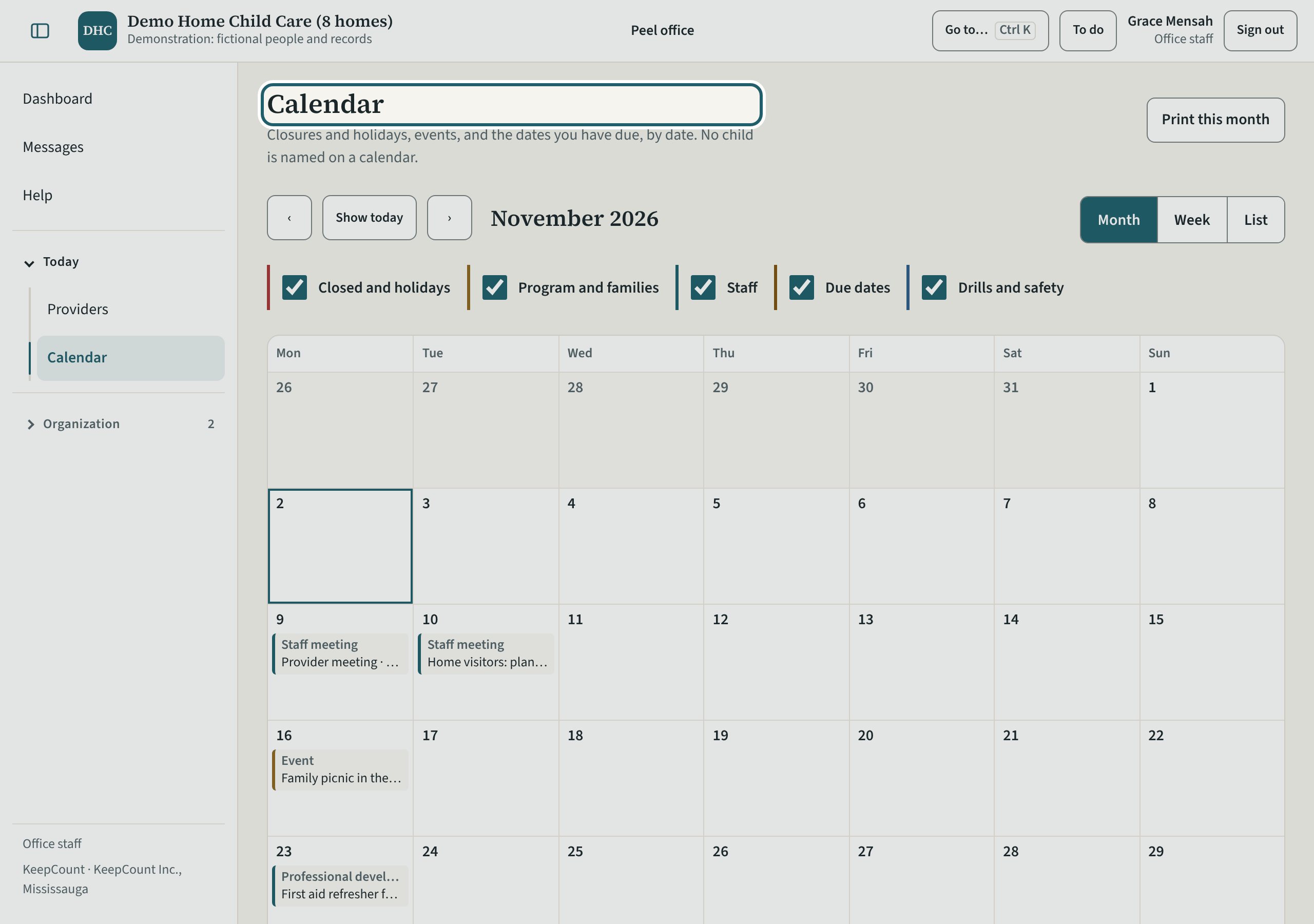
The calendar, read-only: closures and holidays, events, staff dates, due dates, drills and safety, by month, week or list.
Watch out: No child is named on a calendar.
-
My training
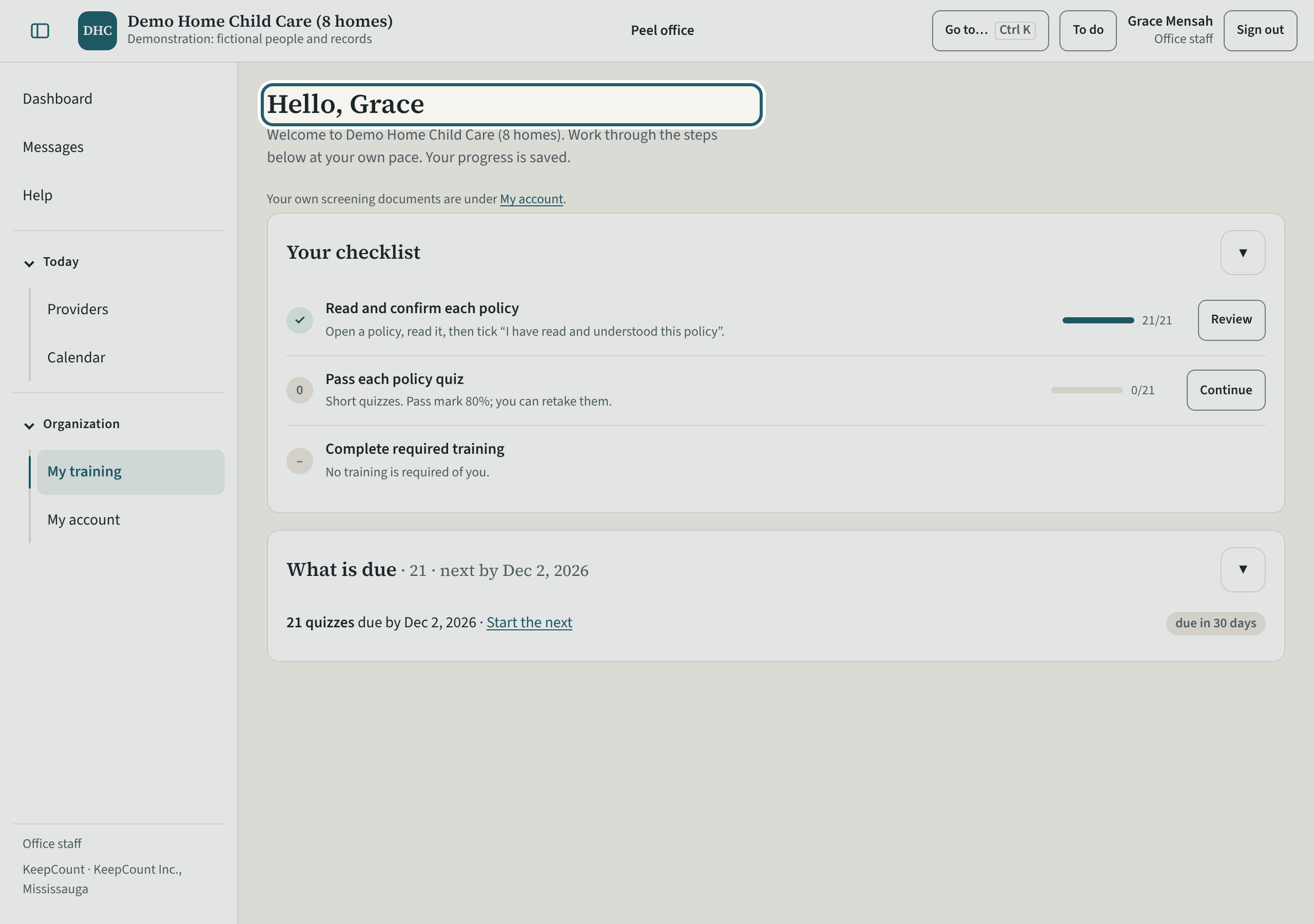
My training: your own policies to read and confirm, your quizzes and training, and your screening documents.
Watch out: Another administrator verifies your own documents; completion shows on your record when everything required is done.
-
My account
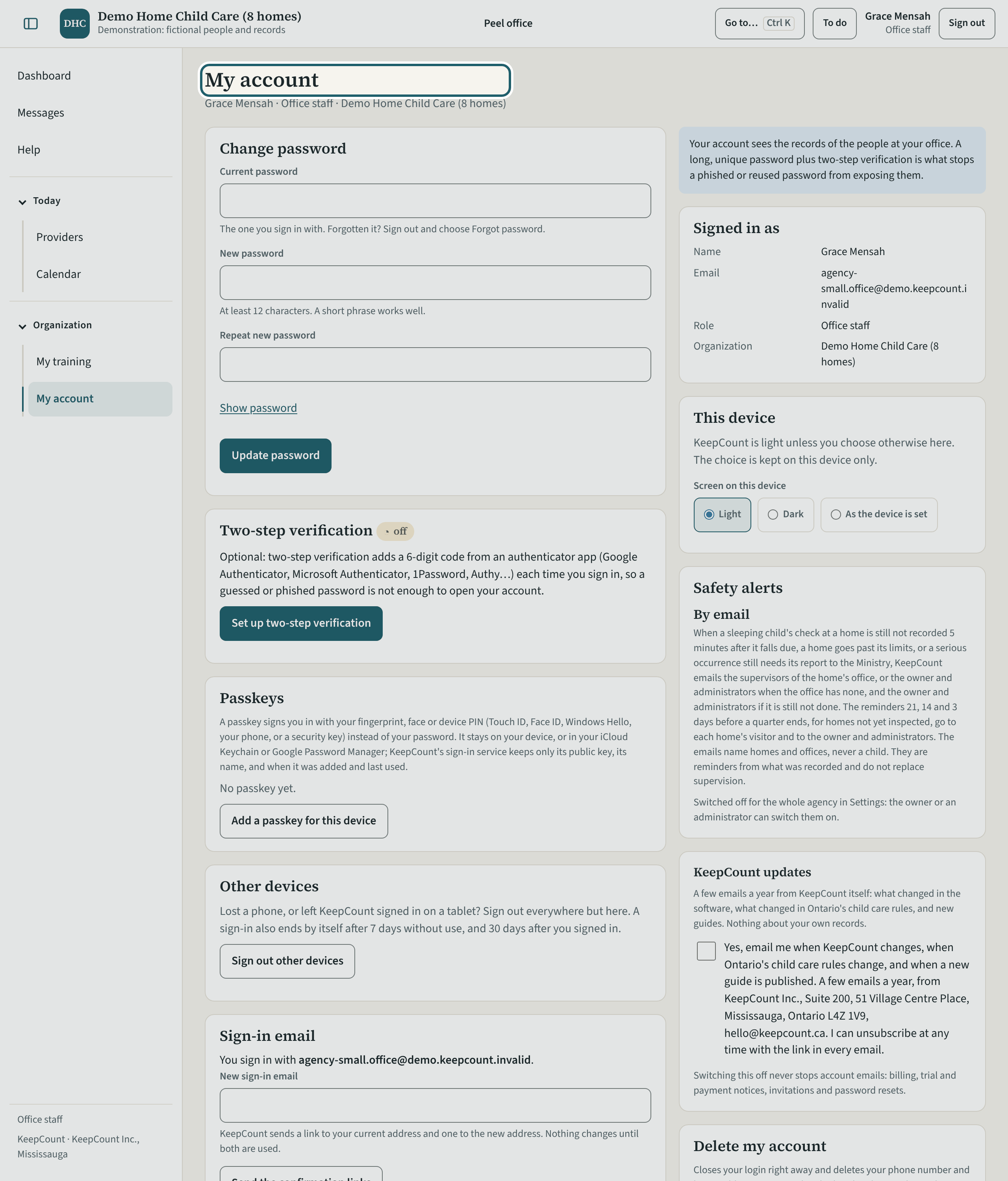
My account: your sign-in email, your password, two-step verification, a passkey for this device, your own documents, and the KeepCount updates switch.
-
Help
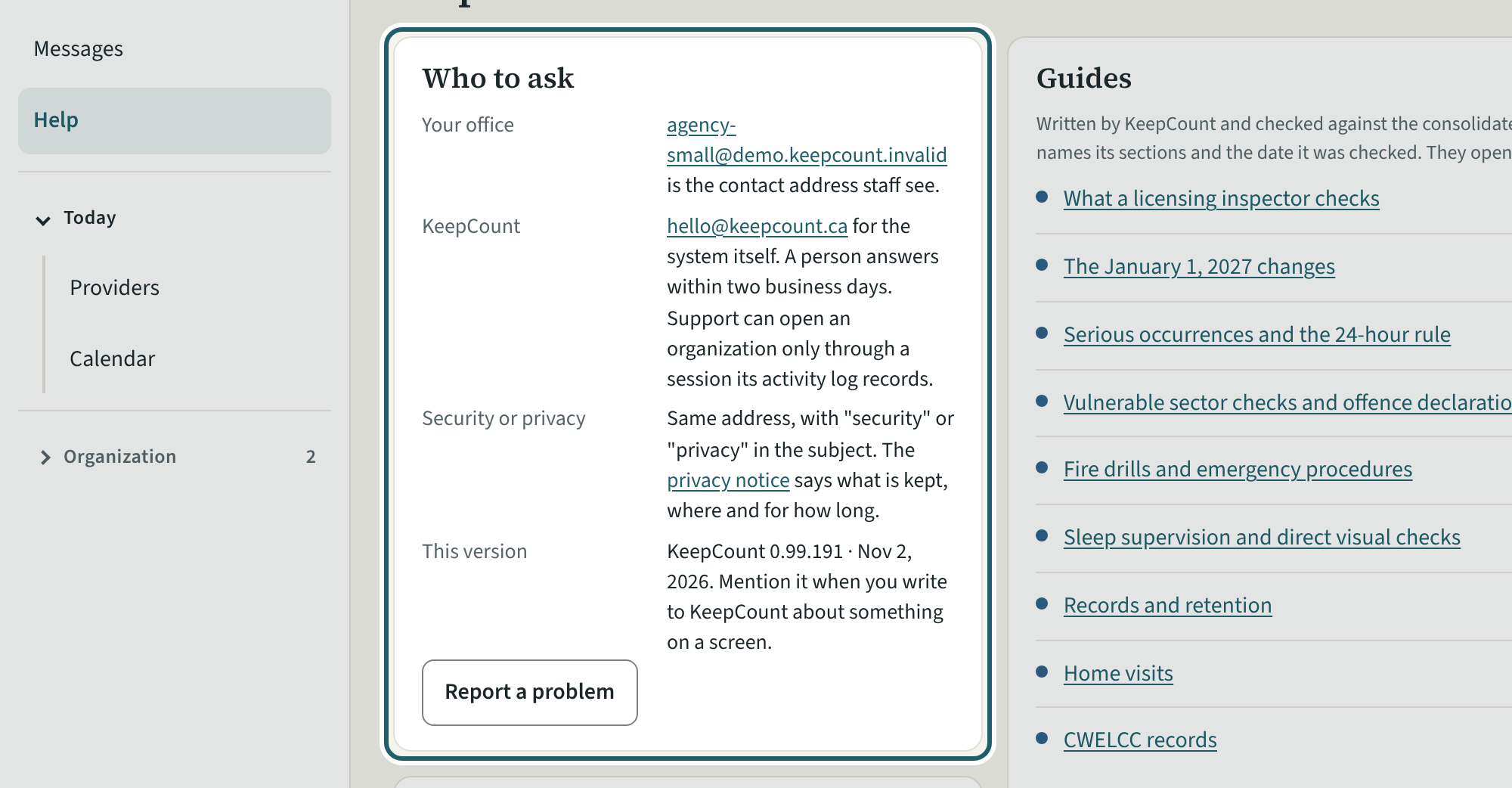
Help: the guides to the regulation, the glossary, who to ask, and Report a problem.
Watch out: "Report a problem" goes to KeepCount support only, never to your agency: say what you did and what you saw, without anyone's record.