Your first day
Choosing your office, reading the dashboard, setting the agency up, and the people and homes: the offices, who has a login, the homes, the providers and the home visitors. The screens are from a demonstration agency with two offices; everyone in them is fictional.
-
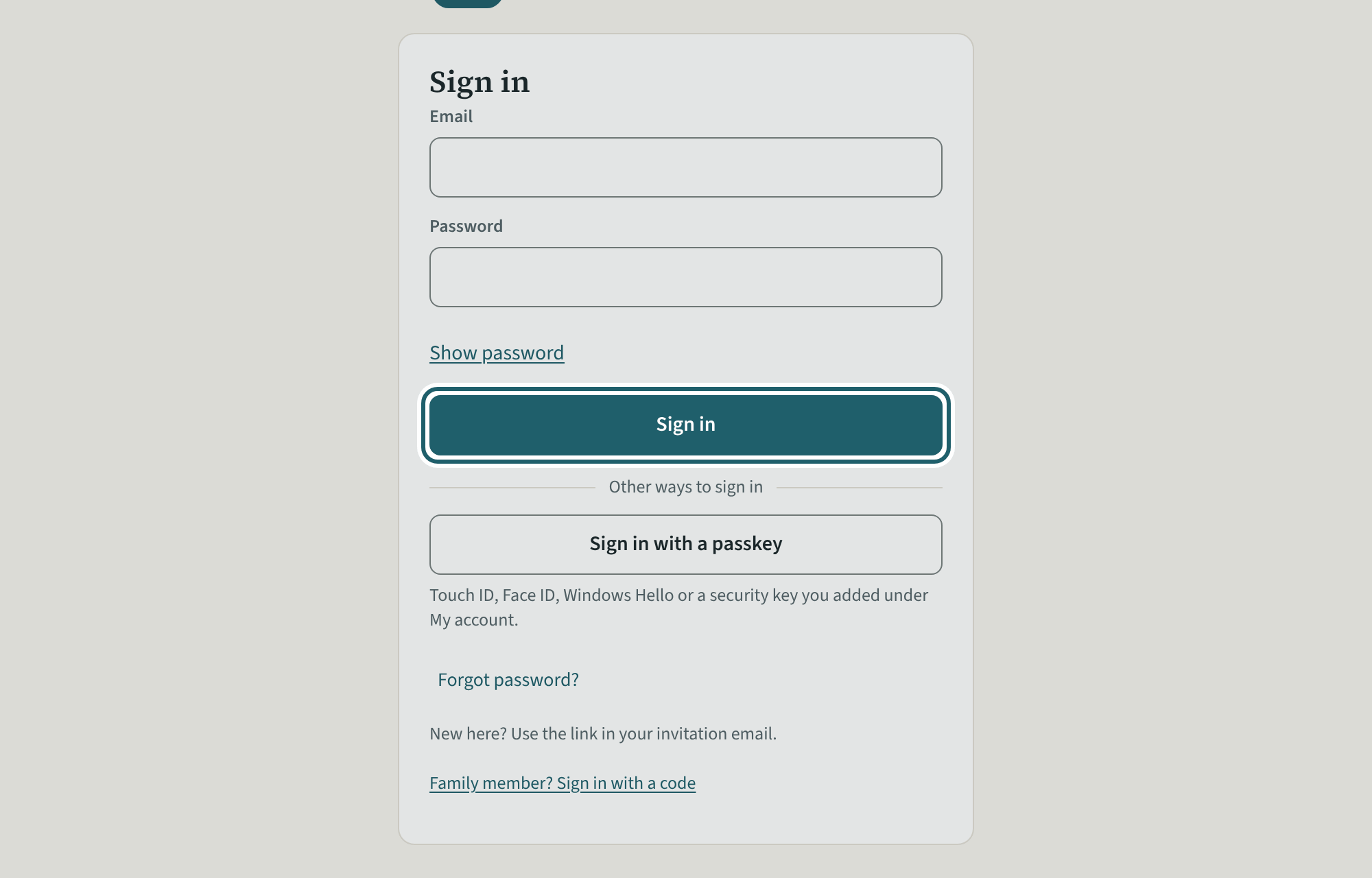
Sign in
Sign in with your email and your password. Sign out at the top right when you leave a shared computer.
Watch out: An owner or administrator sees every office's records. Use your own login, never someone else's: the activity log names who did what.
-
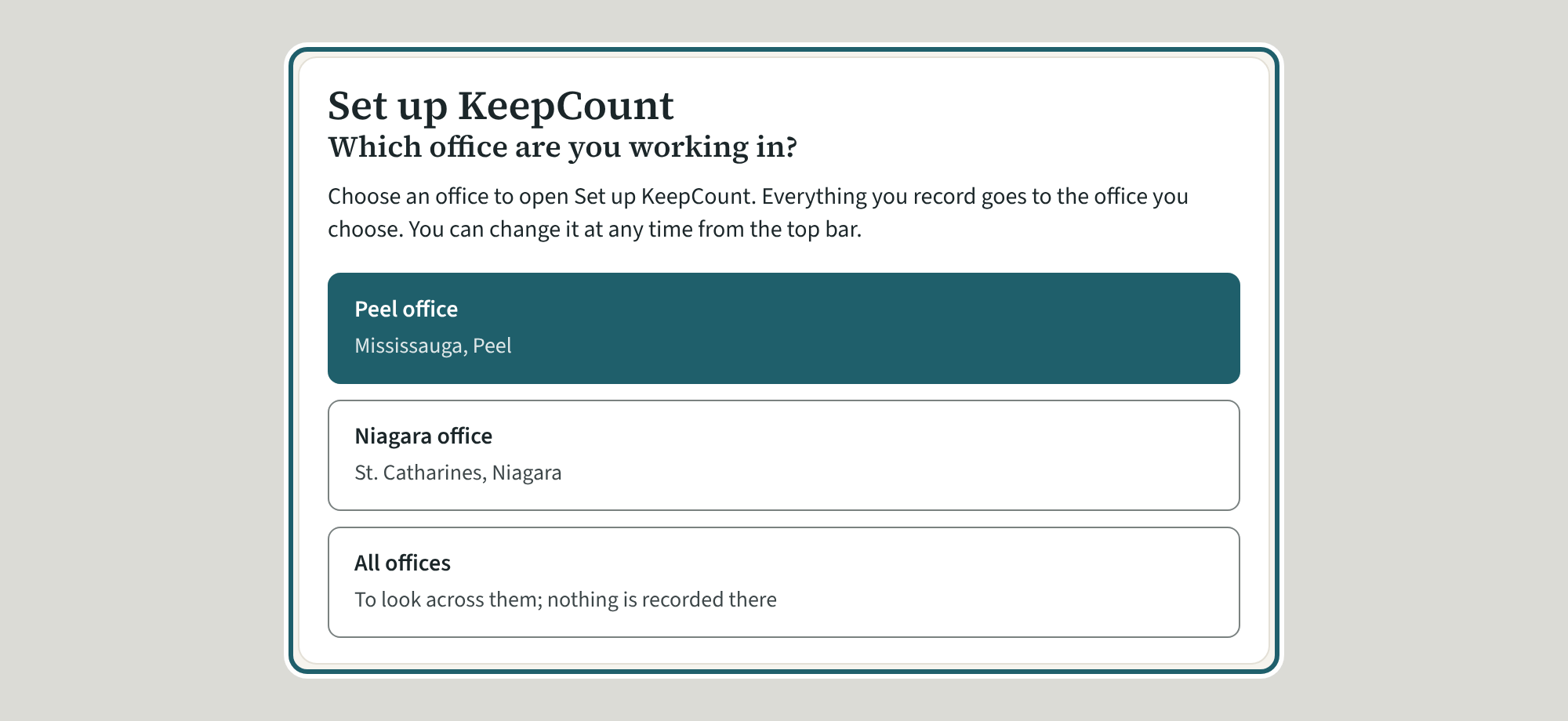
Choose your office
Choose the office you are working in, or "All offices" to look across them. The choice stays in the top bar, where you can change it at any time.
Watch out: Everything you record goes to the office you choose. "All offices" is for looking across: nothing is recorded there.
-
The dashboard
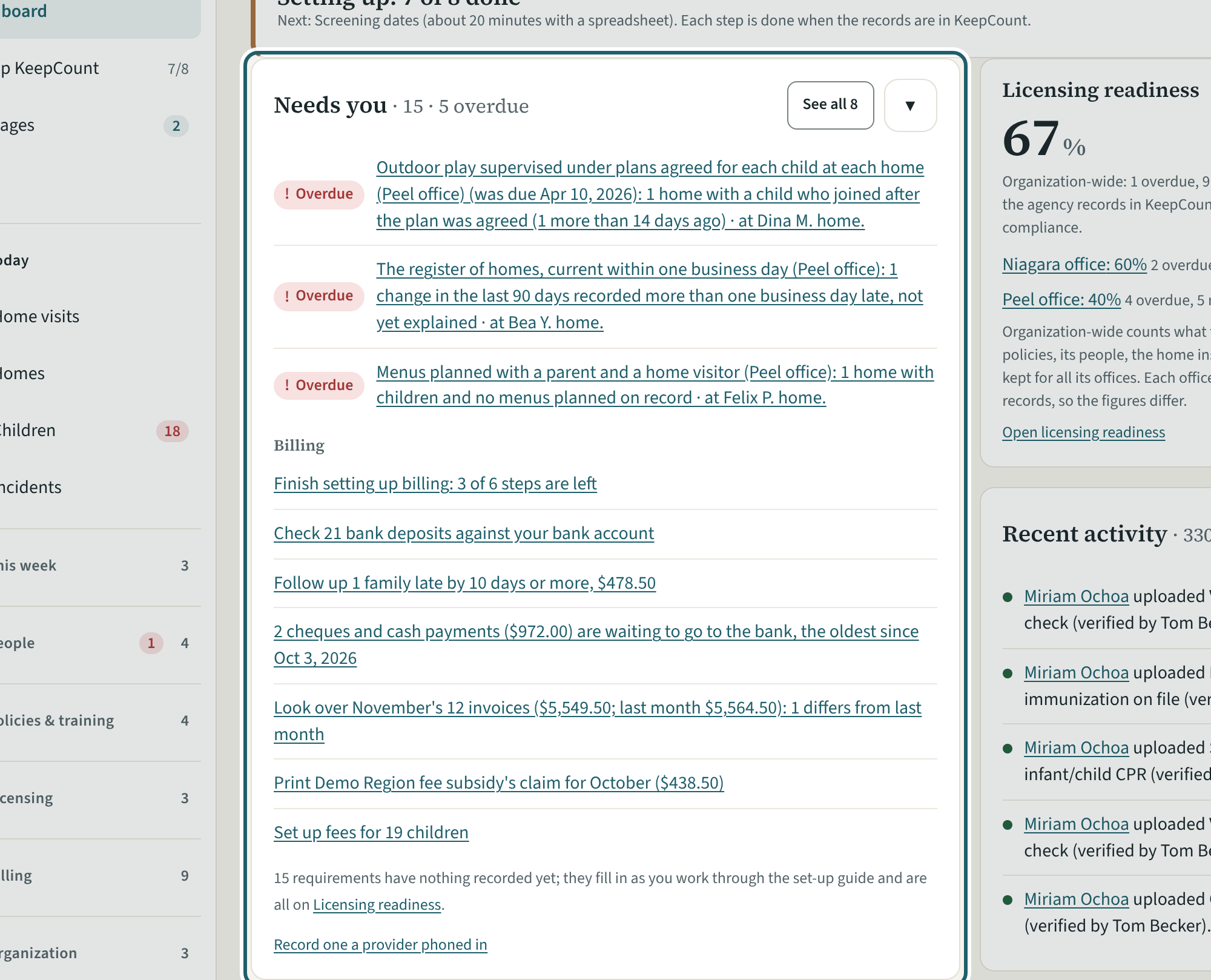
The dashboard: homes active, not inspected this quarter, due or late now, incidents open; then Needs you, Billing, the readiness score and recent activity.
Watch out: Needs you lists what is late or missing at any office, with the office and the home it is at. The Ministry decides compliance, not the score.
-
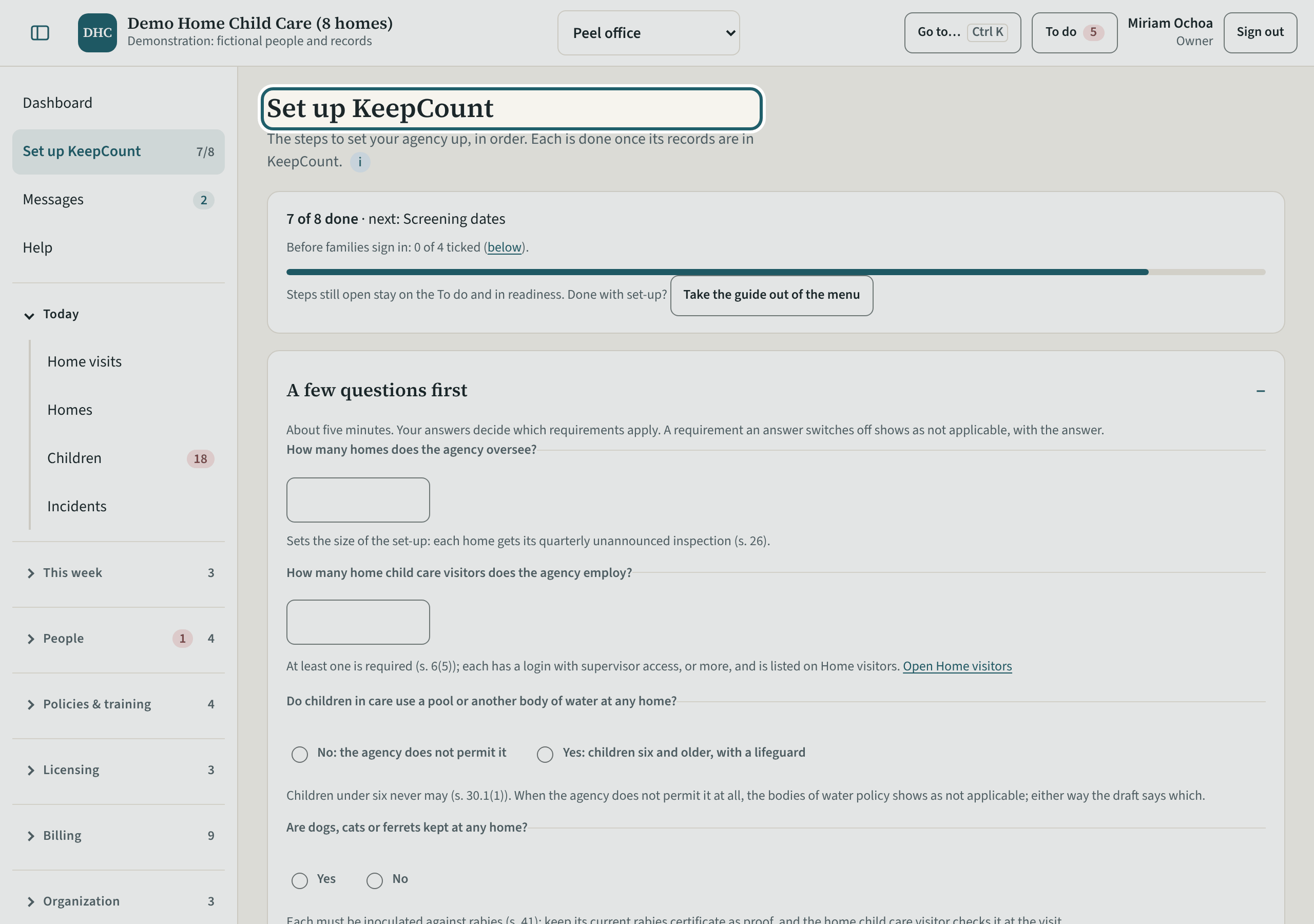
Set up KeepCount
Set up KeepCount: five minutes of questions, then the steps in order. Each step is done once its records are in KeepCount.
Watch out: Your answers decide which requirements apply: a requirement an answer switches off shows as not applicable, with the answer, rather than disappearing.
-
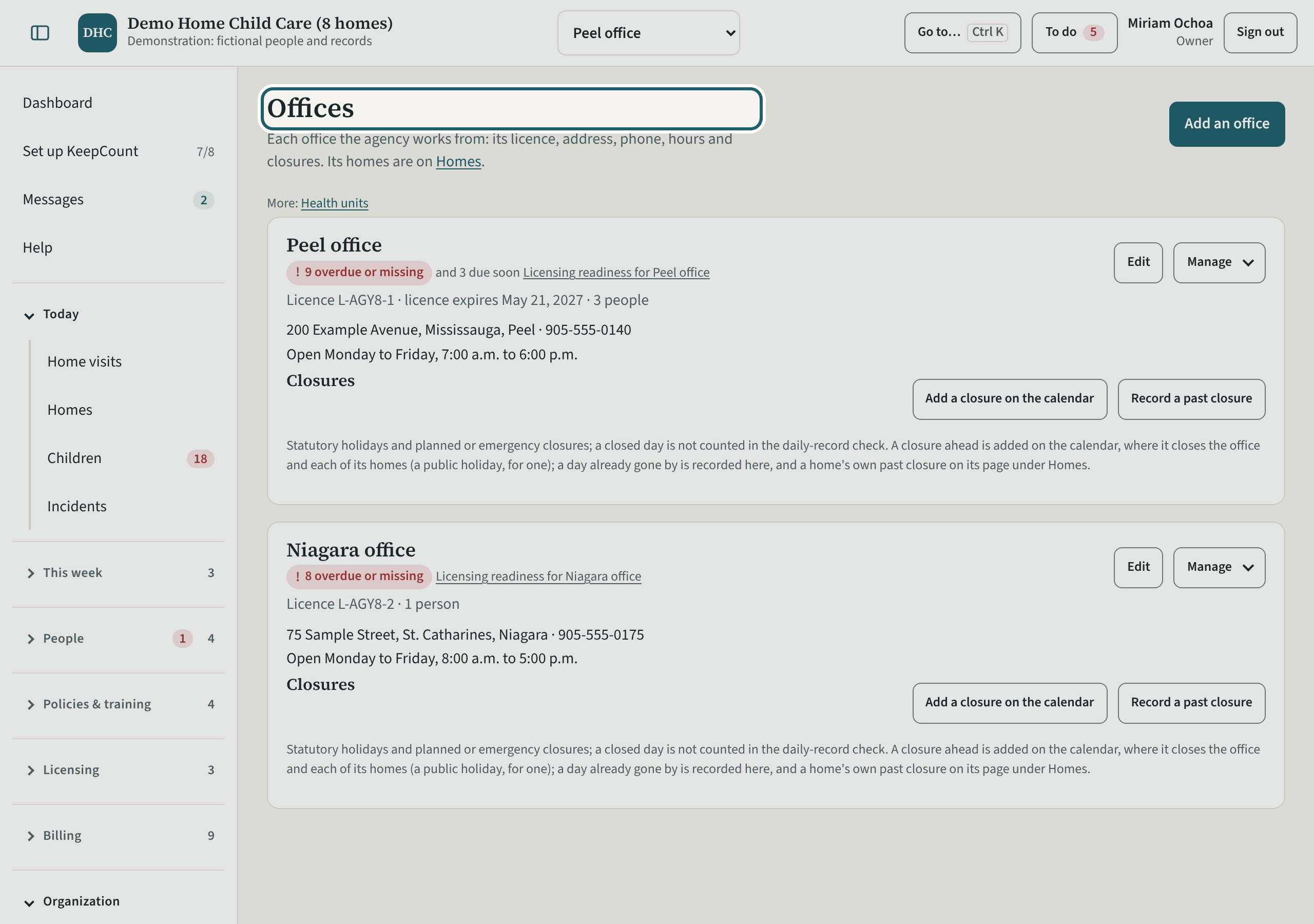
Offices
Offices: each office the agency works from, with its licence, address, phone, hours and closures. Its homes are on Homes.
Watch out: A closure ahead goes on the calendar, where it closes the office and each of its homes. A day already gone by is recorded here, with "Record a past closure".
-
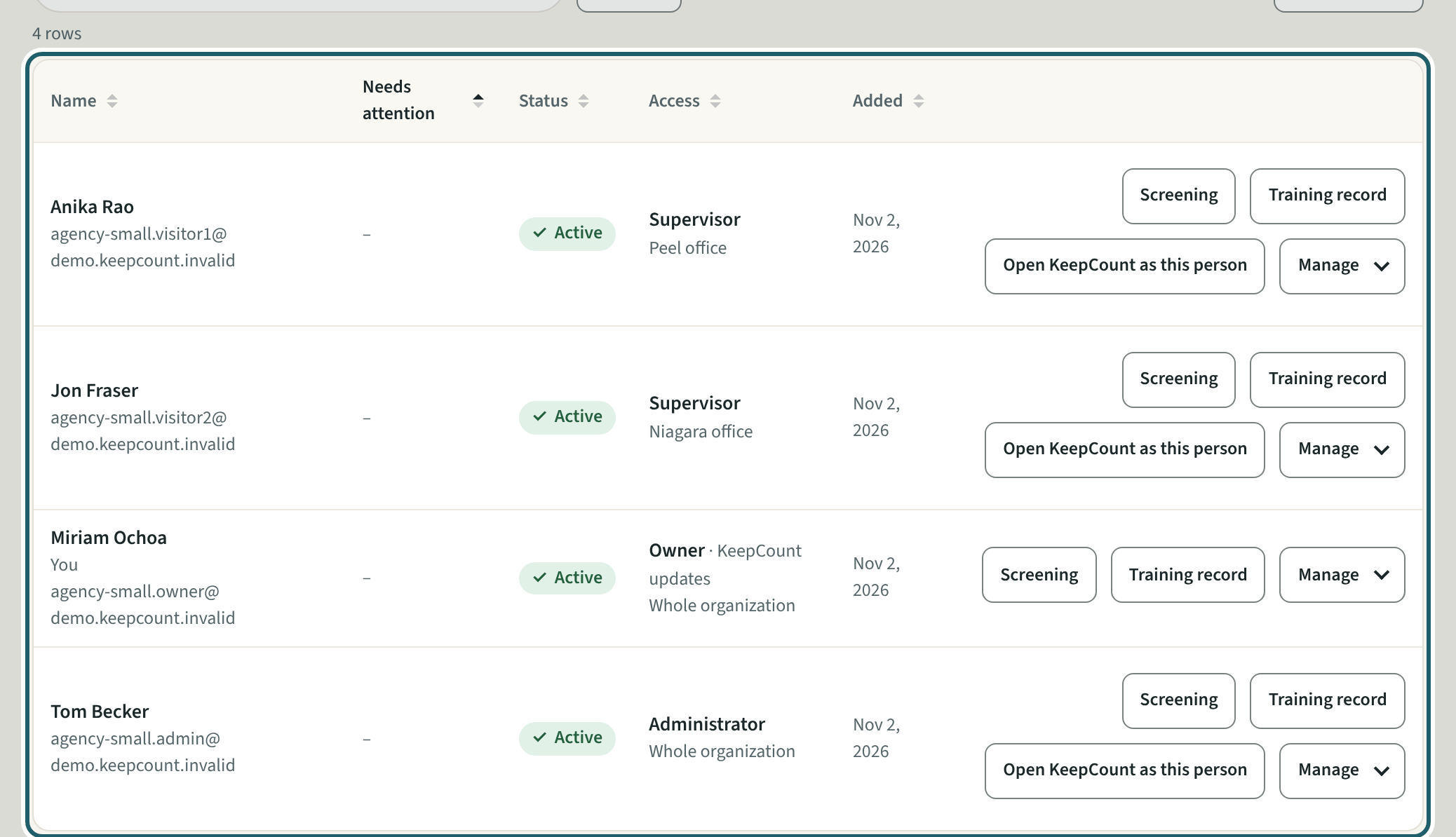
Logins and access
Logins and access: everyone with access to the admin panel, each with their own login. Add a login for an administrator, a home visitor or office staff.
Watch out: An office staff login sees the providers of one office and their documents, not the children's files or the incidents. Give each person only the access the work needs.
-
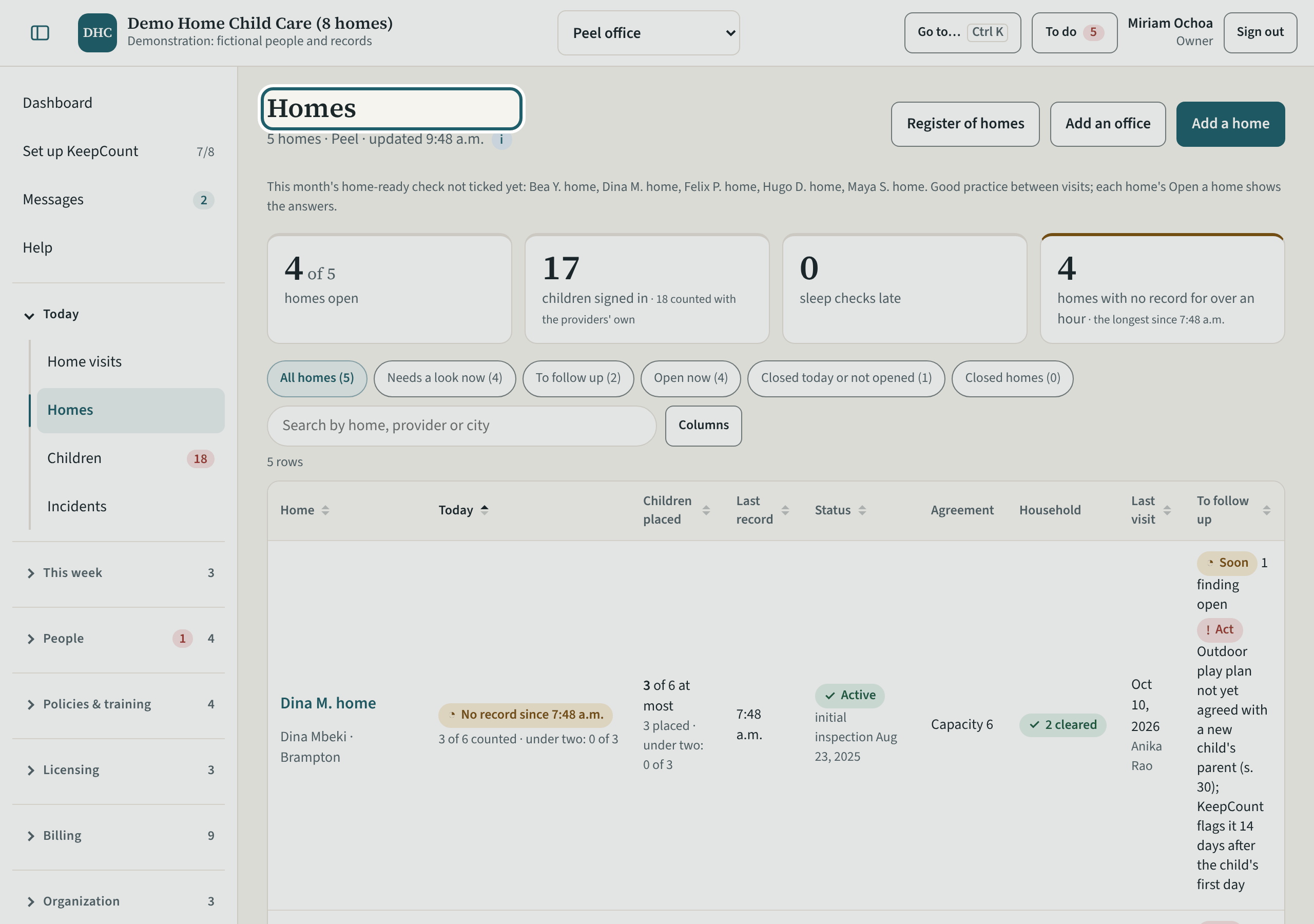
The homes
Homes: one table with each home's children, last record, status, agreement, household screening and visit; the most urgent first.
Watch out: "Needs a look now" lists the homes to check first. A home is a place, not a login: the provider's login is under Providers.
-
Providers
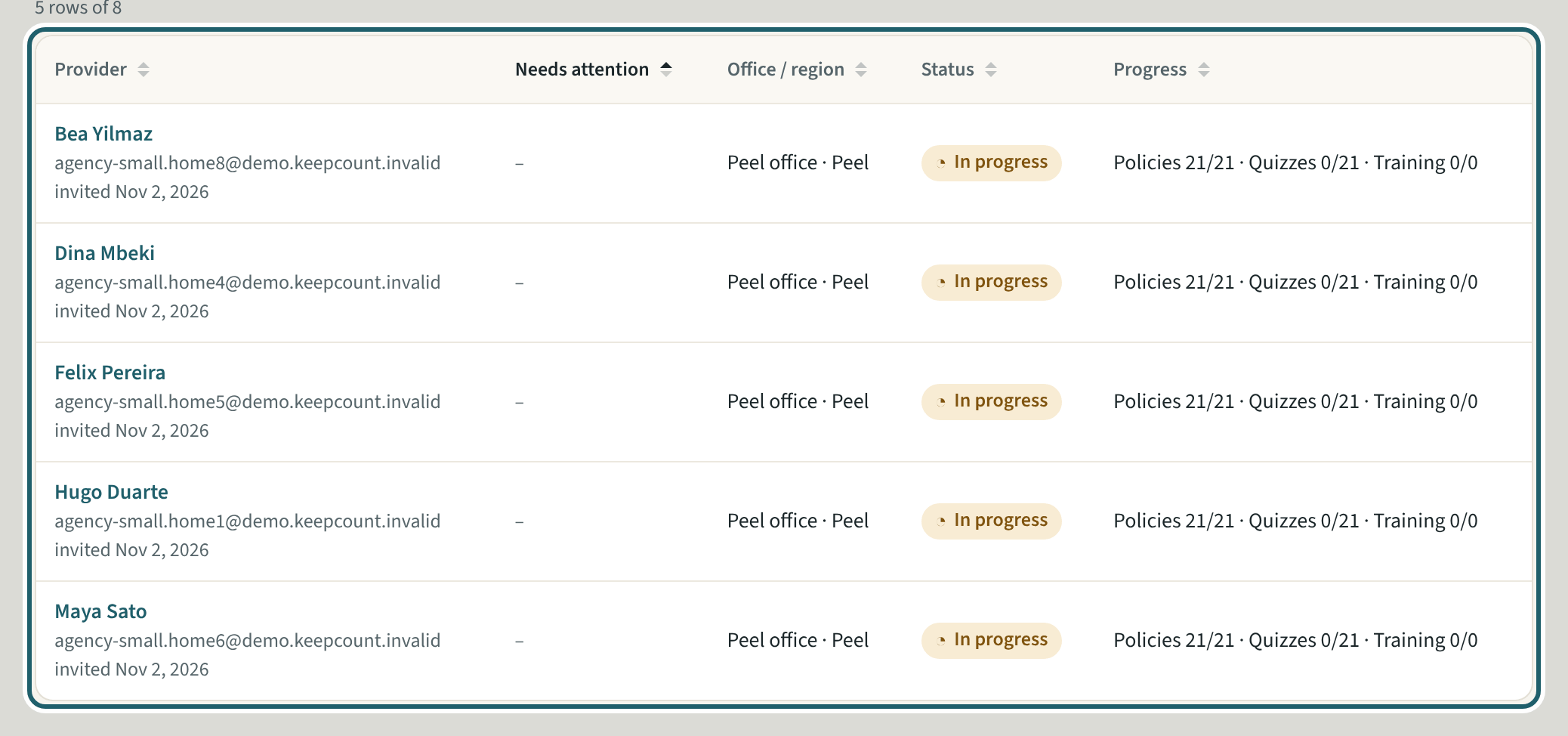
Providers: everyone the agency has invited, with what needs attention, the office, the status and their progress. Who needs attention comes first.
Watch out: The list opens at your office; choose "Every office" for all of them. "Add provider" adds the person, not their home: choose them on the home afterwards.
-
Home visitors
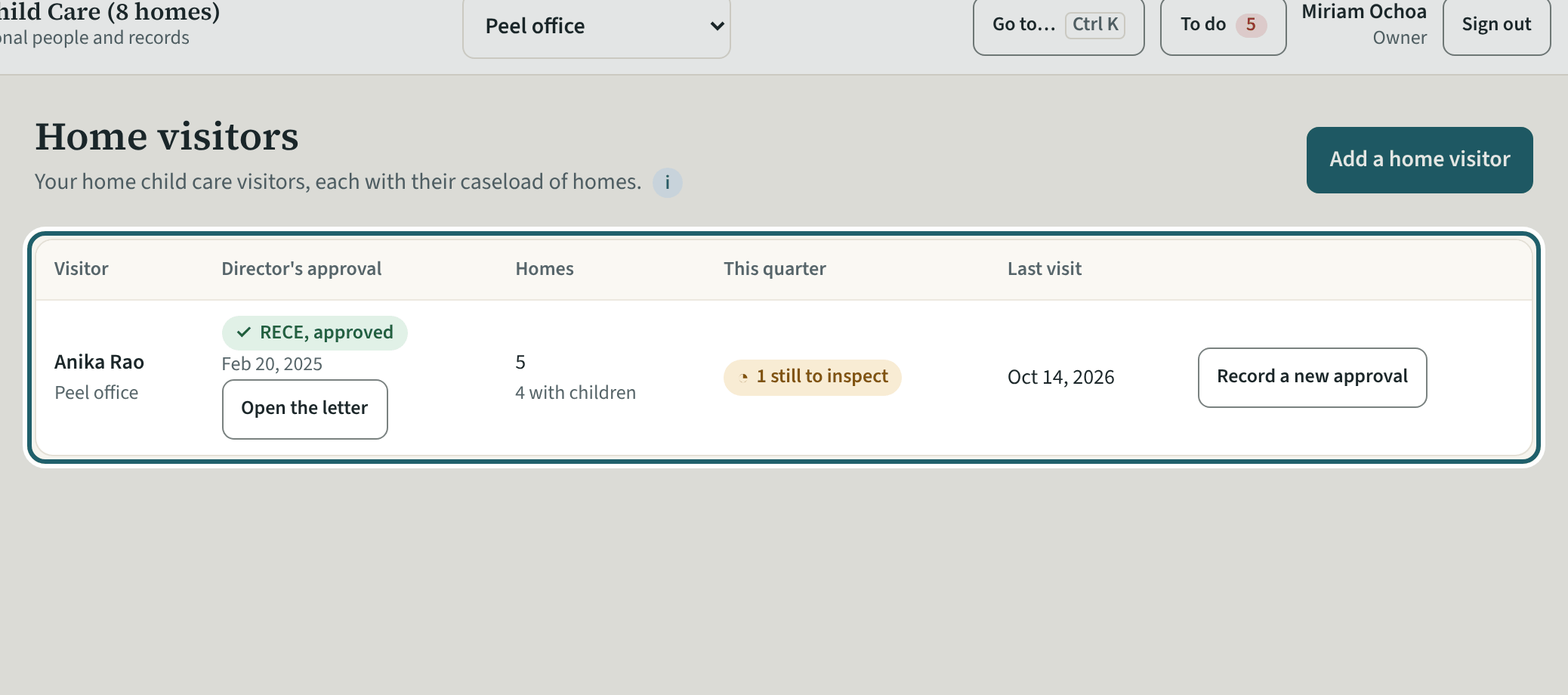
Home visitors: each visitor's approval, their homes, this quarter's inspections and their last visit.
Watch out: Each home is visited without notice at least once a quarter. "Record a new approval" keeps each visitor's approval on file.
-
Licensing readiness
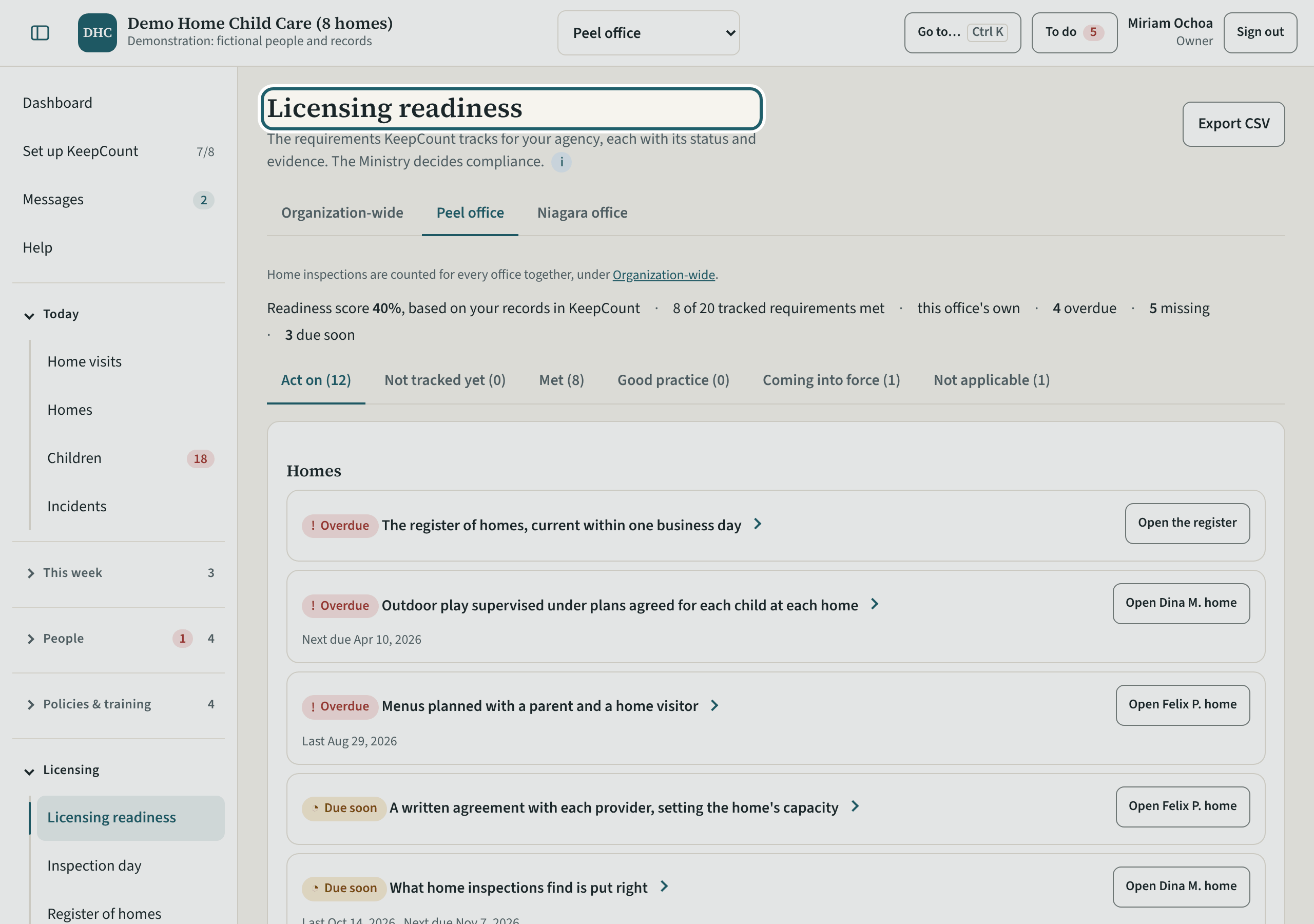
Licensing readiness: the requirements KeepCount tracks for your agency, each with its status and evidence, for the agency or for one office.
Watch out: It is KeepCount's own list, based on your records in KeepCount. Home inspections are counted for every office together, under "Organization-wide". The Ministry decides compliance.
Your first week
What the inspector asks for, the register of homes, the policies, incidents, the quarter's visits, the money and the settings.
-
Inspection day
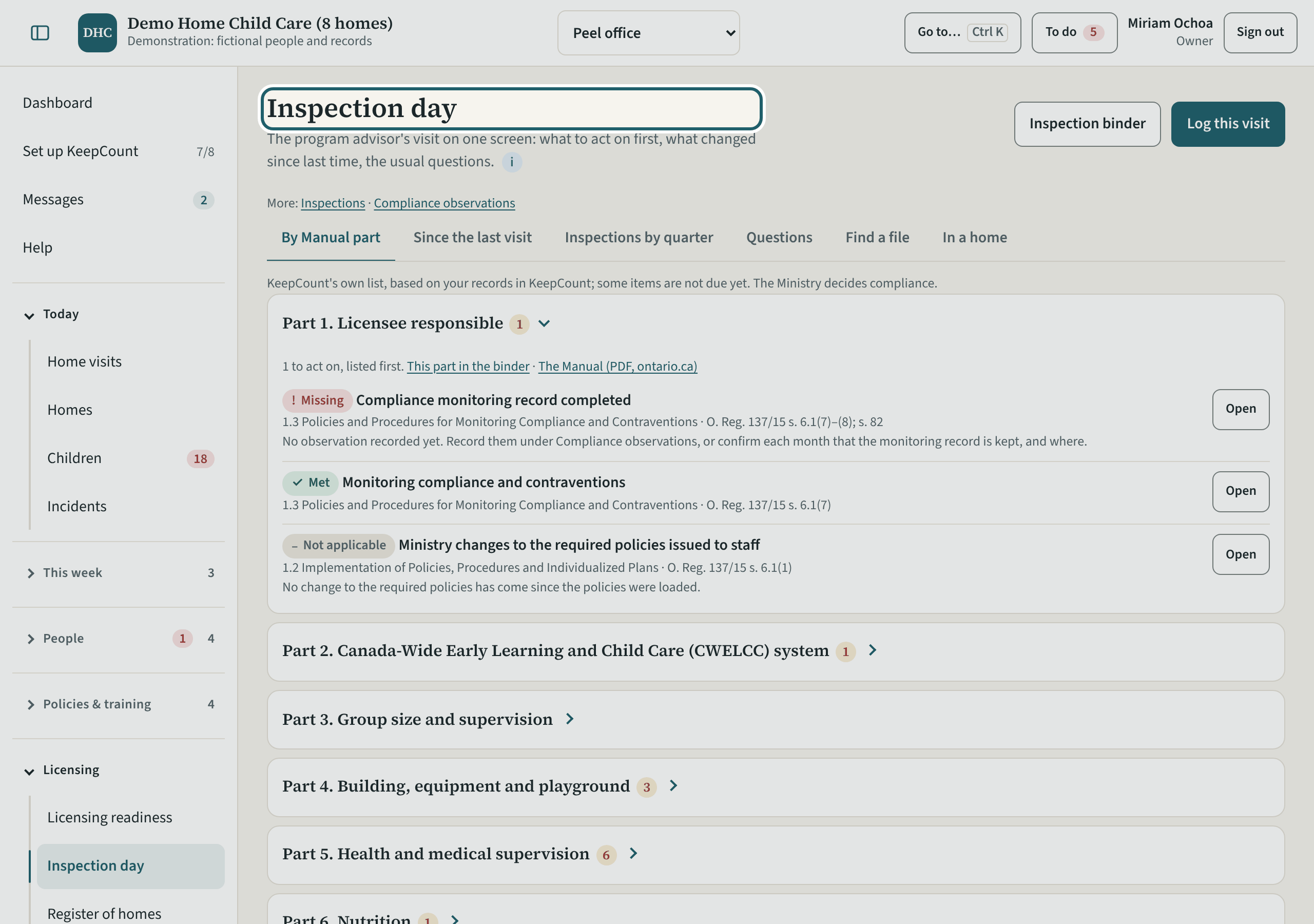
Inspection day: the program advisor's visit on one screen, with what to act on first, what changed since last time and the usual questions.
Watch out: Open it the evening before and clear what is listed first. "Log this visit" records the visit when it is over.
-
The register of homes
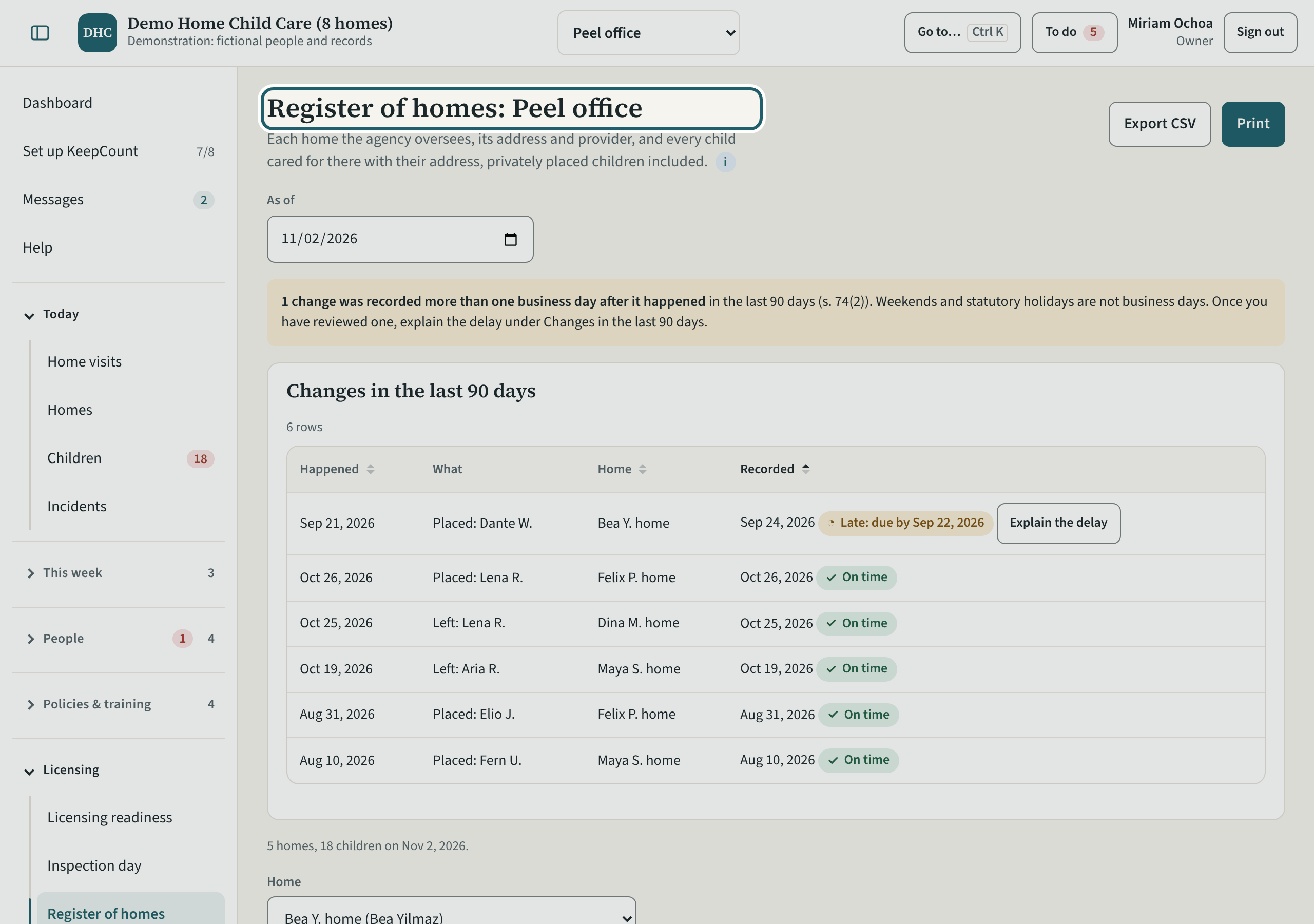
The register of homes: each home, its address and provider, and every child cared for there, with the changes of the last 90 days.
Watch out: A change recorded more than one business day after it happened is late (s. 74(2)). Review it, then use "Explain the delay".
-
Policies and quizzes
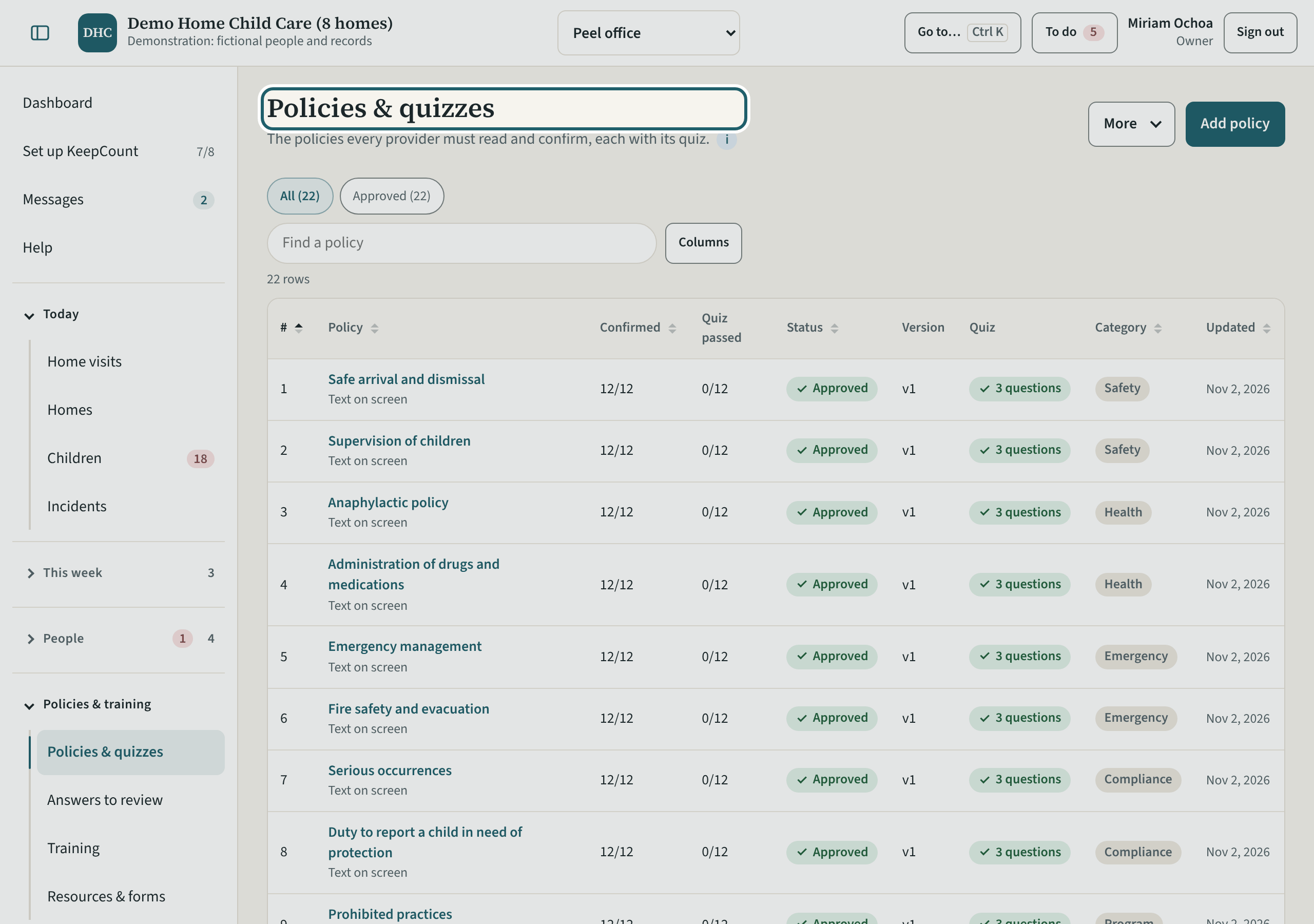
Policies & quizzes: the policies every provider must read and confirm, each with its quiz, and who has confirmed each.
Watch out: "Annual review…" asks everyone each policy is for to confirm it again. You can undo it until someone confirms.
-
Incidents and serious occurrences
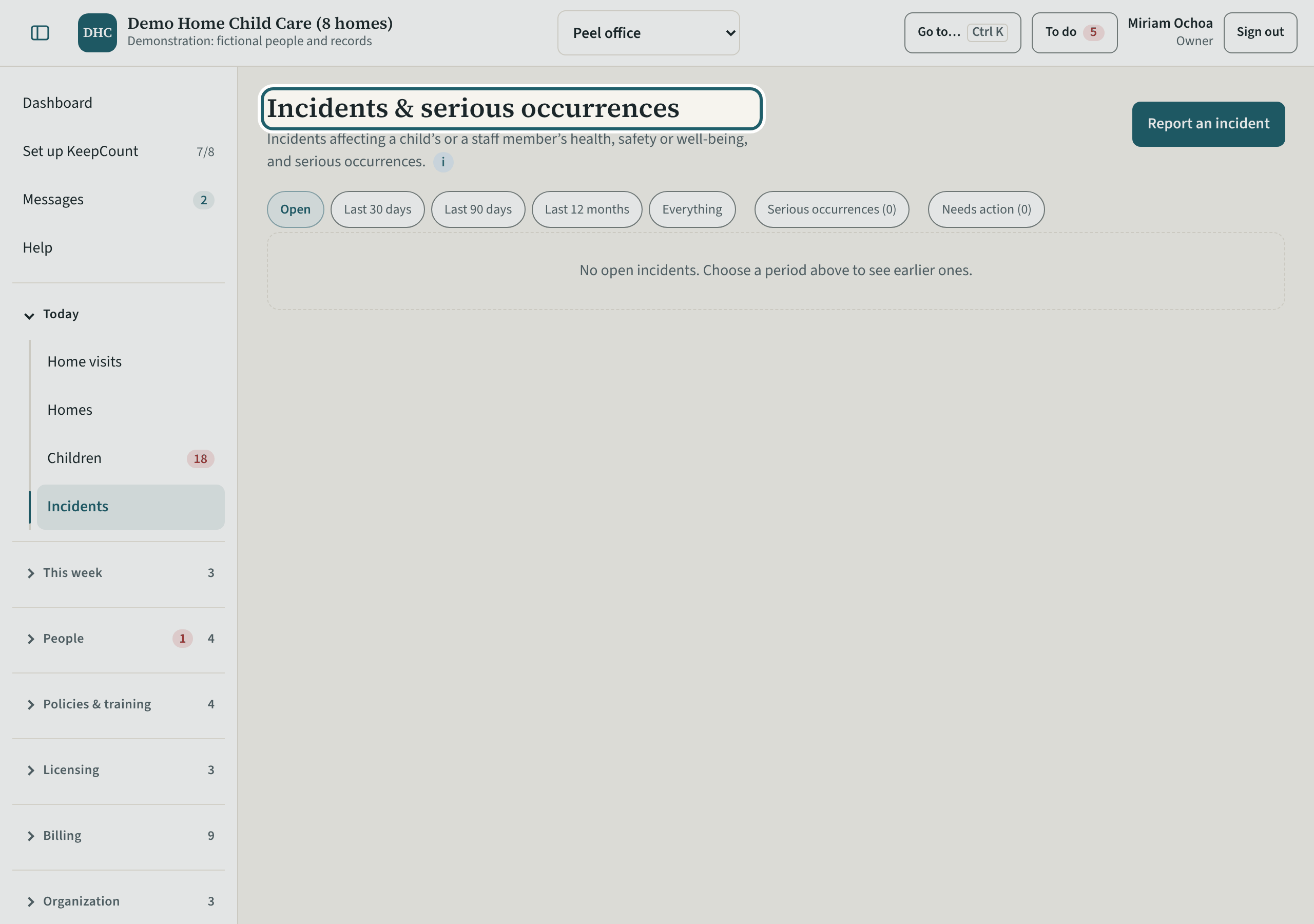
Incidents & serious occurrences: what affected a child's or a staff member's health, safety or well-being, open first. "Report an incident" starts one.
Watch out: A serious occurrence is reported to the Ministry within 24 hours of the agency becoming aware of it; the record keeps that time.
-
The quarter's home visits
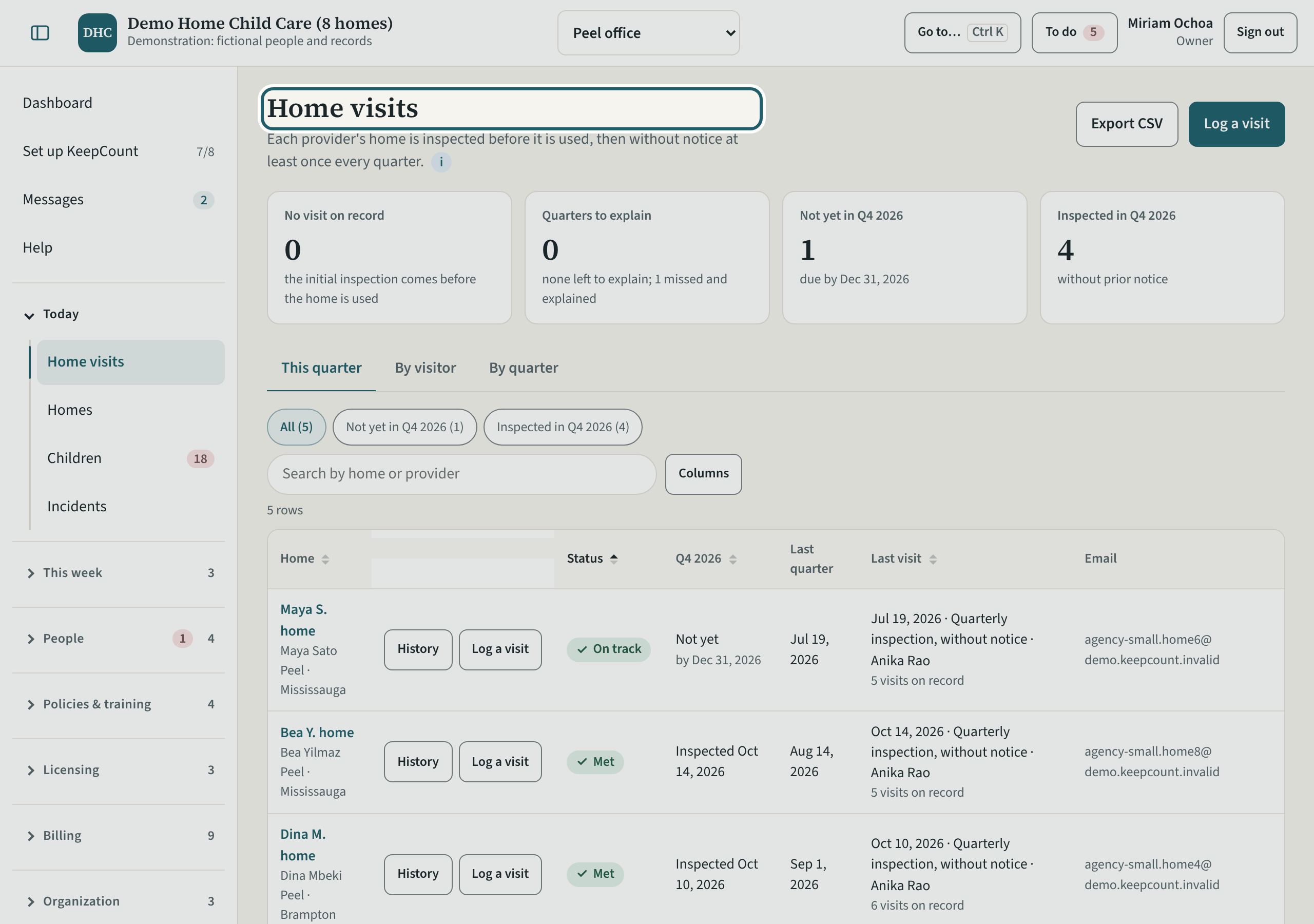
Home visits: each provider's home is inspected before it is used, then without notice at least once every quarter.
Watch out: A quarter with a missed visit must be explained. "Quarters to explain" counts the ones still to do.
-
Family billing: this month
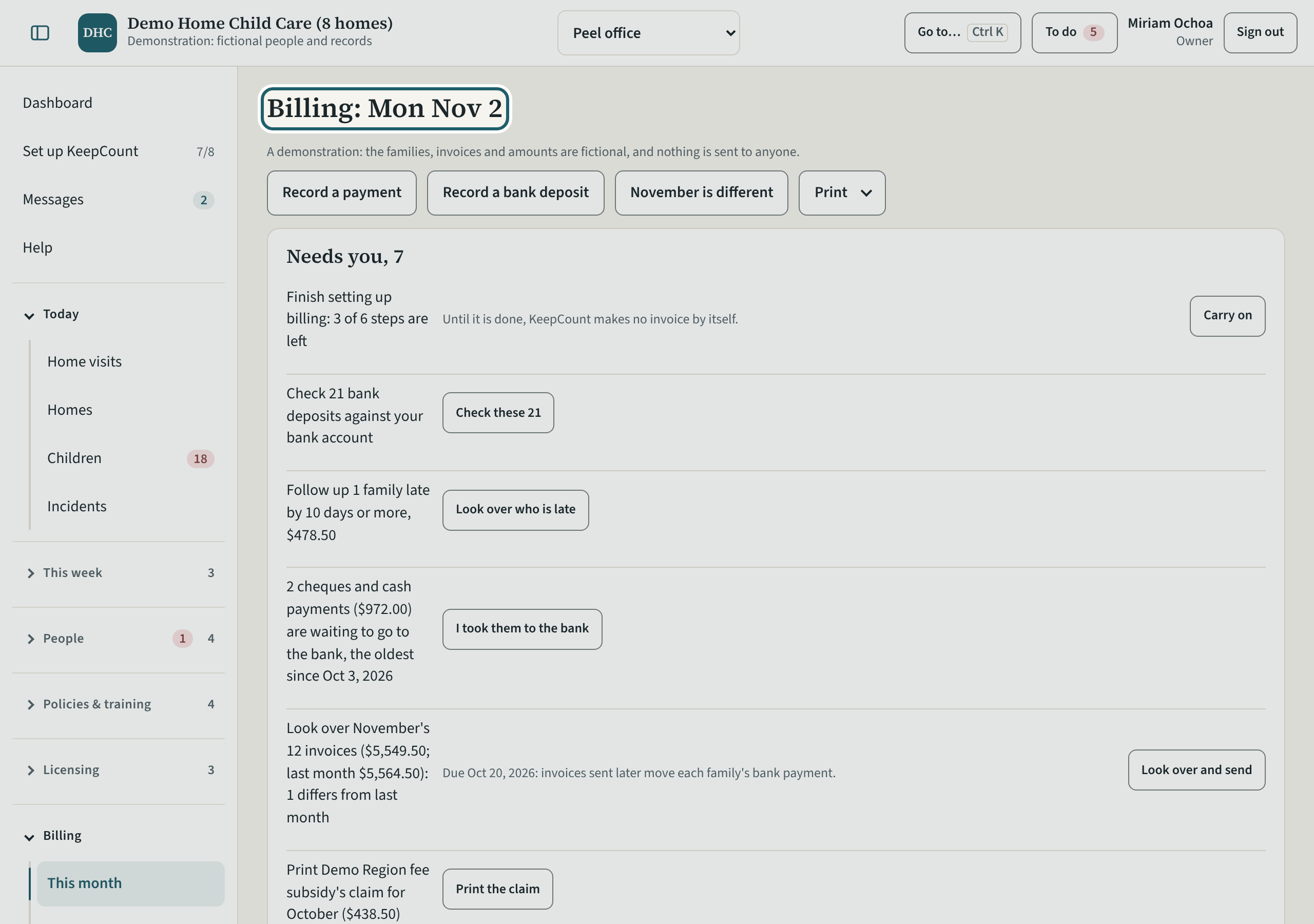
Billing: what needs you this month, with "Record a payment", "Record a bank deposit" and "Print"; Invoices, Payments and Family accounts are under it.
Watch out: Family billing is the owner's choice (Settings, Organization, Features). Nothing is sent to a family until someone who bills families sends it.
-
Provider pay
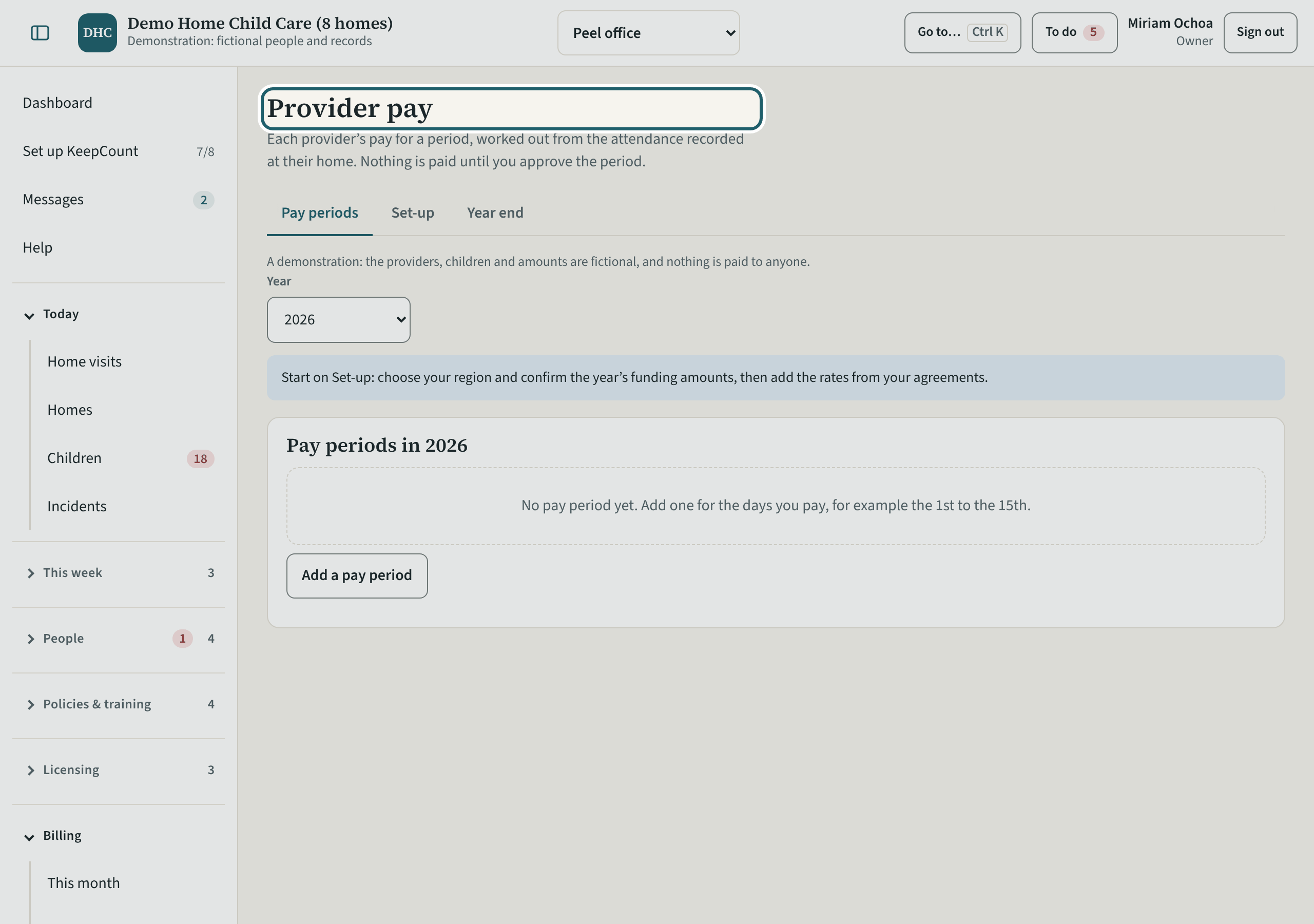
Provider pay: each provider's pay for a period, worked out from the attendance recorded at their home. Nothing is paid until you approve the period.
Watch out: KeepCount sends no money. Start on Set-up: choose your region, confirm the year's funding amounts and add the rates from your agreements.
-
Settings
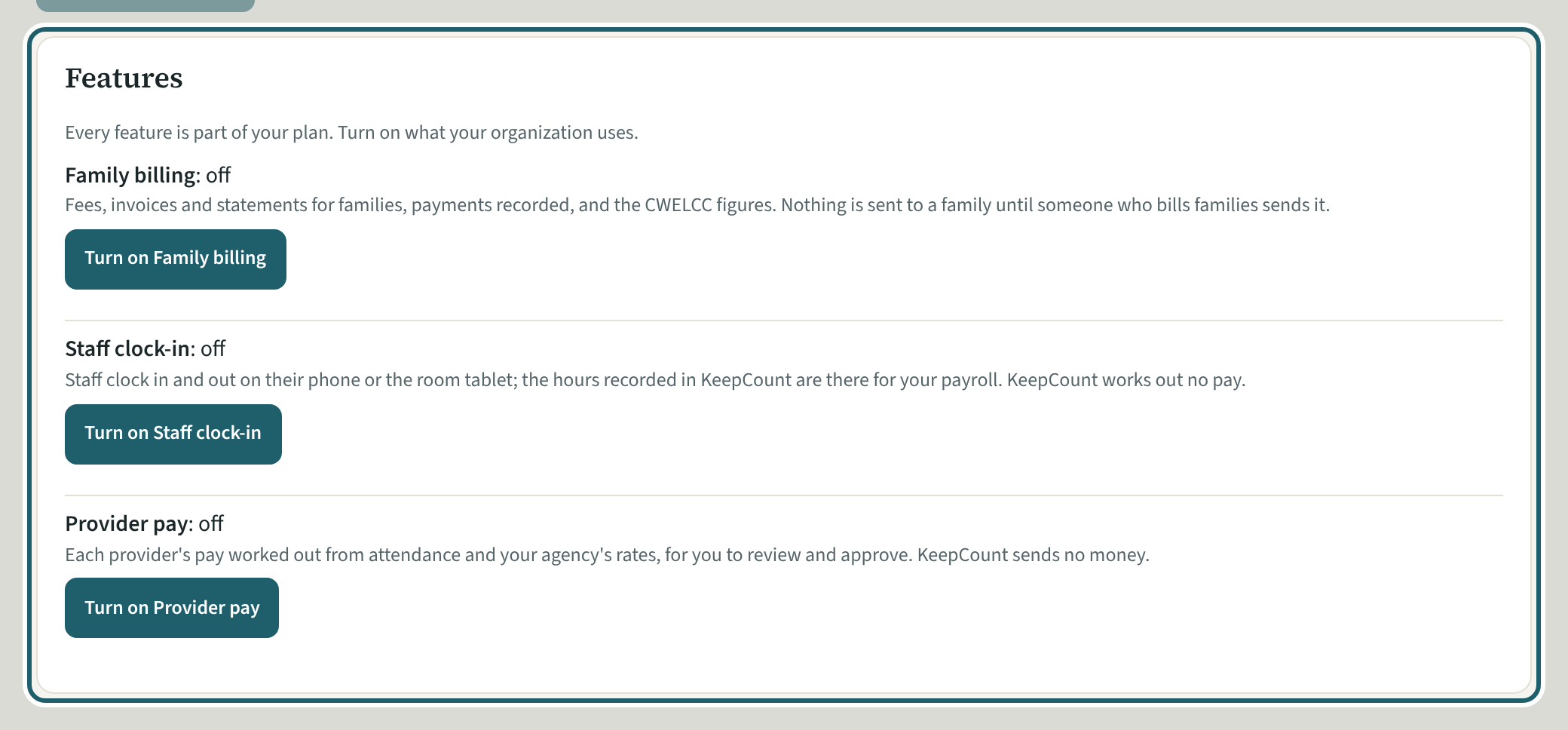
Settings: the agency's name, logo and contact details, and "Features": turn on family billing, the staff clock and provider pay, if your agency uses them.
Watch out: Only the owner can change the features. Turning one off hides it for everyone; what was recorded is kept, and turning it on again shows it.
-
My account
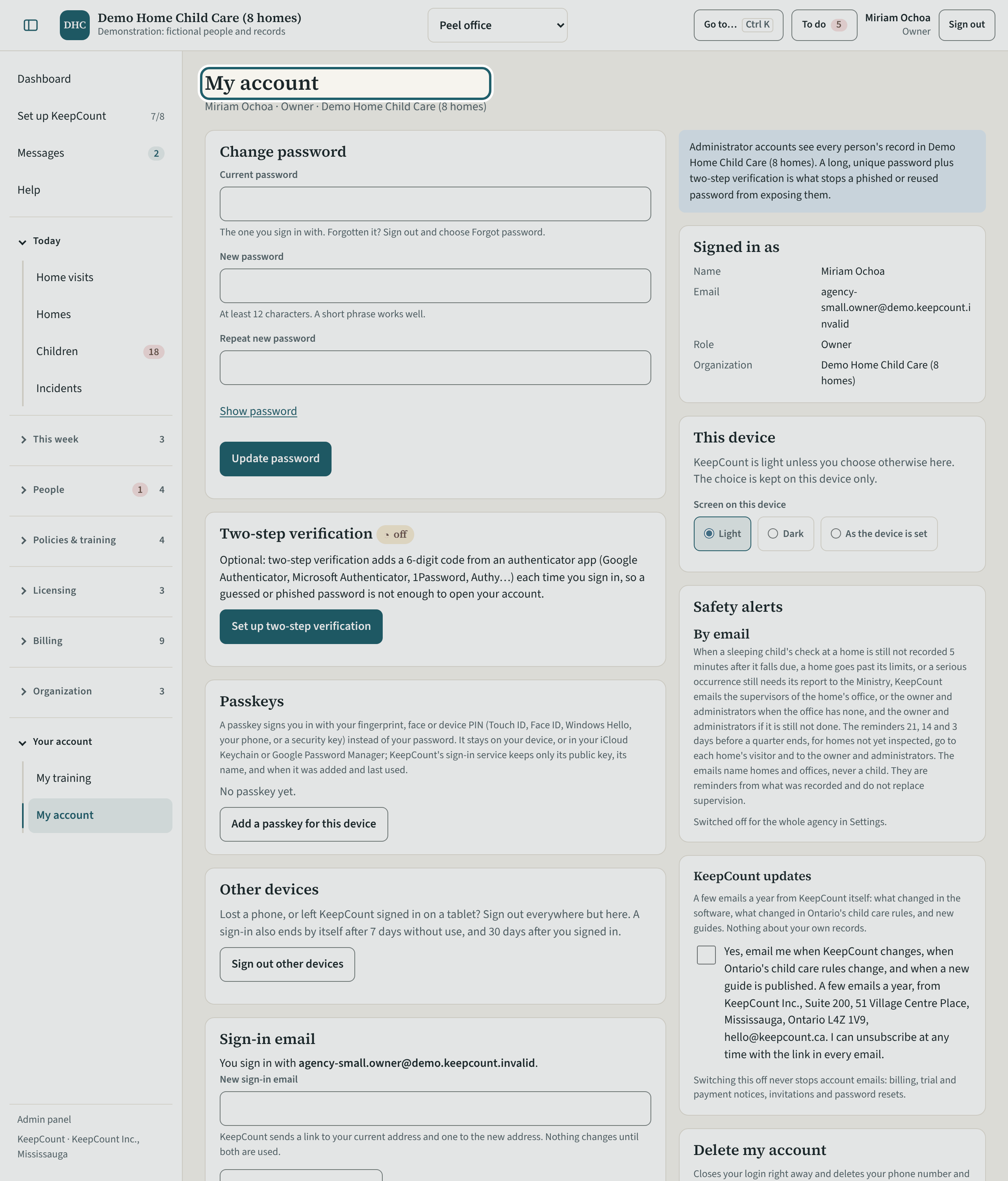
My account: change your password, add two-step verification and a passkey, sign out your other devices, and change your sign-in email.
Watch out: A long, unique password plus two-step verification is what stops a reused password from exposing every office's records. Set it up today.
-
Help
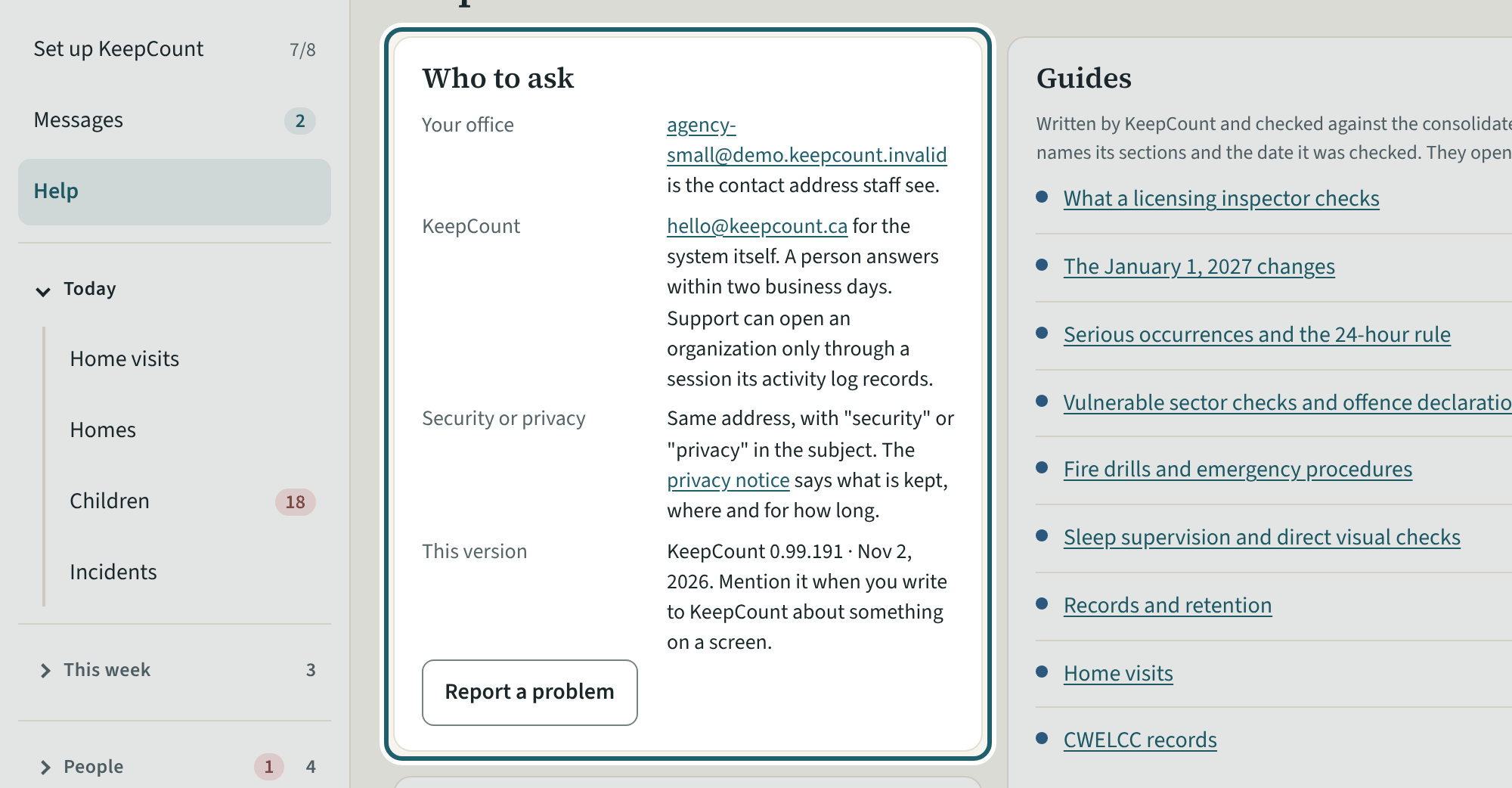
Help: who to ask, the guides, "Where do I…?", the glossary and "Report a problem".
Watch out: "Report a problem" goes to KeepCount support only, never to your agency: say what you did and what you saw, without anyone's record.