Setting up
Once, before the first month: the page, the settings, the CWELCC figures, the fees and the family accounts. An owner turns family billing on or off under Settings, Organization, Features. The screens are from a demonstration centre; the families, invoices and amounts in them are fictional.
-
Family billing
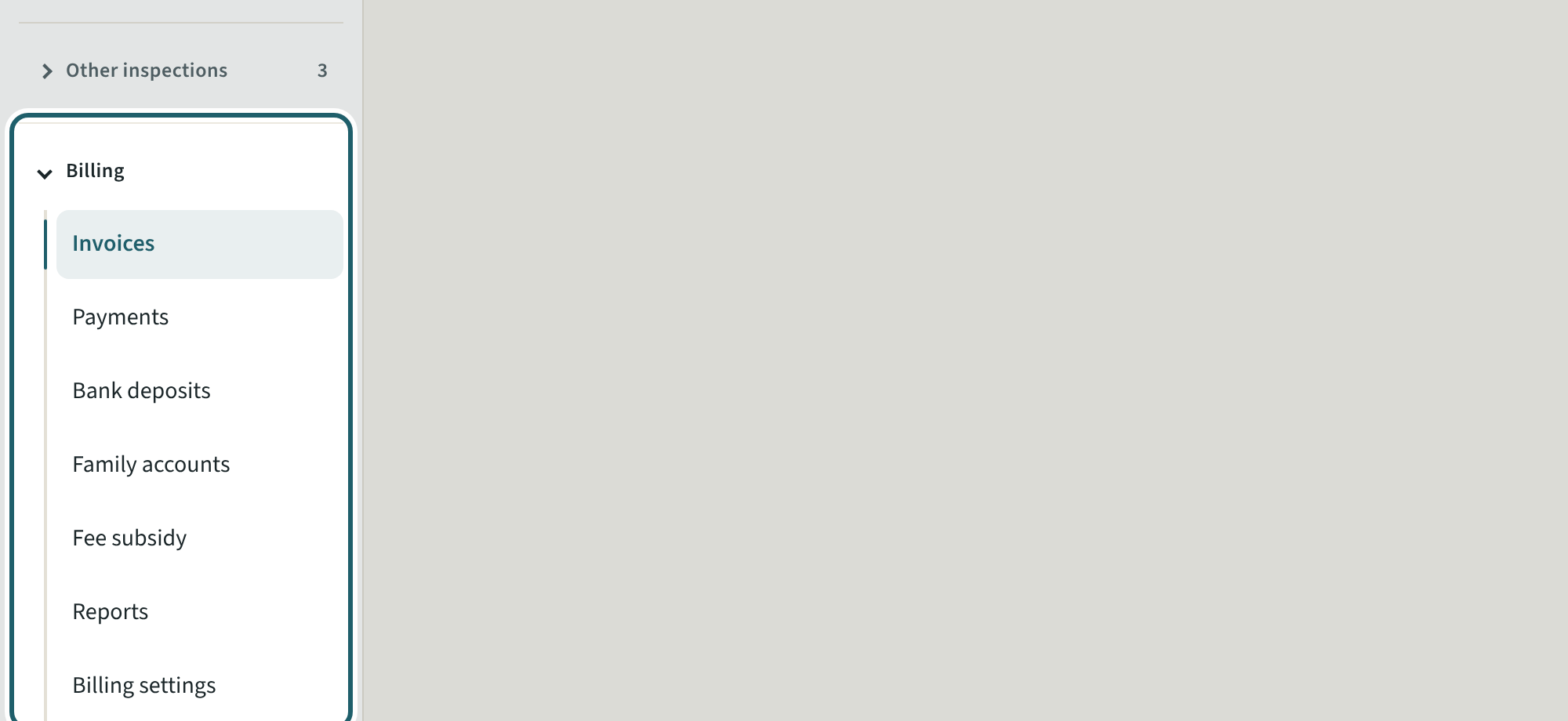
Billing, in the menu: one page each, from Invoices to Billing settings. Each page says in one line what it holds.
Watch out: Family billing is for the owners and the people an owner allows under Logins and access. A site supervisor never sees it.
-
Settings
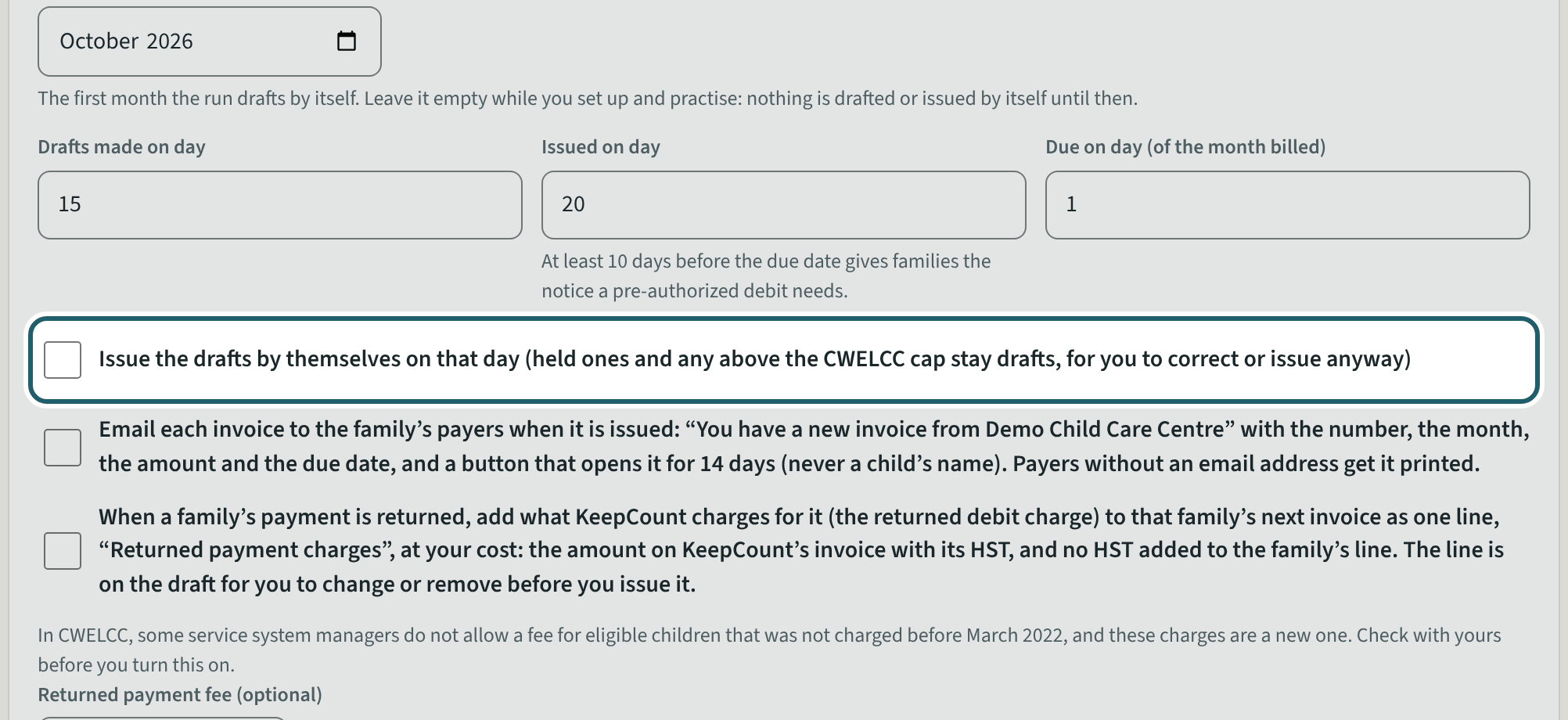
Billing settings: the payee and numbers printed on invoices, the monthly run's days, a monthly fee in a part month, and your CWELCC enrolment.
Watch out: The run makes nothing until you choose "The run starts with". Issuing by itself and emailing invoices are both off until you tick them.
-
The CWELCC figures
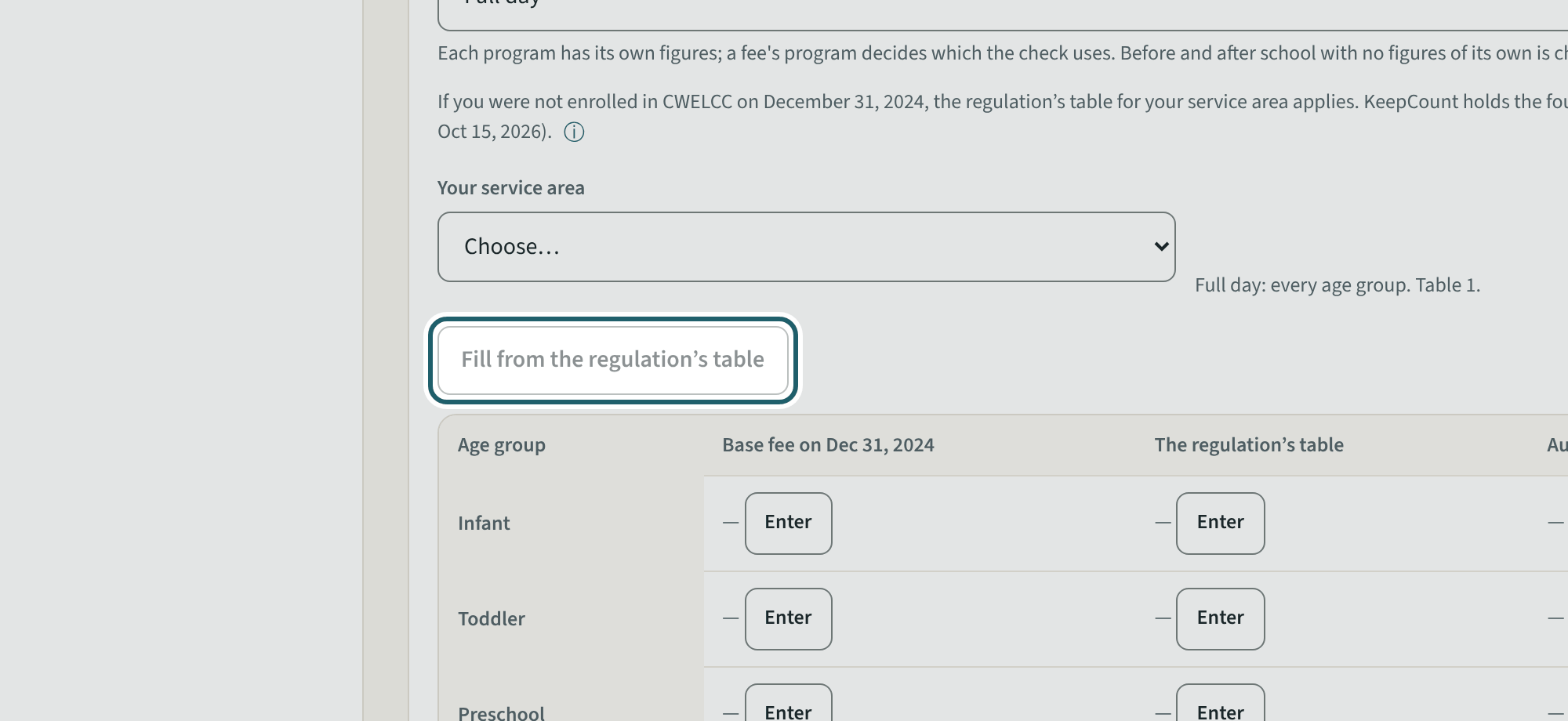
CWELCC figures: choose your service area and "Fill from the regulation's table"; the base fee on December 31, 2024 and any authorized agreement go beside it.
Watch out: The check uses the lowest figure that applies, as s. 77.2(2) does. The regulation and your own fee on December 31, 2024 set them; KeepCount checks against what you enter.
-
Fees
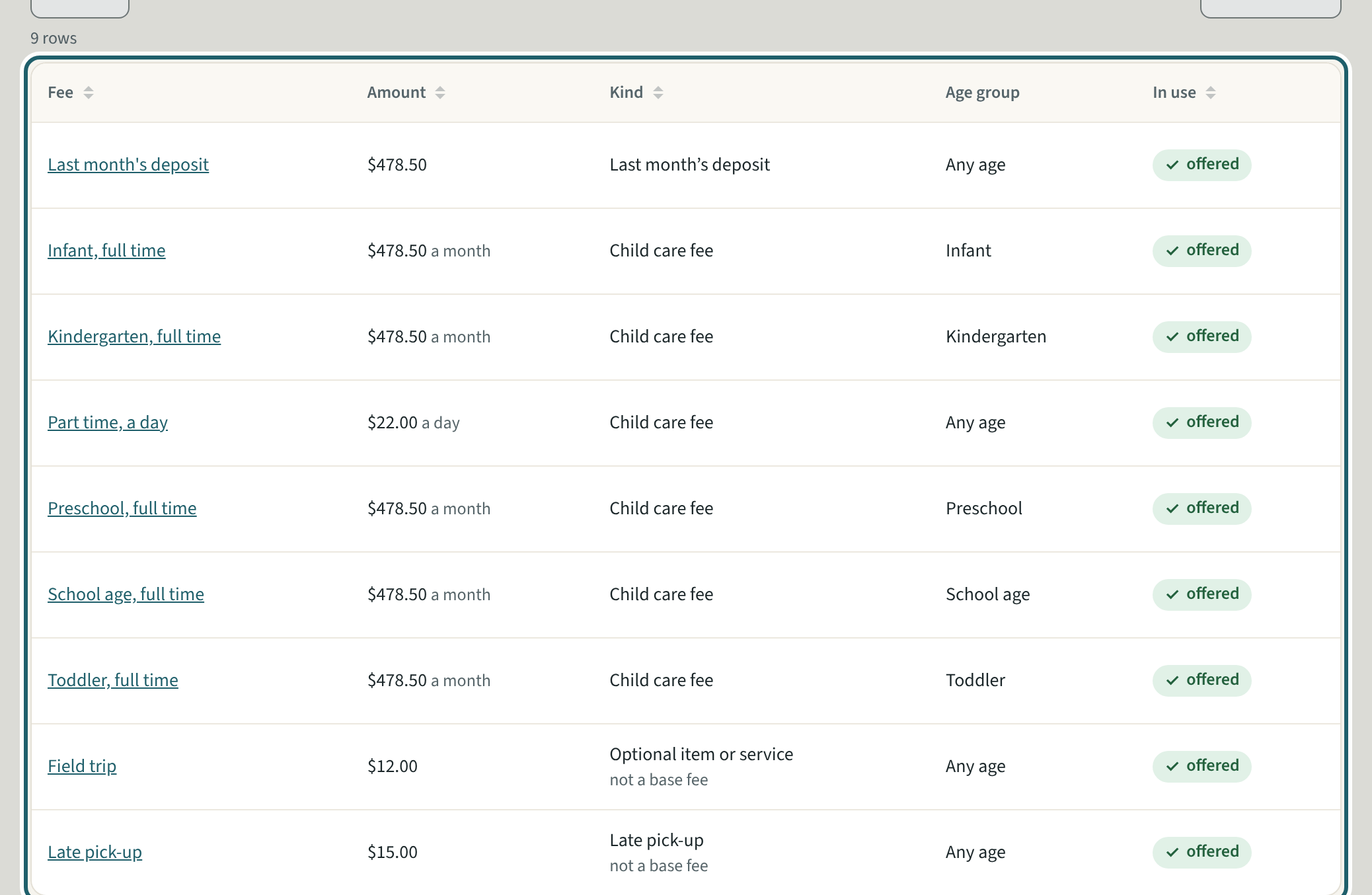
Fees, the first part of Billing settings: each fee your parent handbook lists, with its amount, its kind, the age group and whether it is still offered.
Watch out: A fee already on an invoice keeps its kind, unit and tax. A new price starts on the first of a month you choose; the months before keep the old one.
-
A new fee
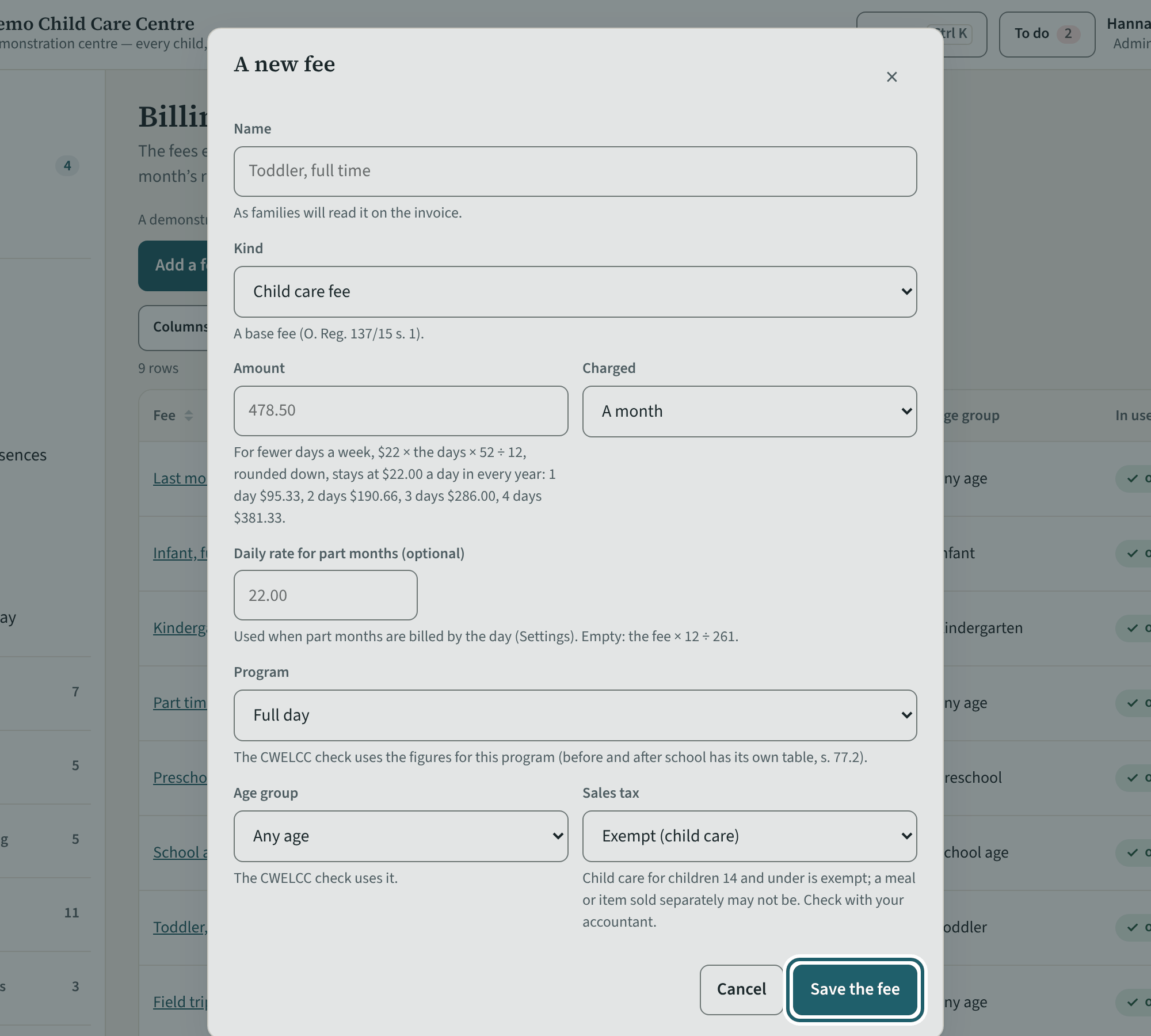
"Add a fee": the name families read on the invoice, the kind, the amount and how it is charged, the program, the age group and the sales tax.
Watch out: The sales tax is yours to choose for each fee. Ask your accountant about any fee that is not for child care.
-
Family accounts
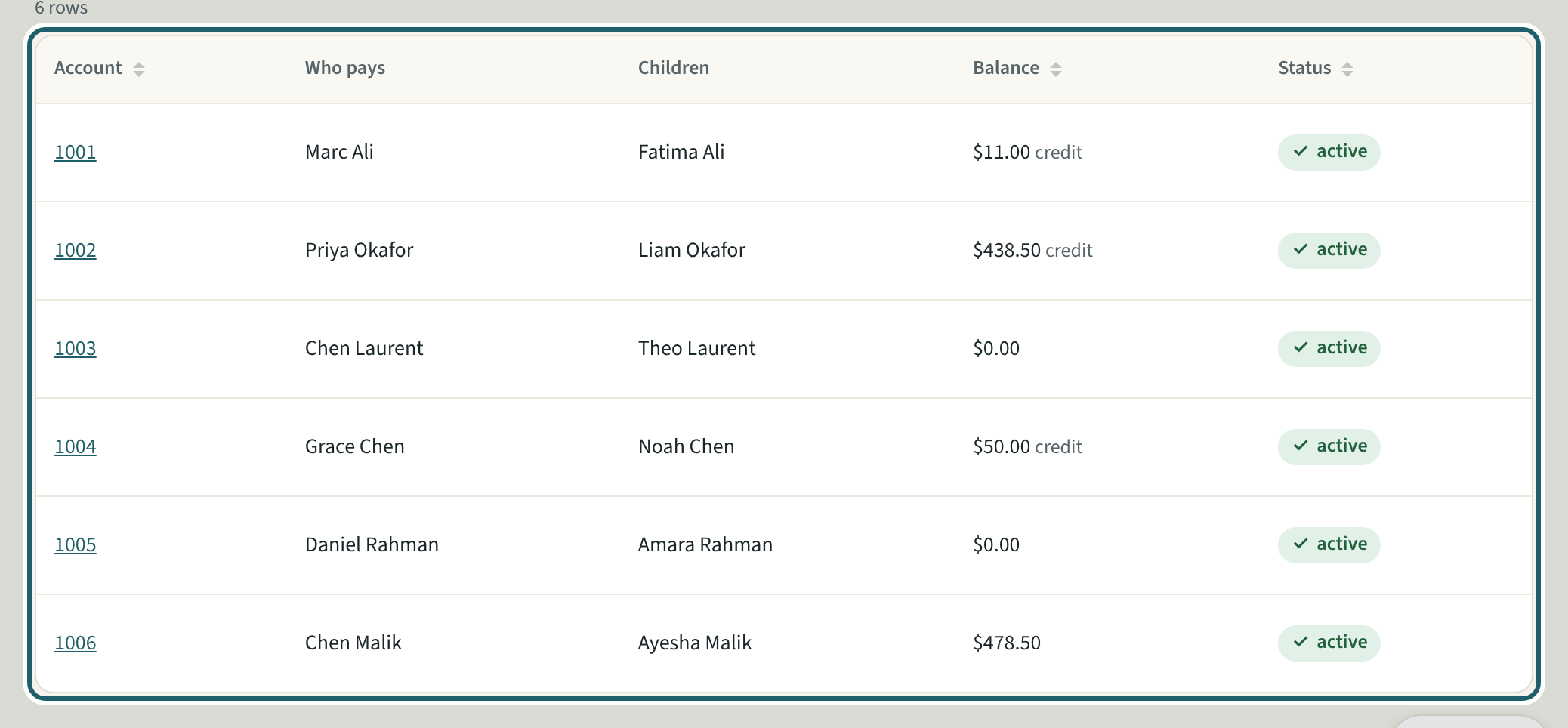
Family accounts: one account for each family, with who pays, the children billed to them, the balance and the status.
Watch out: Each child is on one family account. "Children not billed yet" lists the children with no account: "Set up the family" starts one.
-
A family account
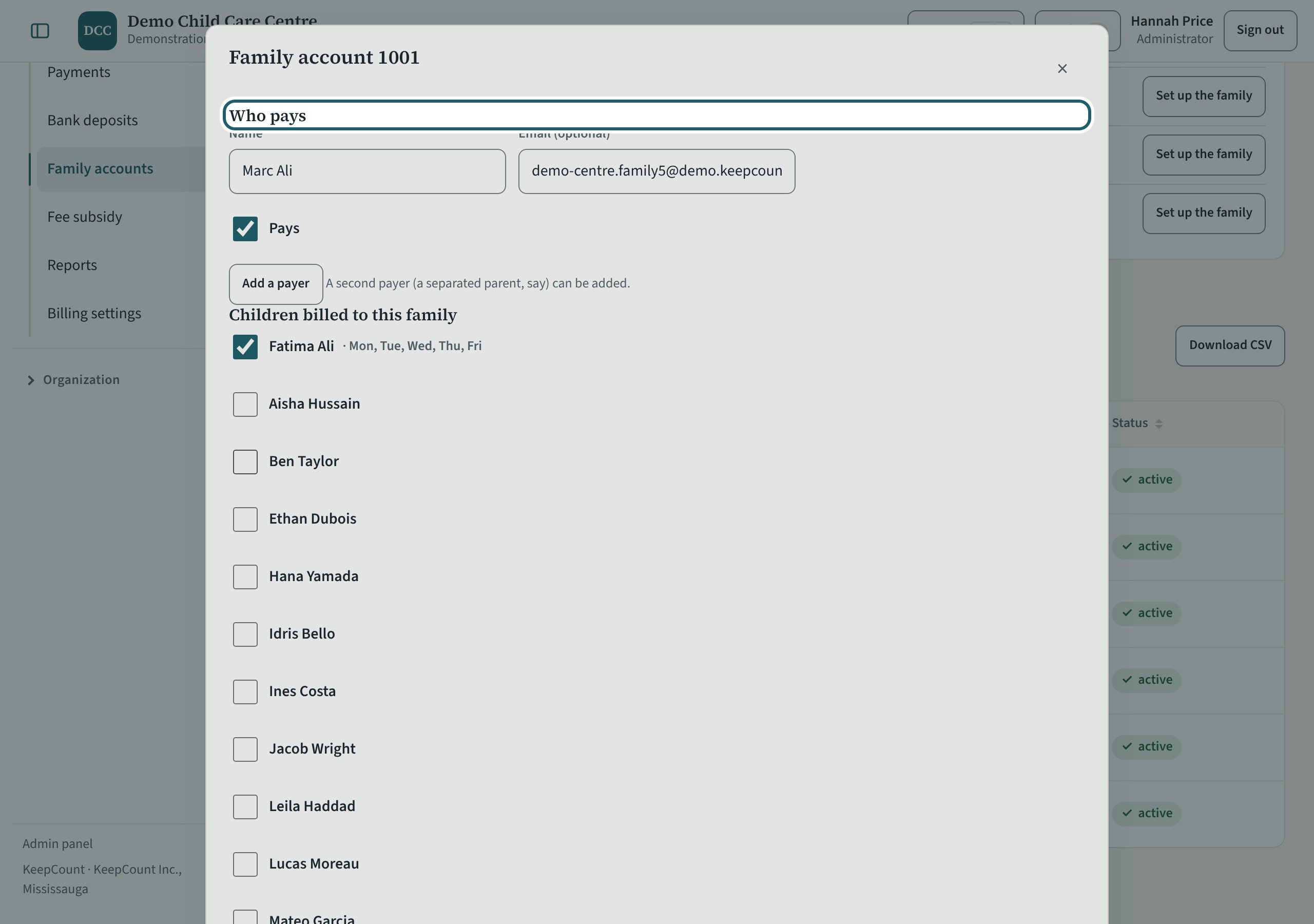
A family account: who pays, the children billed to the family, the site and a note for the office, then the recurring fees and the statement.
Watch out: The note for the office is encrypted and never printed. A payer who signs in to KeepCount sees the family's invoices; one who does not gets them printed or by email.
Each month
The run makes the drafts; you check them, issue them, record what is paid and take it to the bank, then close the month.
-
The month's drafts
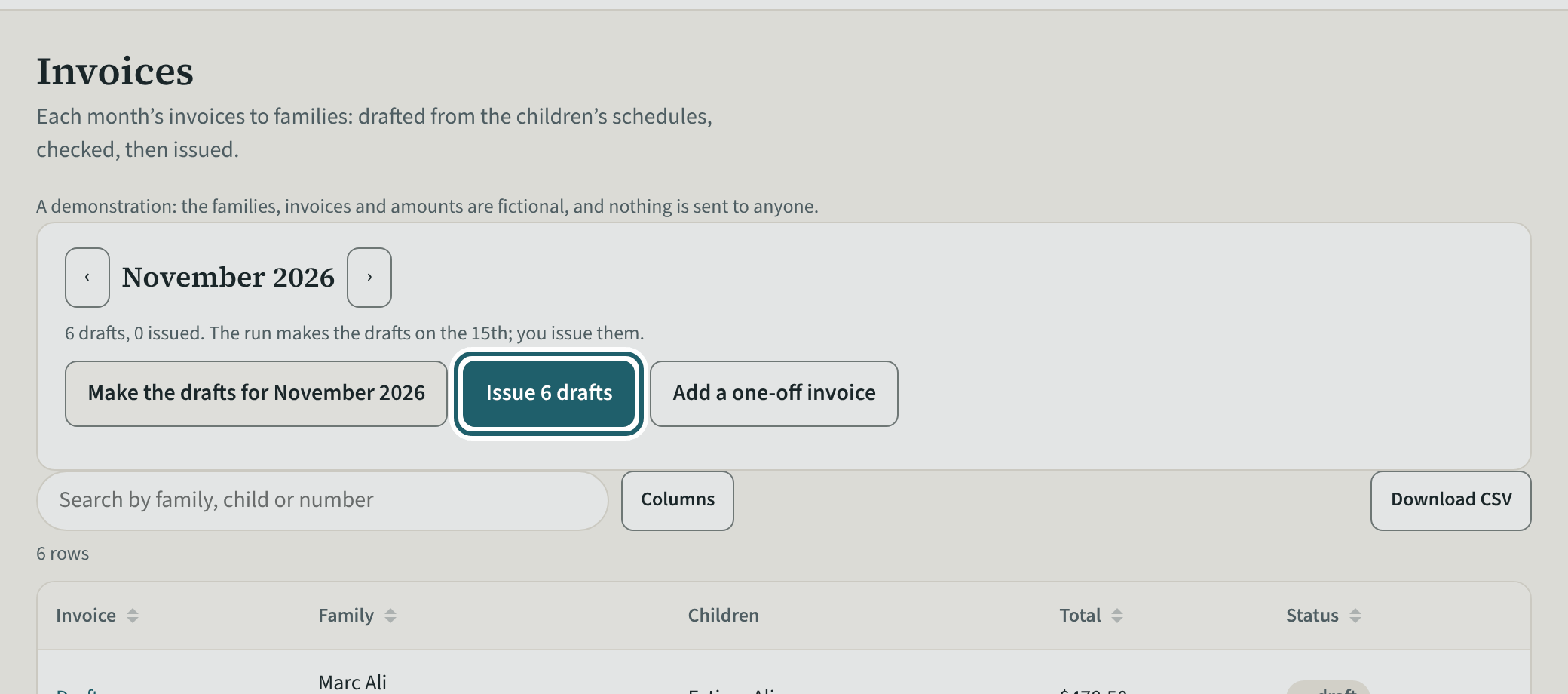
Invoices: the month's drafts, one for each family, with the summary line, "Make the drafts" and "Issue n drafts".
Watch out: Issuing is final: each invoice gets its number and goes into the books, and a mistake is corrected with a credit note. Held drafts stay drafts.
-
A draft and the CWELCC check
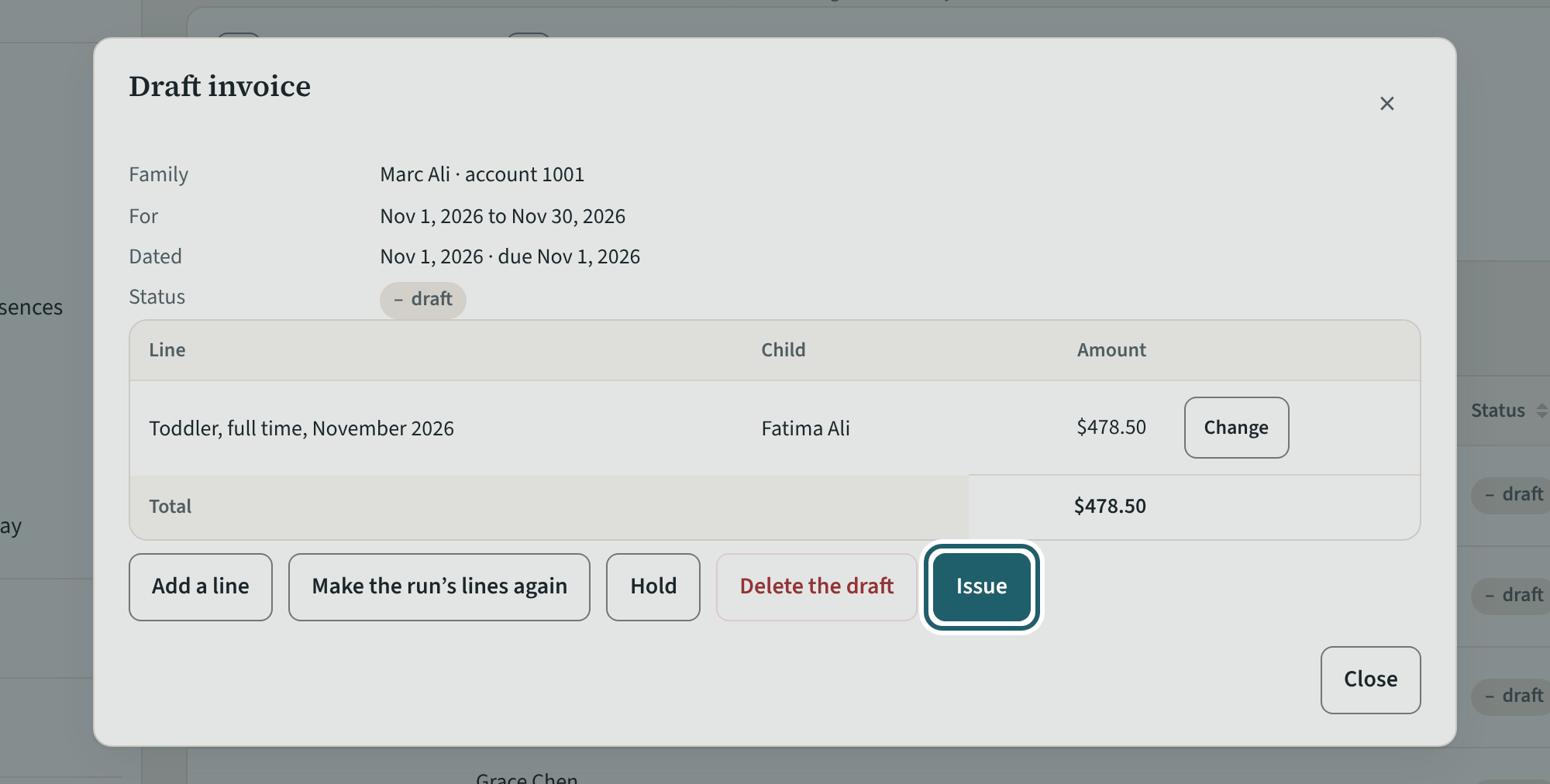
Open a draft: its lines by child, the tax and the total. A draft above the CWELCC cap says so, with the arithmetic and what to change.
Watch out: "Issue anyway" issues a draft above the cap with your name and the time on it. Correct it instead unless you are sure.
-
An issued invoice
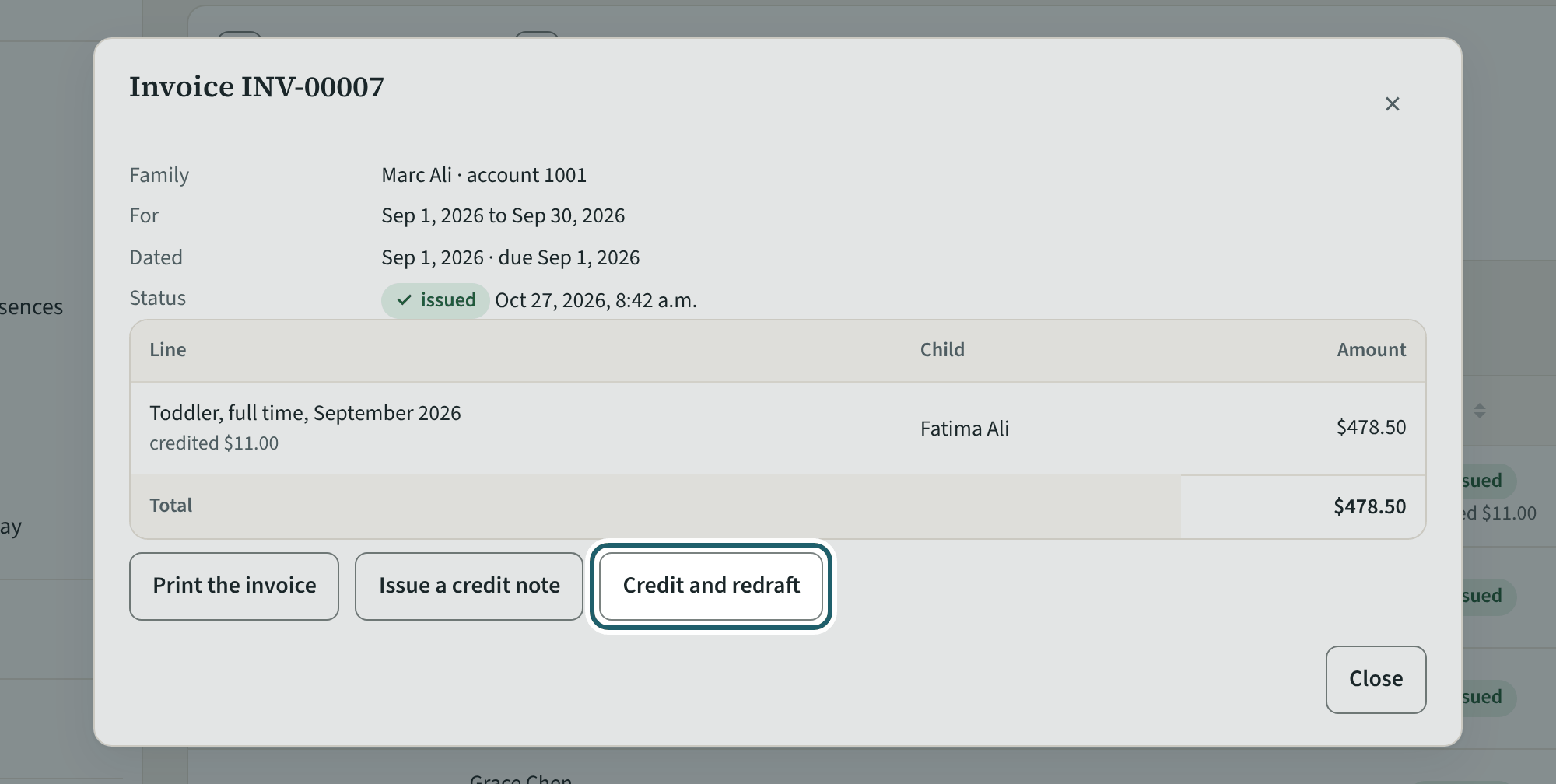
An issued invoice: "Print the invoice", "Issue a credit note" and "Credit and redraft". What is credited shows under it.
Watch out: An issued invoice is never changed. "Credit and redraft" credits what is left and opens a new draft for the same period, naming the invoice it replaces.
-
A credit note
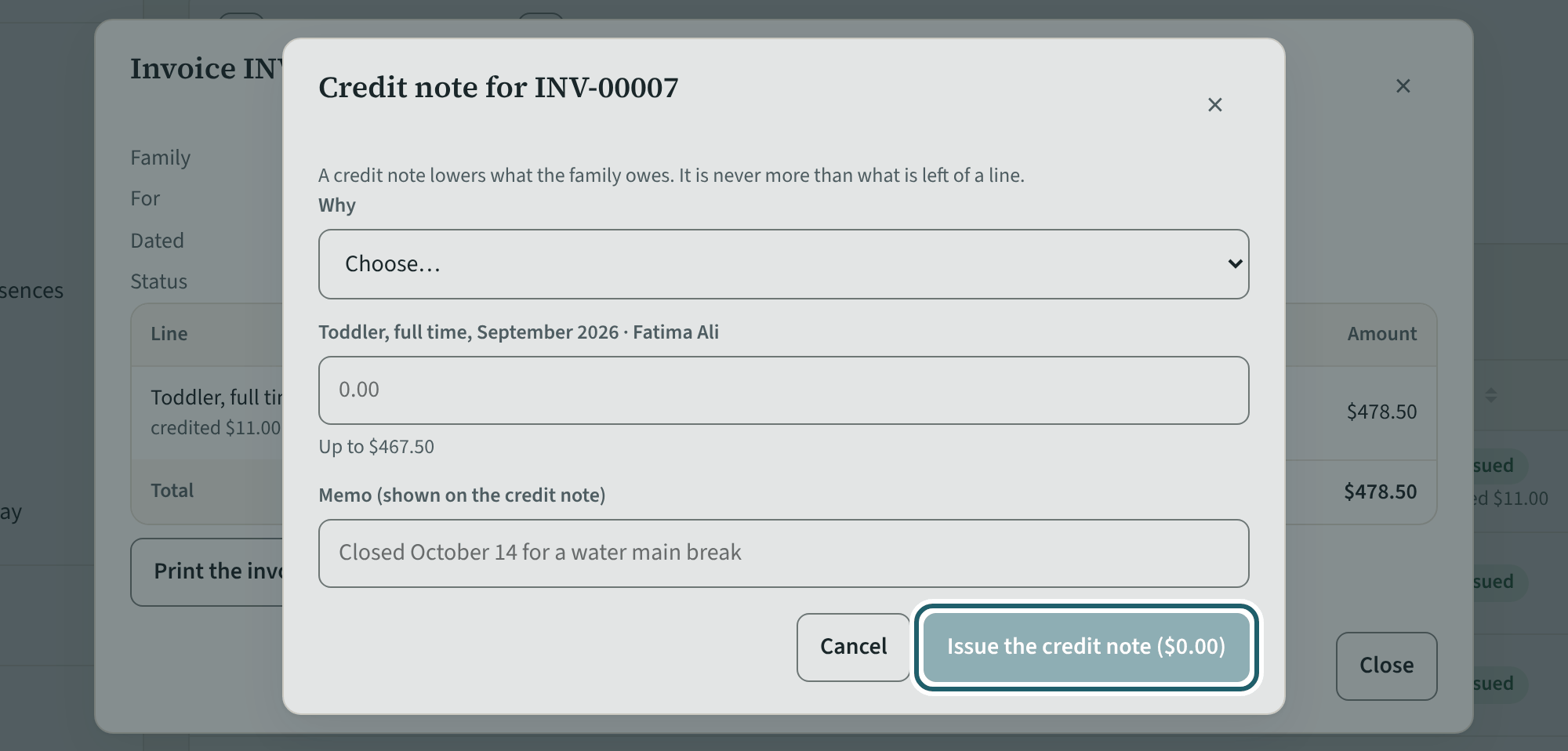
"Issue a credit note": why, an amount on each line up to what is left of it, and a memo the family reads.
Watch out: A credit note lowers what the family owes; it is never more than what is left of a line. "Withdraw the credit note" asks why and makes a draft that charges its lines back: check it, then issue it.
-
Record a payment
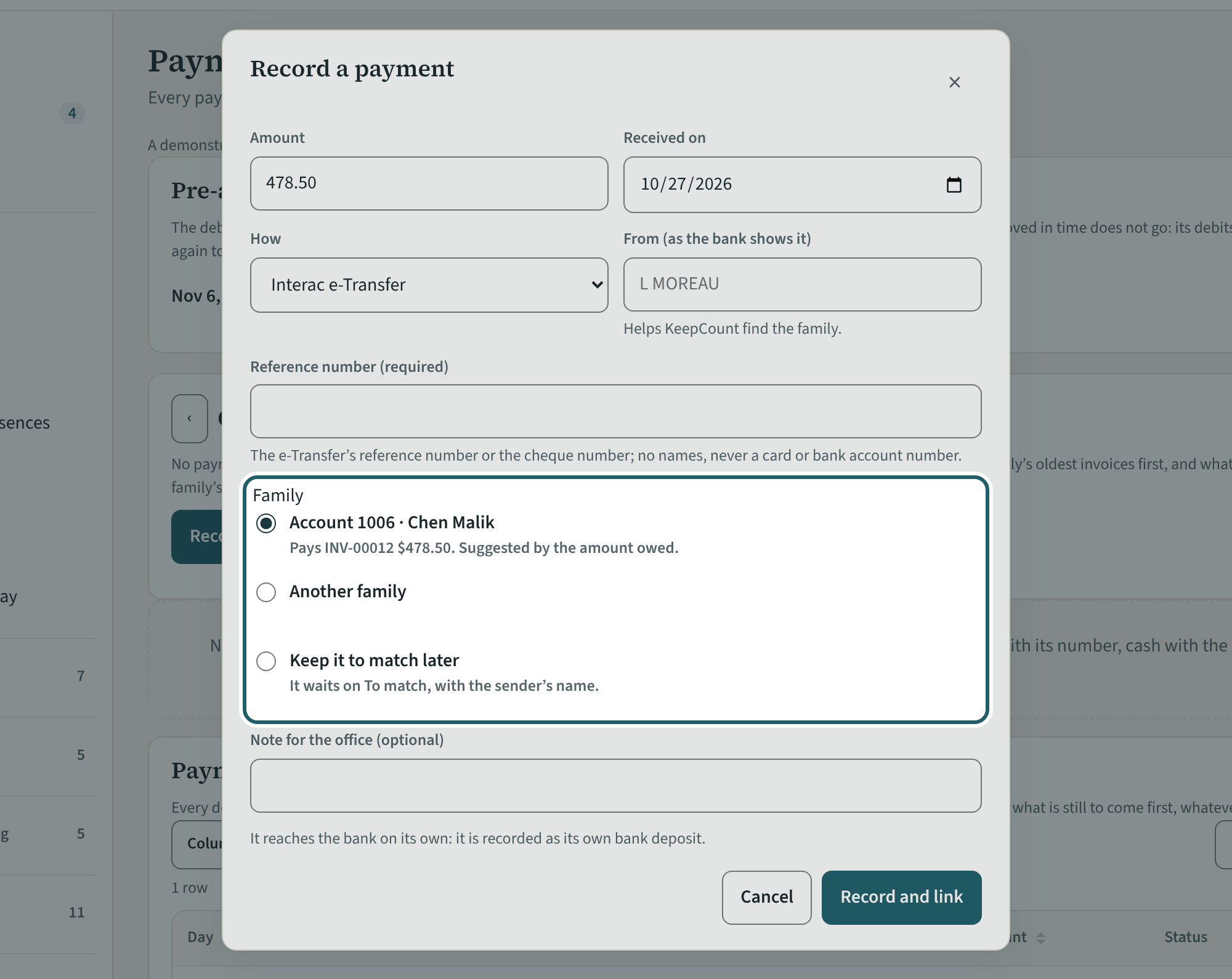
"Record a payment": the amount, the day, how it came, who sent it and the reference. KeepCount suggests the family and says which invoices it pays.
Watch out: It warns of a payment recorded already, a sender who is not a payer, and a debit scheduled for the same invoice. Read the warning before "Save it anyway".
-
Match the bank's file
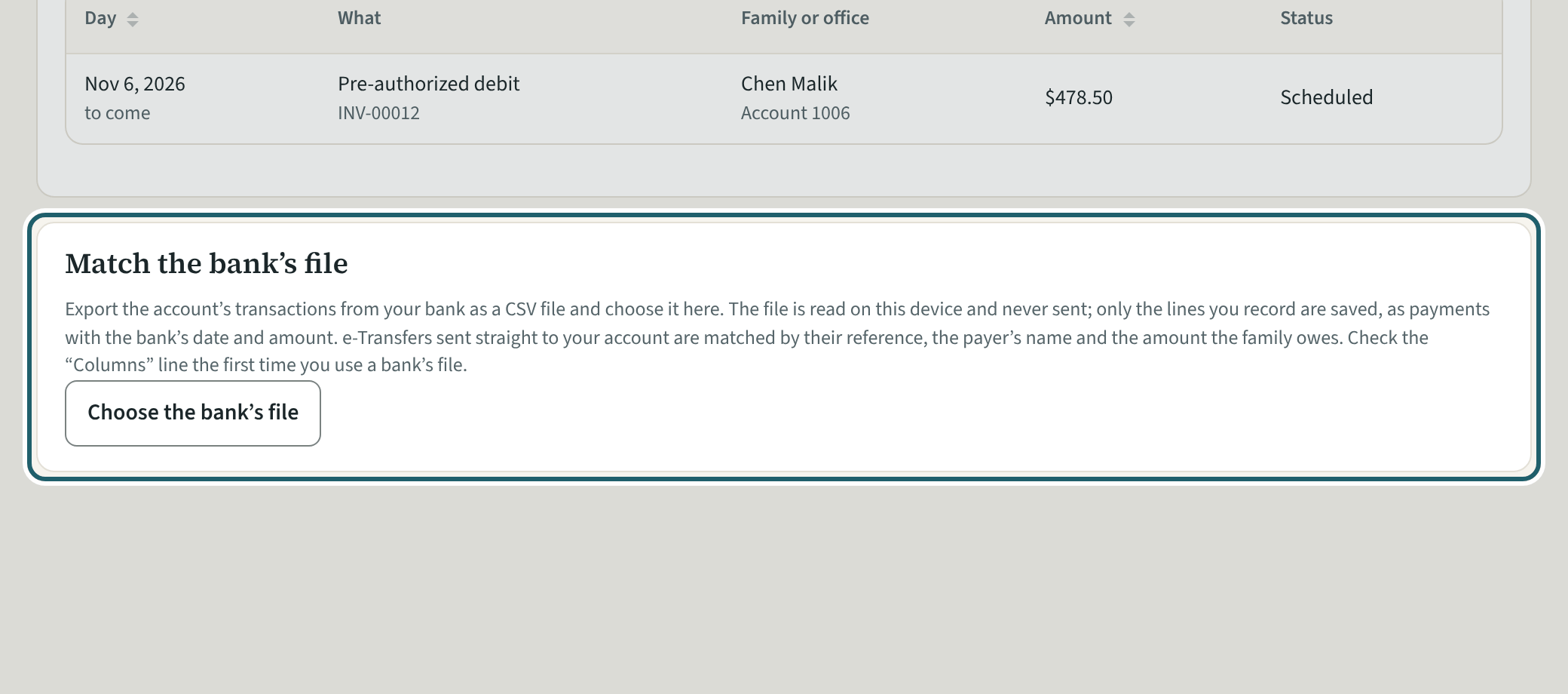
"Match the bank's file": choose your bank's transactions file. Each money-in line shows what KeepCount suggests, recorded with one tap.
Watch out: The file is read on this device and never sent. A line KeepCount has recorded already says so: check it before "Record it anyway".
-
Bank deposits
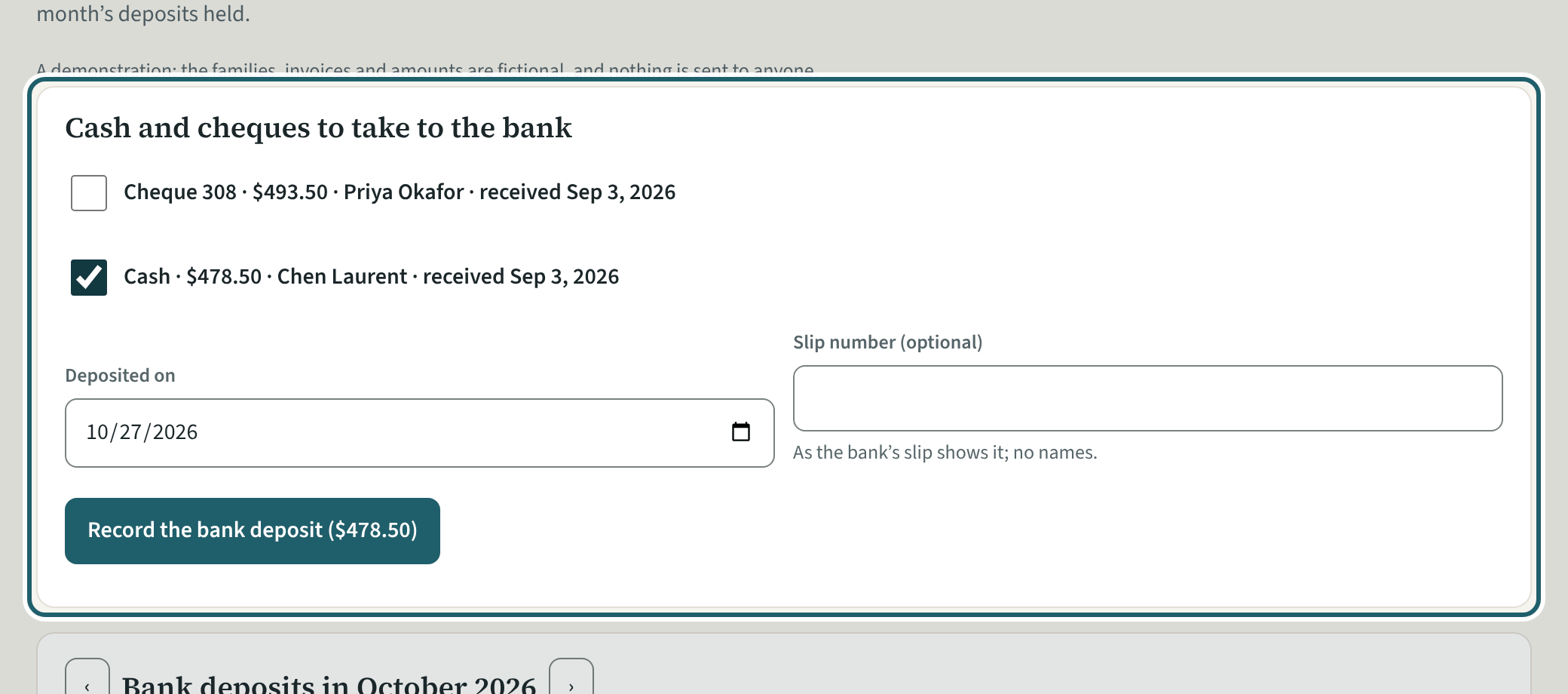
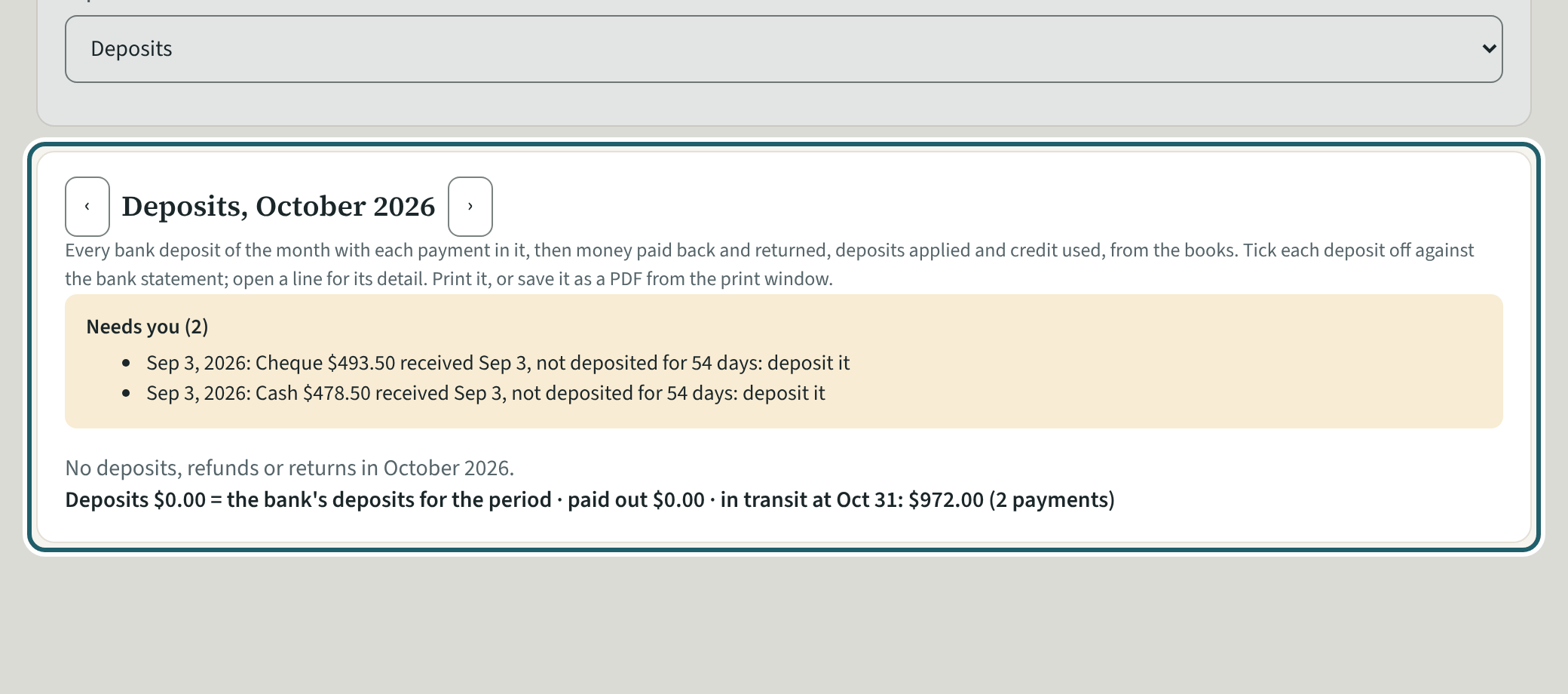
Bank deposits: the cash and cheques to take to the bank, the month's bank deposits, money paid back, and the deposits you hold.
Watch out: Tick what goes in the bag, then "Record the bank deposit". Press "Mark as checked against the bank" on each deposit once it is on your statement: a month closes only then.
-
Fee subsidy
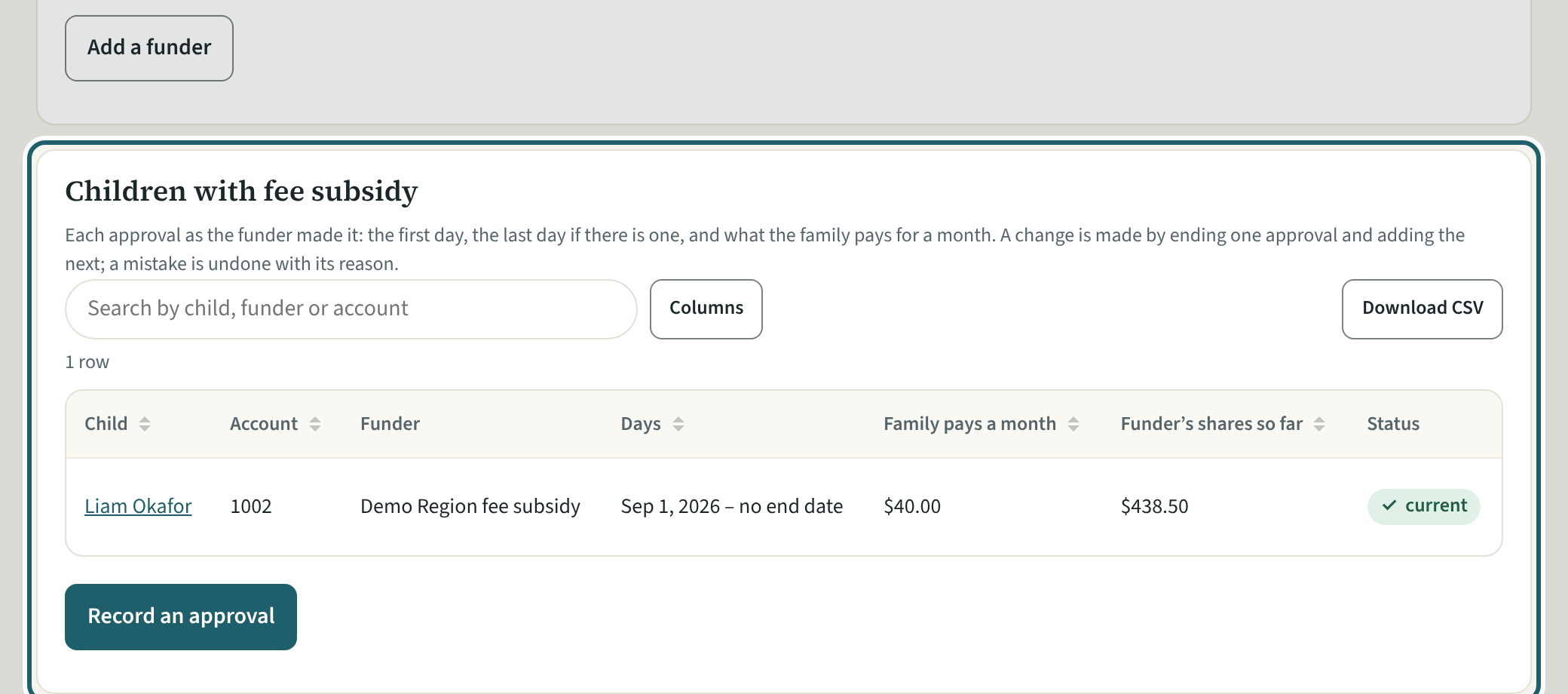
Fee subsidy: the funders, each child's approval from its first day, the funders' payments, and a month's claim to print.
Watch out: Record the approval from its first day: the funder's share comes off the family's invoices, and what the family already paid beyond its share becomes its credit.
-
The reports
Reports: what each family owes by age, who paid what, the deposits for your accountant, the journal for your bookkeeping, and more.
Watch out: The CWELCC year and the municipality's report are based on your records in KeepCount. Your service system manager decides the reconciliation.
-
Close the month
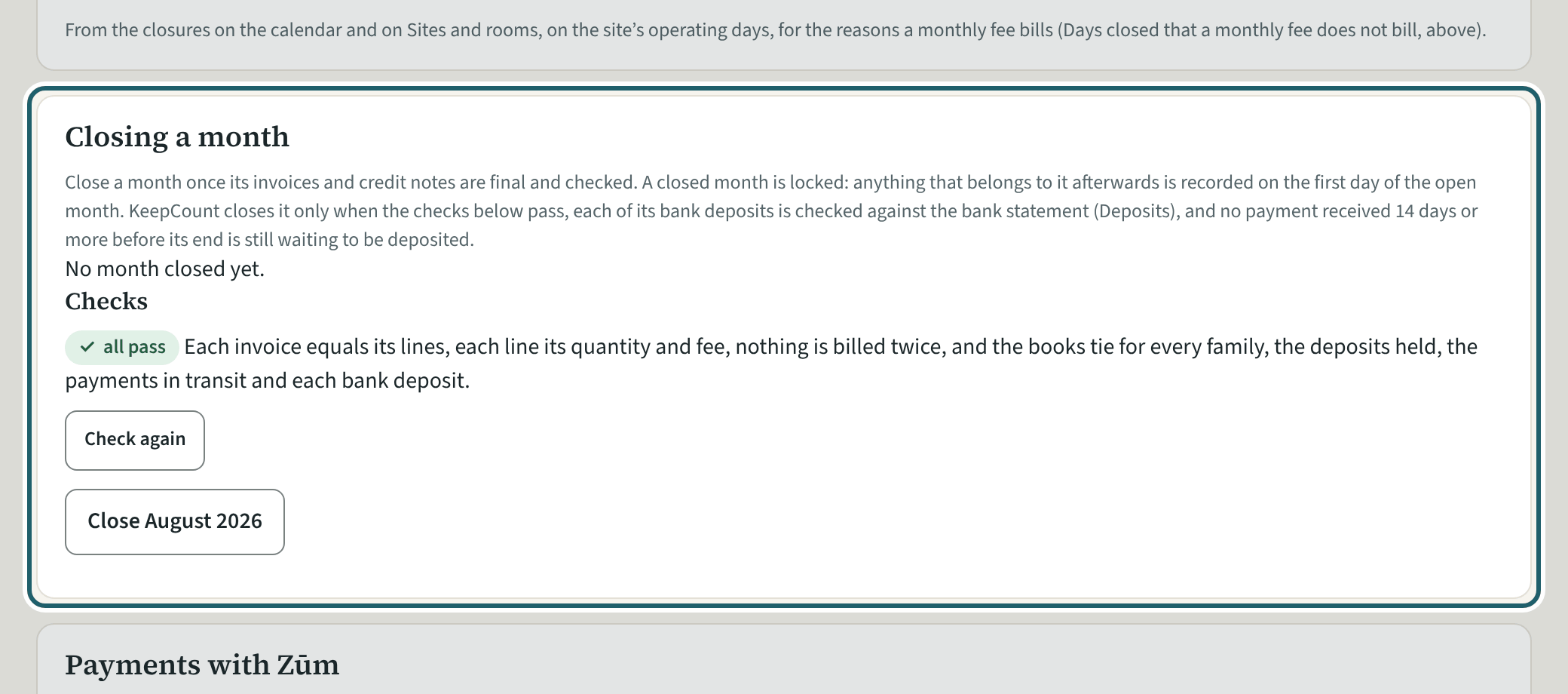
Settings, then "Closing a month": the checks, then "Close" the month once it has ended. Its entries in the books are then locked.
Watch out: A month closes once every check passes, no draft dated in it is left, each bank deposit and money paid back is checked against the bank, and no payment from 14 days before its end waits.
Payments through Zūm Rails
For a centre that takes pre-authorized debits and Interac requests through KeepCount. These payments run in Zūm Rails' test system for now: no centre takes them through KeepCount yet.
-
Payments with Zūm
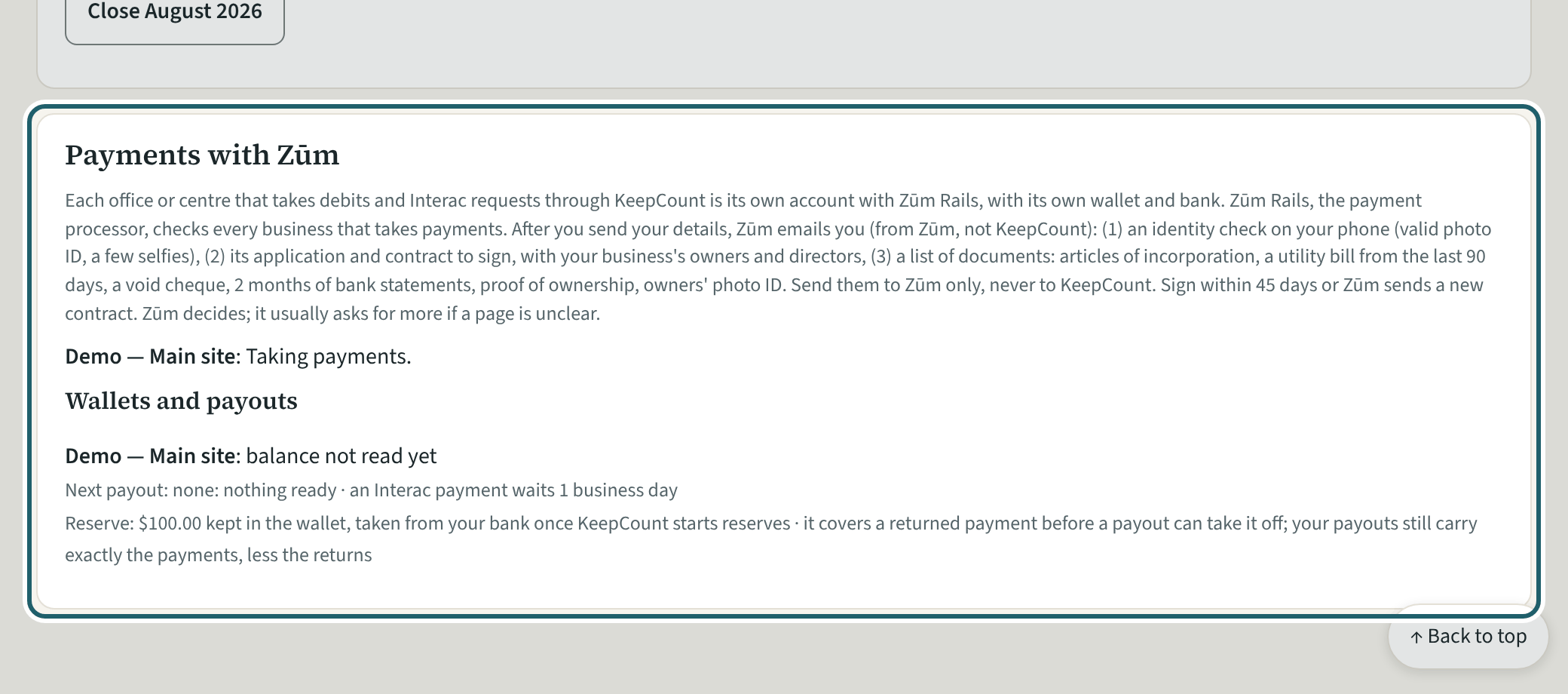
Settings, "Payments with Zūm": each office or centre's state, and the details an owner sends to start Zūm's application.
Watch out: Only an owner sends the details, and only with the tick that lets KeepCount give Zūm the owner's name and email. Everything else Zūm asks for goes to Zūm directly.
-
Approve the debits
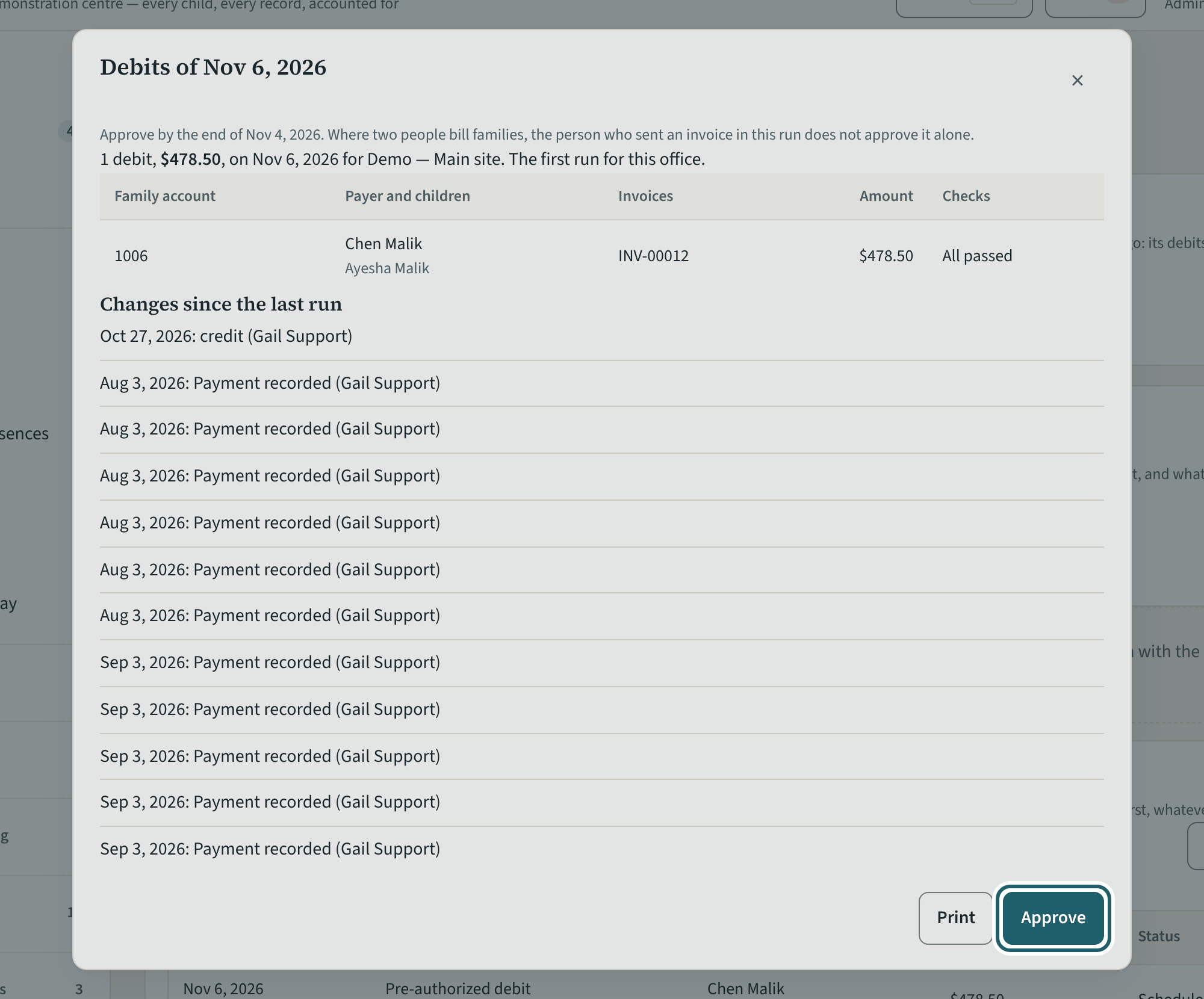
Payments, "Pre-authorized debits": each run of debits waits for "Review and approve", with every family's amount, invoices and checks.
Watch out: A debit goes only for the amount the family was told 10 days before. A run not approved in time does not go: its debits are noticed again for a later day.
-
Every payment through Zūm
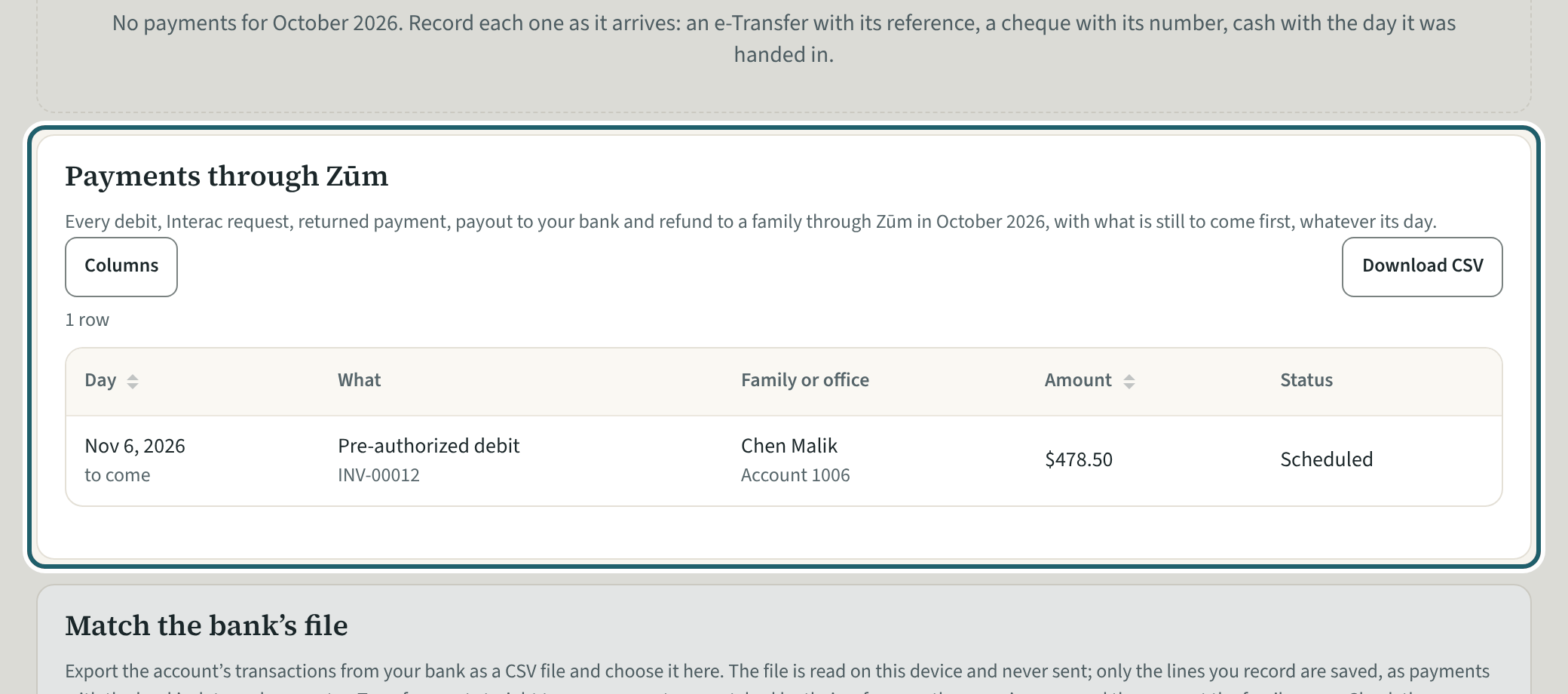
Payments, "Payments through Zūm": the month's debits, Interac requests, returned payments, payouts and money paid back, what is to come first.
Watch out: A payment through Zūm is reversed only when Zūm reports it returned, never by hand.
Year end
-
Year-end receipts
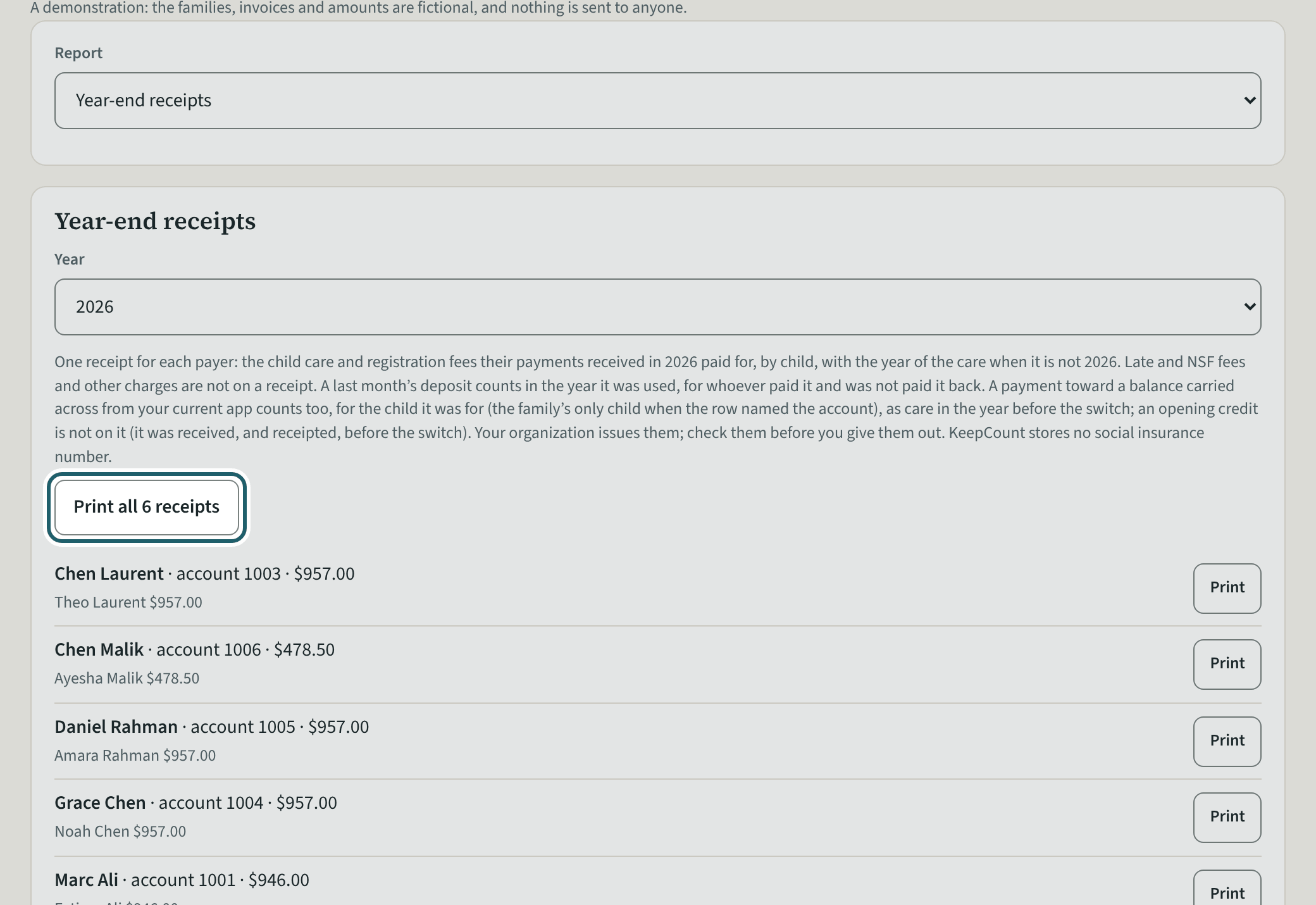
Reports, "Year-end receipts": each payer's receipt for the year, with the fees paid for each child, your name, address and business number.
Watch out: Check the receipts before you give them out: your organization issues them. KeepCount keeps no social insurance number.