Your first day
The room's records: who is here, the counts, the daily checks, sleep checks and outdoor time. Everything you record is time-stamped and kept for the licensing binder. The screens are from a demonstration centre; everyone in them is fictional.
-
Sign in
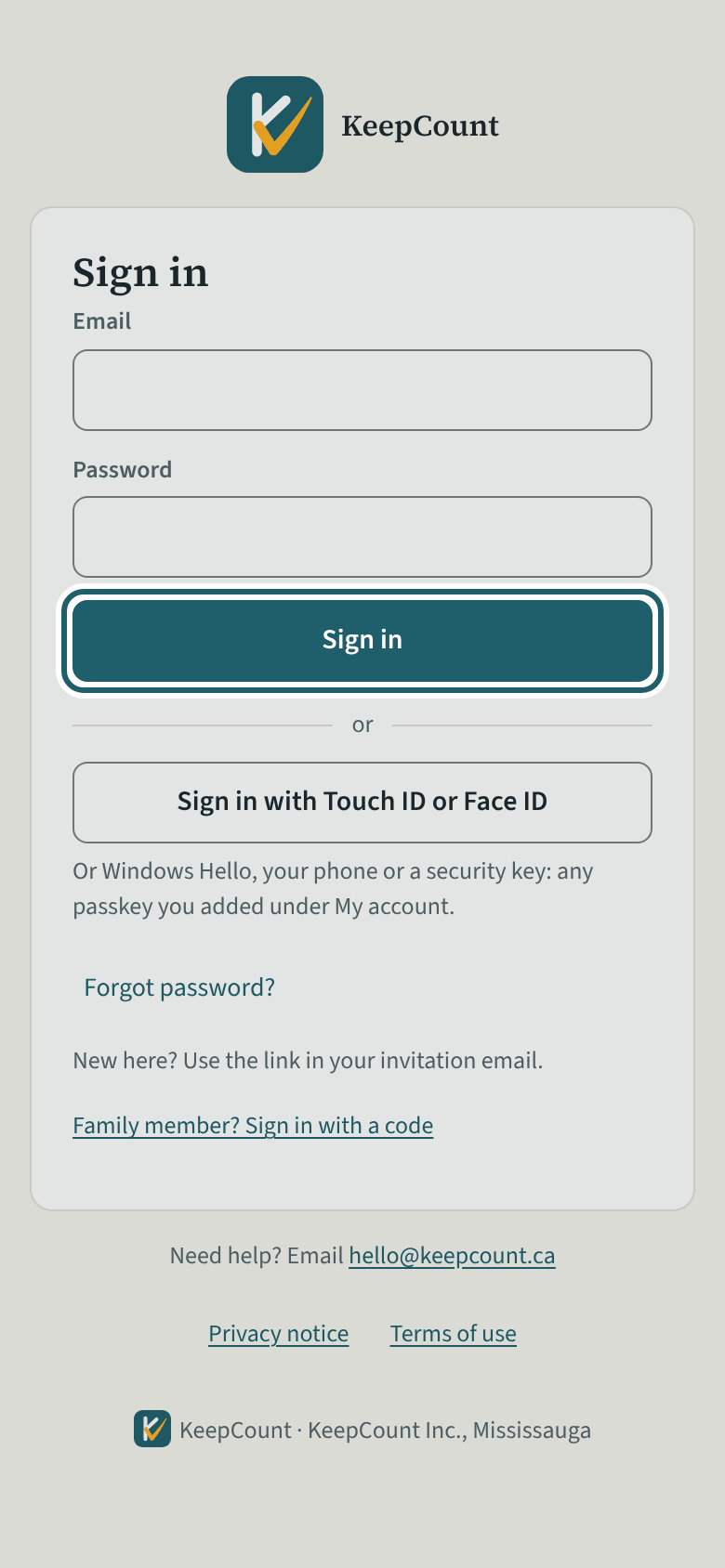
Open the link in your invitation email and choose a password. After that, sign in with your email and that password.
Watch out: Link expired? Choose "Forgot password?" on the sign-in page and enter your email for a new one. No invitation at all? Ask the office. KeepCount support answers about the system, never about your account at the centre.
-
Your home page
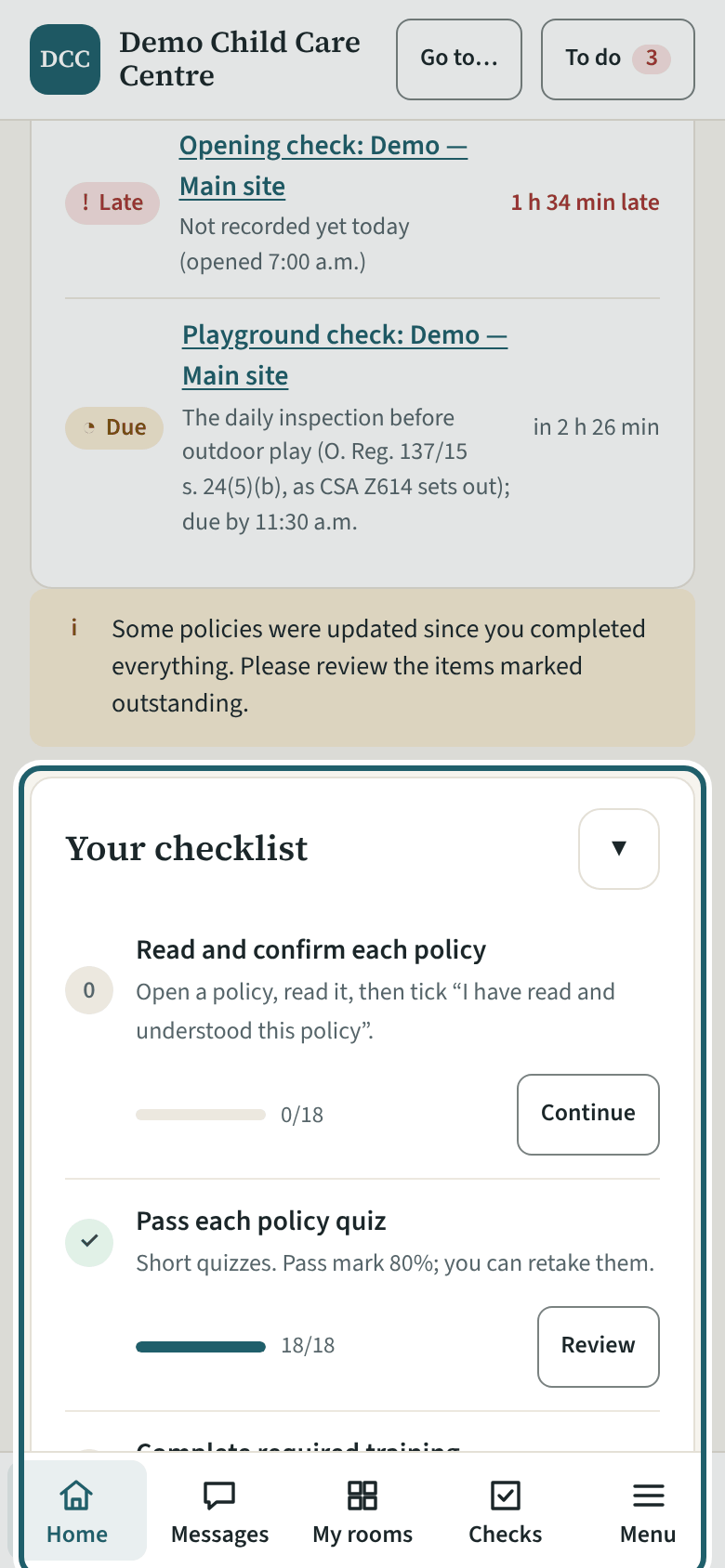
Your home page lists what the centre asks of you: policies to read and confirm, quizzes, training, and your screening documents, each with its due date.
Watch out: Until you confirm the policies, your room's card says "Not cleared yet" beside your name: ask the supervisor before you are counted in the ratio or left alone with the children.
-
Choose your rooms for today
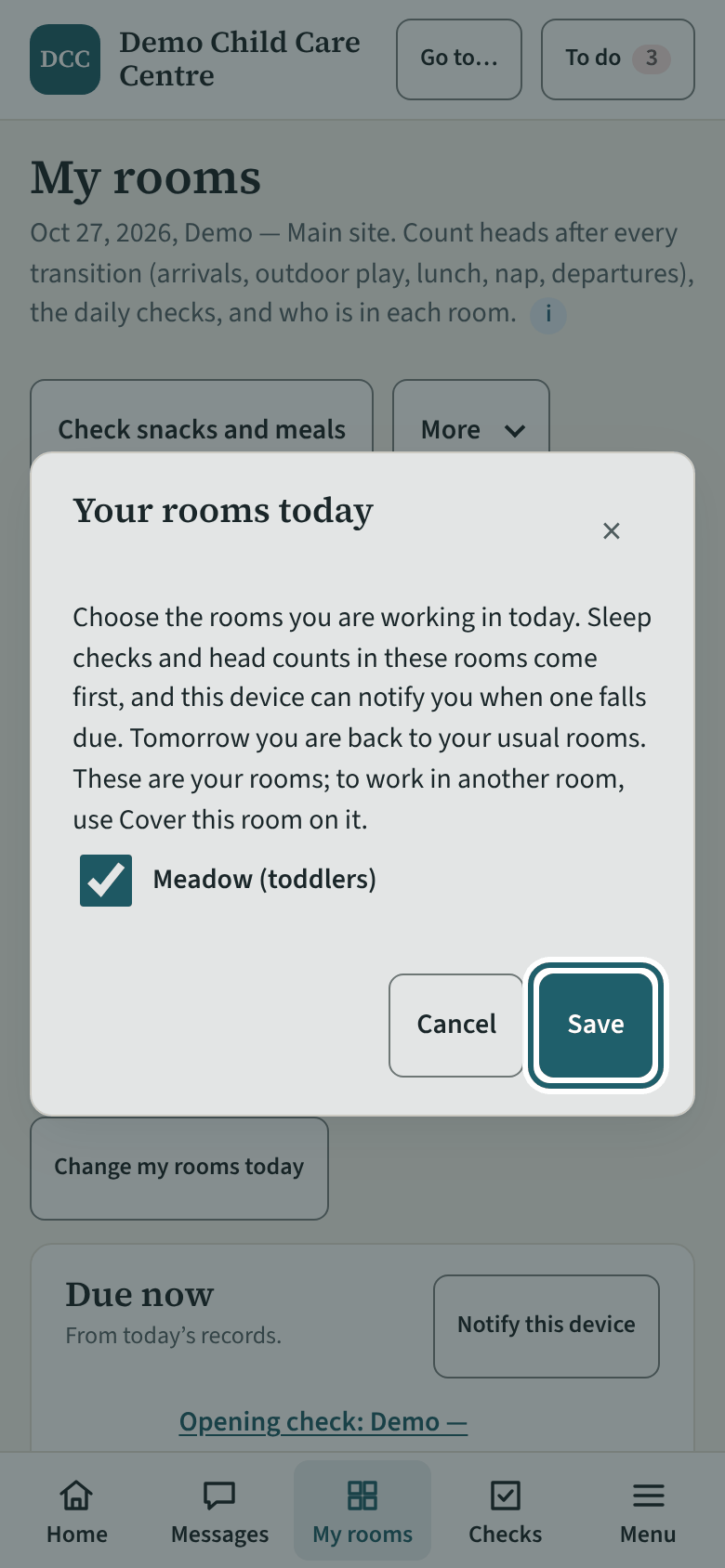
Your usual room is already set on My rooms. Somewhere else today? Tap "Change my rooms today", tick the room, Save. Tomorrow you are back to your usual room.
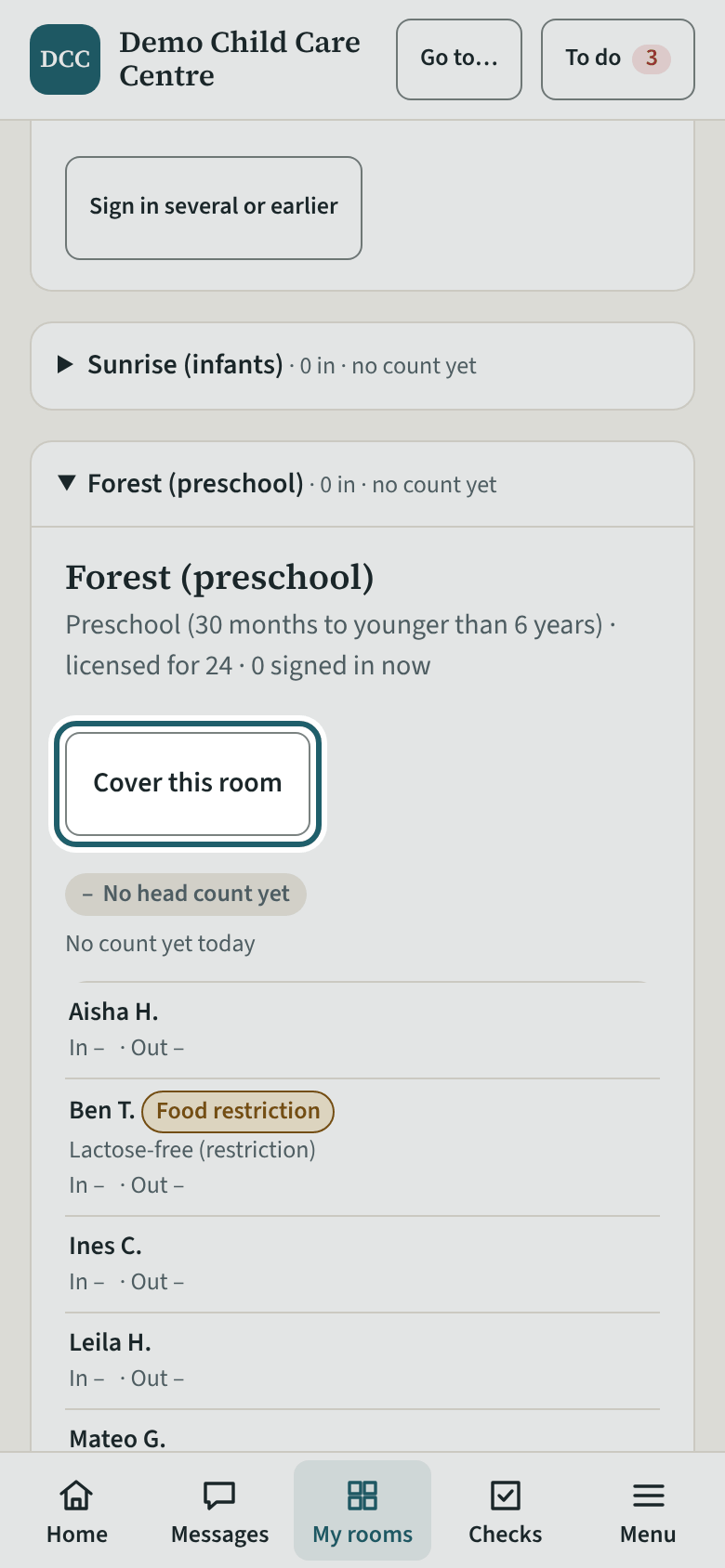
Watch out: To record in a room that is not yours (a break, a ratio cover), use "Cover this room" on its card instead: it asks the reason. Rooms at another site cannot be chosen.
-
The opening check
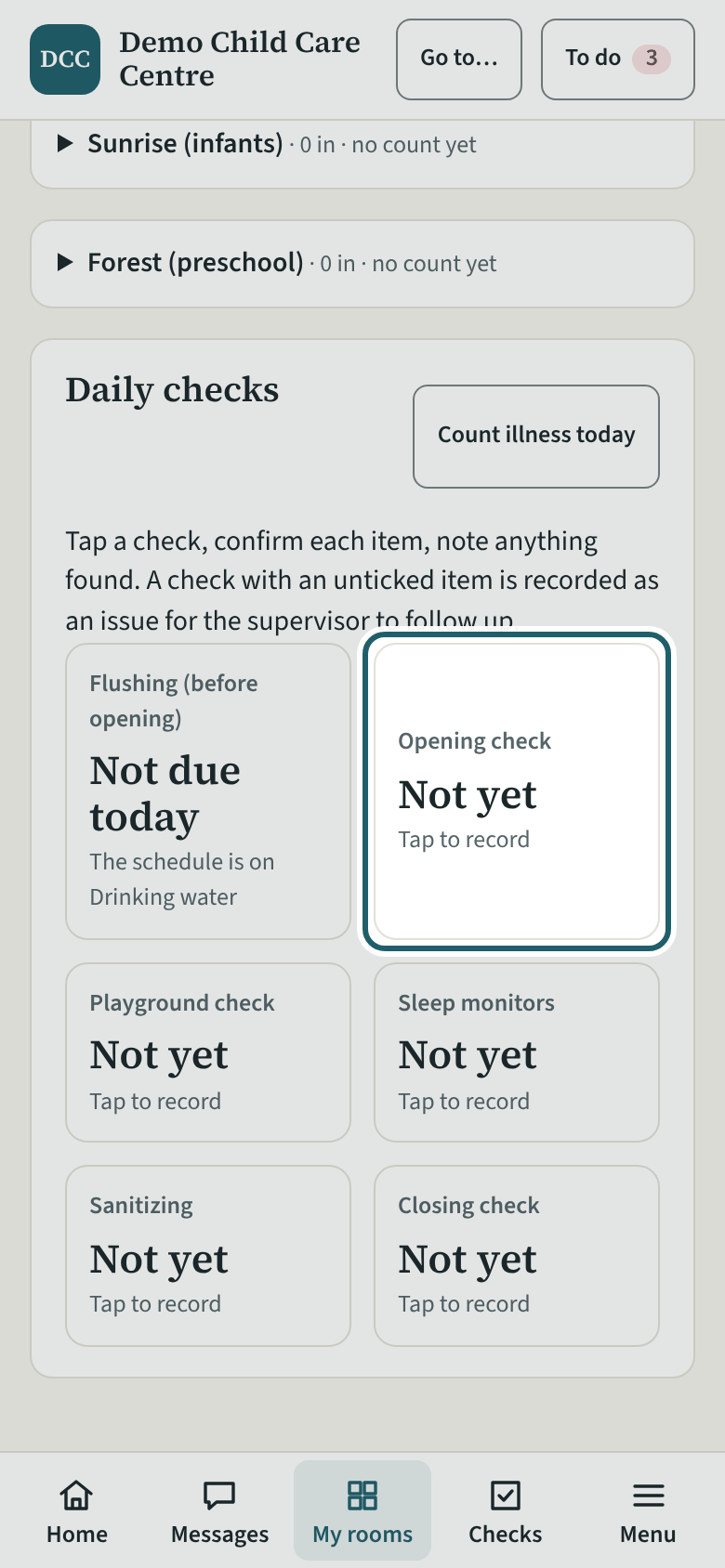
In Daily checks, tap "Opening check" before the first child arrives.
-
Tick each item and record
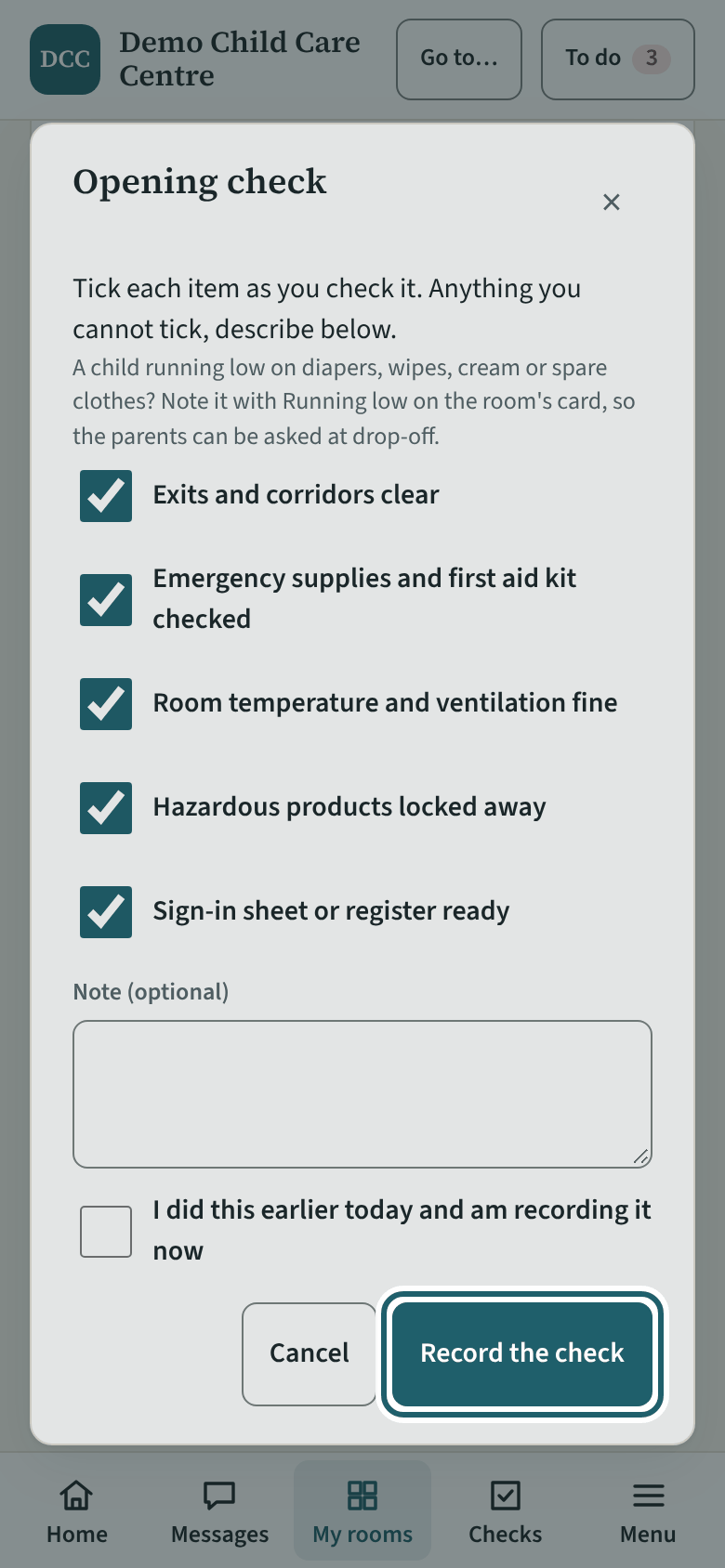
Tick each item as you check it. Anything you cannot tick, describe in the box. Then tap "Record the check".
Watch out: Never tick what you did not check: say what you found instead, and the supervisor sees it on the checks board. The record is read at the next licensing visit.
-
Sign a child in
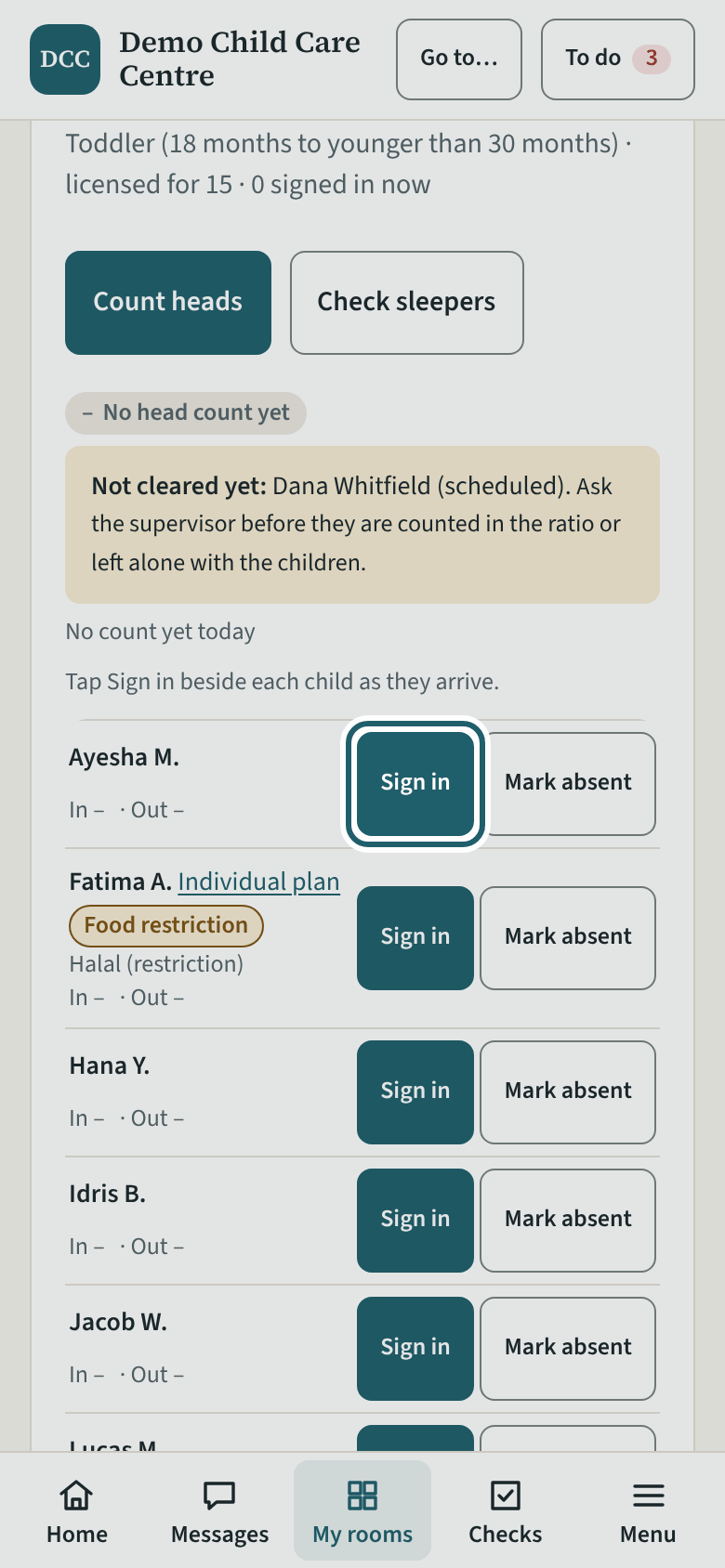
When a child arrives, tap "Sign in" beside their name. The time is recorded for you. A child sent home ill today is asked about first.
Watch out: Busy at the door? "Sign in several or earlier" signs in a group at once, with the minutes ago.
Watch: Sign a child in · 45 s · captions -
Who is expected and not here
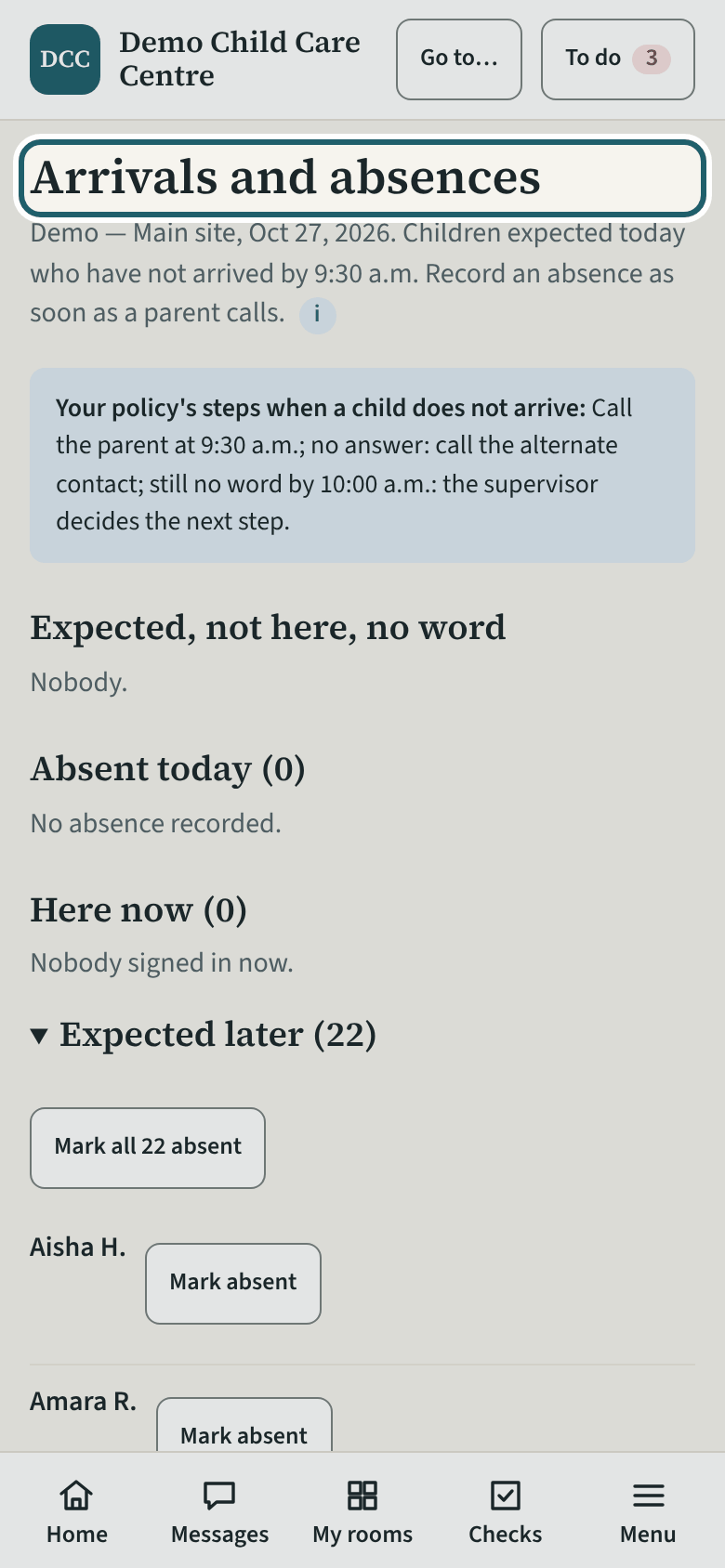
Arrivals and absences lists who is expected and has not arrived, so you can follow the safe arrival policy and call.
Watch out: Your centre's own steps are under the heading. "Mark absent" as soon as a parent calls; "Record a step" keeps each call you made.
-
Count heads
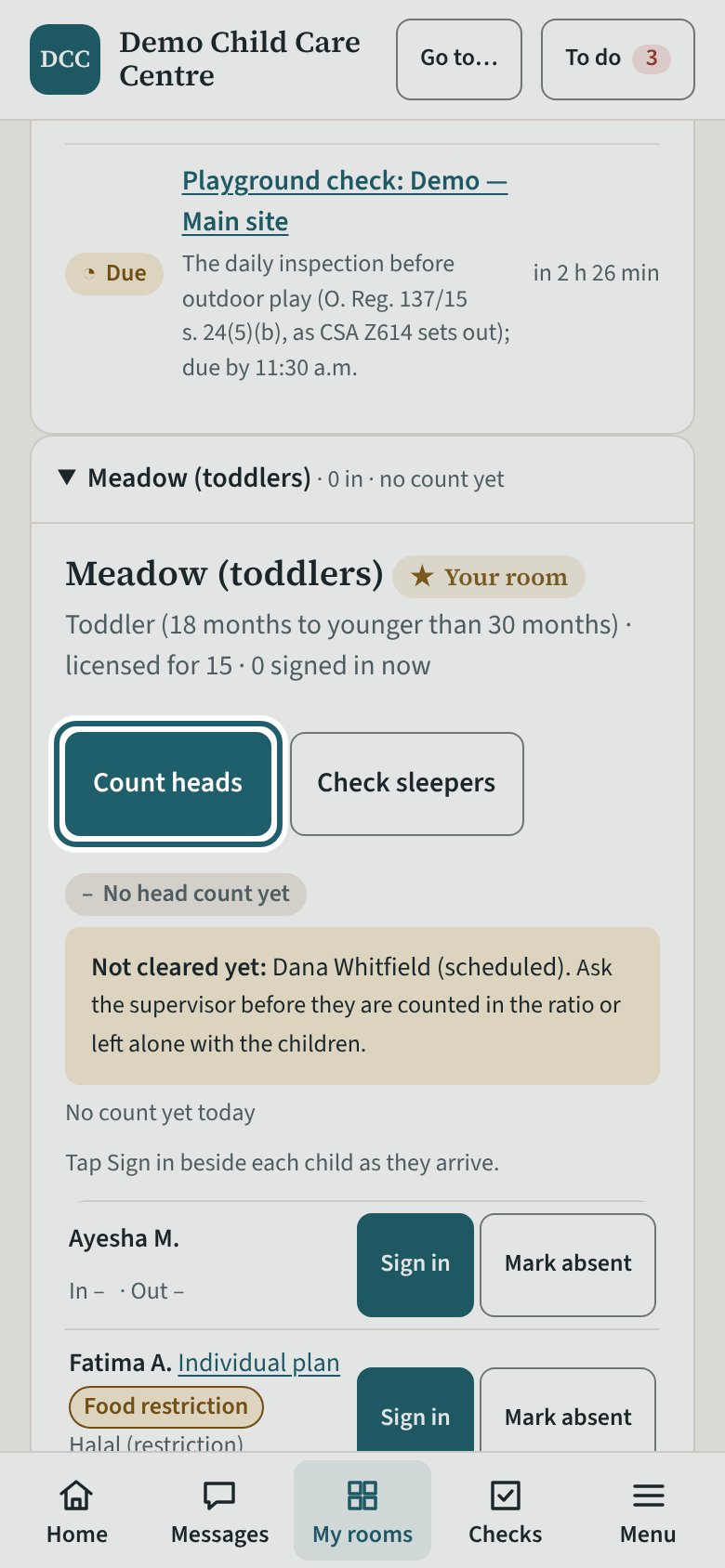
After every transition, tap "Count heads" on your room's card: arrivals, going out, lunch, nap and departures.
Watch out: A count that is short is not hidden: it stays on the record until a supervisor or administrator corrects it or marks it a mistake.
-
Enter the numbers and record
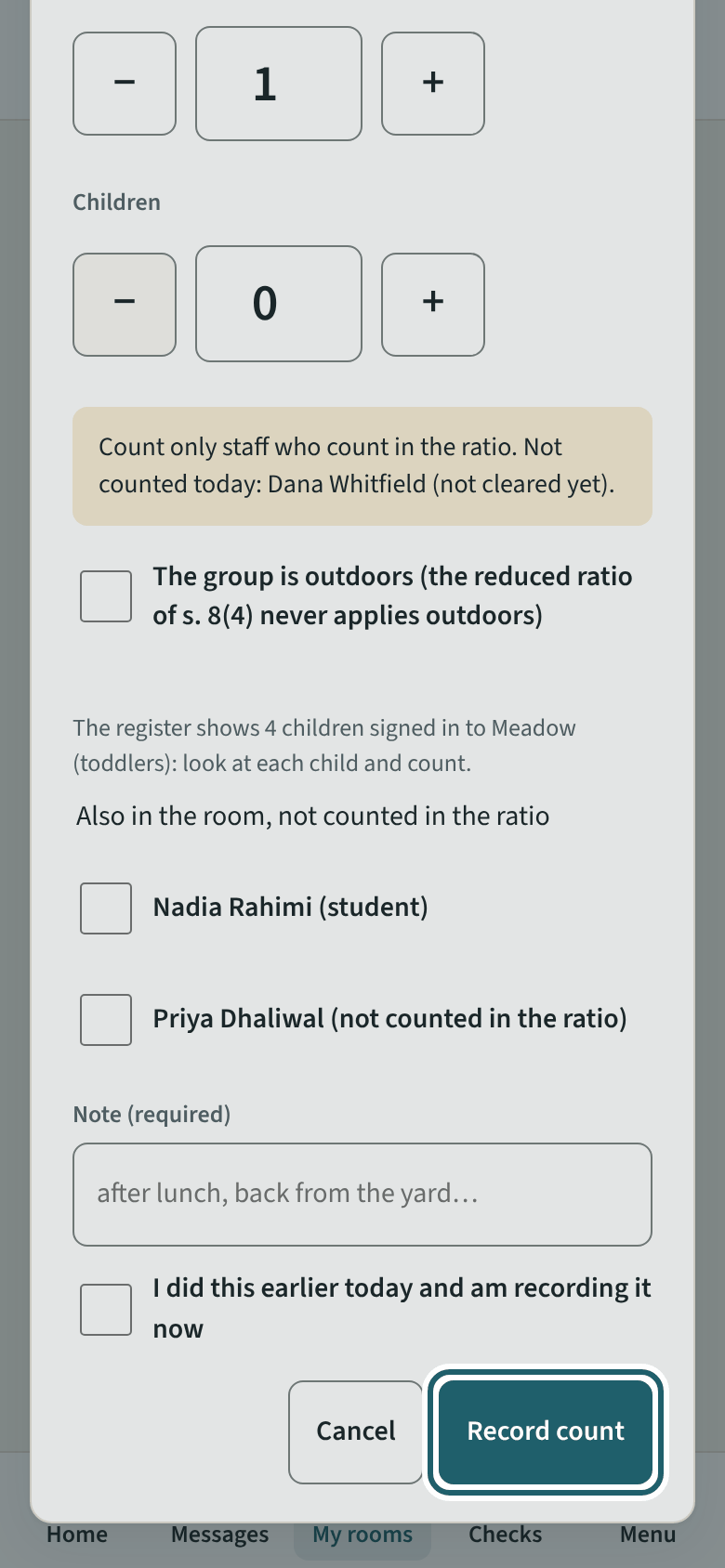
Set how many children and how many staff are in the room, read the ratio line, then tap "Record count".
Watch out: Tick "The group is outdoors" when you count outside: the reduced ratio allowed at arrival, departure and rest never applies outdoors.
-
Outdoor time
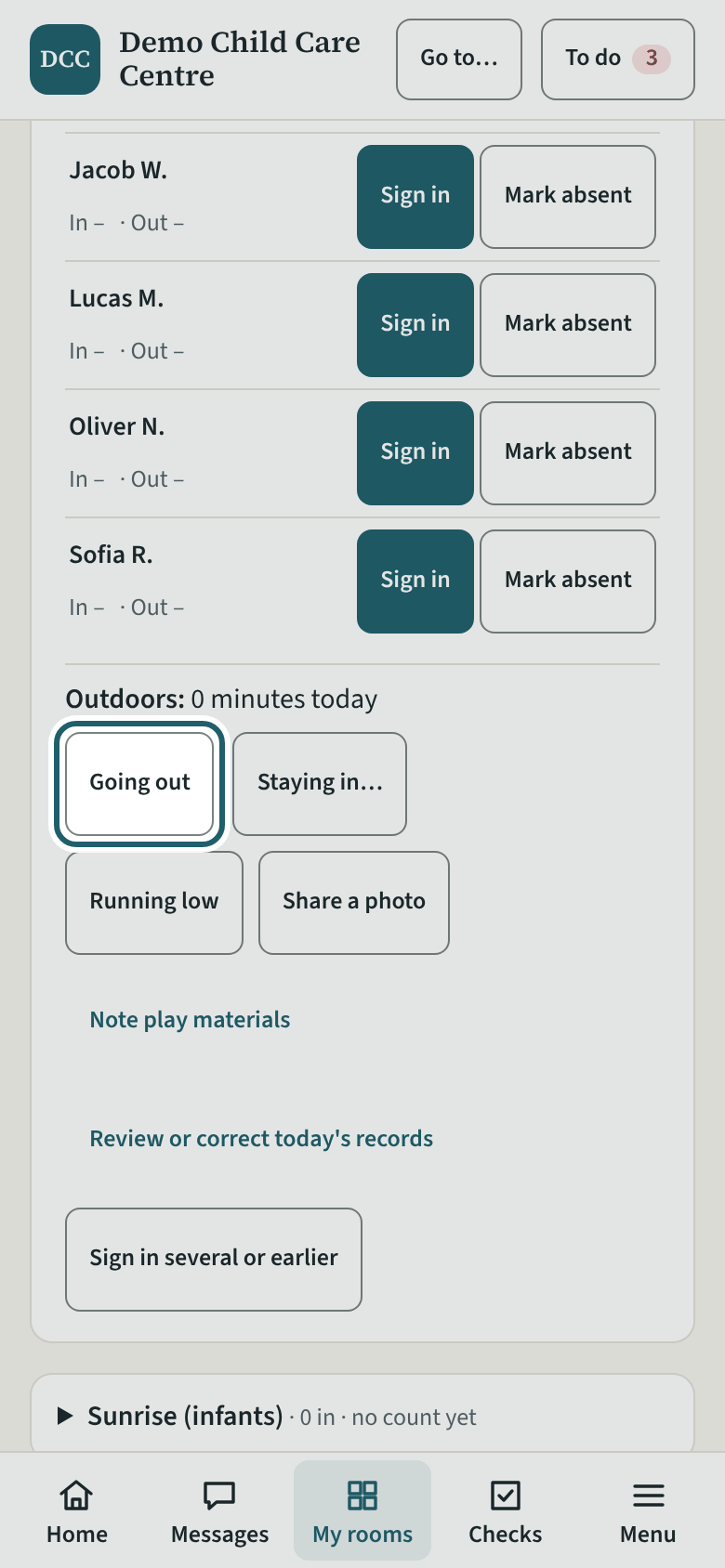
Tap "Going out" when the group goes outside and "Back in" when it returns. "Staying in…" records why not.
-
Sleep checks
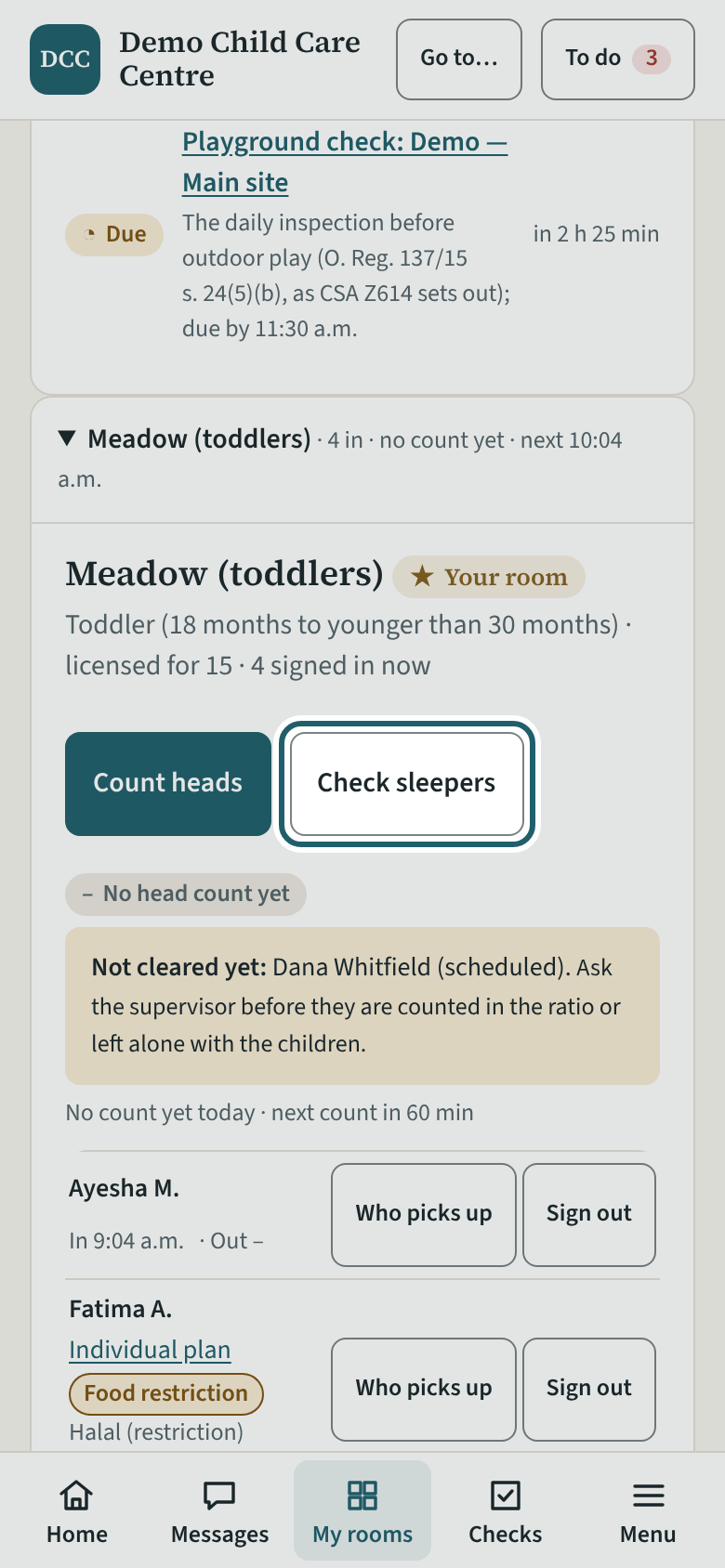
In an infant or toddler room, tap "Check sleepers" when children fall asleep, while they sleep, and when they wake.
Watch out: Your centre's sleep policy sets how often; the Due now box tells you when the next check is due. A sleep monitor never replaces the visual check.
-
Record the sleep check
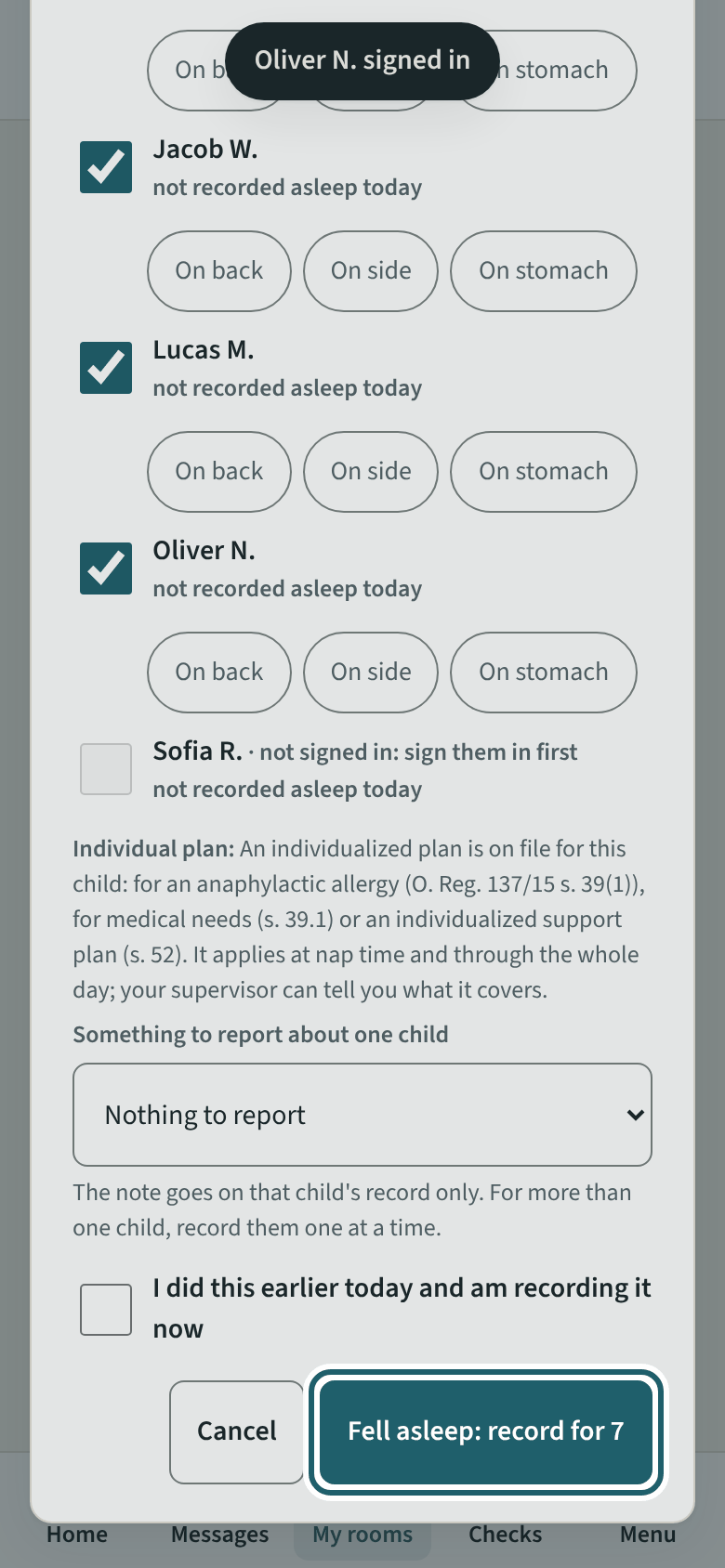
Choose "Fell asleep", "Checked while asleep" or "Woke up", tick each child, note anything to report, then tap the record button.
Watch out: A child under 12 months is placed for sleep as the Public Health Agency of Canada's safe sleep statement recommends (s. 33.1(1)). Side or stomach: KeepCount asks if you turned them.
-
Sign a child out
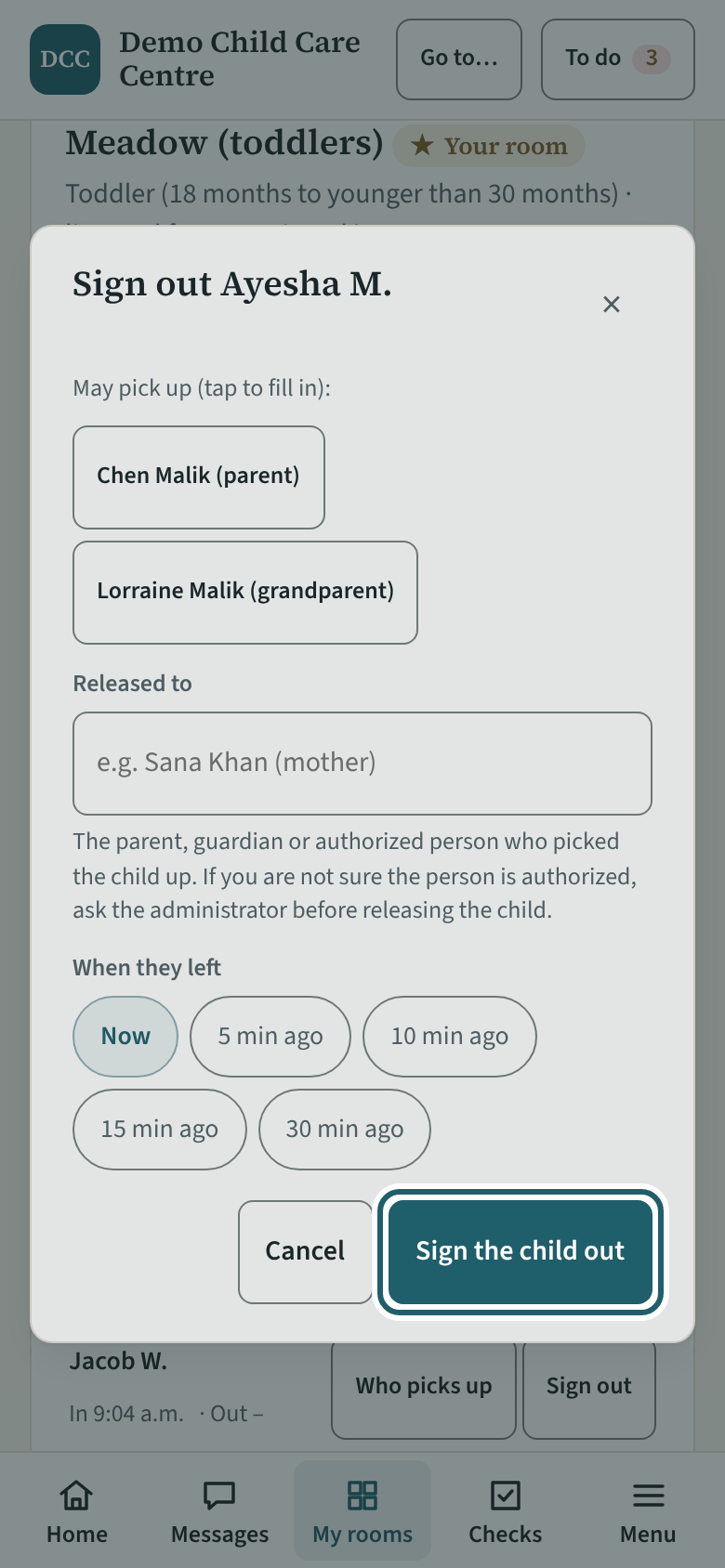
At pick-up, tap "Sign out" beside the child, tap the person who picked them up, and tap "Sign the child out".
Watch out: A name that is not on the list? KeepCount asks whether a parent approved it. Choose "No: don't release; call the office" whenever you are not sure.
-
The closing check
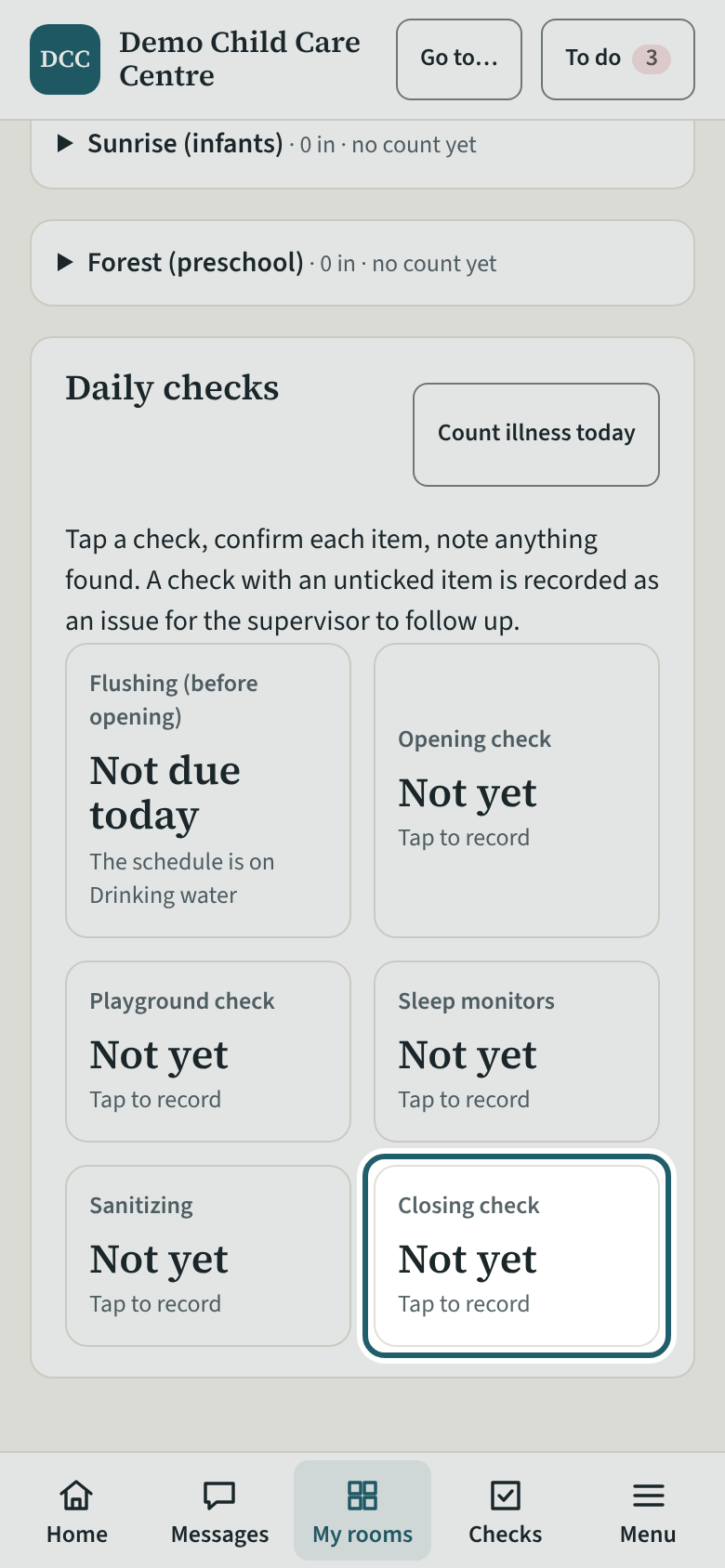
At the end of the day, tap "Closing check": every child signed out, the count at zero, the room tidy and secure.
Watch out: A child still shown as "in" after closing shows as "Signed in after closing" on the supervisor's board and "Still signed in" at the close-out: sign every departure out before you tap it.
-
Checks today
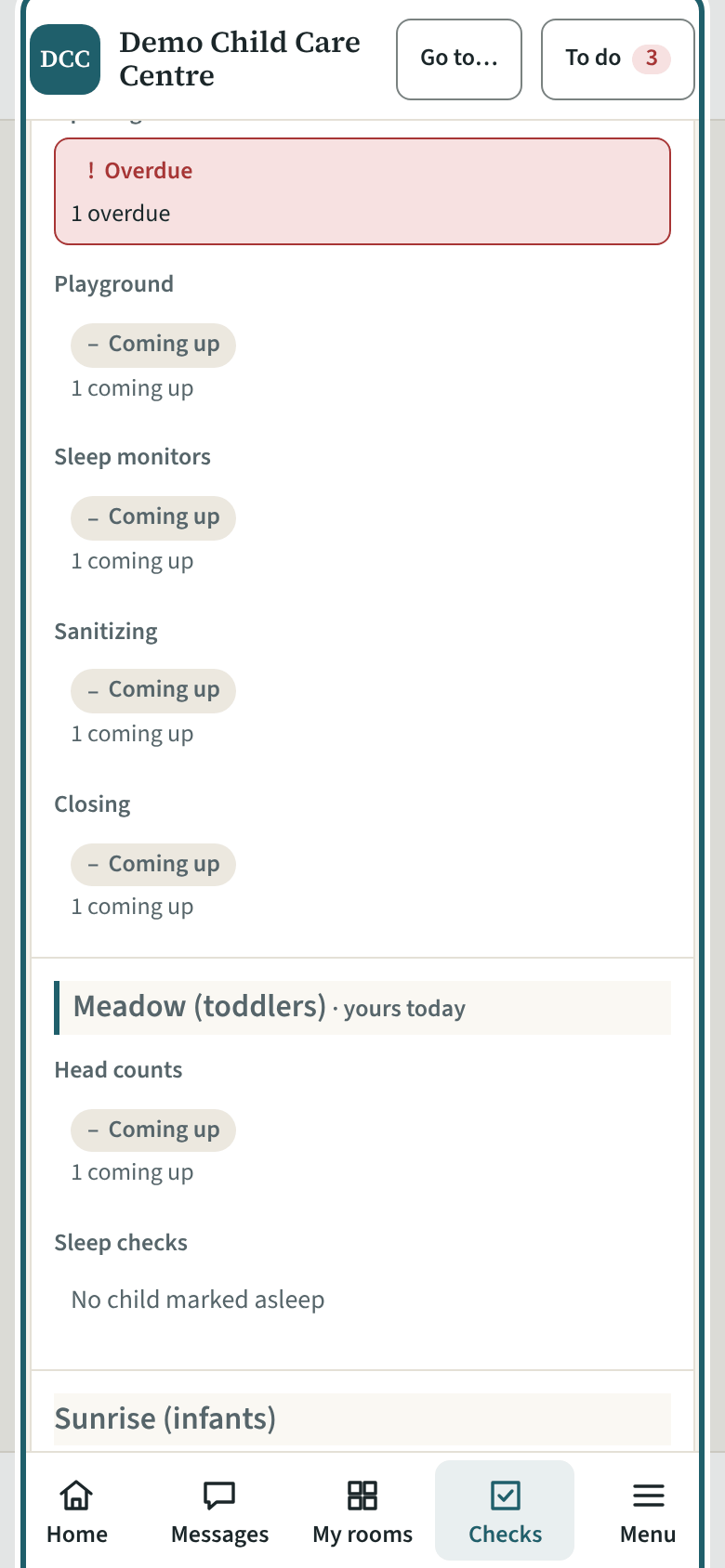
Checks today shows every room's counts and checks for the day, so nothing is missed before closing.
Watch out: A missed check: tap it and "Record what happened". Explained and signed off by the supervisor, it counts as a miss with a reason, which is better than a gap.
Your first week
Away from the room: the policies to read and confirm, the quizzes, training, your documents, and what to do when something happens.
-
Policies
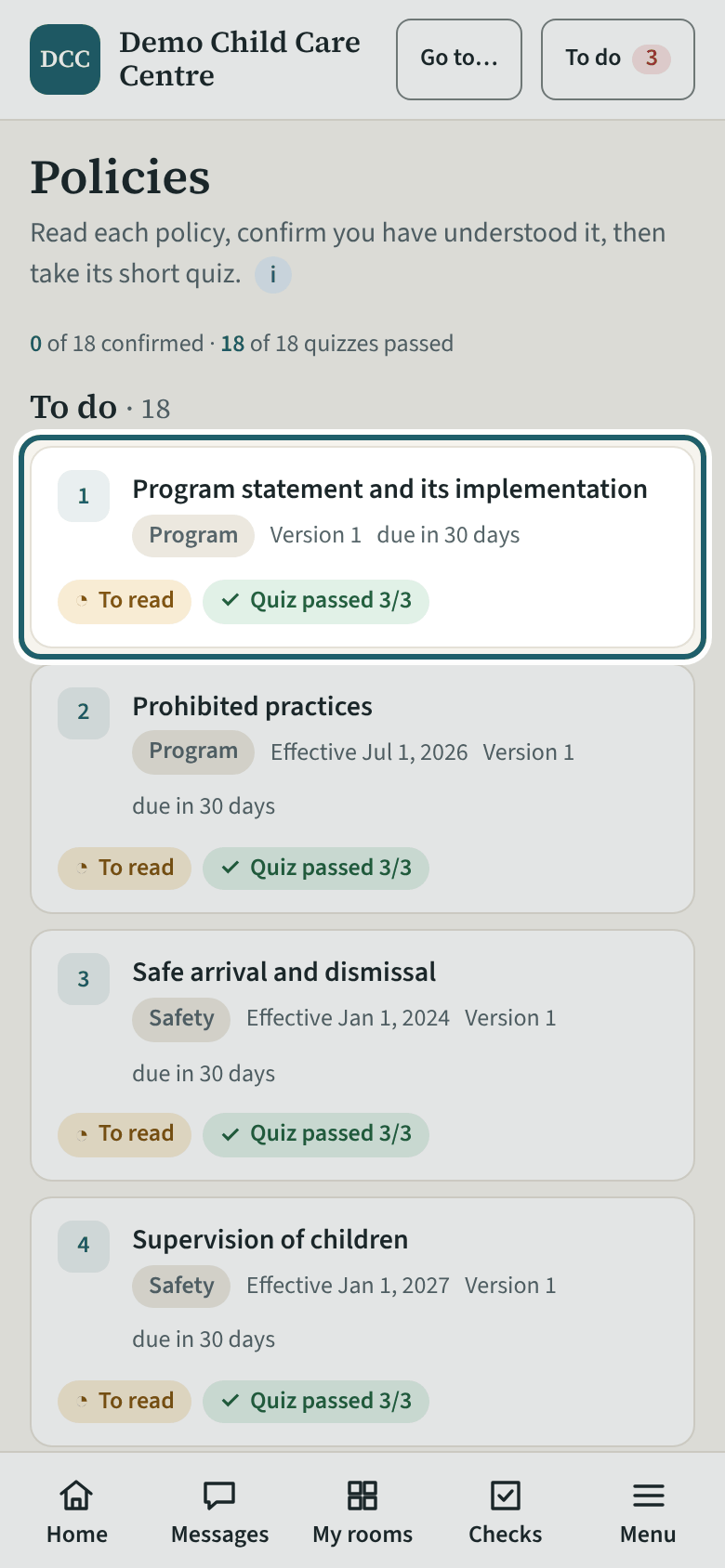
Open Policies and work through the list. Each policy shows "To read" until you confirm it, and "Quiz" until you pass its quiz.
Watch out: Your confirmation, with its date and the version you read, is the record a program adviser asks to see. A changed policy comes back to the list to confirm again.
-
Read to the end, then confirm
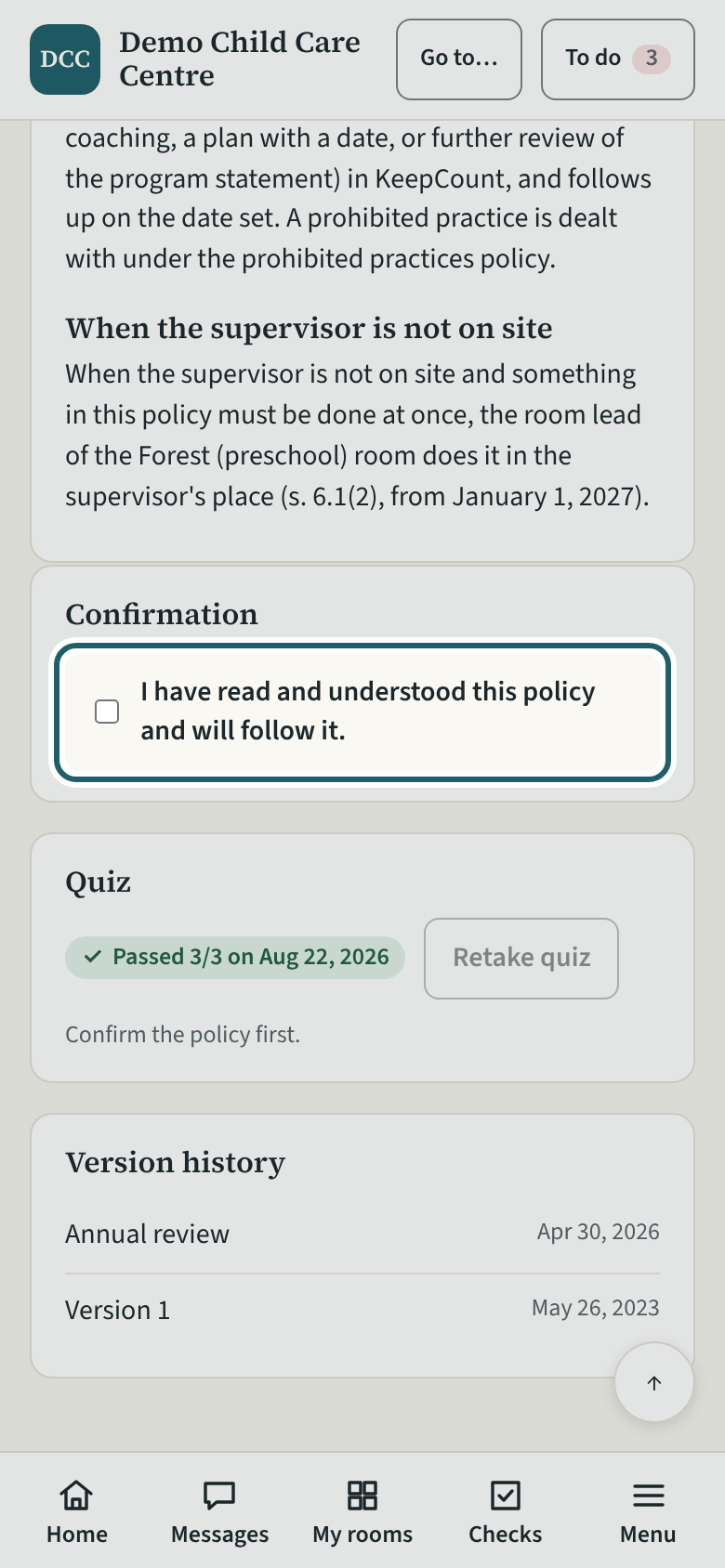
Read to the end, then press "I have read it: confirm" under "I have read and understood this policy and will follow it."
Watch out: The button stays off until you have scrolled to the end. Anything you do not understand, ask your supervisor before you confirm: the confirmation says you will follow it.
-
Take the quiz
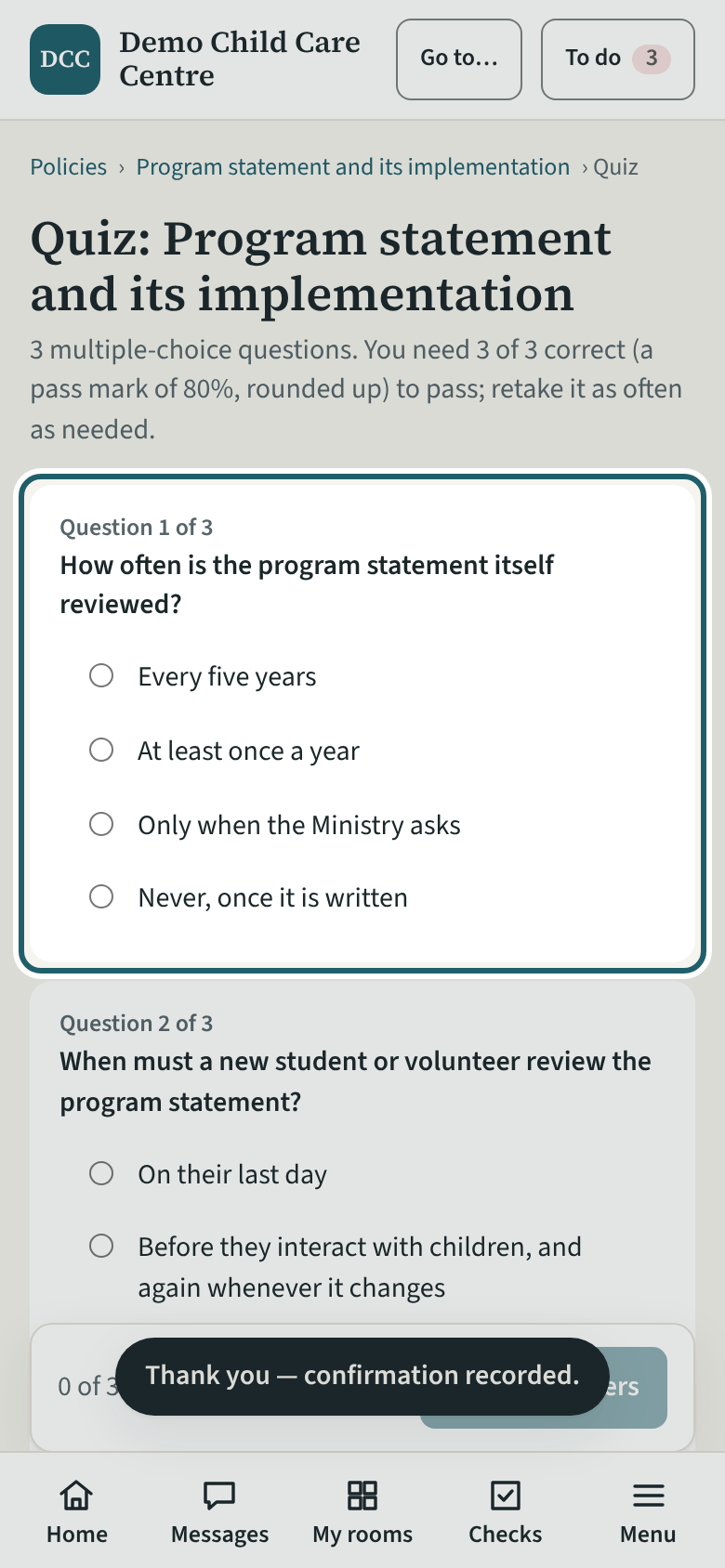
Take the quiz after confirming. The pass mark is your centre's setting (80% unless it chose otherwise), and you can retake it as often as you need.
-
Training
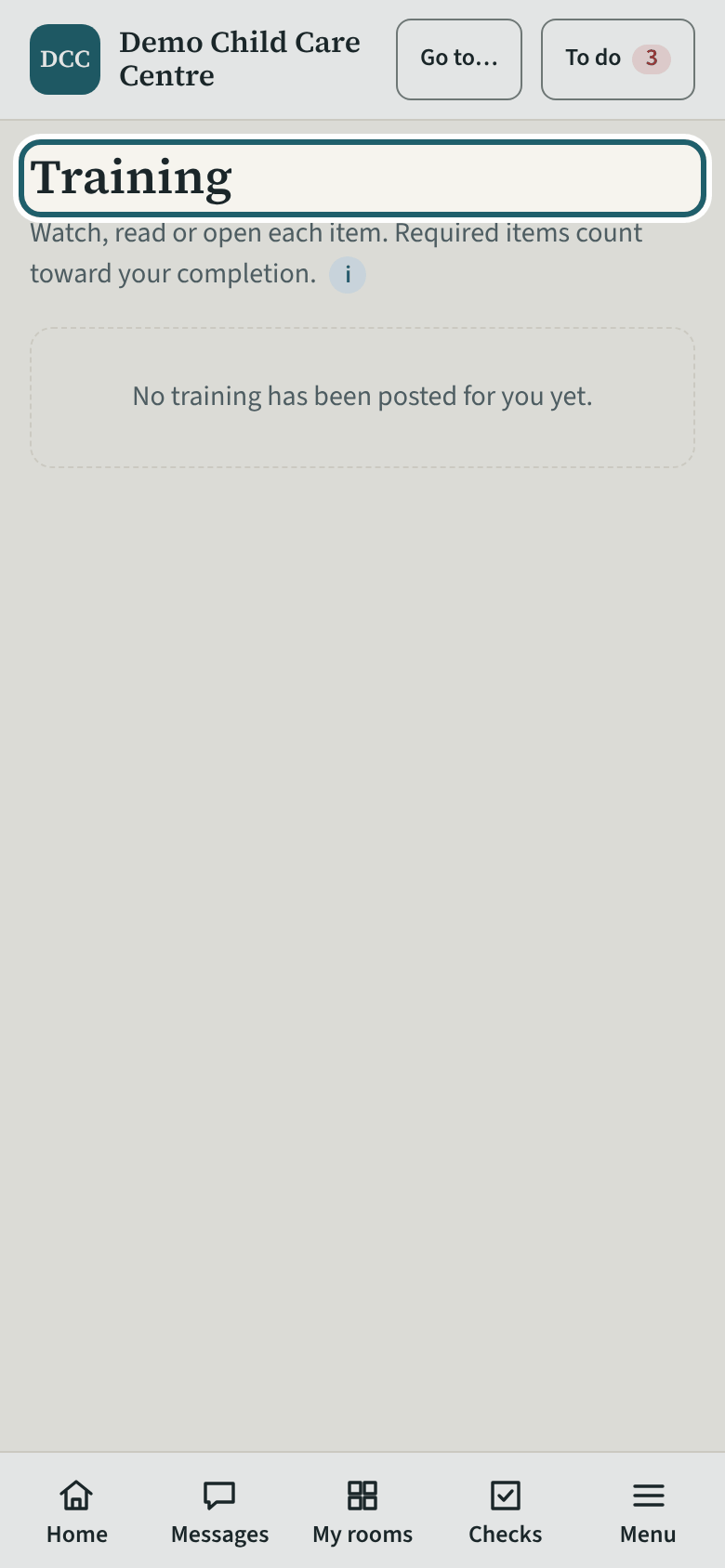
Training lists what the centre assigned to you, each with what to do and a due date. Nothing is posted yet for a brand-new account.
Watch out: Your first aid certificate is separate: standard first aid with infant and child CPR, its expiry under My details, with a reminder before it lapses.
-
Report an incident
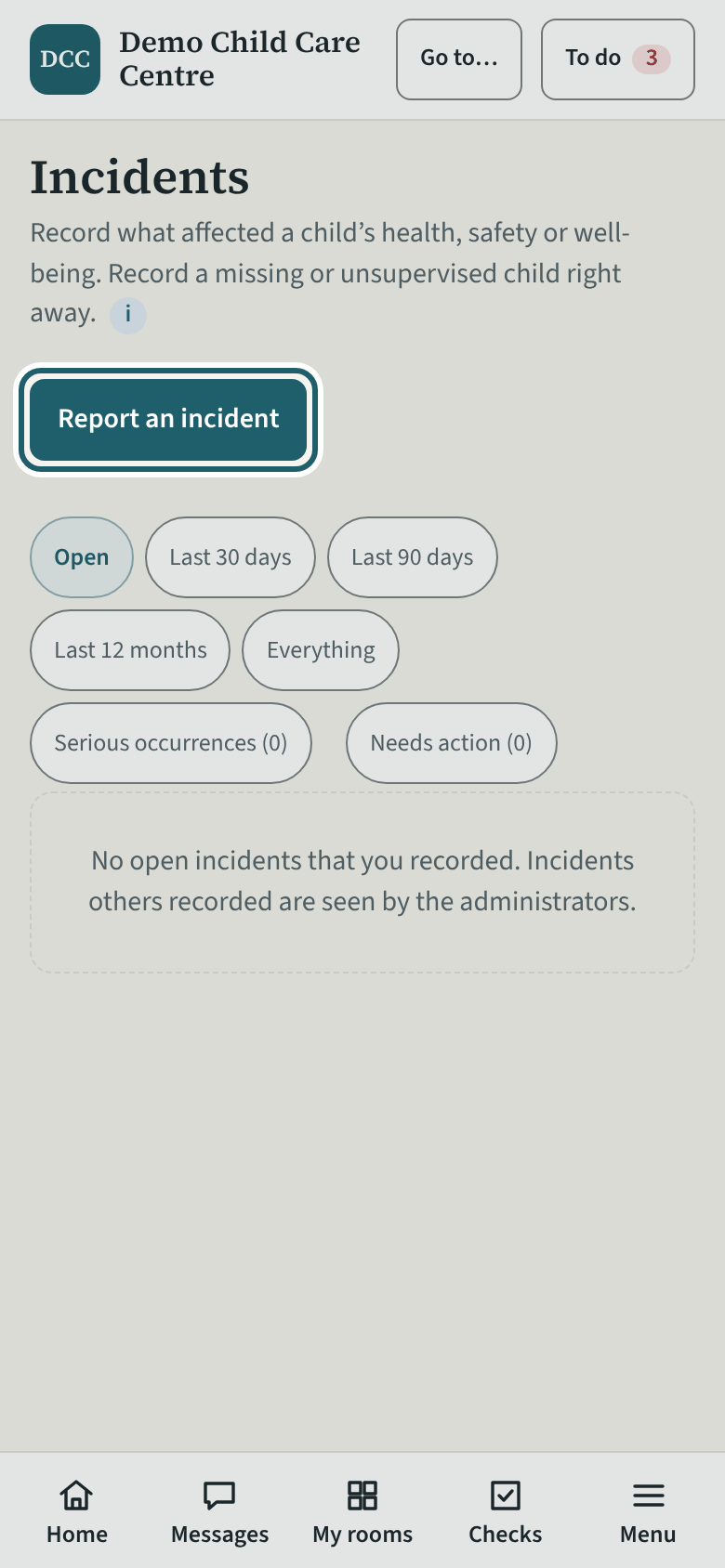
Anything that affected a child's or a staff member's health, safety or well-being: tap "Report an incident" when it happens. A missing child, right away.
Watch out: Tell the supervisor at once, then record. The office makes the serious-occurrence report to the Ministry from your record and your call.
-
Say what happened
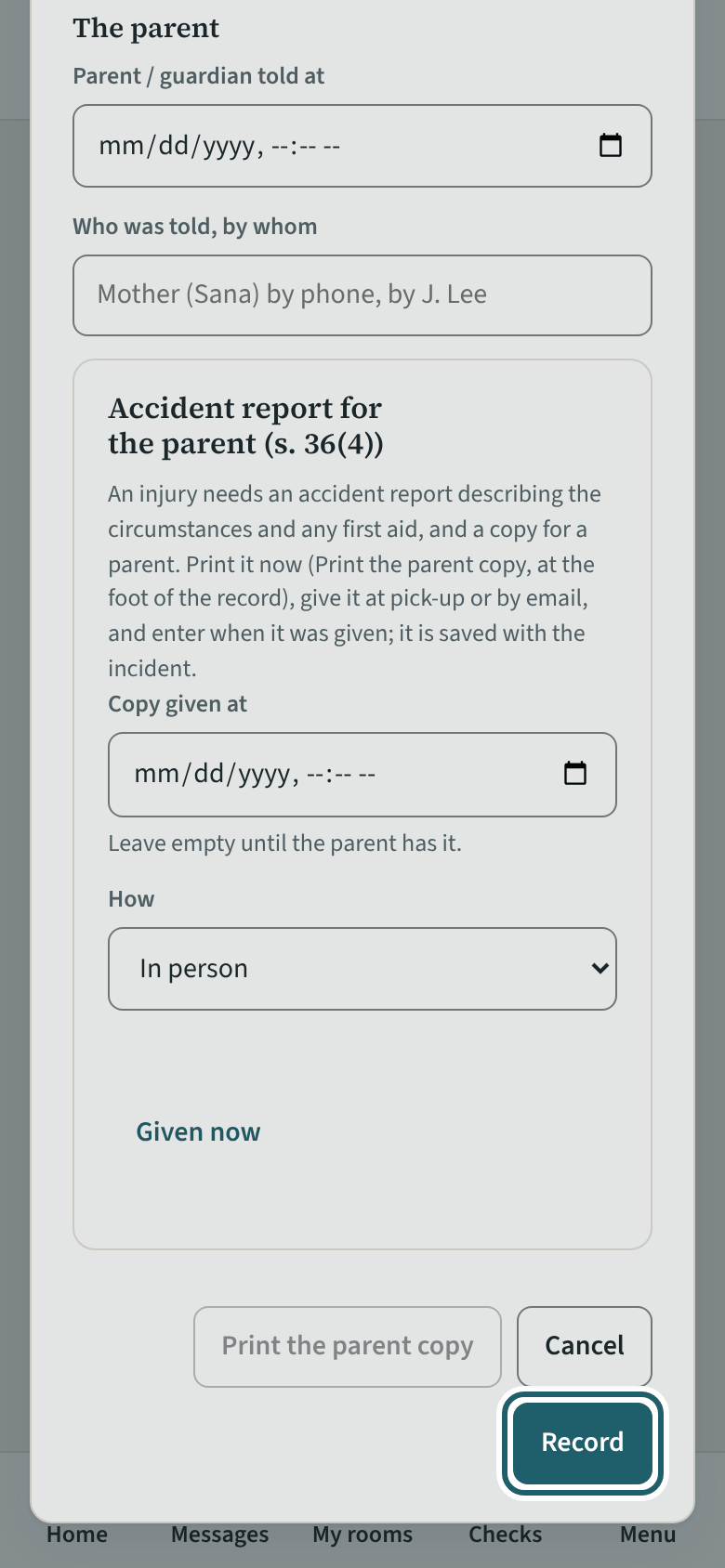
Say what happened, when and where, what you did, and who told the parent. Then tap "Record".
Watch out: Write what you saw, in order, with times, not what you think caused it. An injury also gets the accident report for the parent, at the end of the form.
-
My details
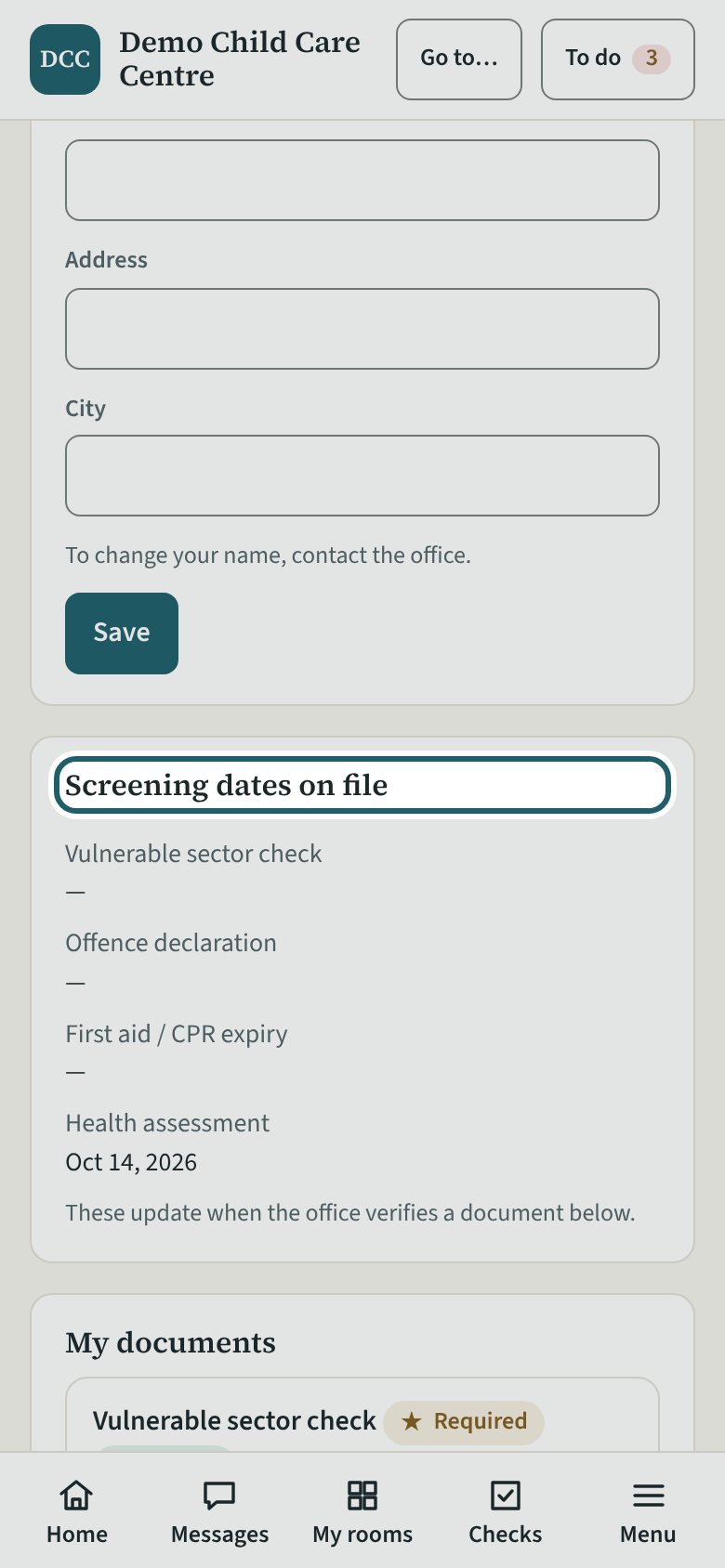
My details keeps your contact details, your screening dates and your documents. Upload a newer document when the office asks.
Watch out: Your name and email are changed by the office. After any conviction under the Criminal Code, give the licensee an offence declaration as soon as possible; tell them at once if you are prohibited from providing child care.
-
The To do bell
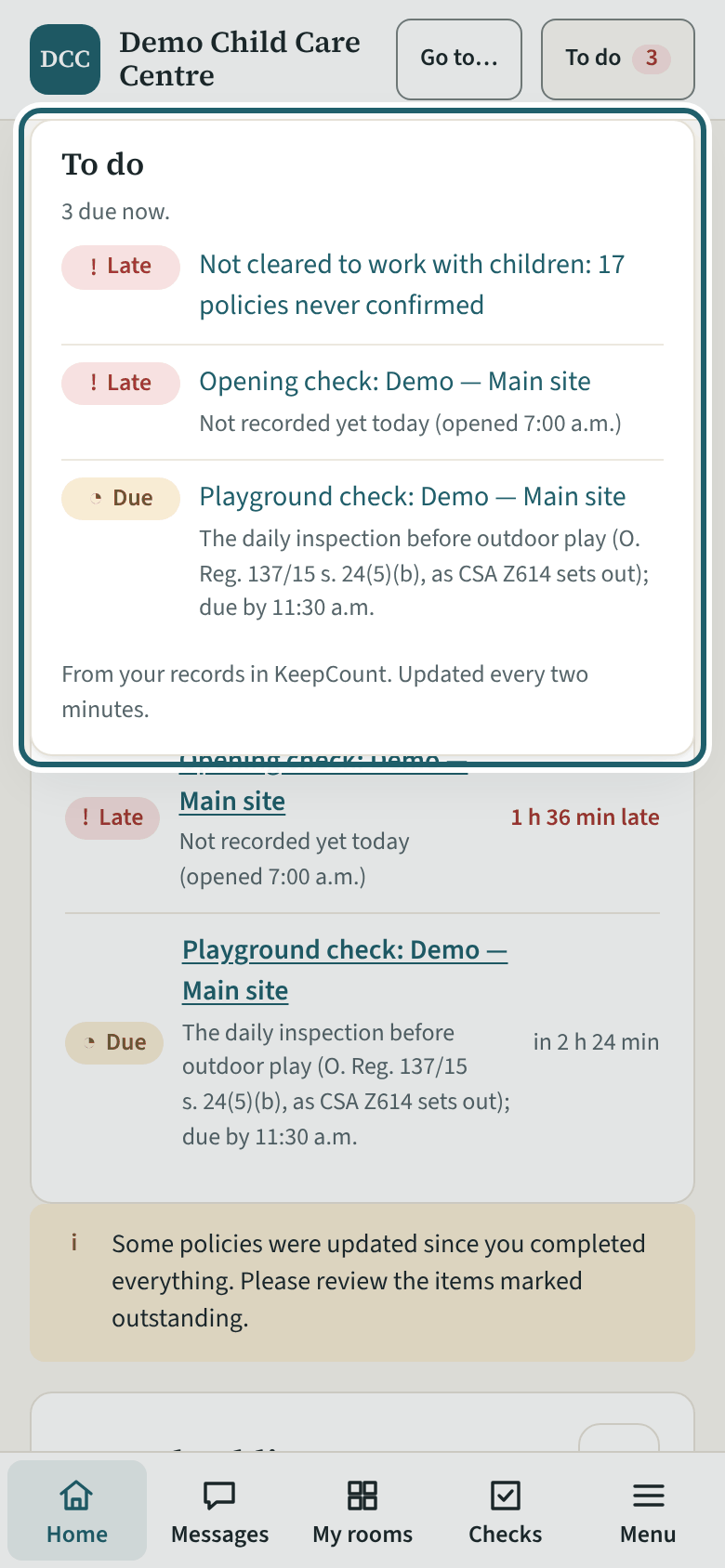
The "To do" bell at the top shows what is late, due and coming up, for you and your rooms, updated every two minutes.
-
Cover another room
To record in a room that is not yours, open its card and tap "Cover this room"; give the reason, and "End my cover" when you leave.
Watch out: Until you cover a room, its card is read-only for you. The supervisor sees every cover at the site, with who, since when and why.
-
Without a connection
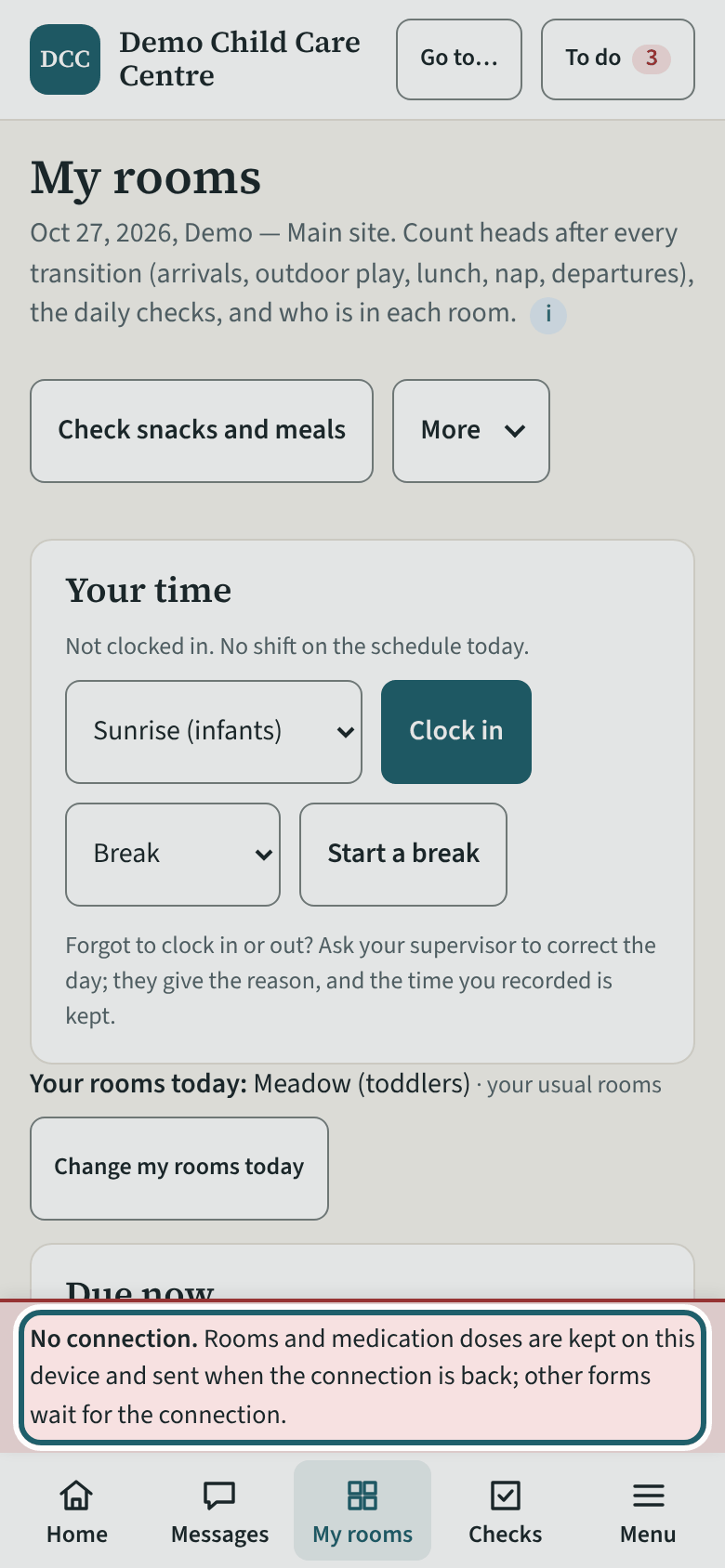
Without Wi-Fi, head counts, daily checks and outdoor times still record here and send themselves when the connection is back. Names and sign-ins wait.
Watch out: Names and health notes are never kept on the device. Until the connection is back, write arrivals, departures and sleep checks on paper with the times, then enter them.
-
Help and the tour
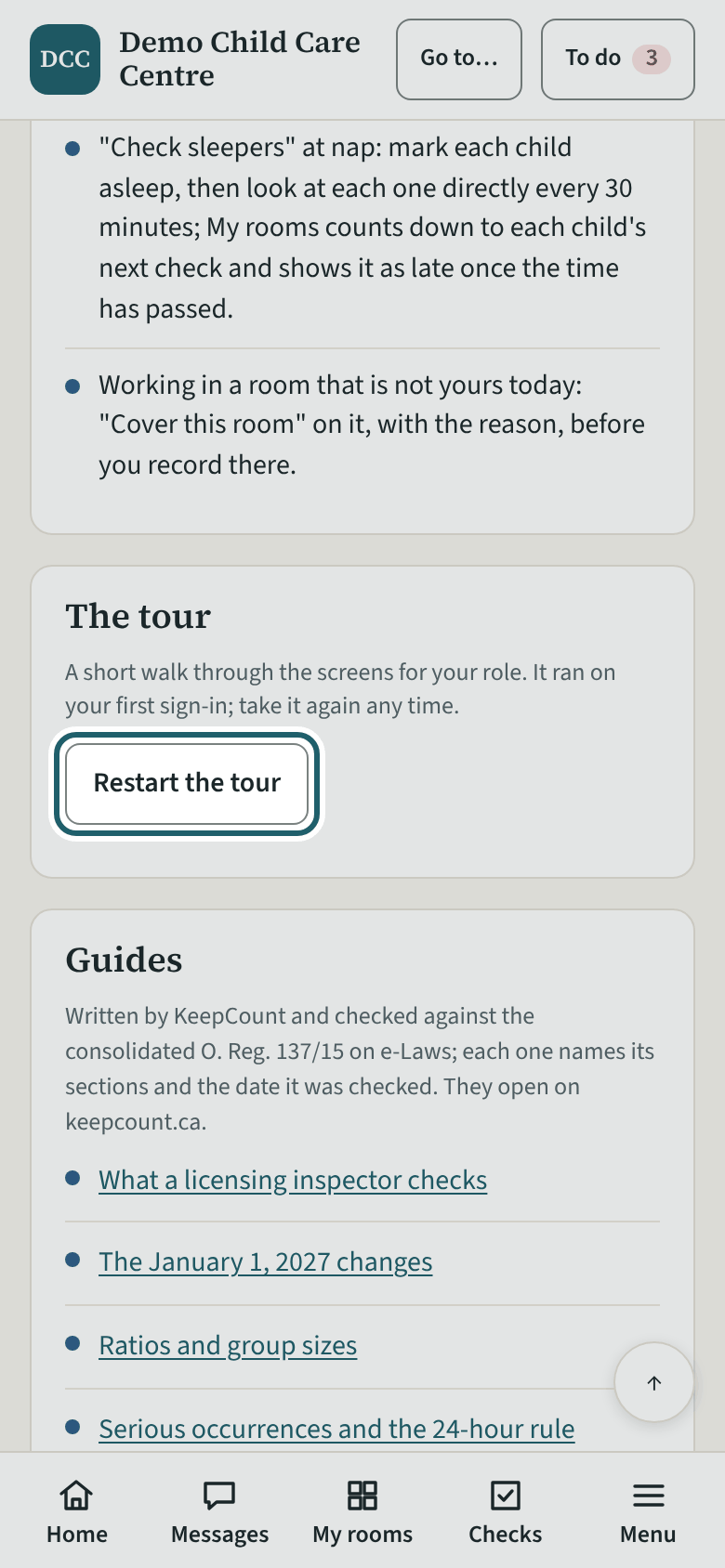
Help has the guides to the regulation, the glossary, who to ask, "Report a problem", and "Restart the tour", which walks your seven screens again.
Watch out: "Report a problem" goes to KeepCount support only, never to your centre: say what you did and what you saw, without a child's name or health details.