Your first day
Sign in with the code from your invitation, read your child's day, open the file. The screens are from a demonstration centre: a fictional child and a fictional family.
-
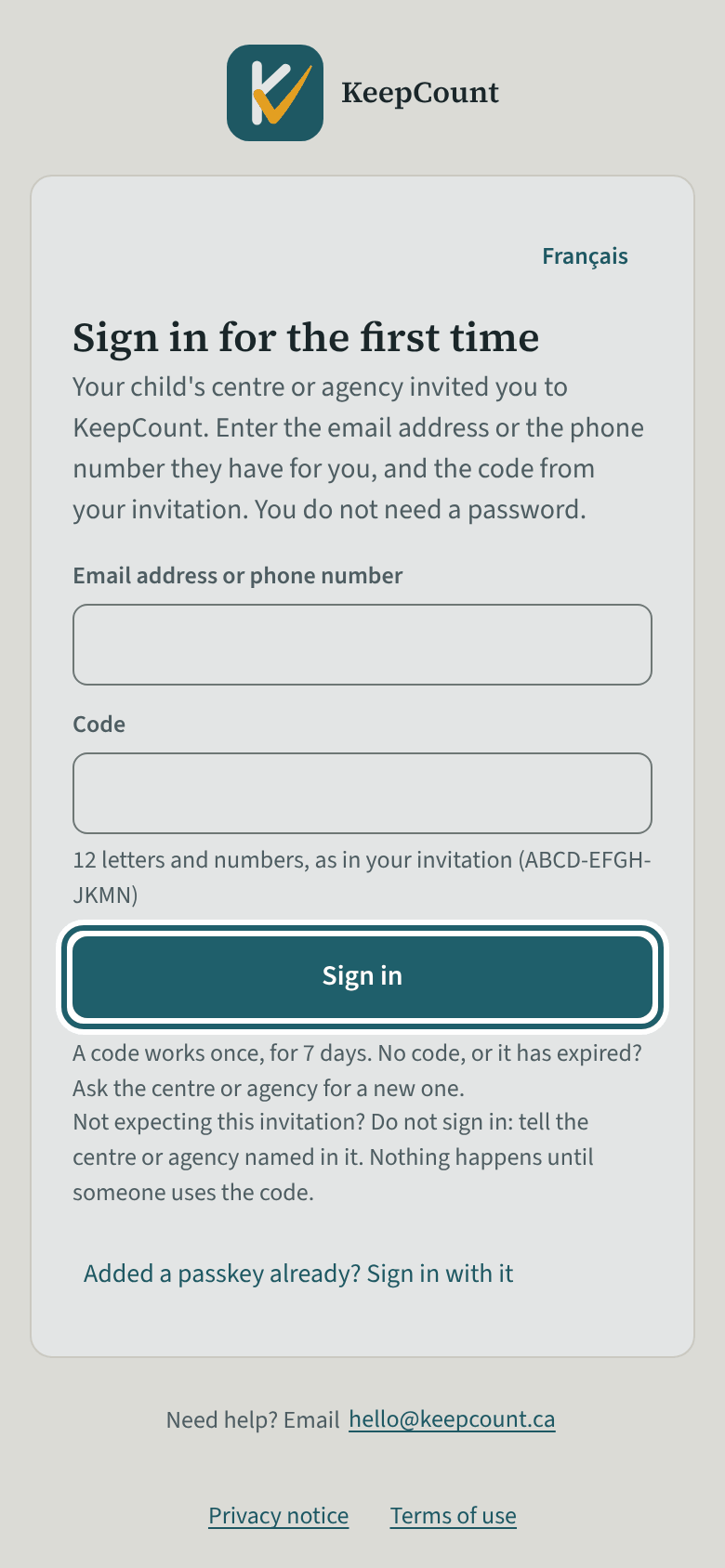
Sign in for the first time
Open the link in the invitation email, type the email address or phone number the centre has for you and the code from the invitation, then tap Sign in.
Watch out: Type the email address or phone number exactly as the centre has it: KeepCount says only that the two did not match, and a code stops working after five wrong tries.
-
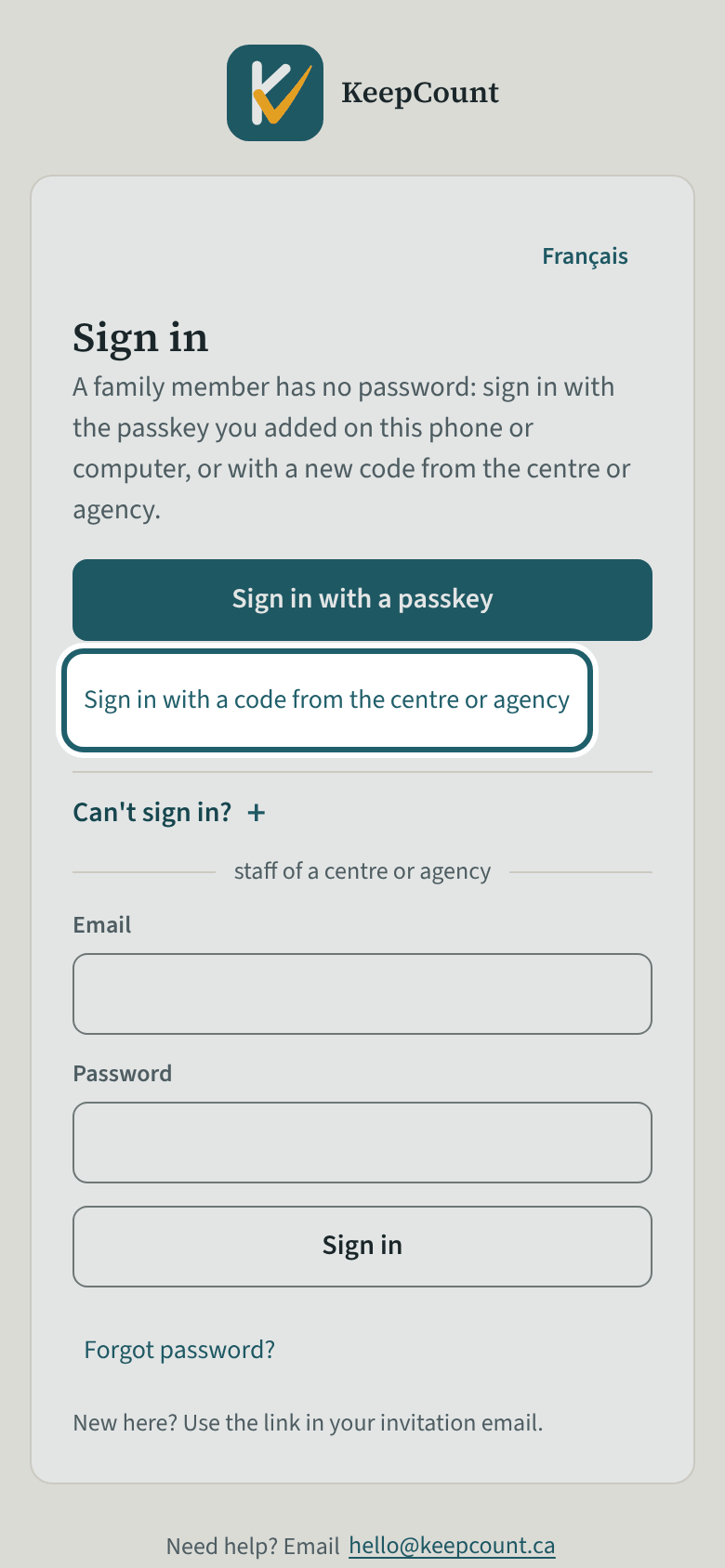
Signing in again
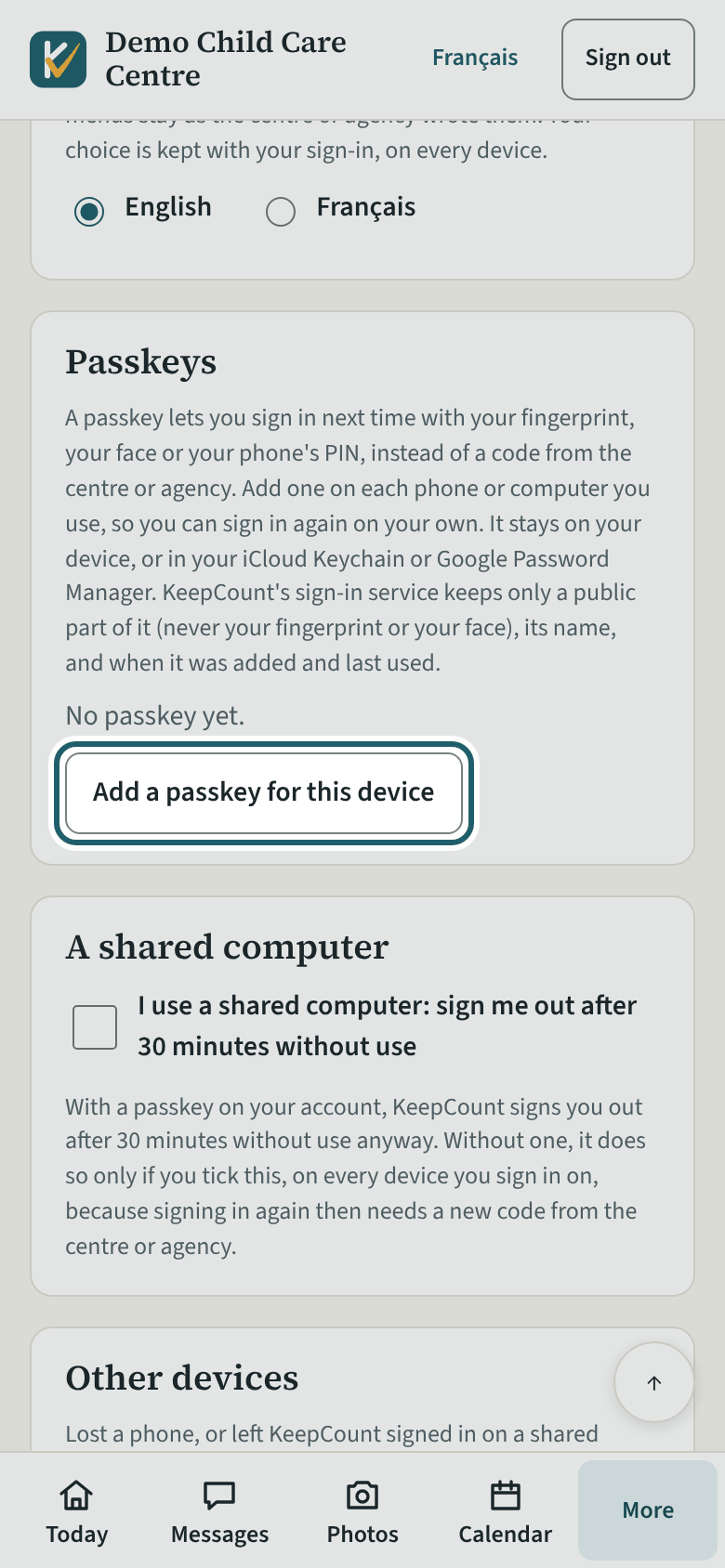
Next time, open keepcount.ca/family and tap Sign in with a passkey; without one, tap "Sign in with a code from the centre or agency" with a new code.
Watch out: A passkey on one phone does not sign you in on another: add one there too, or ask the centre for a new code. Lost the phone? Ask for a code and remove the old passkey under My account.
-
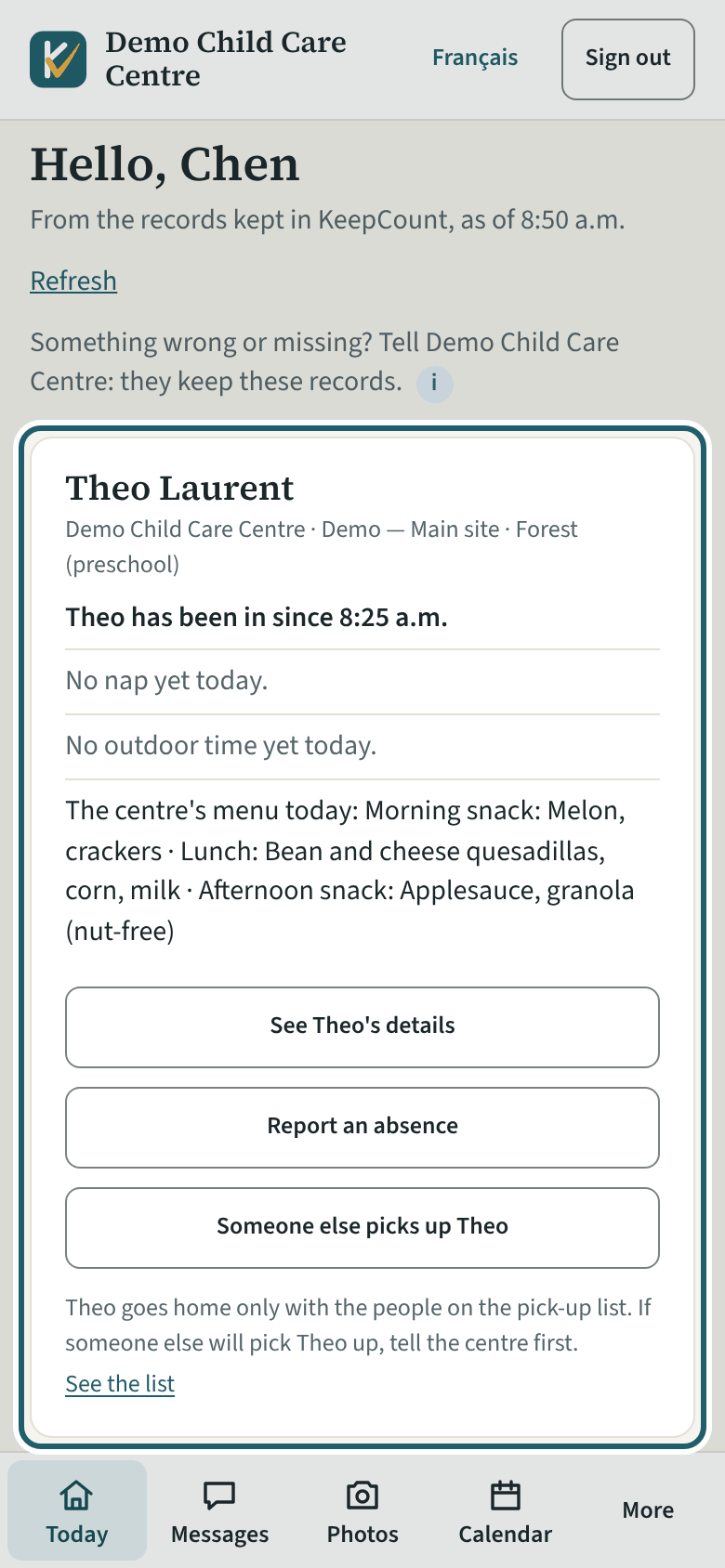
Today
Hello: a card for each of your children with the centre, the site and the room, and today's lines: in since when, naps, outdoor time, the menu, photos.
Watch out: You see your own children only, as of the time shown. After an incident the card says a report was made; an accident report the centre sends you opens under Forms and reports.
-
Your child's file
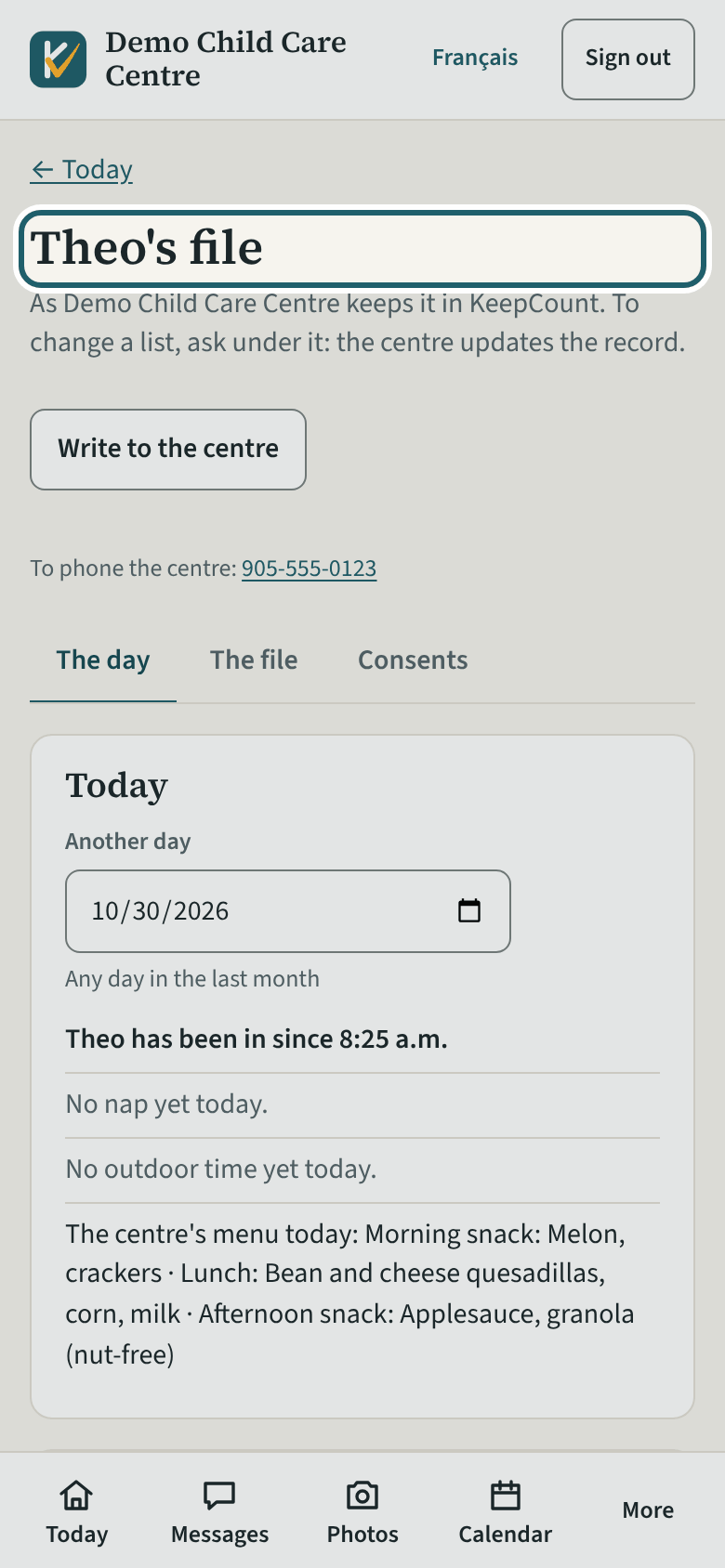
Tap "See <your child>'s details" on Today: three parts, The day (Absences too), The file (allergies, contacts, who may pick up) and Consents.
Watch out: Everything here is read-only: the centre keeps the record. A child whose place has ended stays on Today for 30 days, then disappears with your access.
-
Another day
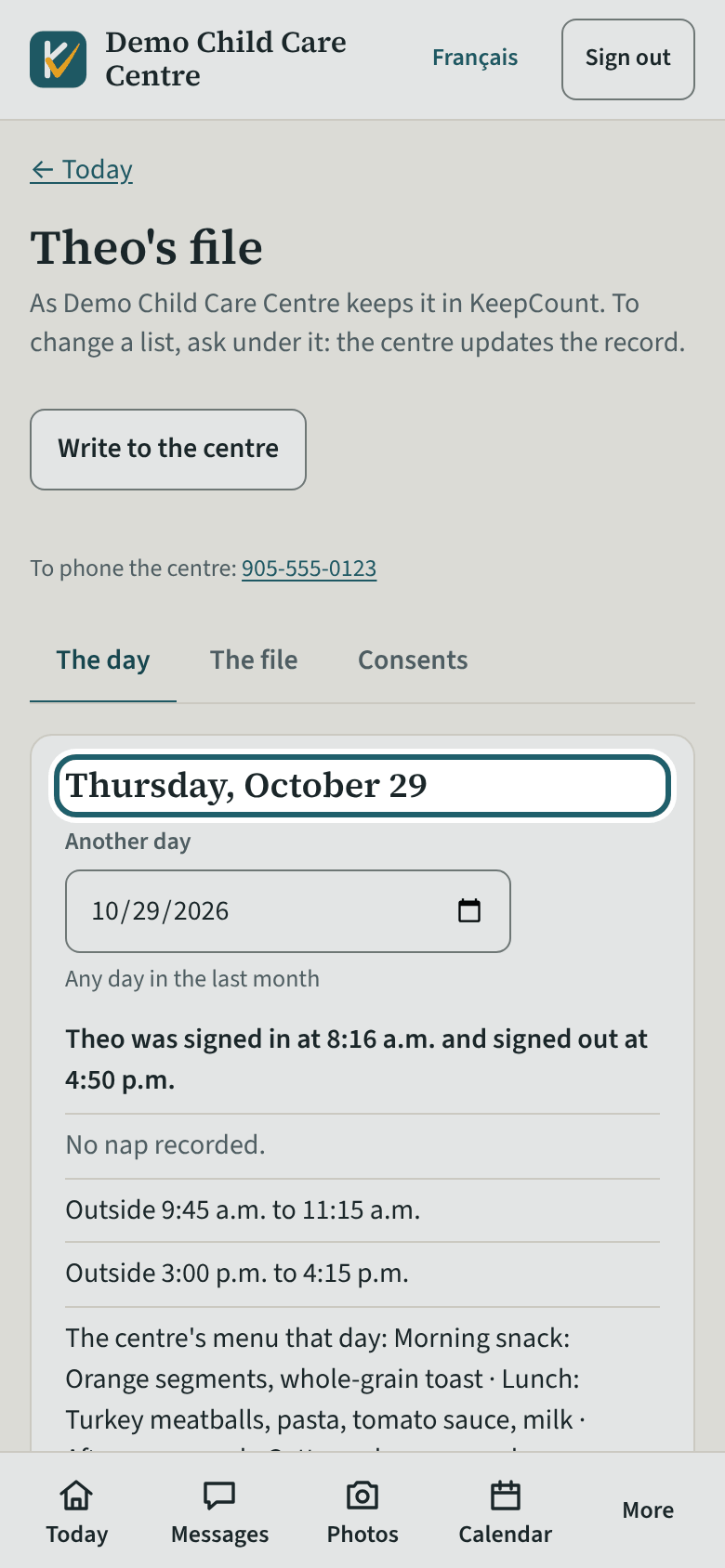
Under Today, choose a date in "Another day" to read that day's record: the last month is kept for you.
Watch out: The family's view reaches back one month; the centre keeps its own records for three years or longer.
-
Allergies and food restrictions
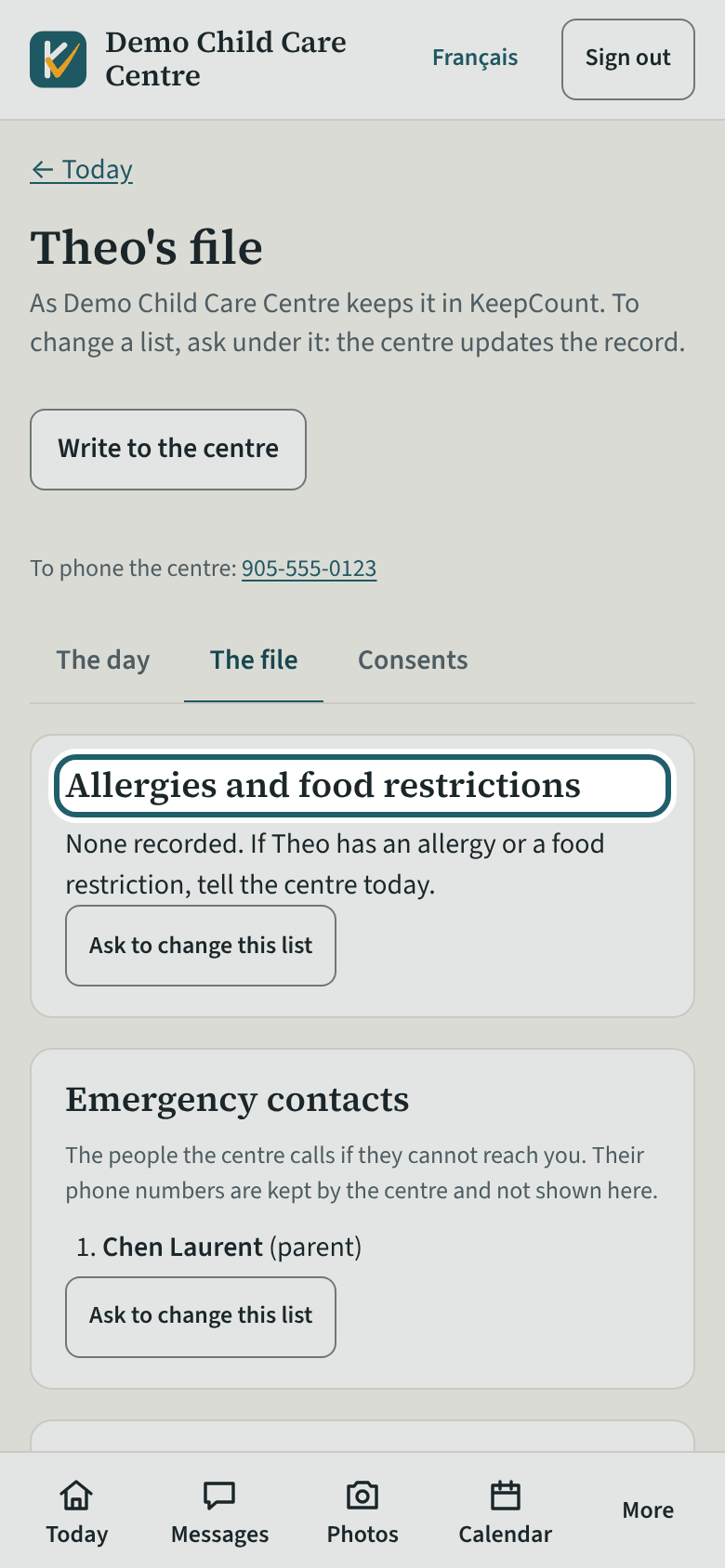
What the centre recorded for your child, with the day the family last confirmed it. If something is missing, tell the centre today.
Watch out: If something is missing, tell the centre today: the list is the one the staff cook and serve from (s. 43(3)).
-
Who may pick your child up
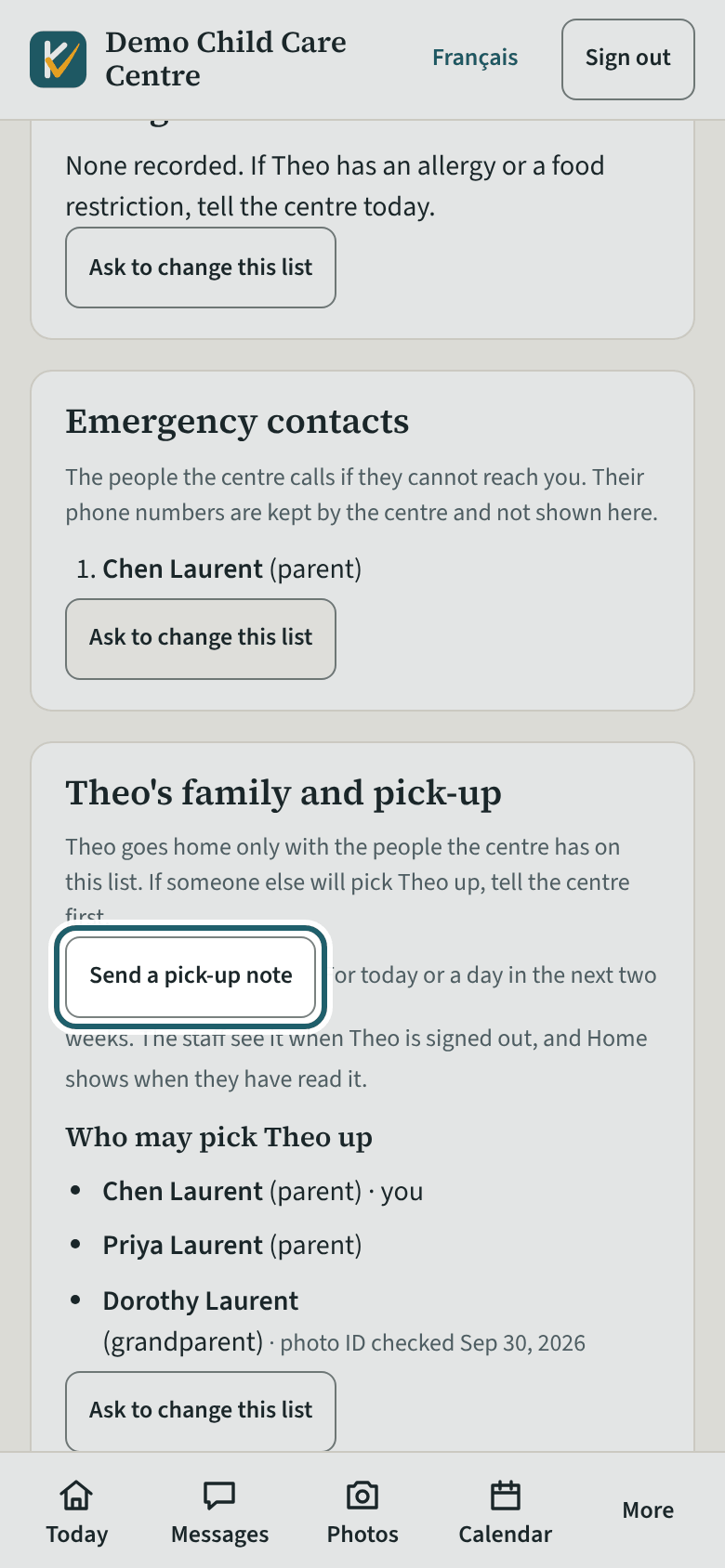
The people the centre has on the list, with the day their photo ID was checked. "Send a pick-up note" tells the room about today or a day coming.
Watch out: A pick-up note does not change the list: to add or remove someone, speak to the centre. A family member who may not pick up is never offered at sign-out.
-
Absences
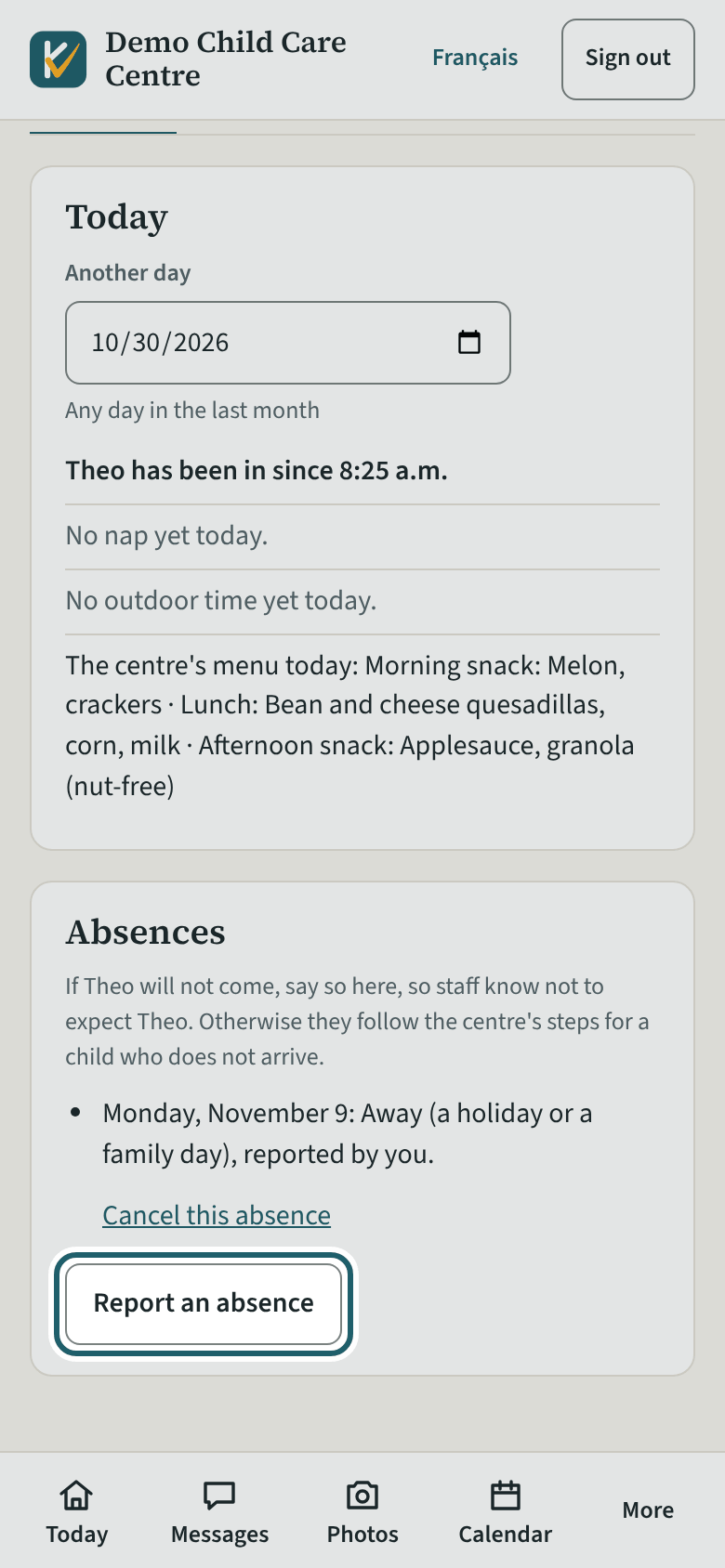
The days you said your child will not come, each with "Cancel this absence"; "Report an absence" for another day.
Watch out: Today's report, once made, is the centre's to change; a day still to come can be changed or cancelled by any family member.
-
The child will not come
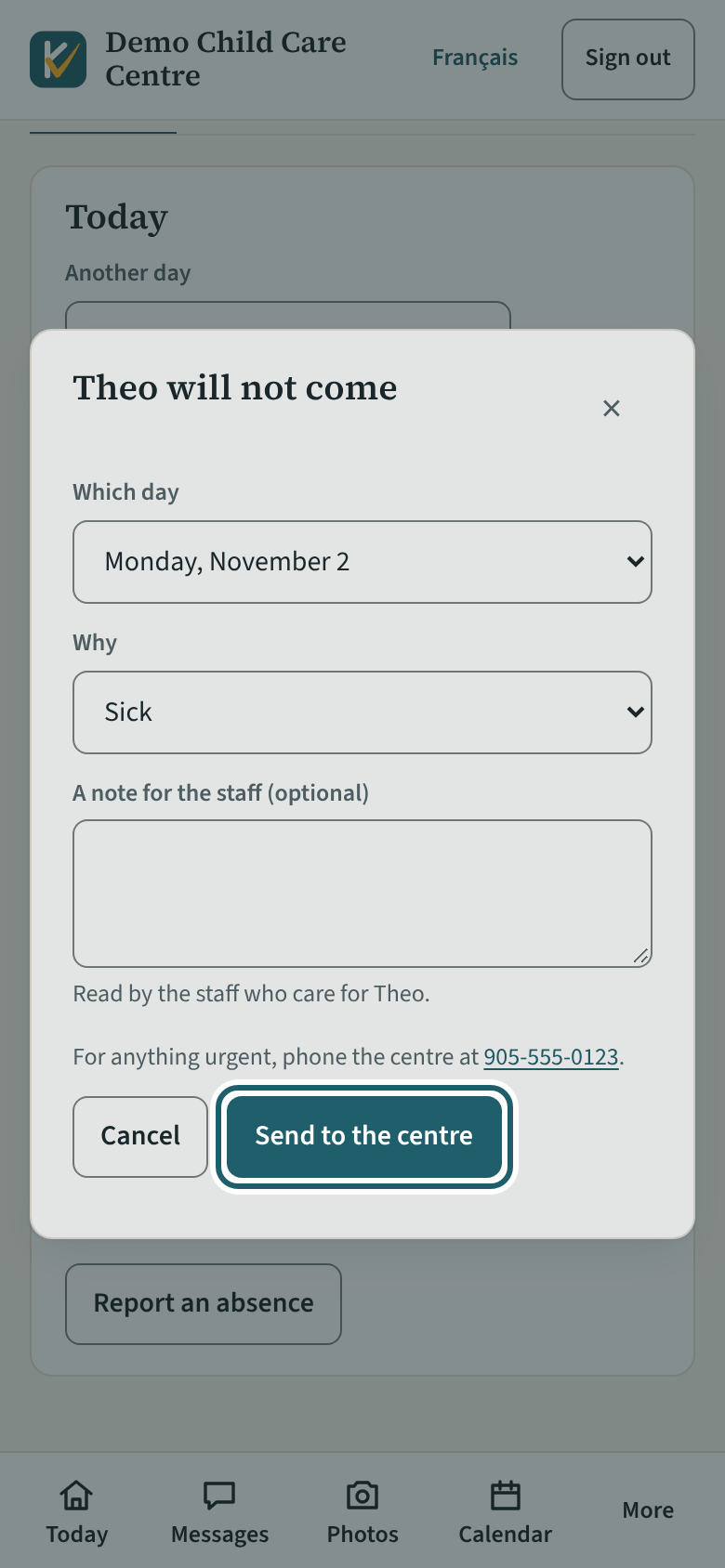
Which day (today or an expected day in the next two weeks), why (sick, away, something else) and a note of up to 200 characters; Send to the centre.
Watch out: For anything urgent today, phone the centre: a message or an absence is read when the staff next look.
-
Write to the centre
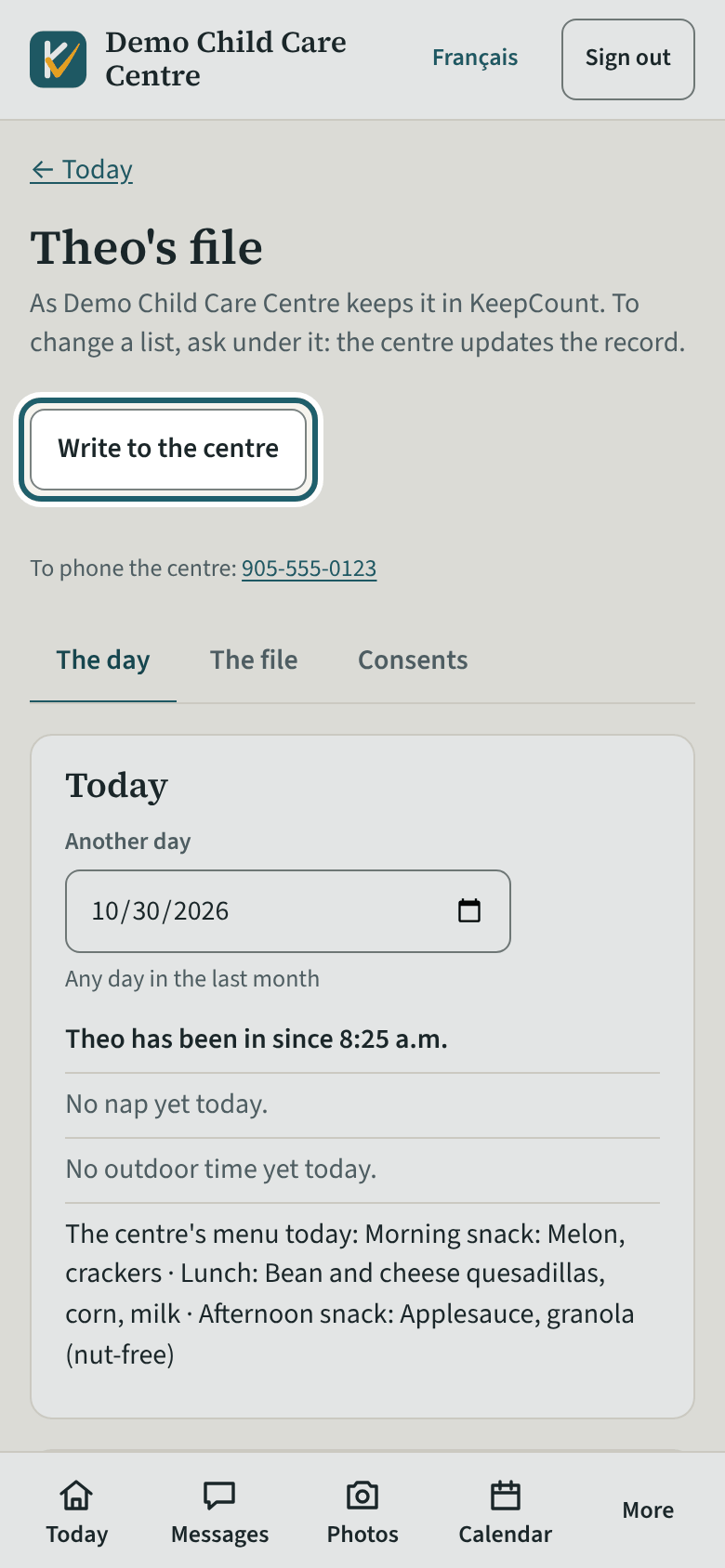
Something in the file is wrong or out of date? "Write to the centre" opens a message to the office with the subject filled in.
Your first week
Messages with the centre, photos, the calendar and your account.
-
Messages
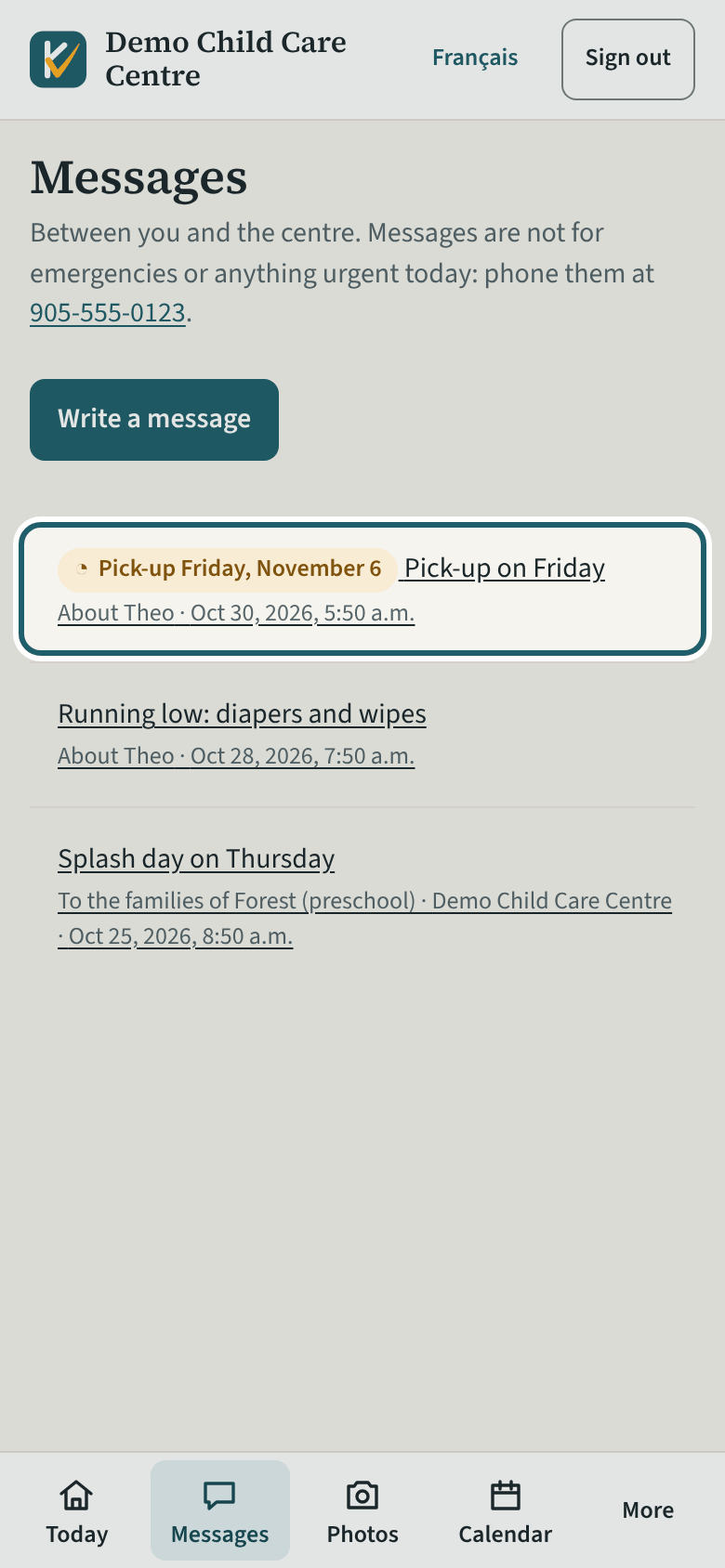
Messages between you and the centre: each conversation with its subject, your child's name and when; New on an unread one; Write a message.
Watch out: Messages are not for emergencies or anything urgent today: phone the centre. An alert never carries the message, its subject or your child's name.
-
A conversation
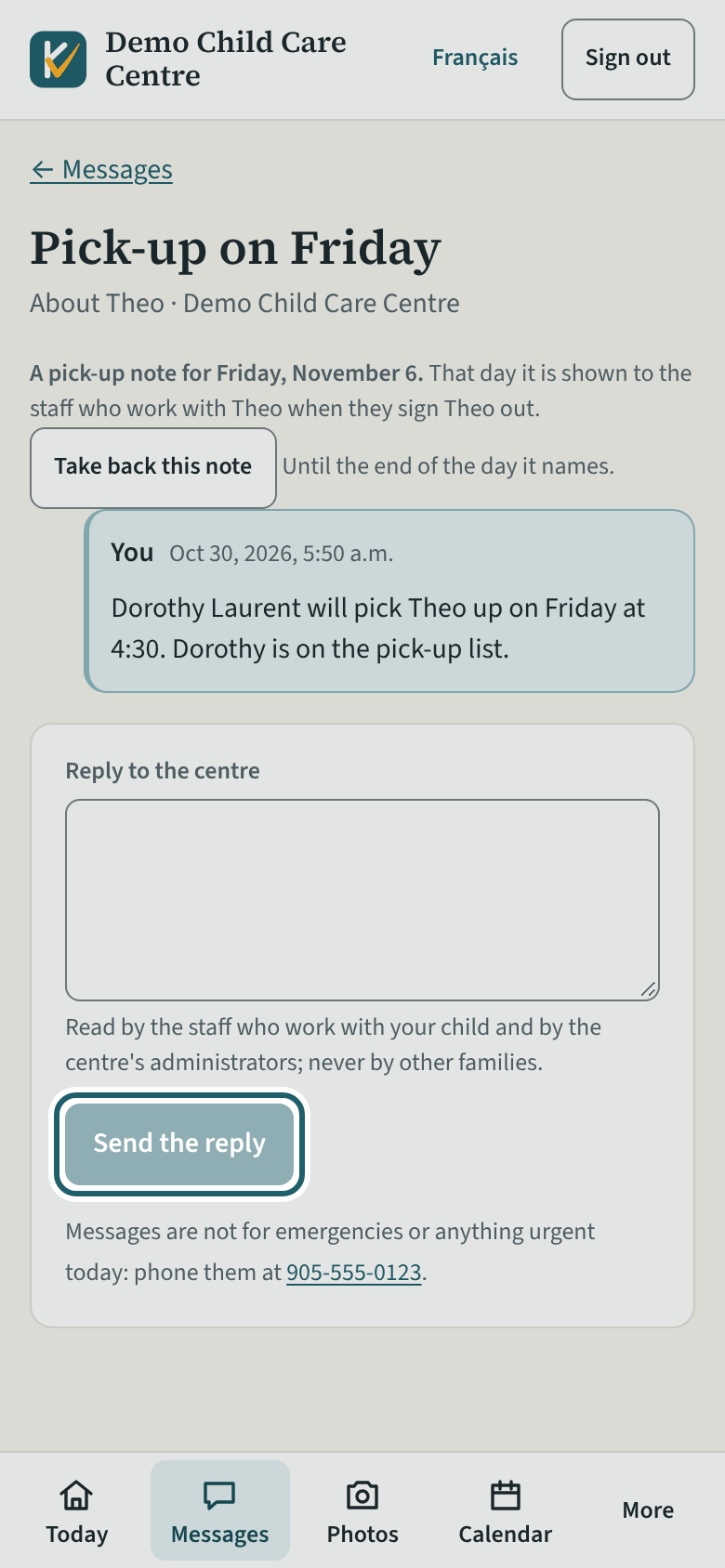
Open a conversation to read the messages in order, yours set apart, and who has read each; Reply to the centre and Send the reply.
-
Write a message
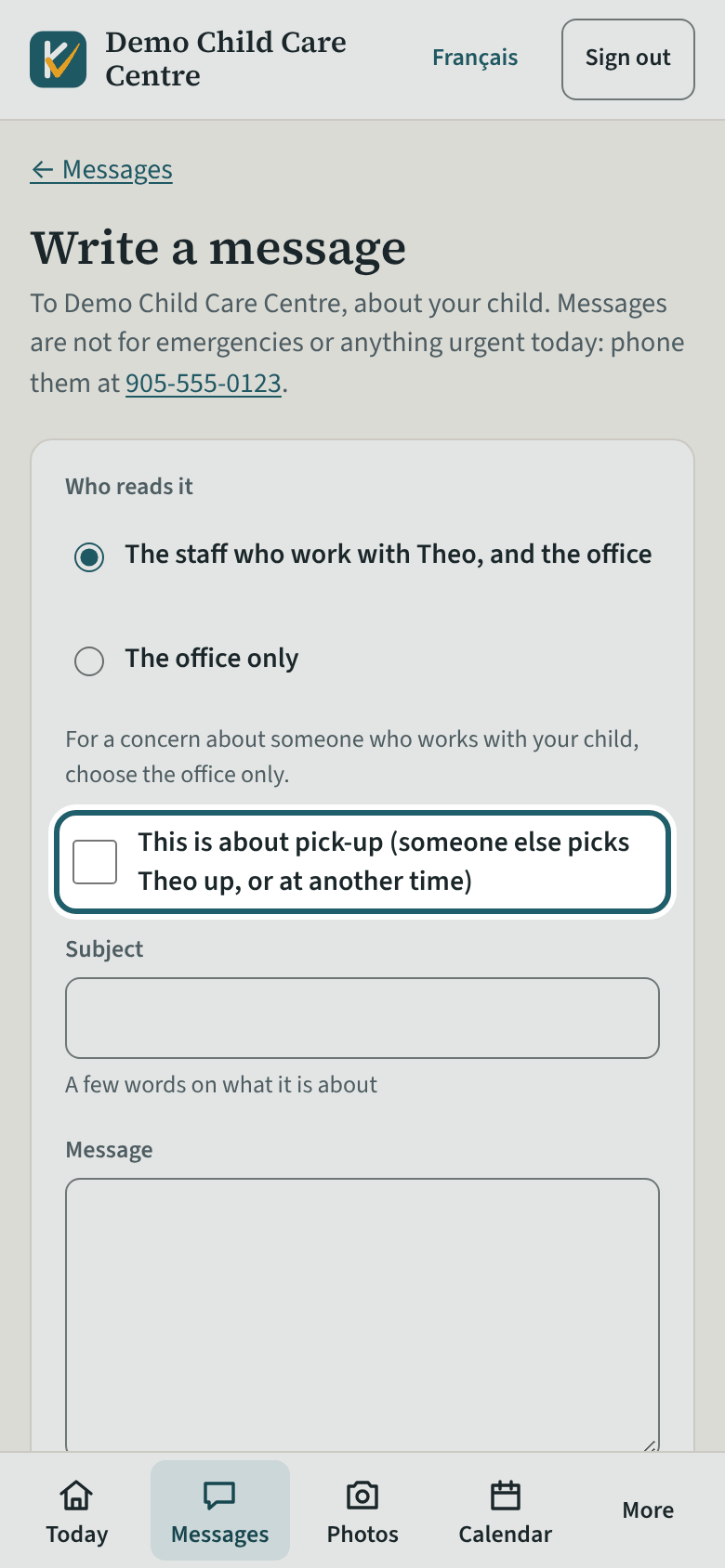
Which child; who reads it (the staff who work with your child and the office, or the office only); whether it is about pick-up; subject, message; Send.
Watch out: "The office only" is for a concern about someone who works with your child; a pick-up note is never for the office only. No health details beyond what the centre needs, nothing about another child.
-
Photos
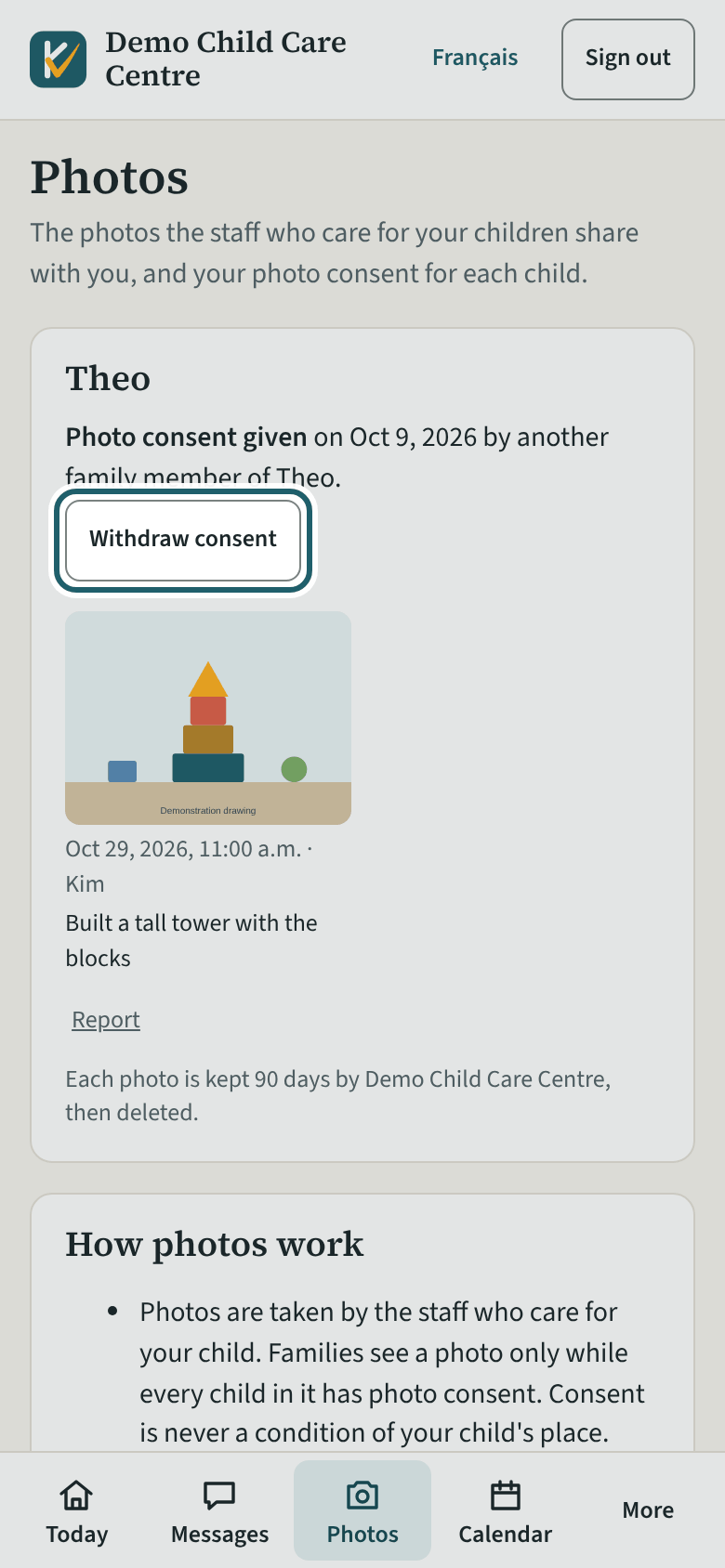
The photos the staff share, with your consent for each child: the day it was given and by whom; Give photo consent or Withdraw consent; Open full size.
Watch out: Any family member can withdraw consent at any time, here or with the centre; consent is never a condition of your child's place. Please do not post or share photos of other children.
-
The calendar
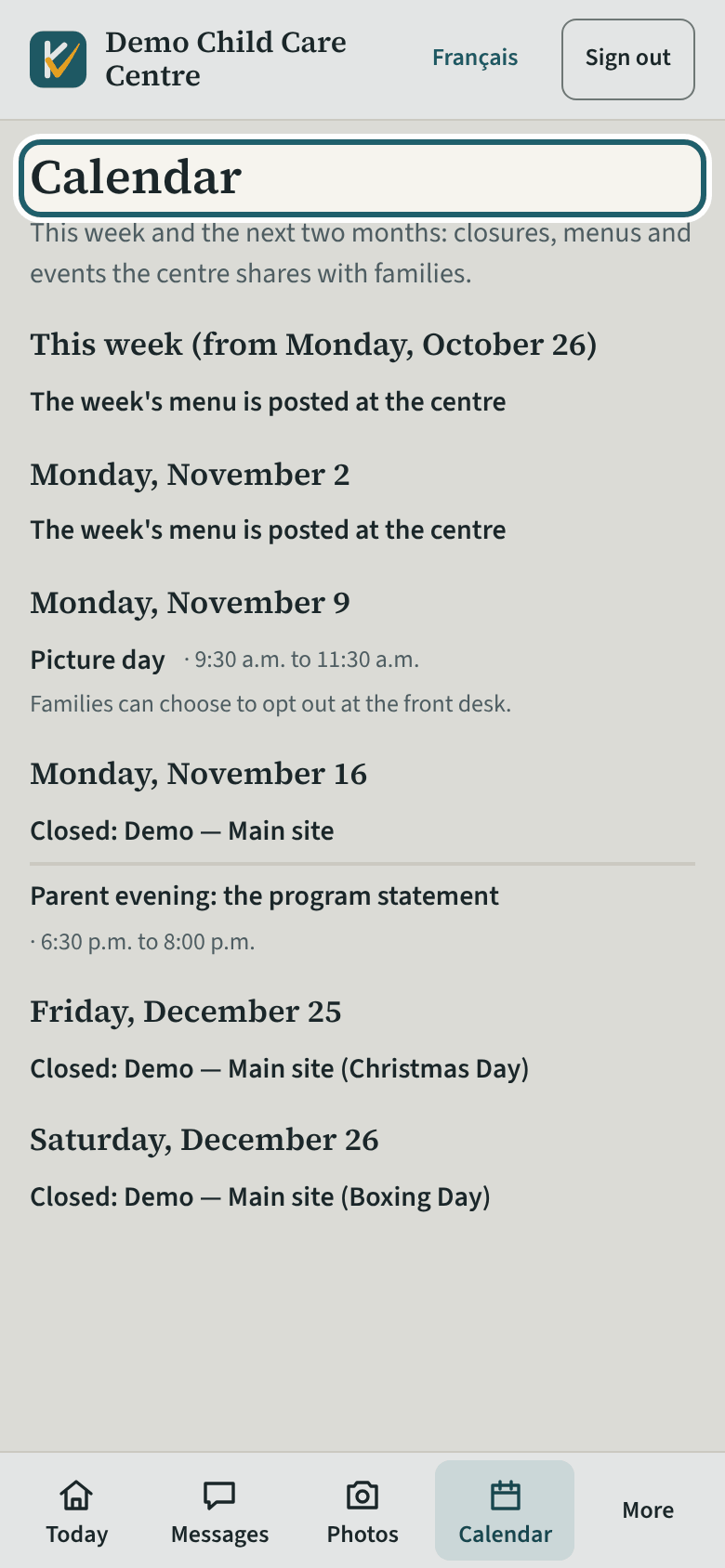
Calendar: this week and the next two months, with the closures, menus and events the centre shares with families.
-
My account
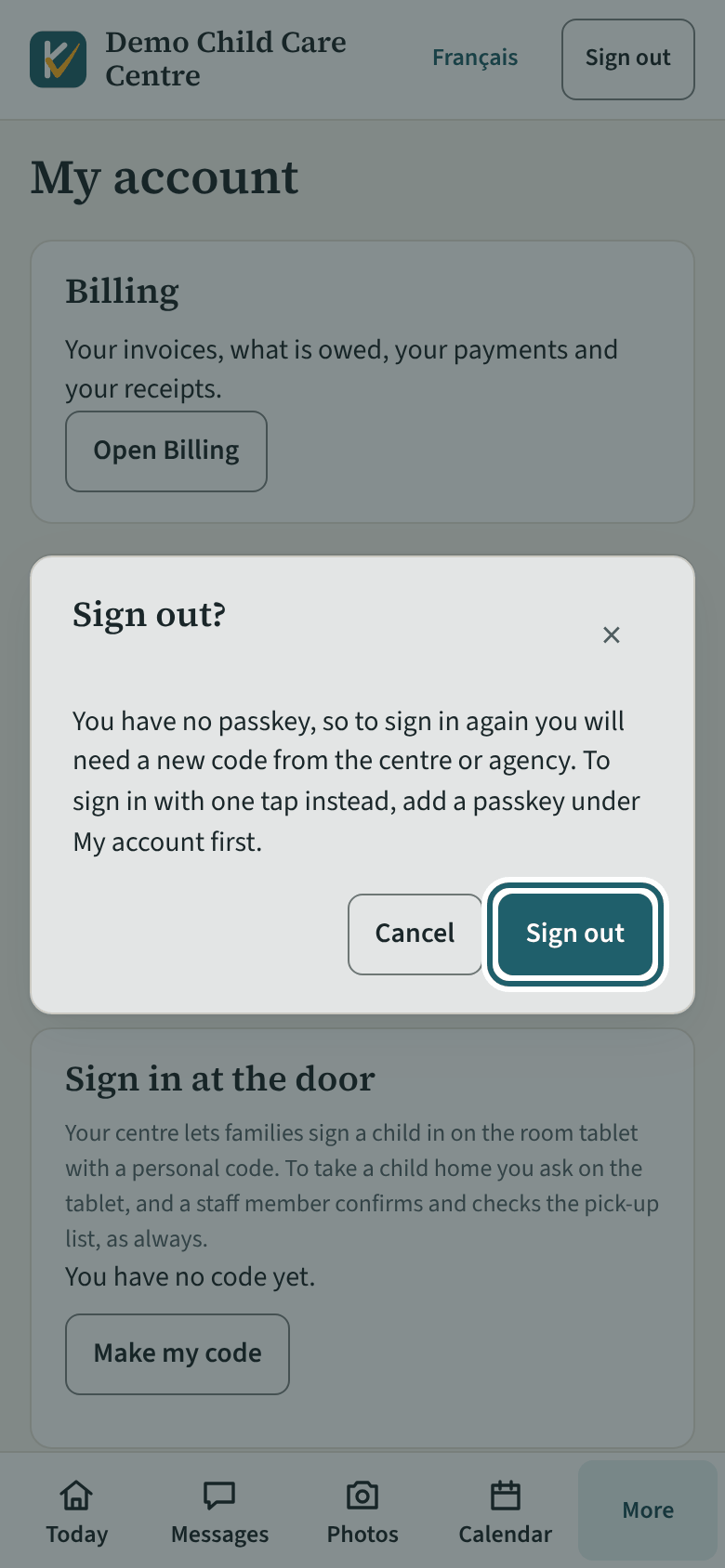
My account: how you sign in (no password), your passkeys, alerts, this guide with its printable PDF, Sign out, and Close my account.
Watch out: Close my account, at the bottom, ends your access to every child at once. To correct a record, speak to the centre.
-
Sign out
Sign out from the top bar or My account. Without a passkey, KeepCount asks first: you would need a new code from the centre to sign in again.
Watch out: On a shared phone or computer, sign out when you are done: the family pages stay signed in otherwise.