Your first day
Today is the day at home, one tap each. The screens are from a demonstration agency: a fictional provider's home with the children placed there.
-
Sign in
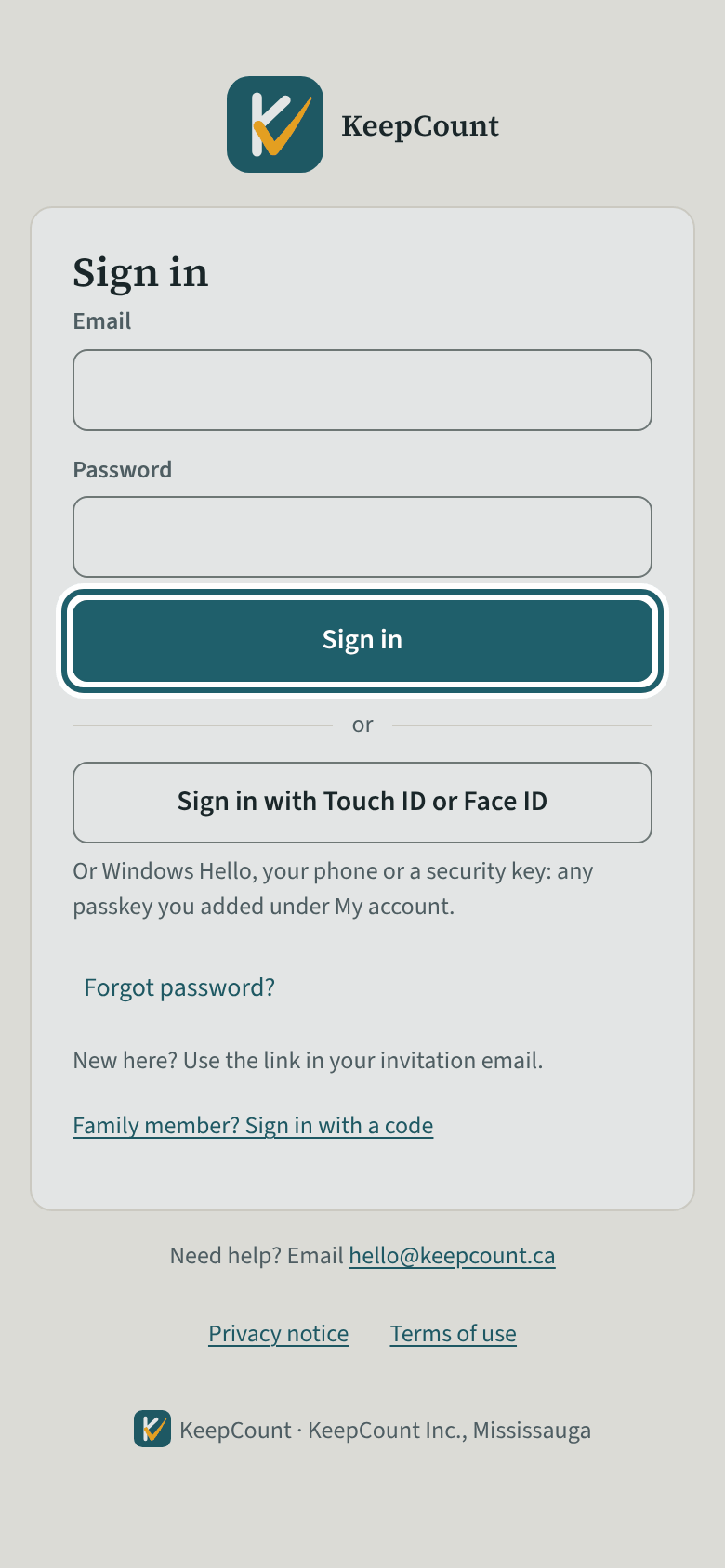
Open the link in the email from your agency and choose a password. After that, sign in with your email and that password.
Watch out: "Install KeepCount" under My details shows only when your browser offers it; on an iPhone use Share, then "Add to Home Screen". Your agency answers about your home, the children and your dates; KeepCount support, the system.
-
Today
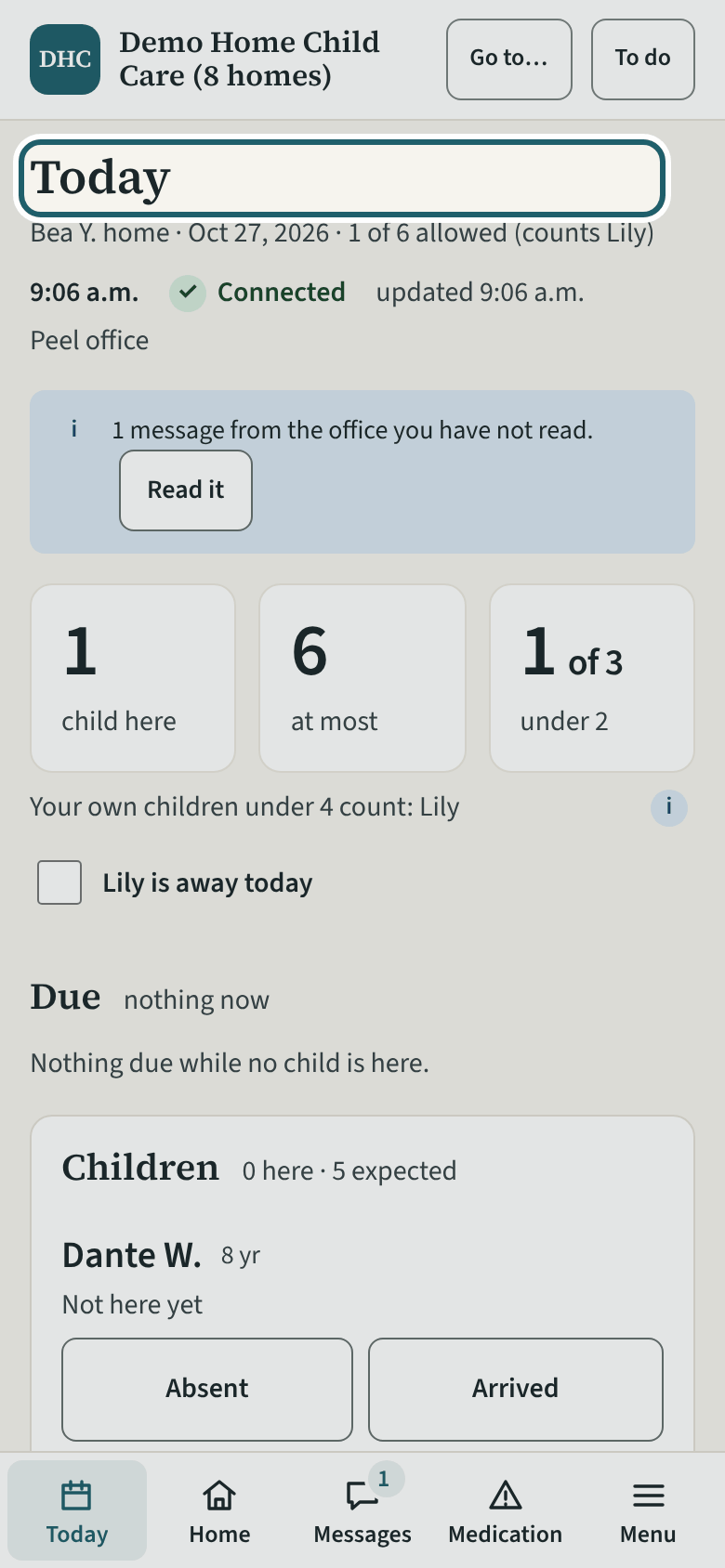
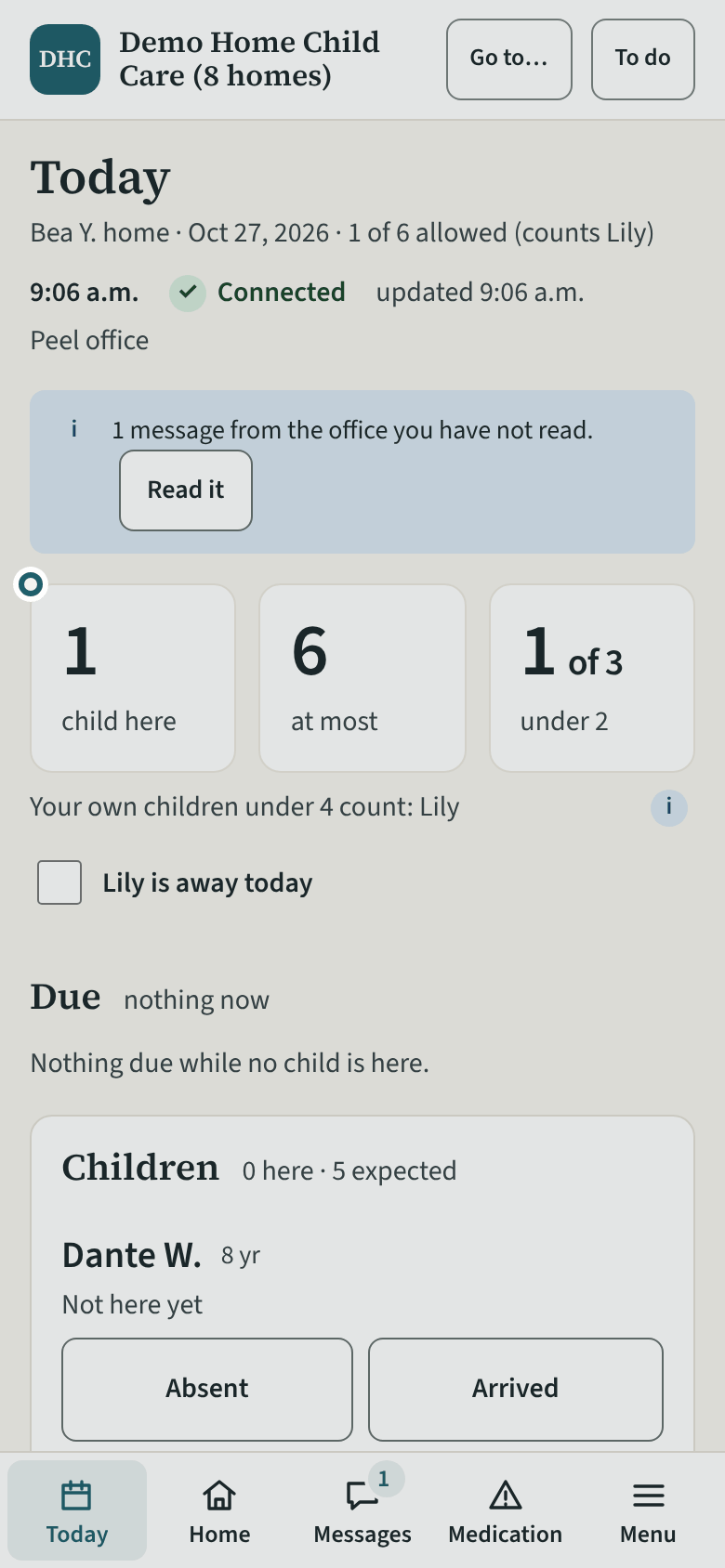
Today: your home's name, the date, how many children are here of the most allowed, what is due, and the children, each with what happens next.
Watch out: Without a connection your taps stay on the phone and are sent when it is back: keep Today open (the last step of the day).
-
How many children
The count card: children here, at most, and under 2, with whether your own children count today. The ⓘ gives the rule.
Watch out: A sign-in that would go past the limit asks first, and tells the agency at once if you go ahead. If another adult can take a child, or a parent is on the way, do that first.
-
The children
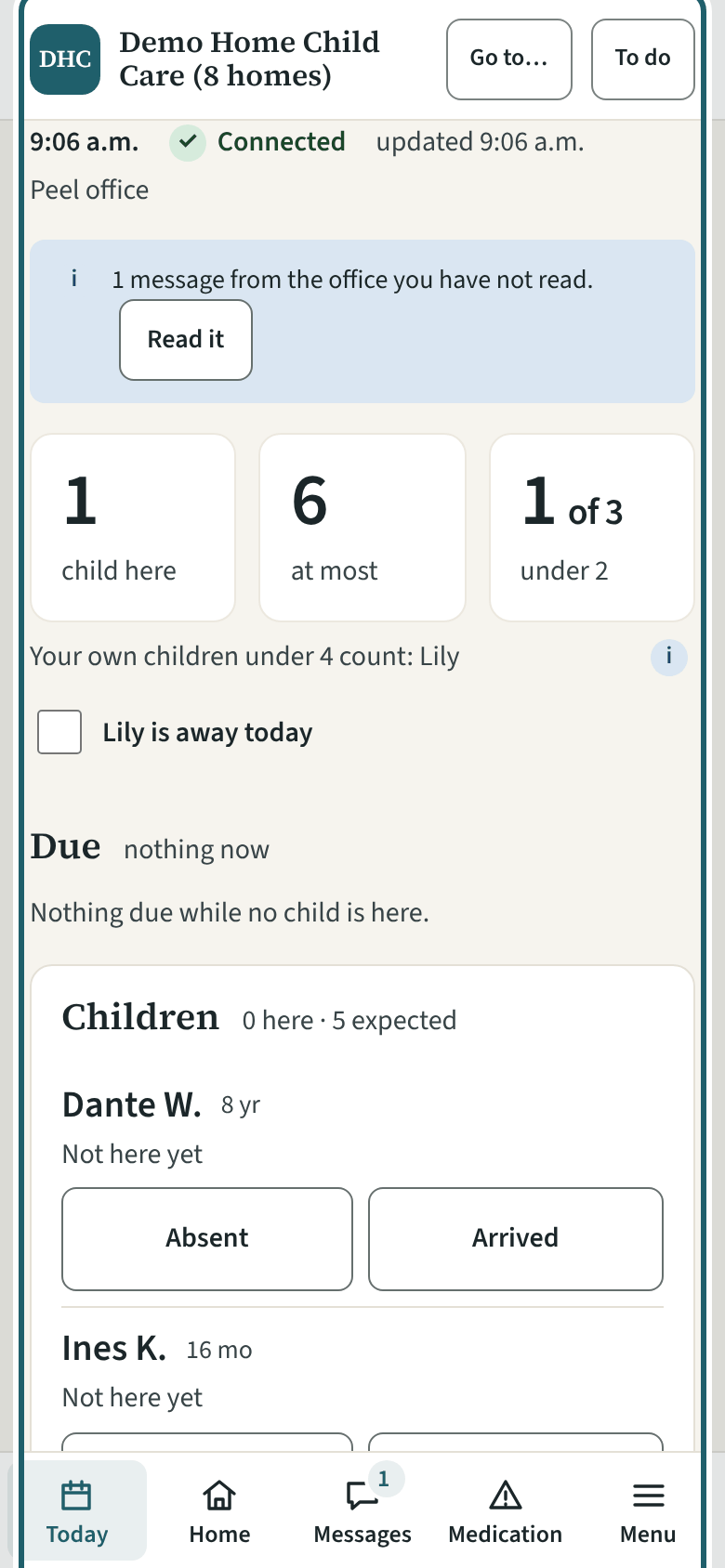
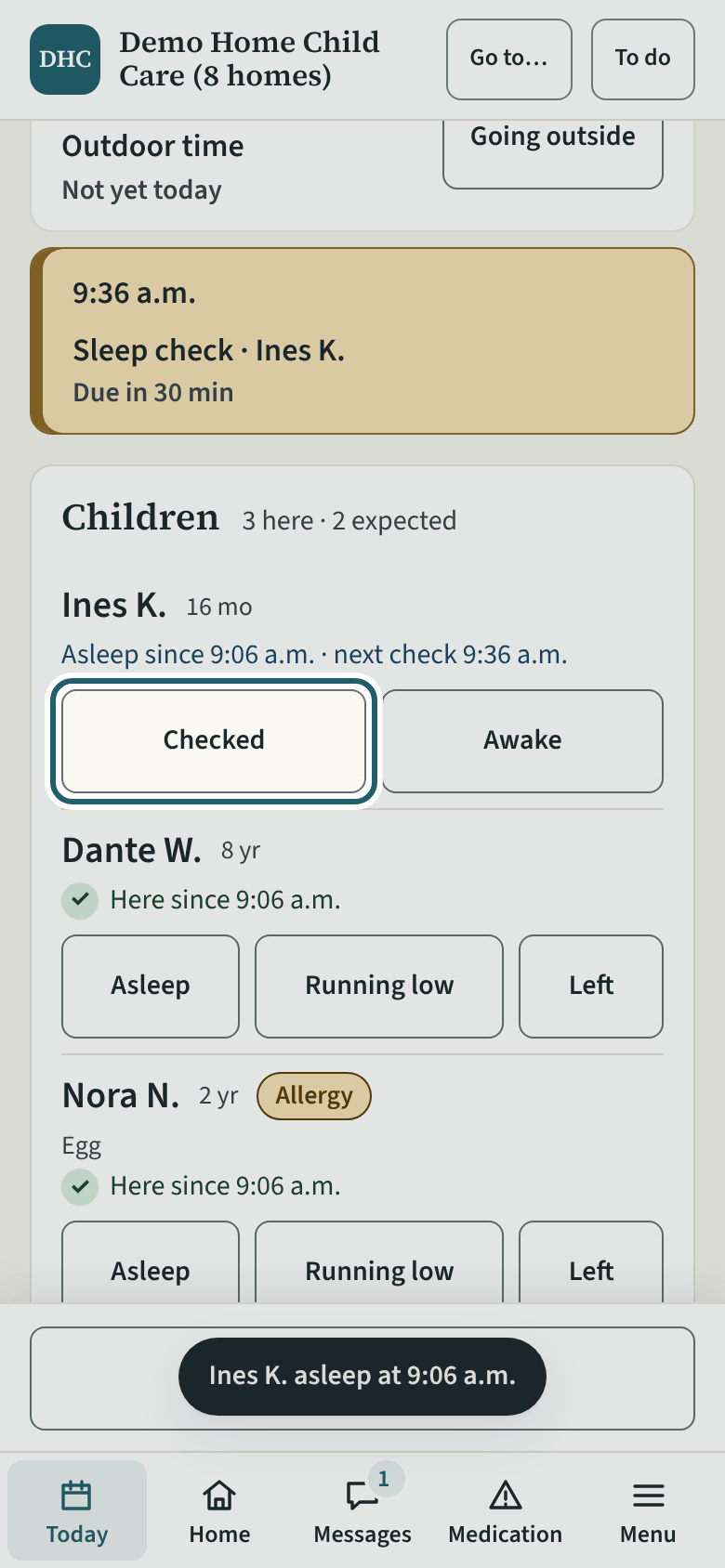
The Children list: each child with their age, an allergy marker, their state (not here yet, here since, asleep, gone home, absent) and the next buttons.
Watch out: The line under the list says how often to check each child under 24 months, standing beside them (s. 33.1(2)(a)); the interval is your agency's sleep policy's.
-
A child arrives
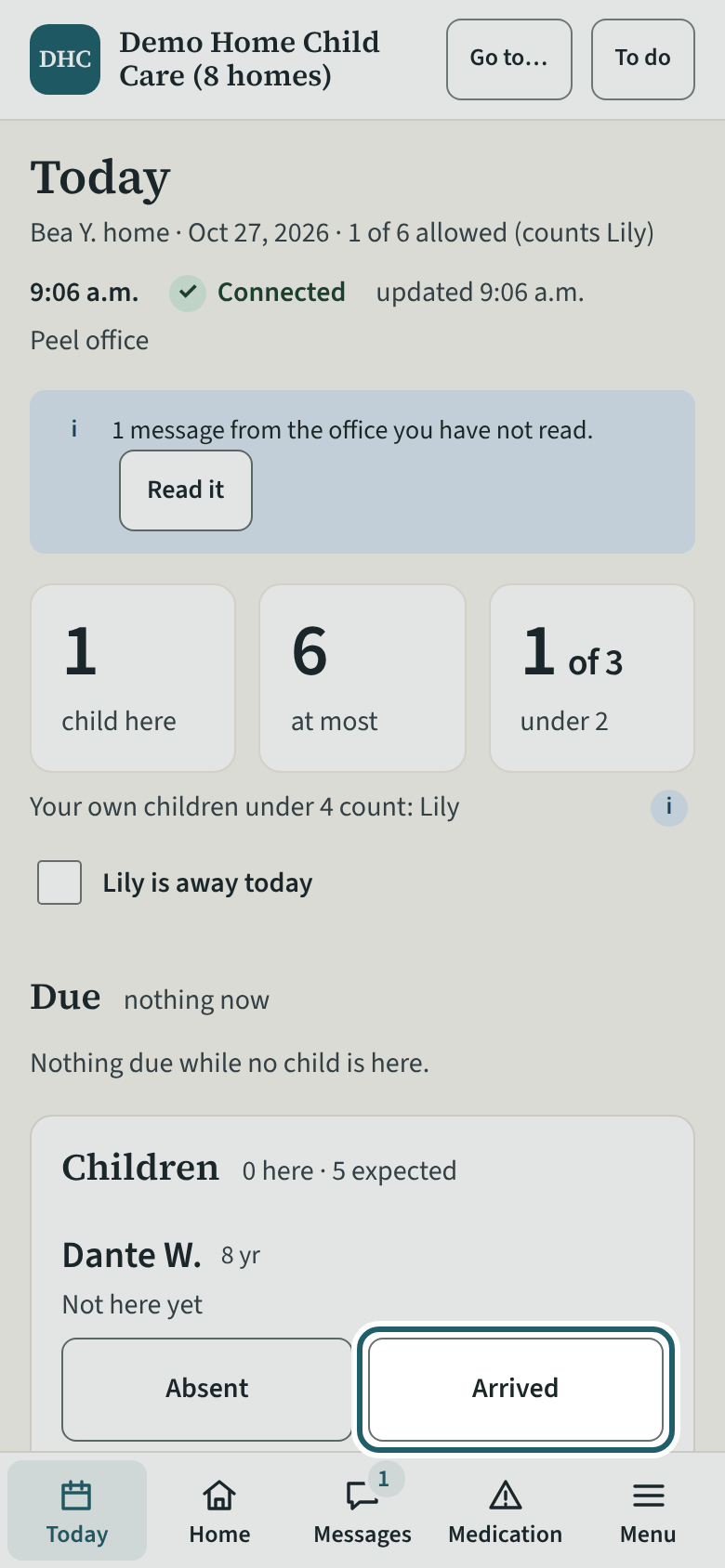
When a child arrives, tap Arrived beside their name. The time is recorded, and the home's count changes. A child sent home ill today is asked about first.
Watch out: A tap made by mistake is marked as a mistake under Today so far, never deleted. A child expected and not here with no word: call, as your safe arrival policy says (s. 50(b)).
-
The head count
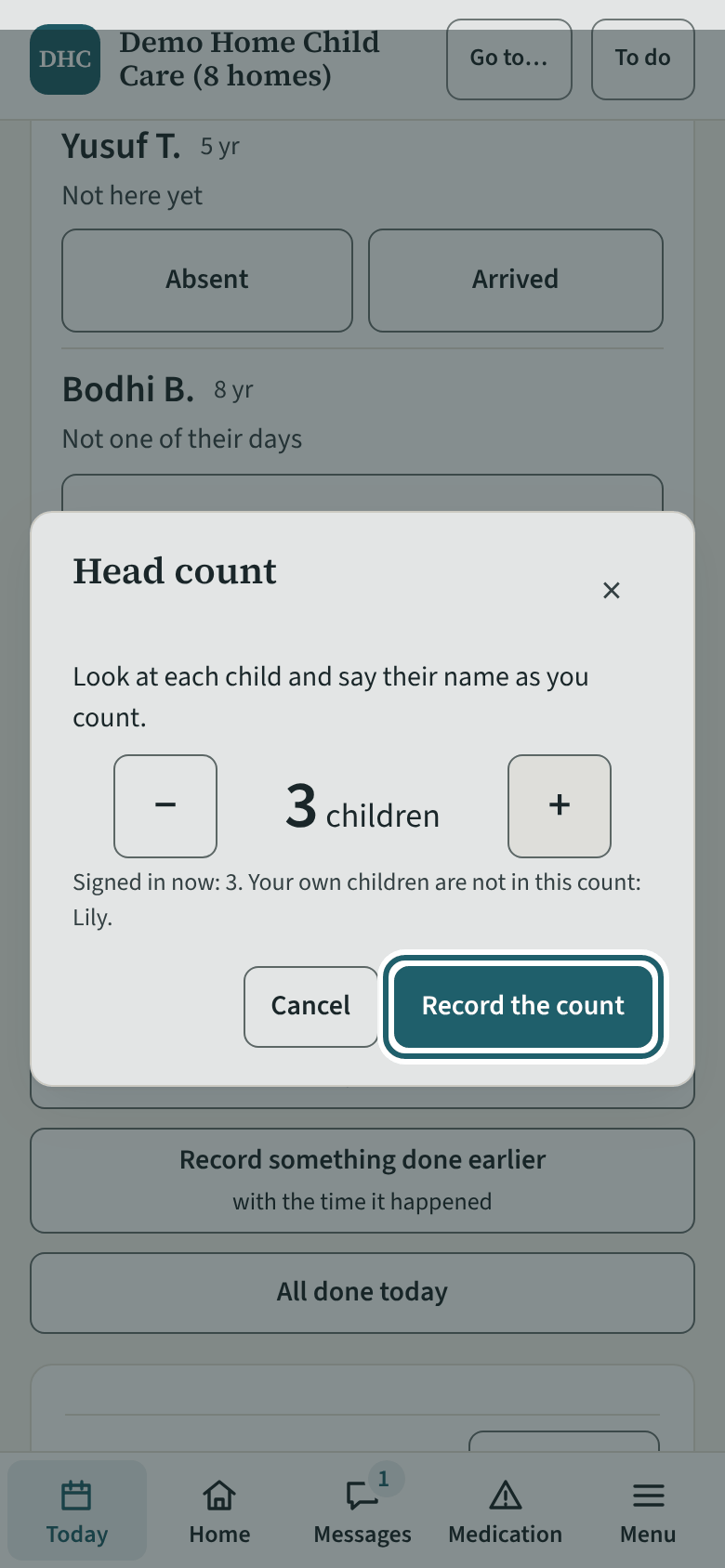
"Head count": look at each child and say their name as you count. If the number differs from who is signed in, say what happened. Record the count.
-
Also today
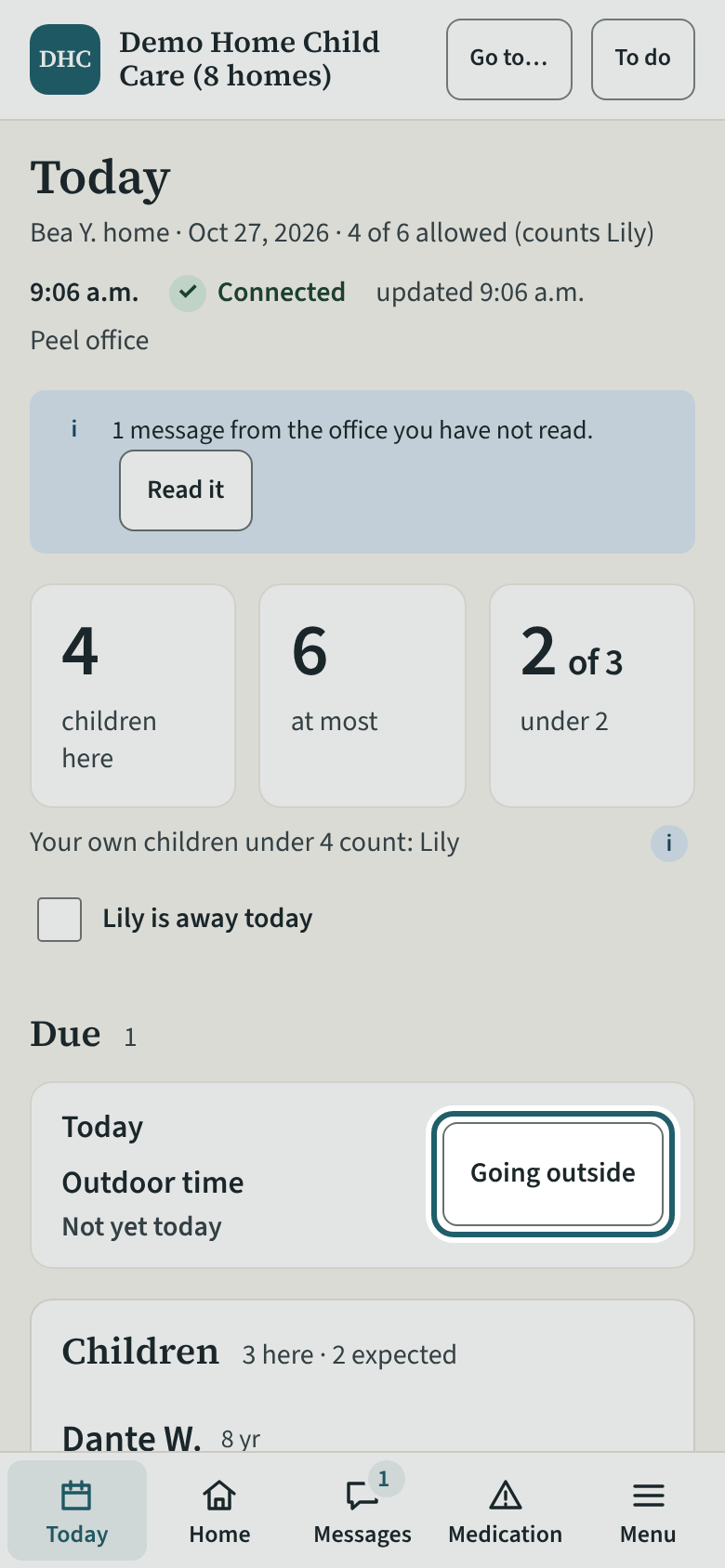
"Also today": the head count, Going outside and Back inside, medication, an incident, something done earlier, and All done today.
-
A child goes to sleep
Tap Asleep beside the child: the row says since when and when the next check is due. A child under 12 months is asked how they were placed first.
Watch out: A child under 12 months is placed as the safe sleep statement recommends unless the doctor wrote otherwise (s. 33.1(1)); the tap records which.
-
The sleep check
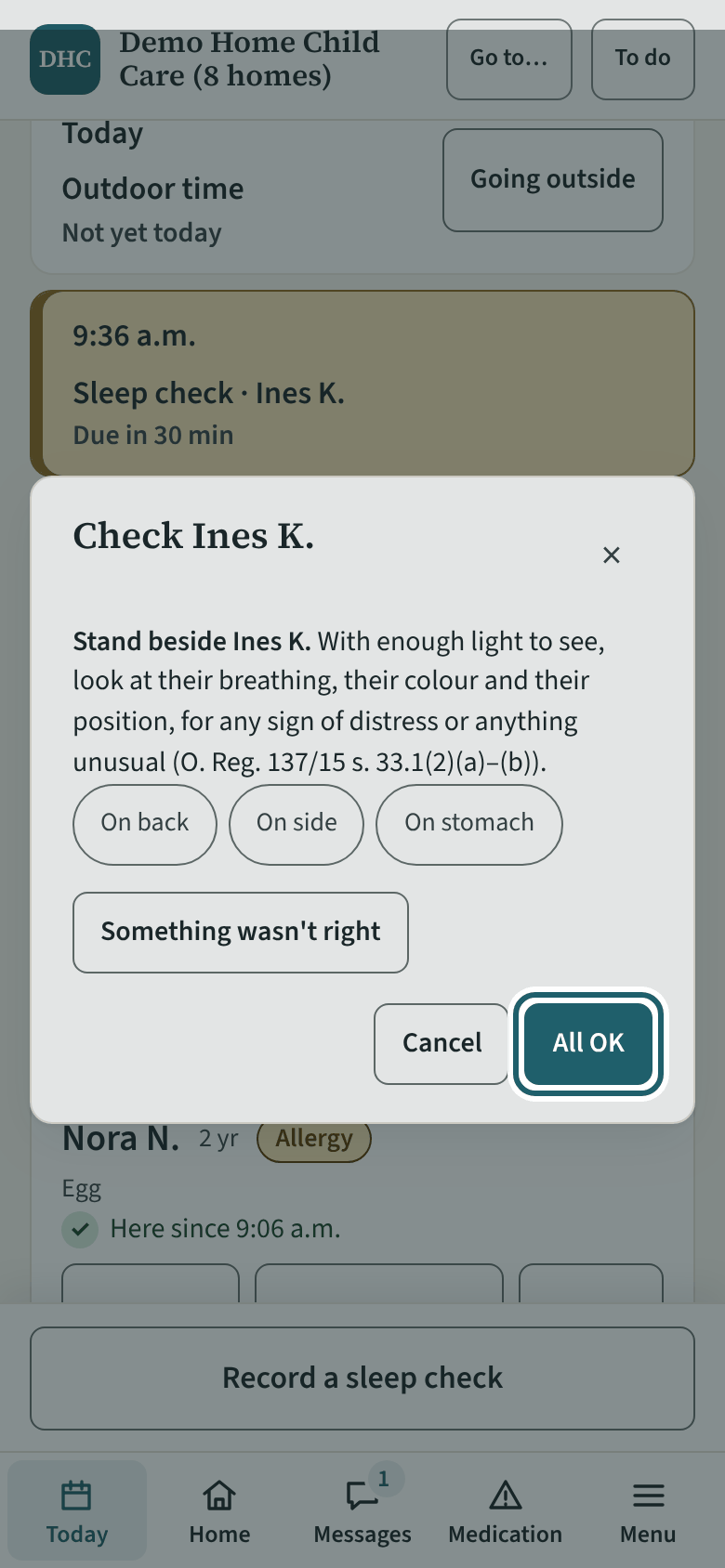
"Checked": stand beside the child, with enough light to see; note their position; then "All OK", or "Something wasn't right".
Watch out: Stand beside the child, with enough light to see. A sleep monitor never replaces the check (s. 33.1(5)(d)).
-
A child leaves
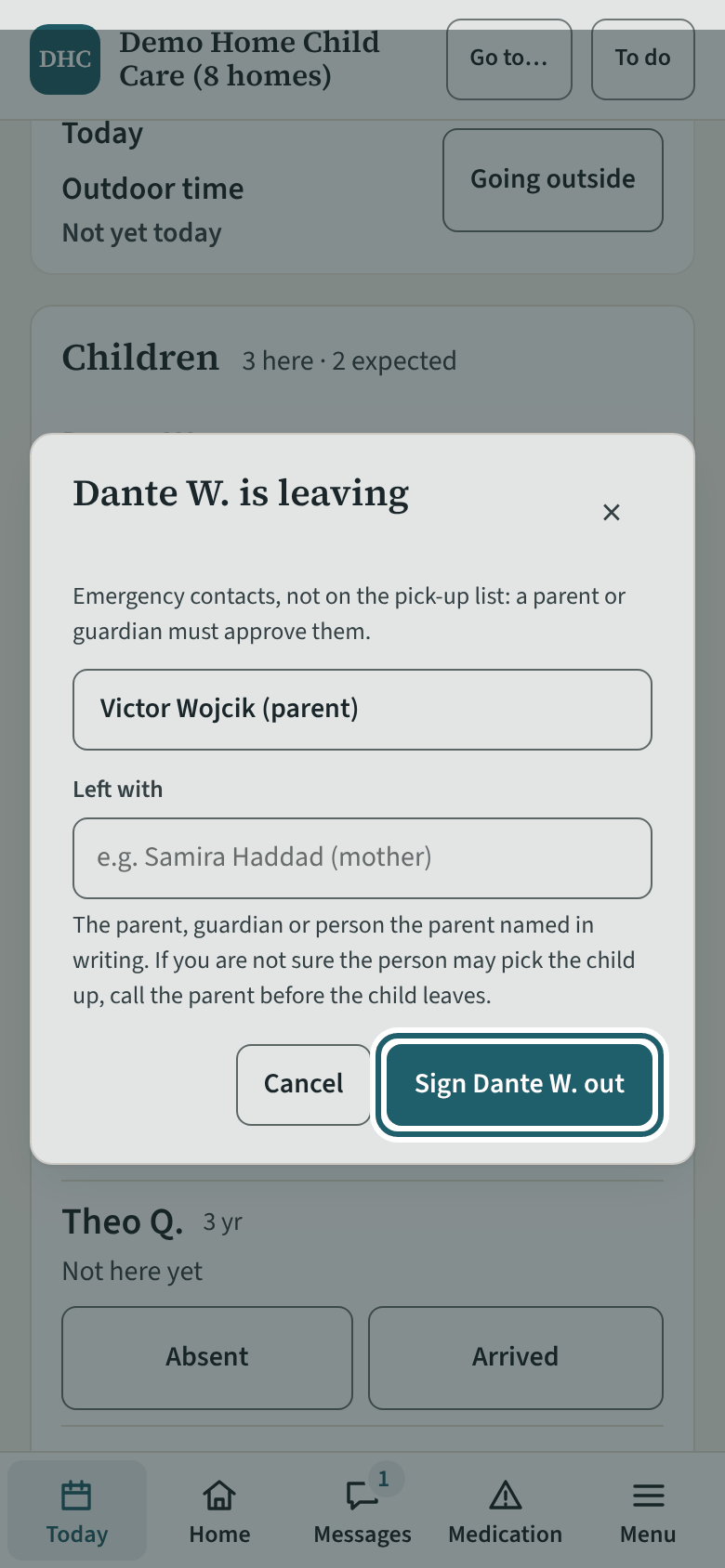
"Left": tap who picked the child up from the list, or type the name under Left with; answer the question if they are not on the list; then Sign the child out.
Watch out: A name not on the list: KeepCount asks whether a parent approved the person; if not, don't release: call the office, whose number is on the screen. A sleeping child is woken first.
-
Something done earlier
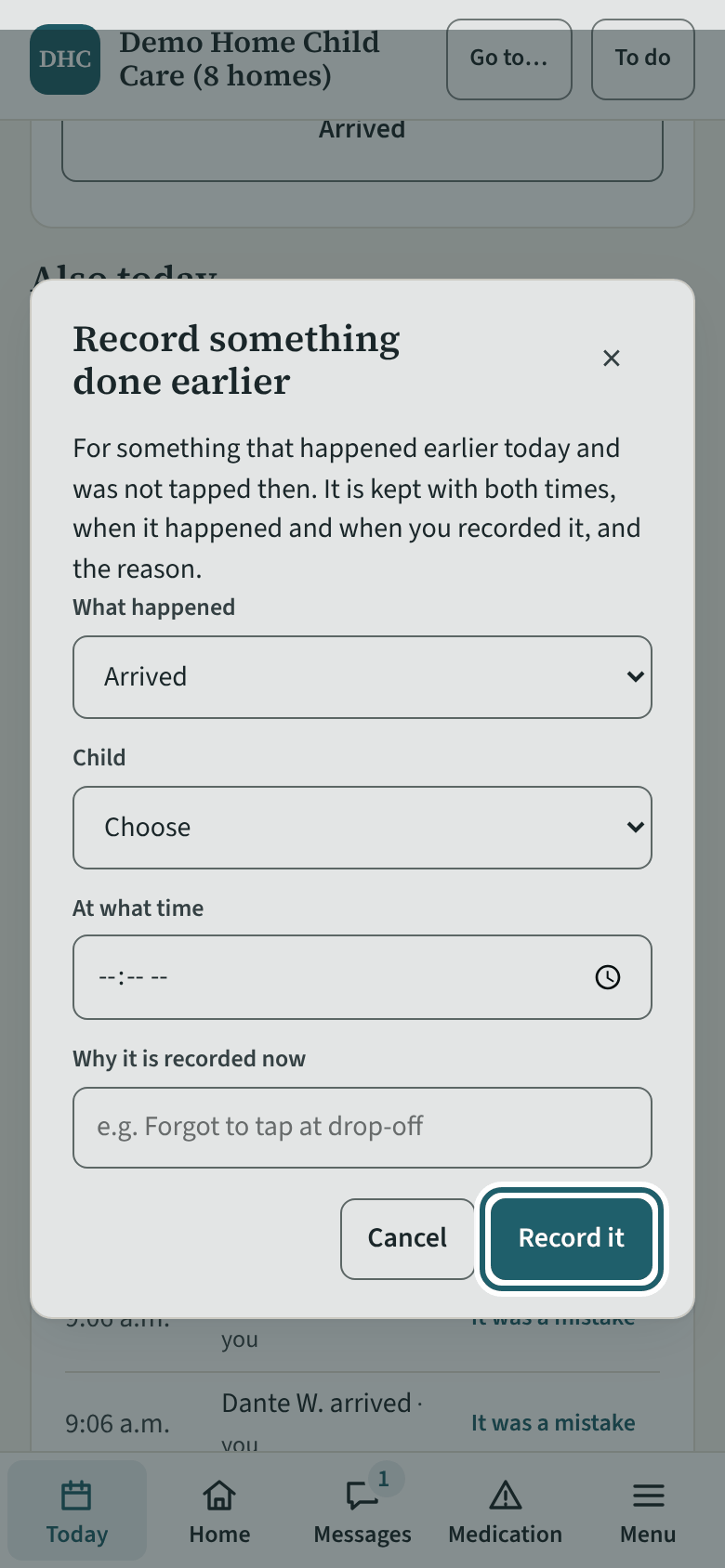
"Record something done earlier": what happened (arrived, left, asleep, a check, awake, a head count), the child, at what time, and why it is recorded now.
Watch out: The record keeps both times and the reason; it is how a day without a connection is entered from your paper notes.
-
All done today
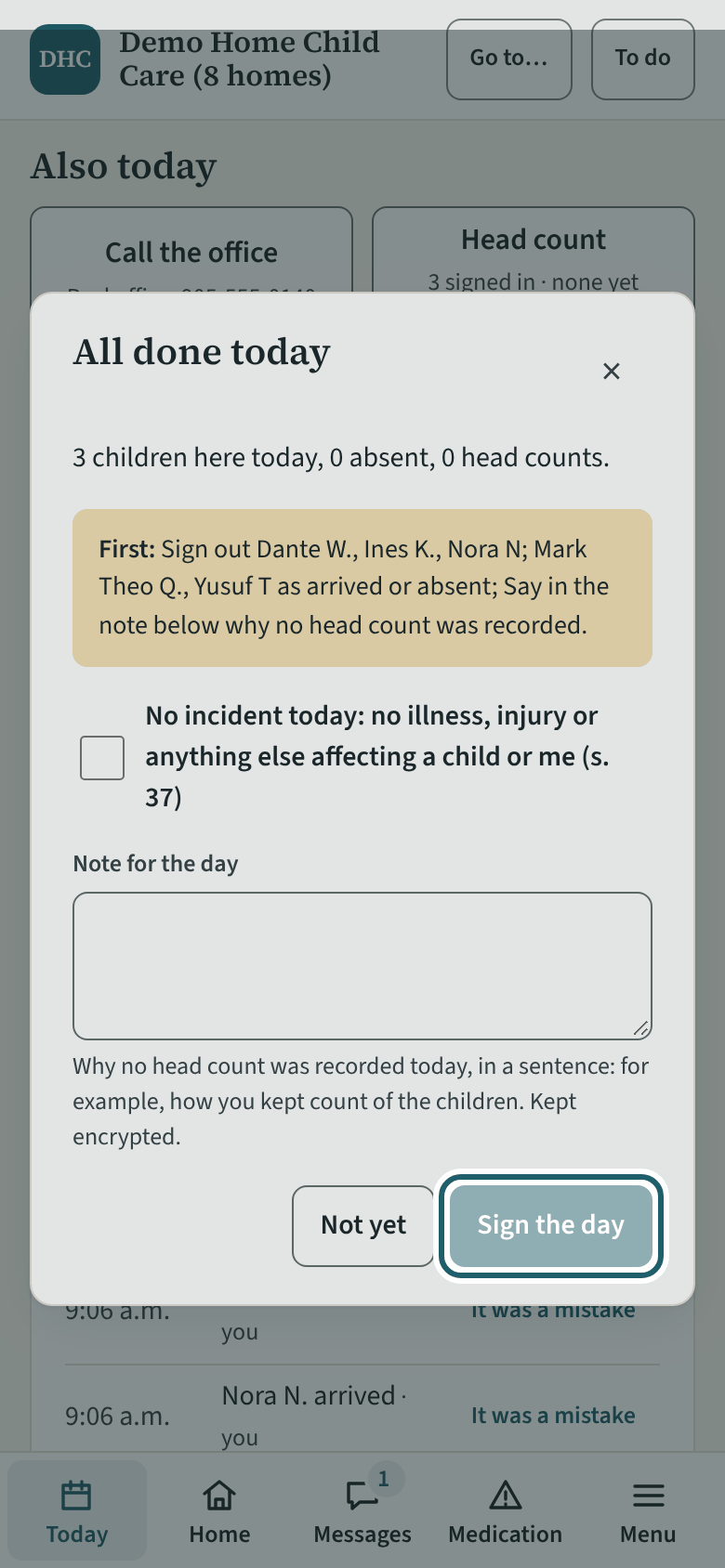
At the end of the day, "All done today": what is still to do first, the statement that no incident affected a child or you, and Sign the day.
Watch out: Report an incident first if something did happen: the checkbox says no incident affected a child or you (s. 37).
-
Today so far, and earlier days
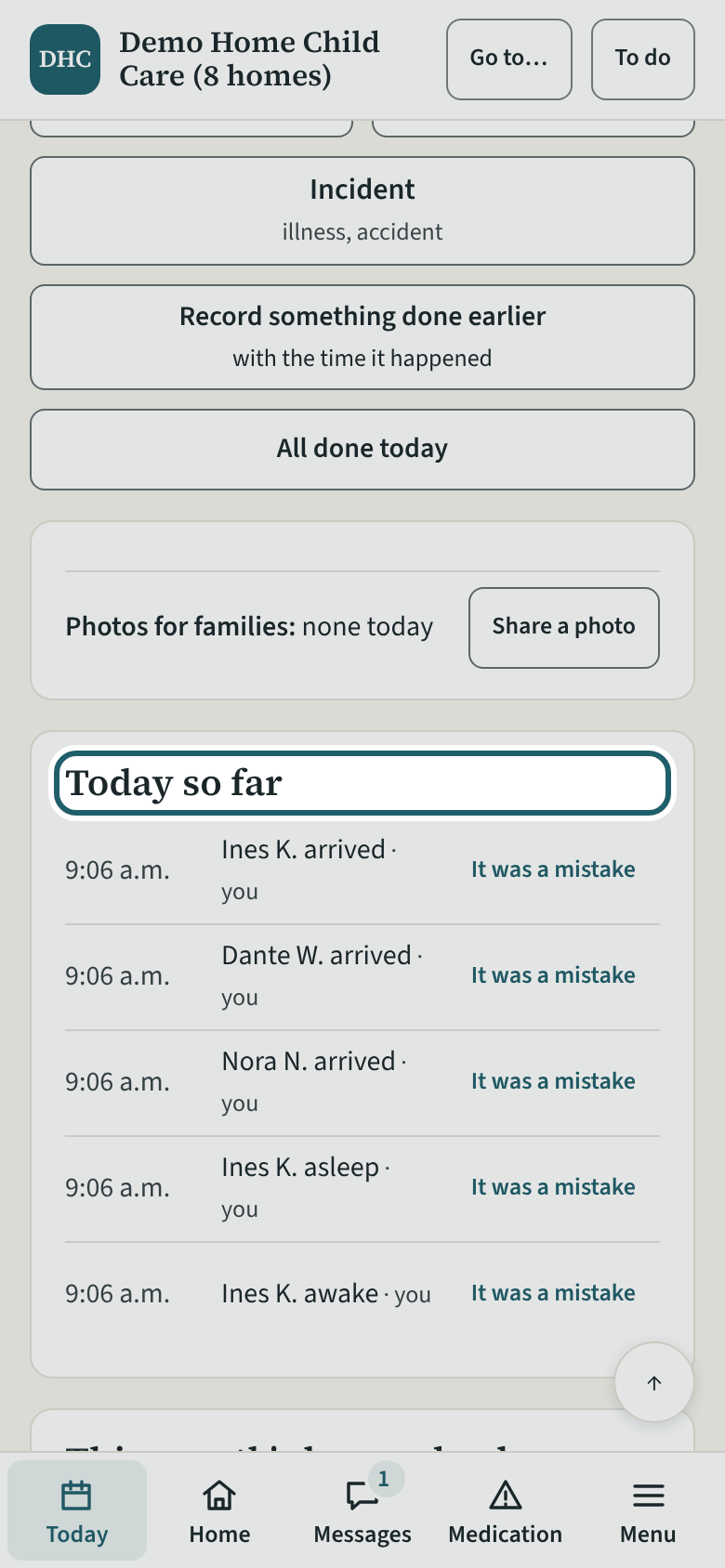
"Today so far" lists each record of the day with its time, and It was a mistake or Correct the time beside each. "Earlier days" shows up to three months back.
Watch out: Nothing is deleted: a mistake stays on the record with its mark, and a corrected time keeps the original.
-
Without a connection
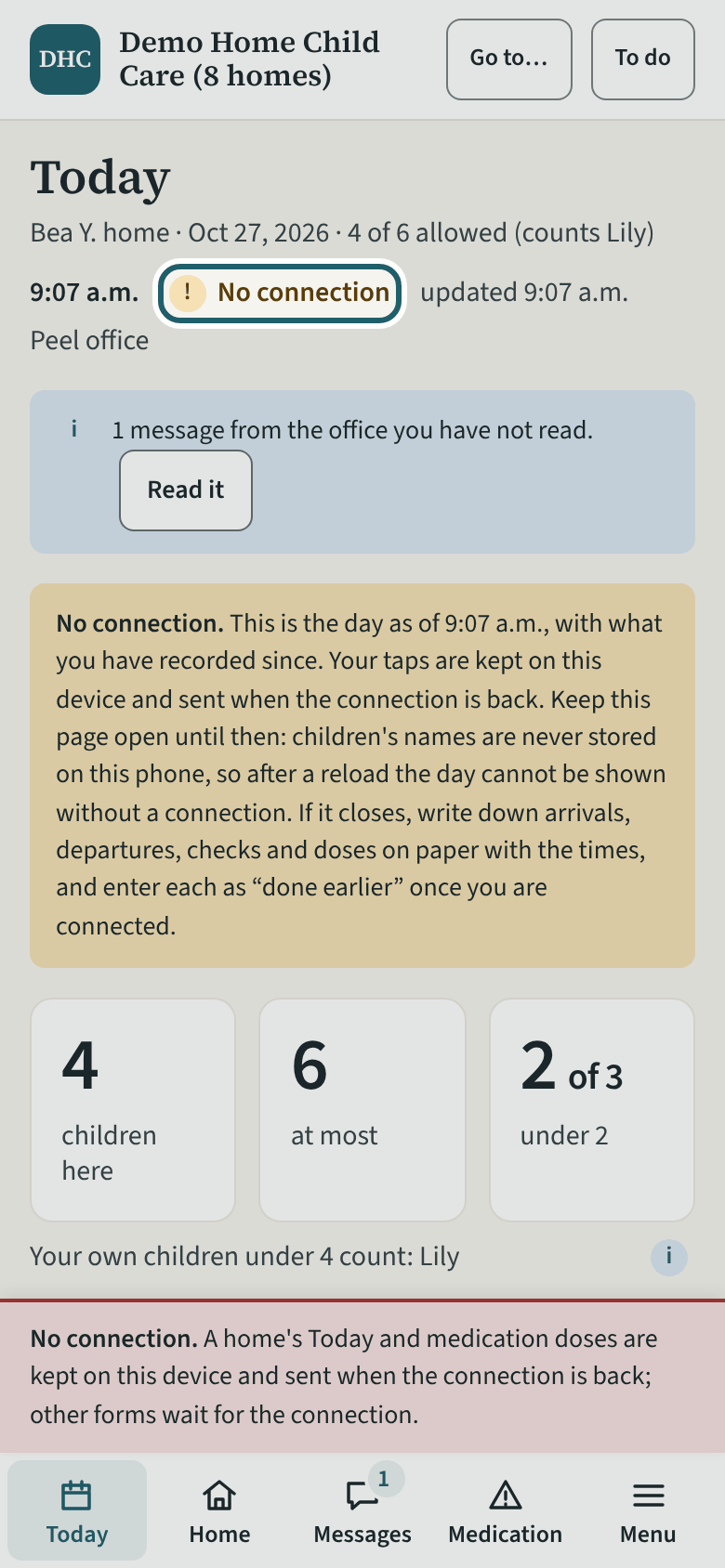
Without a connection your taps are kept on this phone and sent when it is back. Keep Today open; children's names are never stored on the phone.
Watch out: Children's names are never stored on the phone: if the page closes, write arrivals, departures, checks and doses on paper with the times, and enter each as "done earlier" once connected.
Your first week
Your home page and the agency's list for you: the policies and their quizzes, training, an incident, medication, the evacuation list, your documents, messages, Help and the tour.
-
Your home page
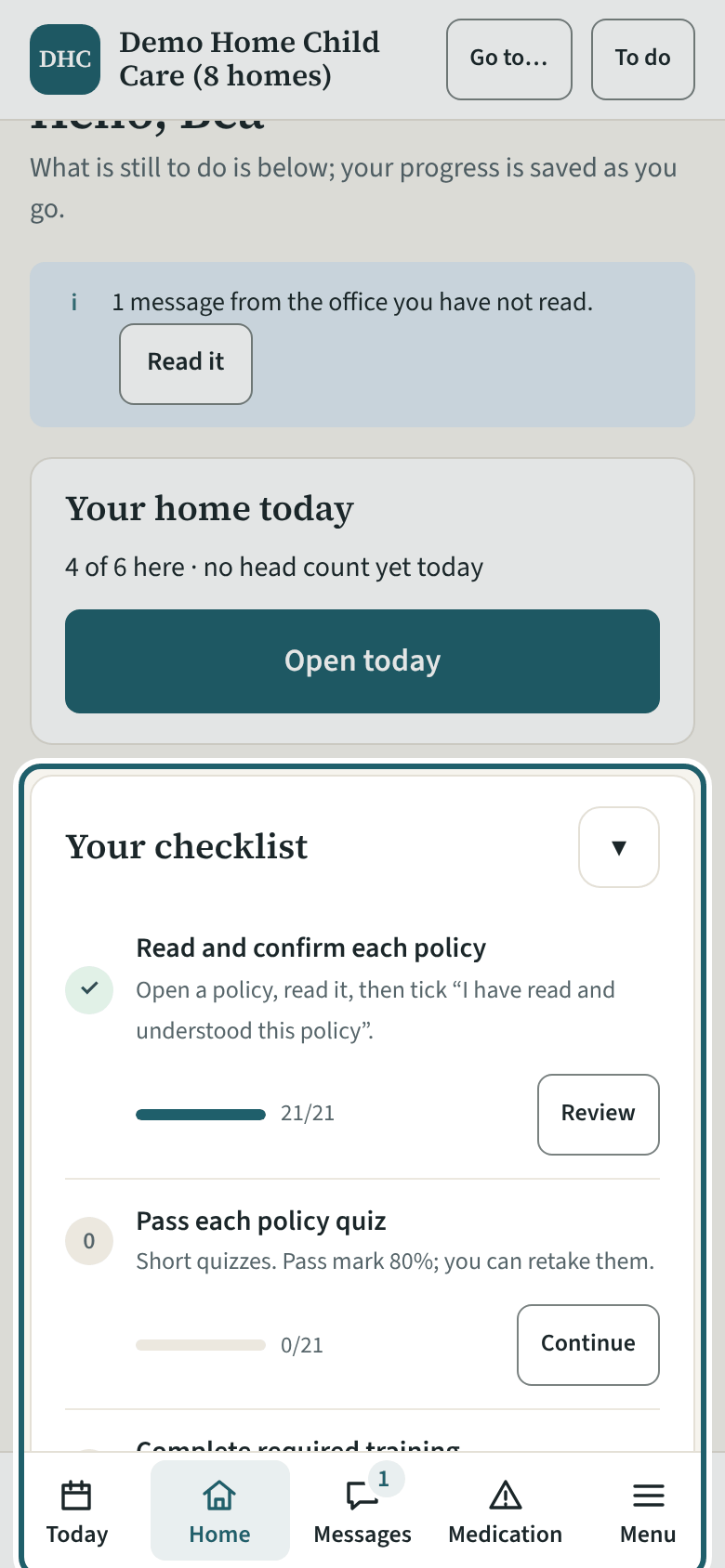
Your home page: your home today, your screening documents when one needs you, and Your checklist: confirm each policy, pass each quiz, complete the training.
-
Policies
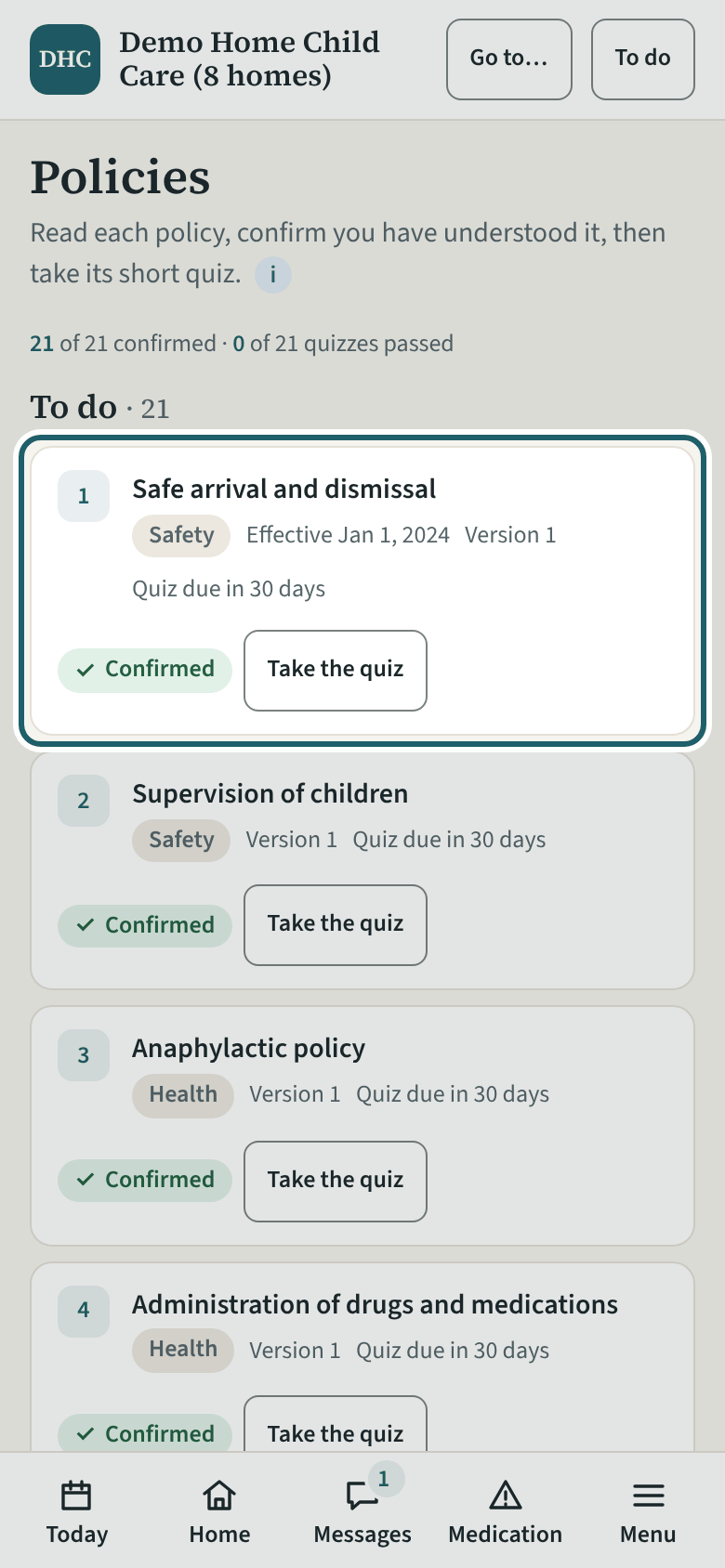
Open Policies and work through the list: each policy shows To read until you confirm it, and Quiz until you pass its quiz.
Watch out: Your confirmation, with its version and date, is the record that you reviewed each policy; a changed policy comes back to confirm again.
-
The quiz
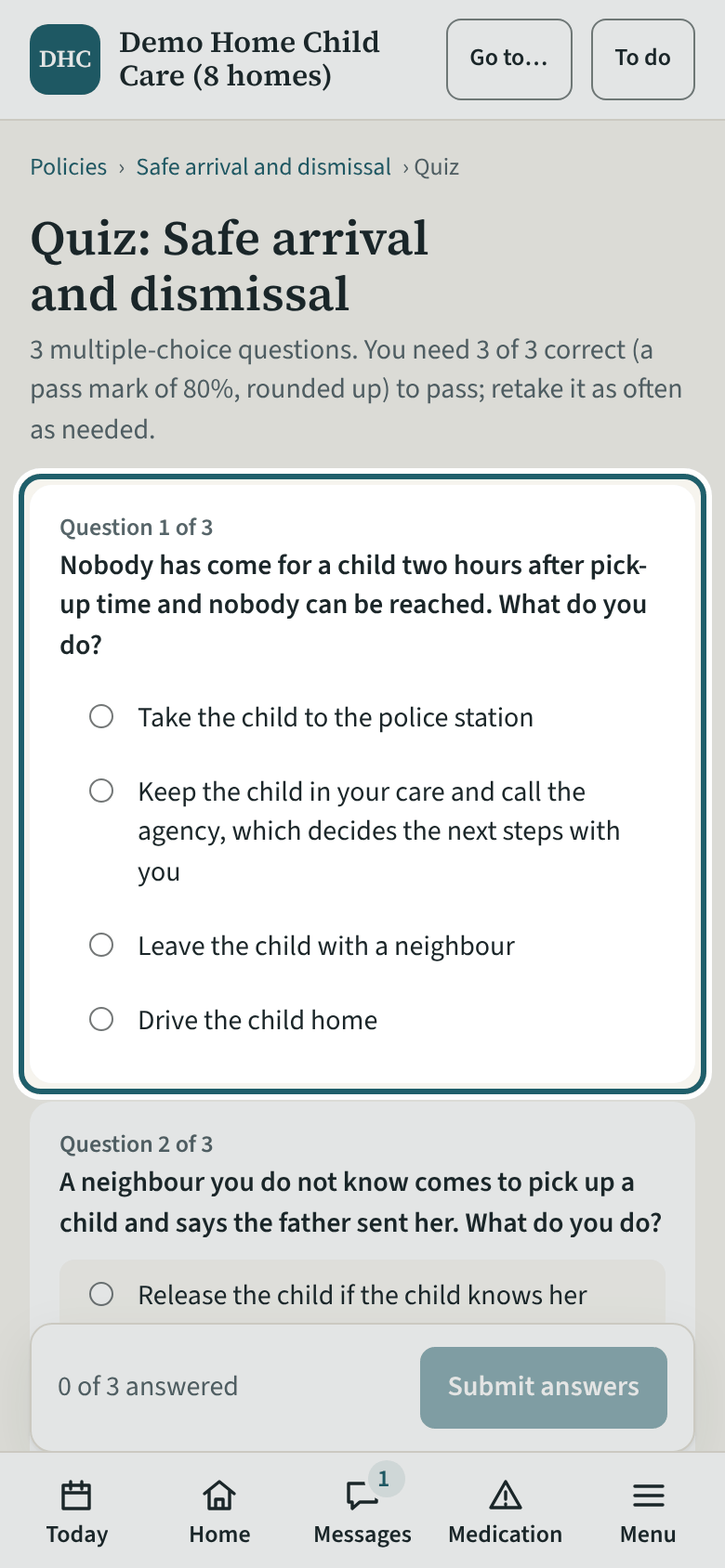
Take the quiz after confirming. The pass mark is your agency's setting (80% unless it chose otherwise), and you can retake it as often as you need.
-
Training
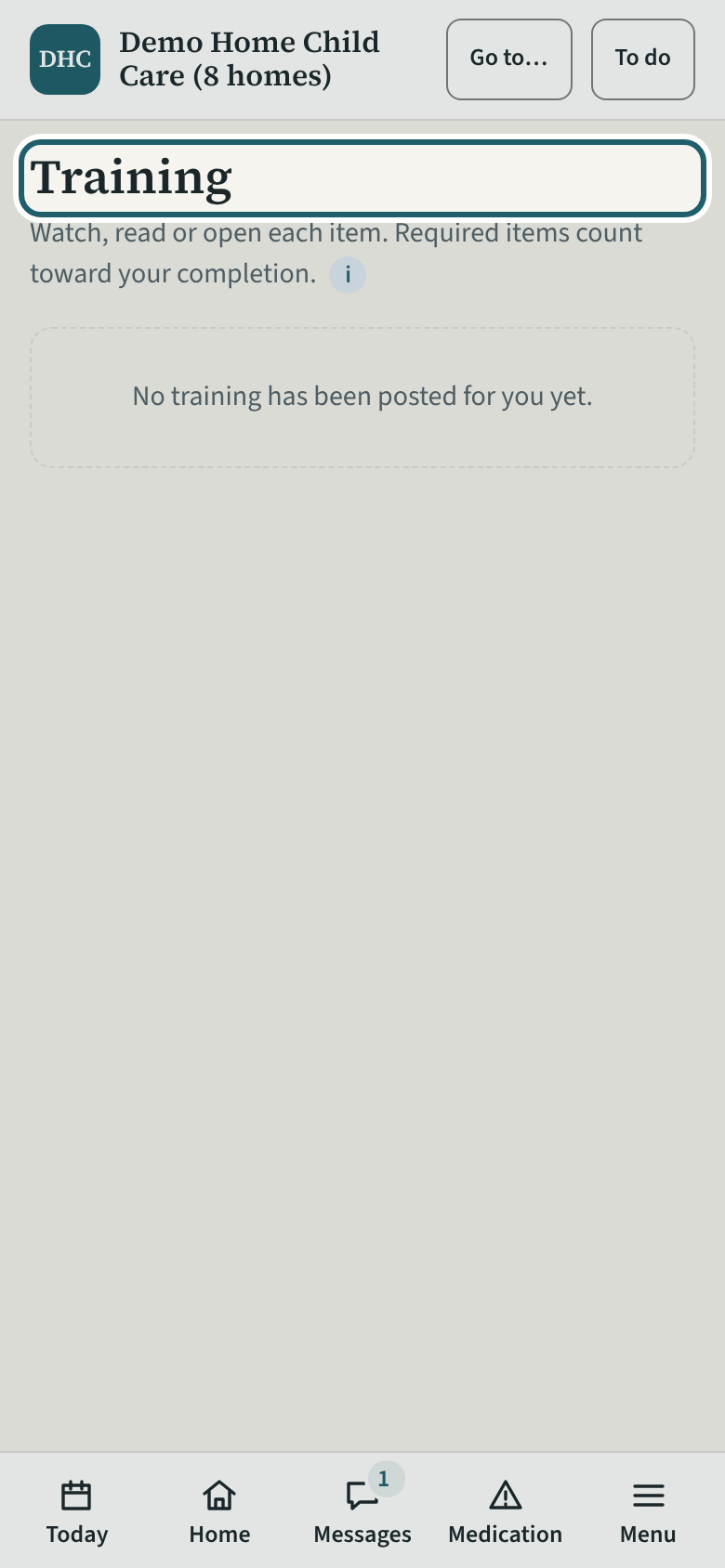
Training lists what the agency assigned to you, each with what to do and a due date.
Watch out: Your first aid is separate: standard first aid with infant and child CPR (s. 58(2)); its expiry is under My details, with a reminder before it lapses.
-
Report an incident
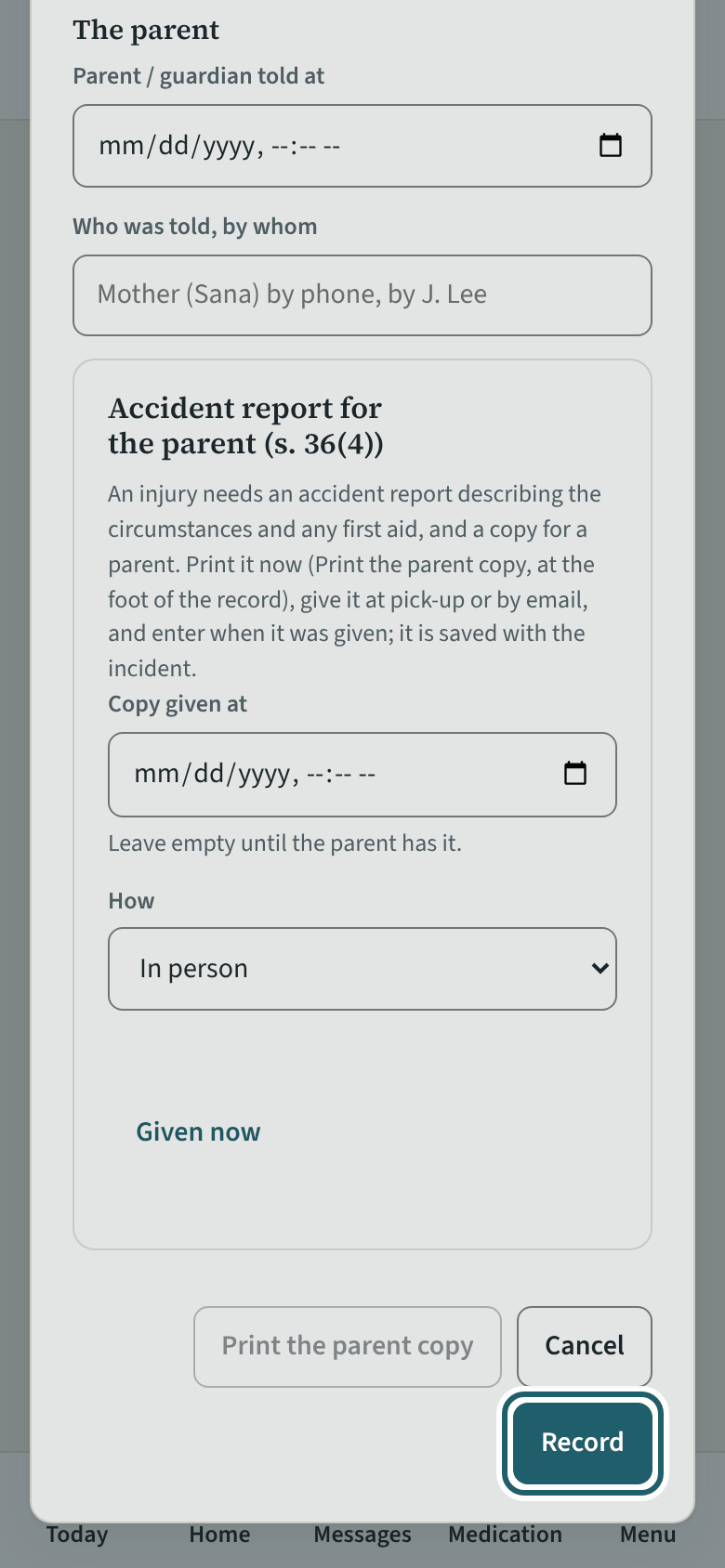
Anything that affected a child's health, safety or well-being: "Report an incident". A child missing: search, call 9-1-1 if not found, then phone the agency.
Watch out: Suspected abuse or neglect: report it yourself to a children's aid society now (Child, Youth and Family Services Act, 2017, section 125); telling the agency does not replace it.
-
Medication
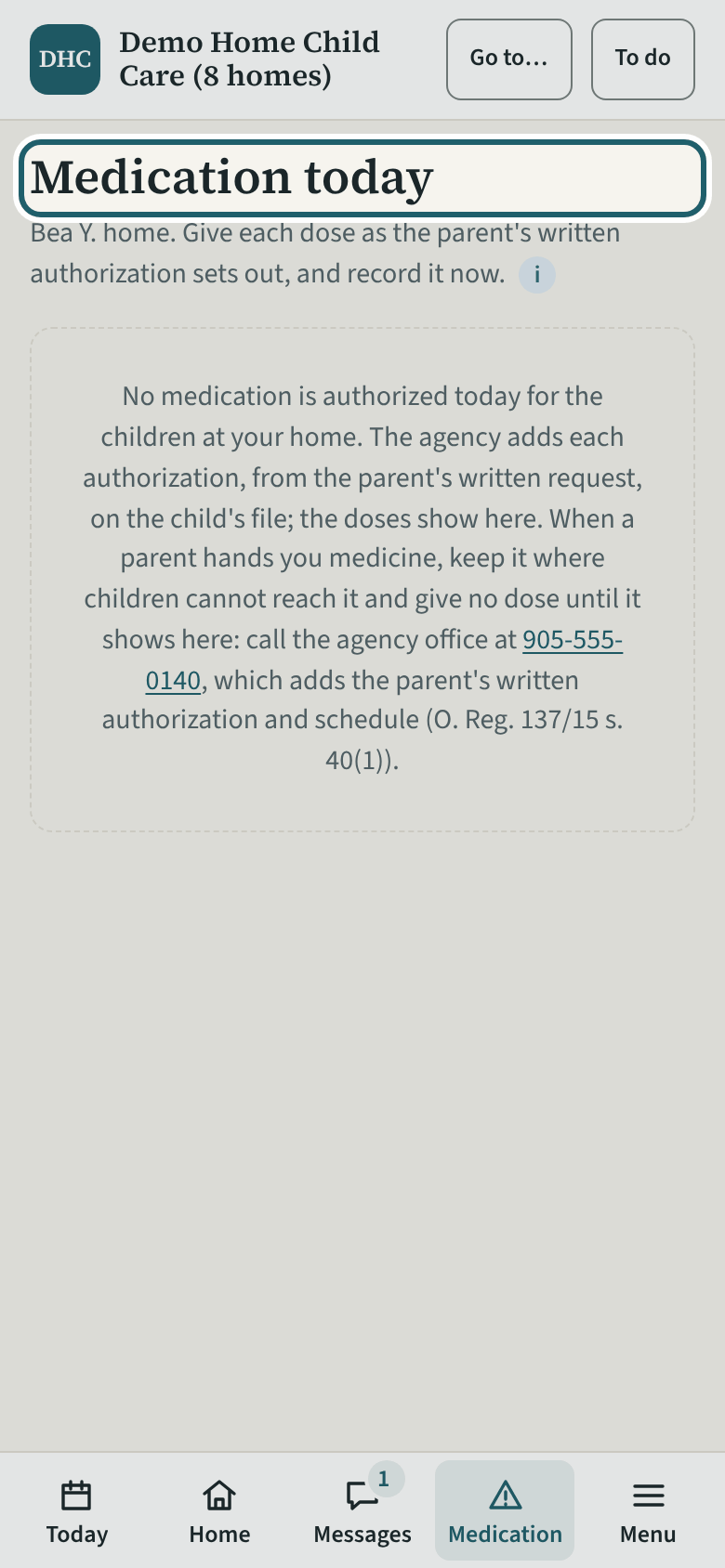
Medication today: the scheduled doses, the medication given on symptoms, sunscreen and other products, from the parent's written authorization. Record the dose.
Watch out: Only from the parent's written authorization the agency added to the child's file (s. 40(1)); a missed dose opens an incident to record.
-
The evacuation list
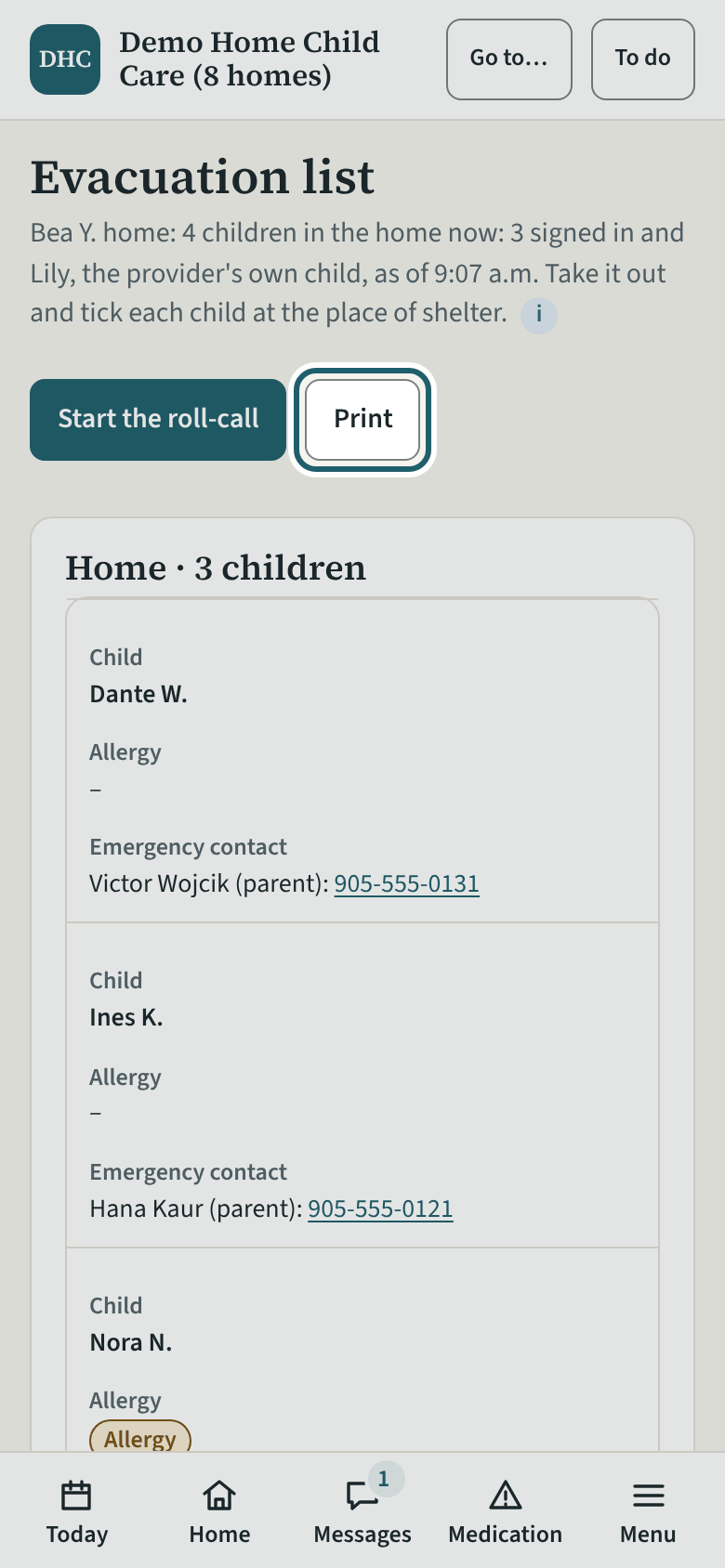
The evacuation list: every child signed in now, their allergy and emergency contact, and a tick for each at the place of shelter. Print it for the drill.
Watch out: Print it for the drill: the list keeps working without a connection from what it last read. Ask your home visitor where the emergency numbers are posted.
-
My details
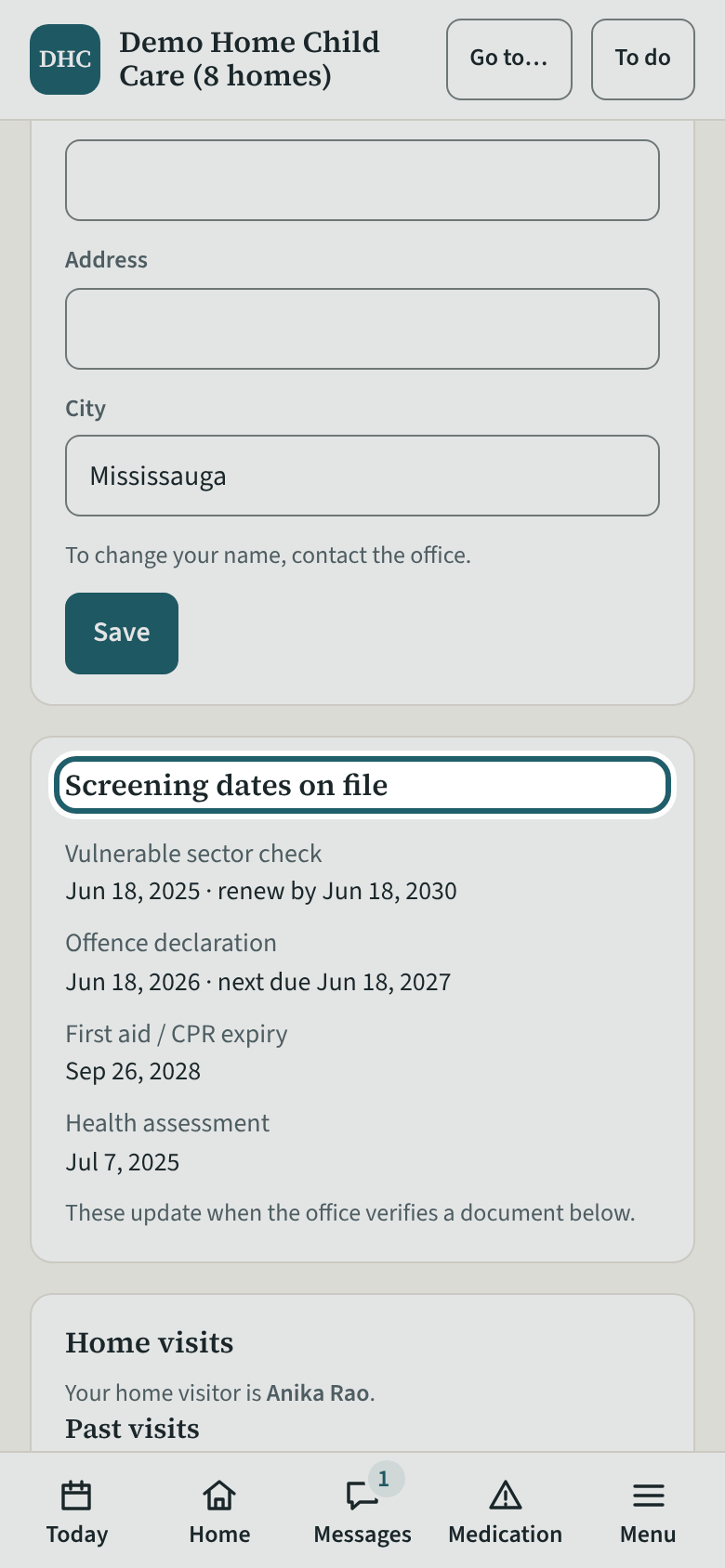
My details: your contact details, your screening dates and your documents. Upload a newer document when the agency asks; the office checks it before it counts.
Watch out: Tell the agency as soon as reasonably possible after any conviction under the Criminal Code (s. 62(4)). Your household's checks are kept by the agency; your own are here.
-
Messages
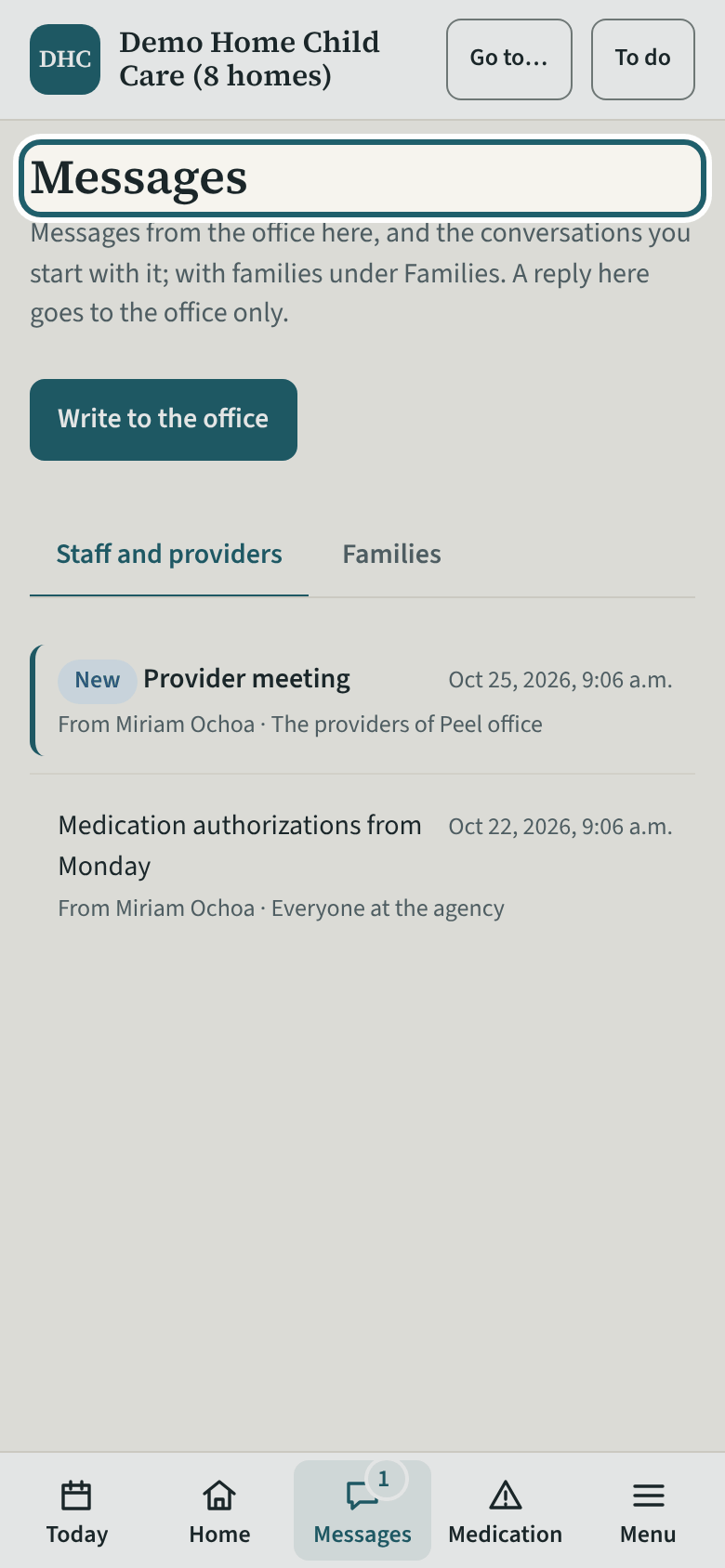
Messages from the agency show on your home screen until you read them. A reply goes to the office only.
Watch out: No child's health details go in a message.
-
Help and the tour
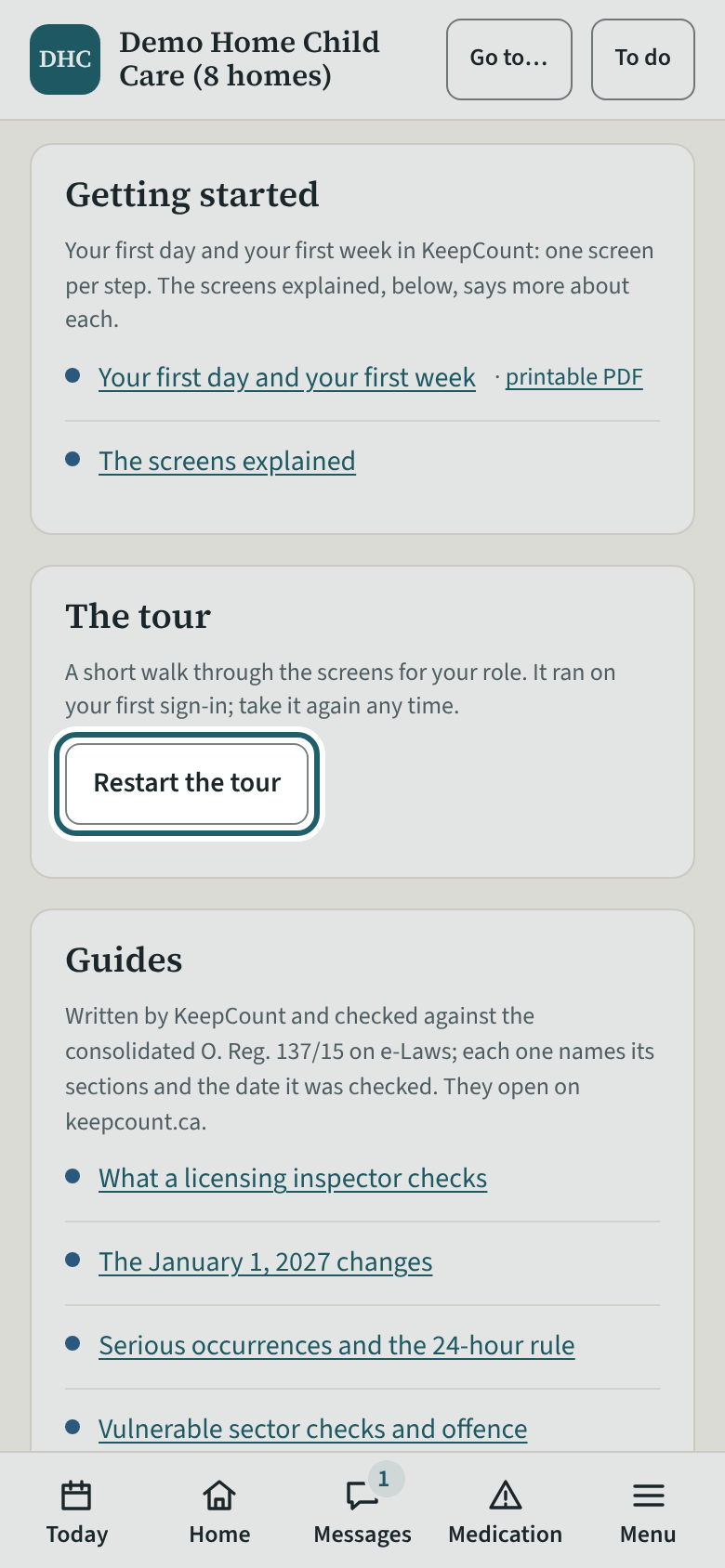
Help has the guides to the regulation, the glossary, who to ask, "Report a problem", and "Restart the tour", which walks your seven screens again.
Watch out: "Report a problem" goes to KeepCount support only, never to your agency: say what you did and what you saw, without a child's name or health details.