Step 1 of 24 · Your first day
Sign in
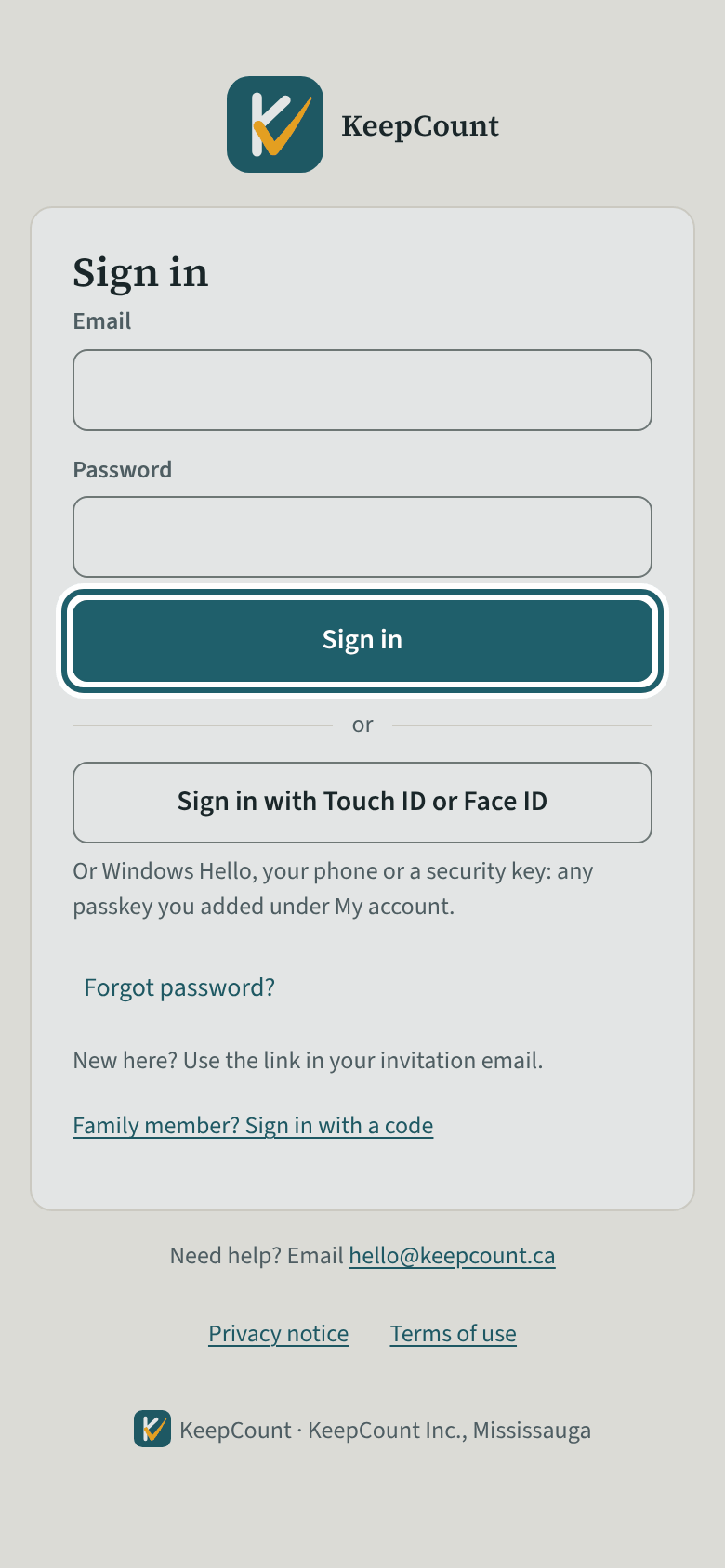
Open the link in the email from your agency and choose a password. After that, sign in with your email and that password.
Watch out: "Install KeepCount" under My details shows only when your browser offers it; on an iPhone use Share, then "Add to Home Screen". Your agency answers about your home, the children and your dates; KeepCount support, the system.
More about this
Your agency adds you and sends the invitation. The link opens "Choose a password"; type it twice and tap "Save and continue". You land on Today. A short tour of seven screens starts the first time; skip it or take it again from Help. On a phone the bar at the foot has Today, Home, Messages, Medication and Menu; "Install KeepCount" under My details puts KeepCount beside your other apps, but it shows only when your browser offers to install it (on an iPhone, tap Share, then "Add to Home Screen").
Your agency sees each record as you make it, and its home visitor reads the same records at a visit. KeepCount support ([email protected]) answers questions about the system itself; your agency answers everything about your home, the children and your dates.
To sign out of KeepCount, use Sign out at the top right of the screen; on a phone it is at the foot of the menu. If records made without a connection are still waiting to send, KeepCount says so and asks before it signs you out.
Your agency's words for people and its policies may differ; the screens are the same. The screen is from KeepCount 0.99.144, captured October 27, 2026 in a demonstration organization: everyone in it is fictional. Section numbers are O. Reg. 137/15 (General) under the Child Care and Early Years Act, 2014, read on e-Laws on October 20, 2026. This explains how KeepCount works; it is not legal advice, and the Ministry's program advisors decide compliance.